










Use your Inbox
On this page
The Inbox is one page that answers two questions: what do I need to do, and what happened. It collects the work waiting on you across PlatoForms (an approval to decide, a form to fill in, files to review, a renewal to send, a paper import to check, a team invitation, a request from a team member) and the alerts about your account (a failed payment, a cloud drive to reconnect, a webhook that was turned off), followed by a quieter list of updates (new submissions, finished workflows) and a record of what was done recently.
You do not need to set anything up. Every signed-in person has an Inbox, and items appear and leave by themselves as the work is done anywhere in PlatoForms.
Open your Inbox
Click Inbox in the left navigation, or the bell in the top bar of any page. The number on both is the work waiting on you: the items that need your attention plus the alerts. Updates never count, so the number always means something to do.
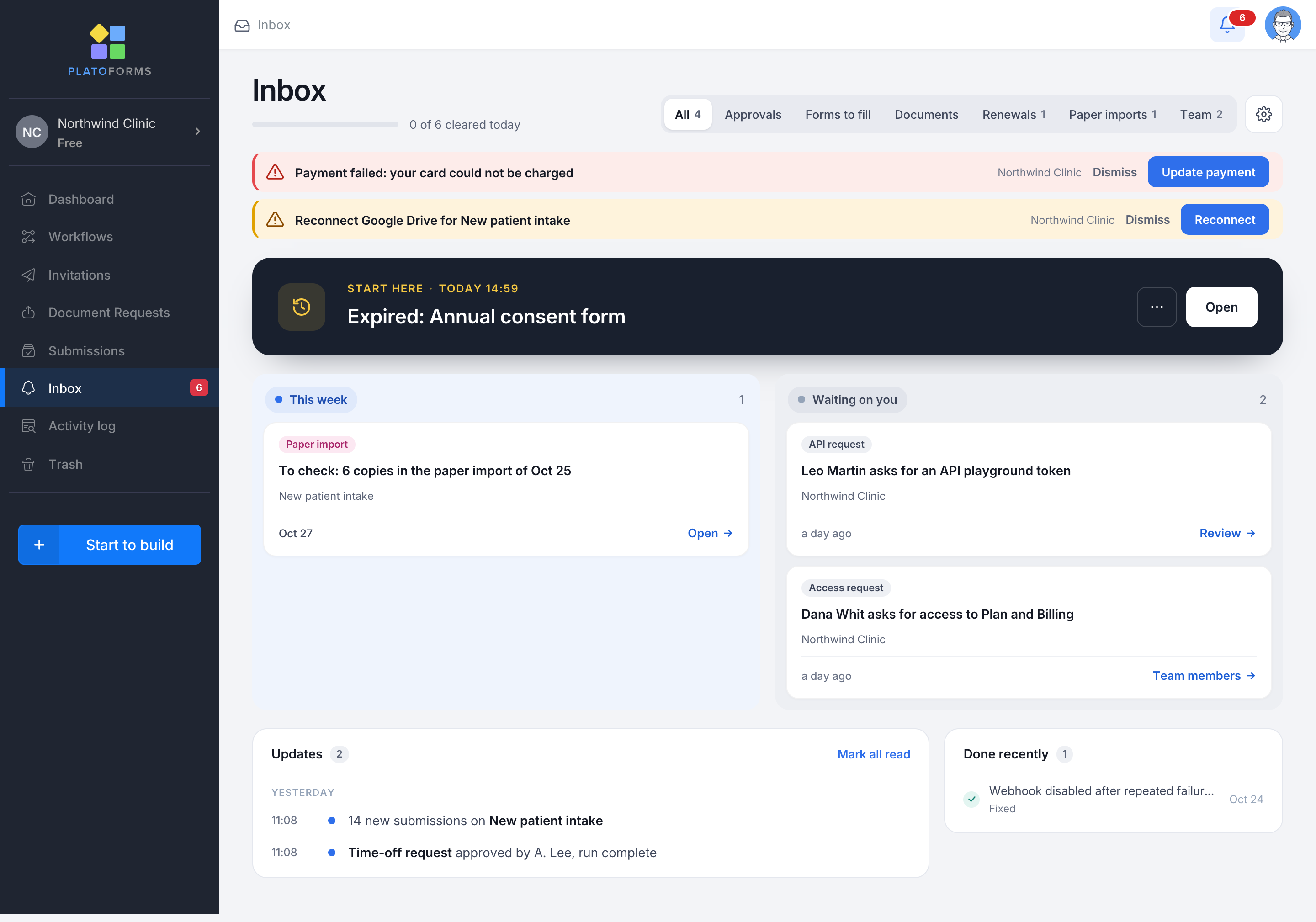
The bell opens a small panel with the alerts, your three most urgent items and Open Inbox. The bell is red when anything is overdue or an alert is open, blue when work is only waiting, and shows a quiet blue dot when the only news is unread updates.
The Dashboard also shows a card with the same items for the team you are working in. Its chevron collapses it to one line, and PlatoForms remembers that choice on every device.
Read the page
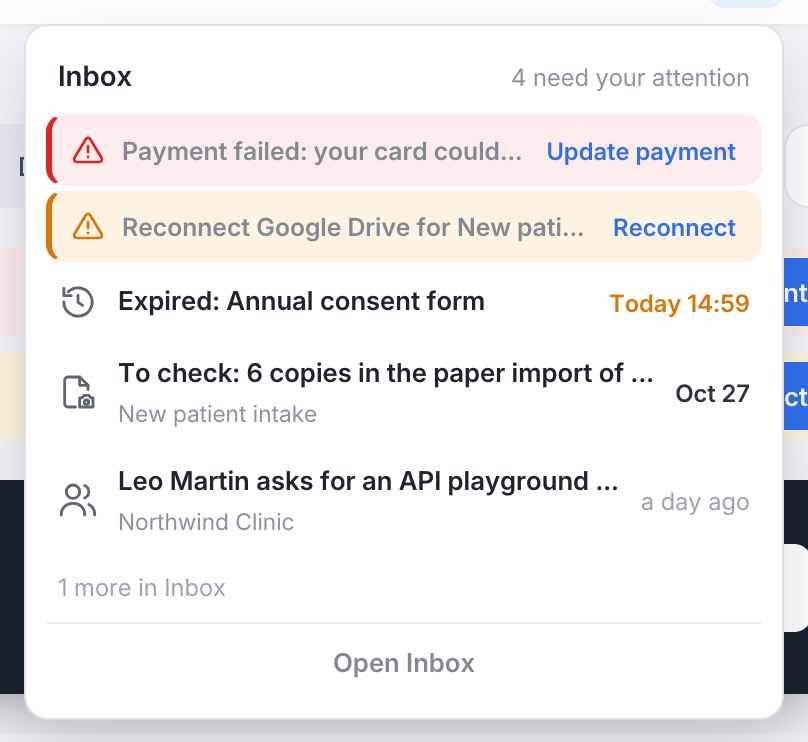
From top to bottom:
- Alerts. Red or amber rows about your account: Payment failed, Reconnect Google Drive for …, Webhook disabled after repeated failures, a submission email that went out without its PDF, an email sender that is no longer verified, a Twilio connection that stopped, email notifications paused. Each row has one button that takes you to the fix. An alert leaves by itself once the cause is gone. Dismiss hides it until the cause comes back.
- Start here. Your single most urgent item in a dark panel, with when it is due and one button that opens the place where the work is done.
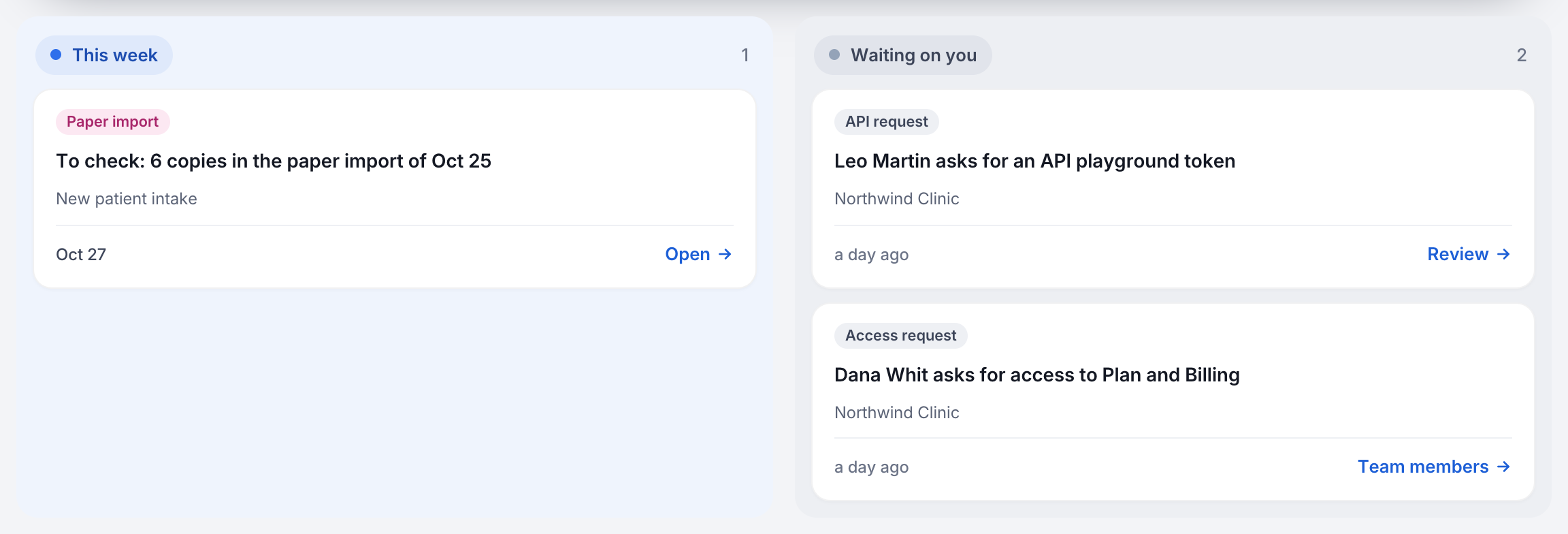
- The lanes. The rest of your work as cards in Overdue, Today, This week and Waiting on you. Only lanes with items are shown. Each card names its type (Approval, Form to fill, Documents, Renewal, Paper import, Team invitation, Access request, API request), the title, where it comes from, when it is due and the action. Click the card to go there. A lane shows six cards, then Show N more.
- Snoozed. A collapsed line with the items you set aside, each with when it comes back and Bring back.
- Updates. New submissions, one line per form and day (“14 new submissions on New patient intake”), and finished workflow runs (“Time-off request approved by A. Lee, run complete”). A blue dot marks what you have not opened yet. Hover a submission line and click the chevron to see the latest five submissions of that day with their time; Open Submissions opens the form’s submissions.
- Done recently. What was finished in the last 30 days, with who did it: “Approved by you”, “Done by Anna Cole”, “Fixed”. When a teammate clears a shared item such as files to review, it moves here for everyone.
The type tabs above the lanes (All, Approvals, Forms to fill, Documents, Renewals, Paper imports, Team) narrow the page in place. If you belong to several teams, All teams at the right lets you pick one, and every card names its team.
The Inbox never decides anything for you. Review opens the approval page with the submission, Fill opens the form, Send opens the Renewals tab. The one exception is a team invitation, which you can Accept or Ignore on the card itself.
Snooze an item
Open the … menu on a card and choose Snooze: Later today, Tomorrow 9:00, Next Monday 9:00 or Pick a date. The item waits in the Snoozed line and comes back by itself at that time. The toast offers Undo, and Bring back on the line returns it sooner.
Items that mirror real work cannot be dismissed. They leave when the work is done, by you or by anyone else. Alerts, requests and updates can be dismissed; alerts cannot be snoozed.
Done somewhere else
If you approve a step from the email, or a teammate reviews the files, the card shows the outcome in green for two seconds the next time the page refreshes, then leaves. The page refreshes by itself when something changes, when you return to its window, and when you reload it.
Get a text or a Slack message
On a paid plan you can have new items reach you outside PlatoForms: a text to your own mobile, a direct message to your own Slack account, or both. A message is one line, the item’s title and a link, never a name from a submission, a field value or a file. The link opens your Inbox with that item highlighted (after signing in, if needed). If the item was finished in the meantime, the page shows it under Done recently with “Already done”.
- Click your avatar in the top right, choose Account Settings, then the Notification tab.
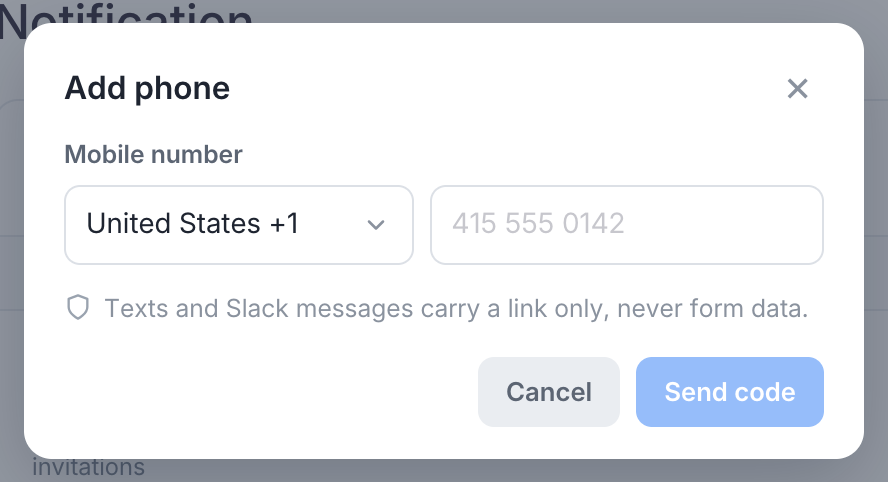
- For texts, click Add phone under the card, choose your country, enter your mobile number and click Send code. Type the six-digit code from the text and click Add phone. The line under the card now reads “SMS to +1 415 555 0142”.
- For Slack, click Connect Slack, choose your workspace on Slack’s page and allow direct messages. You come back to the tab with “Slack connected”.
- Turn on the switches you want in the SMS and Slack columns: Needs your attention and Alerts by text or Slack, Updates by Slack only.
Texts are charged to the team the item belongs to, at that team’s SMS rate, like any other text PlatoForms sends for the team. A text goes only while that team is on a paid plan and has SMS credit. Updates are never texted, and a form’s new submissions are messaged to Slack once a day, for the first one.
For the rest of the card, the emails PlatoForms sends you and the two limits on per-submission emails, see Choose what PlatoForms sends you.
Troubleshooting
| Symptom | What to check | Fix |
|---|---|---|
| The bell shows a number but the page looks empty | A type tab or a team is selected | Click All and choose All teams |
| A card stays after the work was done | The page has not refreshed since | Return to the window or reload; our system also re-checks every open item overnight |
| Accept on an invitation says the team has no seat left | The inviting team’s plan is at its member limit | The team owner frees a seat or upgrades, then Accept works |
| New submissions do not appear under Updates | The form’s Send to team members is off, or you cannot view that form’s submissions | Turn the switch on under the form’s Notifications > Notify Team Members, or ask for the Submission Viewer permission |
| No text arrives | The item’s team is on a free plan or has no SMS credit; the switch is off; the number was not verified | Check the plan and credit, the switch and the line under the card |
| A task sent to your email has no card | The task was sent to an address that is not the address of your PlatoForms account | Use the link in the email; a nudge of the task adds the card once the addresses match |