


To send a PDF for signature, make it a fillable form with a Signature field and send it to the signer by invitation. They sign in their browser, and you get the signed PDF back. When several people need to sign the same PDF, send it through a workflow so every signature lands on one document.
What we’ll cover:
Before you start
- A plan with e-signatures. Signature fields, signature certificates and workflows need a paid plan. Every new account starts with a 15-day free trial with access to all features, so you can try the whole process first.
- The PDF you want signed. Use the document you already have. If it is a Word file, convert it to a fillable PDF first.
- The signer’s email address. Sending by invitation is what lets PlatoForms record the email address that received the signing link.
Send a PDF to one signer
1. Make the PDF fillable. Upload your PDF and make a PDF fillable with AI field detection. The signer fills in the same layout you designed, and you get the same PDF back.
2. Add a Signature field. In the form builder, add a Signature field where the document needs to be signed, then publish the form. The signer can draw, type or upload their signature.

3. Send it by invitation. On the Dashboard, open the form’s Manage Form page and click Invitations under Share & access. Keep Tracking Invitation on, turn on Signature Certificate, enter the signer’s email address, and click Send Now. You can also add a reminder for people who haven’t signed yet. See Create an invitation for every setting.

4. The signer signs. They open the link in the email, fill in the PDF on a phone or computer, and sign. A one-sentence consent notice appears under the signature pad, and submitting the form completes the signing.

If you need a signature certificate, send the form by invitation rather than sharing its public link. A form filled in from its public link has no record of who received it, so it produces no certificate, although the Signature field still works there.
Get multiple signatures on one PDF
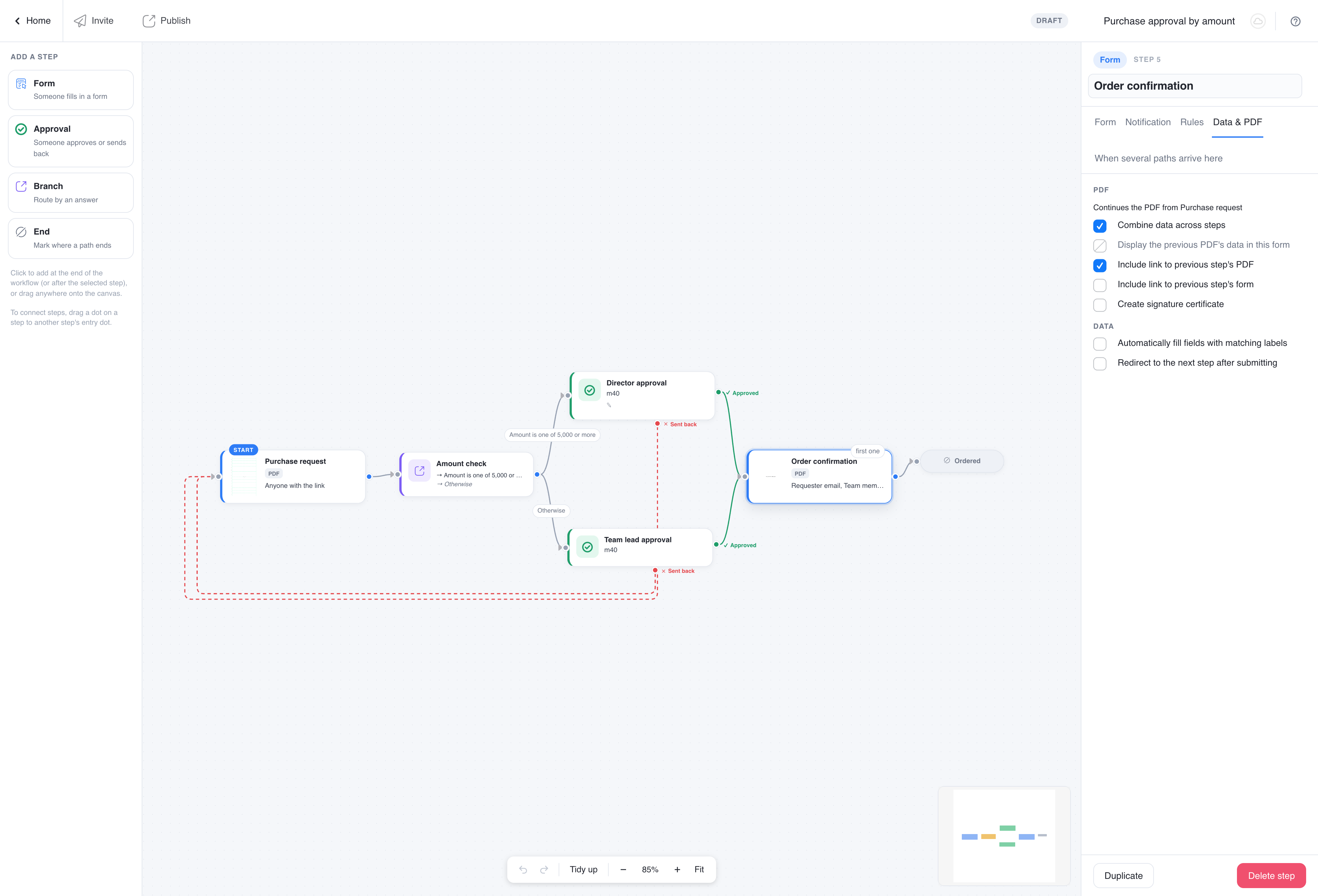
To have several people sign the same PDF, give each signer their own form and connect the forms in a workflow. Each later signer gets an email when their step is ready, and each signature prints onto the PDF from the step before, so the finished document carries every signature.
For example, a customer fills in and signs a form, then a manager countersigns:
-
Create the customer’s form from the PDF. Then clone it with Reuse PDF for the manager’s copy, remove every field except the manager’s signature, and publish both forms.
-
Create a workflow with the customer form as the start step, then click Form and pick the manager’s form.
-
On the manager’s step, set Send to these addresses on the Notification tab to the manager’s email. On the Data & PDF tab, turn on Combine data across steps so the signature prints onto the customer’s PDF, and Create signature certificate if you want one.
-
On the start step, set Who hears back to the field that holds the customer’s email address.
-
In the workflow panel, under Who is told when a run completes, tick Send to the person who started the workflow, so the customer receives the signed PDF.

The customer submits, the manager gets an email with a link, sees the customer’s answers on the PDF and signs, and the customer receives the completion email with the signed PDF attached.
For more signers, add one signing step per person. If two people must approve at the same time and both sign one document, follow Two approvers in parallel, one signed document in the workflow examples.
What you get back
Each signed PDF appears on the form’s Submissions page. From the submission’s actions you can download the signed PDF. If the signature certificate was turned on, you can also download the certificate or click Verify signatures online, and on forms that use the current default notification email, the certificate is attached to it.

The signature certificate records the signer’s email address, the time of signing, the consent notice they agreed to, the signed PDF’s fingerprint and a timeline of the signing. Anyone with the certificate’s verification link can upload the signed PDF and check whether it is the file that was signed.

See where electronic signatures are recognised, and which documents need a different method.
Sending a contract? How to send a contract for electronic signature covers contract-specific questions.
FAQ
How do I send a PDF for signature?
Upload the PDF to PlatoForms, make it fillable and add a Signature field. Publish it, then send it from the form’s Invitations page with Tracking Invitation and Signature Certificate turned on. The signer opens the link in the email, signs in their browser and submits, and the signed PDF appears on your Submissions page.
How do I send a document that needs a signature?
If the document is a PDF, upload it and add a Signature field where it needs to be signed. If it is a Word file, save it as a PDF first, or build a web form with a Signature field instead. Then send it by invitation, so PlatoForms records the email address that received the signing link and can produce a signature certificate.
How do I get multiple signatures on a PDF?
Give each signer their own form made from the same PDF, then connect the forms in a workflow, one step per signer. On every signing step after the first, turn on Combine data across steps, so each signature prints onto the PDF from the step before. The last step’s PDF carries every signature.


