


Google Forms has no approval step: each response is stored, and nobody is asked to approve it. To add approvals, install a third-party approval add-on, use Google Drive approvals if what needs approving is a file, or import the form into a form builder with approval workflows, such as PlatoForms.
What we’ll cover:
Can Google Forms handle approvals?
Google Forms can’t route a response for approval on its own. It stores each response in the form’s Responses tab and, if you link one, a Google Sheet. It has no step where a manager approves or rejects a response.
A common workaround is an email notification for each new response, followed by a reply or a status column in the linked sheet. That works for a few requests a week, but there is no dedicated approve button, no structured approval record attached to the response, and no built-in send-back action that reopens the request and tracks the revision.
Three ways to add approvals
The examples below use a leave request: an employee submits the dates they want off, and their manager approves the request or sends it back.
| Approval add-on for Google Forms | Google Drive approvals | Approval workflow in PlatoForms | |
|---|---|---|---|
| What gets approved | Google Forms responses, through the add-on’s own emails and links | A file in Drive, such as a Google Doc or a PDF | Form submissions, as steps in a workflow |
| Keeps your Google Form | Yes | Not used | Copies its questions, sections and supported question types into a new form |
| Good for | Simple approve or reject on requests you already collect in Google Forms | Approving a document, such as a contract or a policy | Requests that need several approvers, send-back for changes, a signature or a PDF |
| What to check | What the add-on can access, where it stores decisions, and its price | Only some Workspace editions include it | Workflows need a paid plan; the 15-day trial includes them |
In short: choose an add-on to keep collecting requests in Google Forms, Drive approvals when the thing being approved is a document, and a workflow tool when the request has to move between several people, go back for changes, or continue to another form.
Use an approval add-on
The Google Workspace Marketplace has third-party add-ons that add approvals to Google Forms. Many of them send approvers an email with approve and reject links, then write the decision to the linked Google Sheet. They are made by other companies, not Google, and each one works differently.
To find one, open your form, click More, then Add-ons, and search for “approval”. Click an add-on to see its details, then Install. Before you click Allow, read the permissions request, and compare a few add-ons on:
- what access they ask for in your Google account,
- where they store decisions and how you see the history,
- whether they need a paid plan as your volume grows.
If no add-on fits and your team writes code, Google Apps Script can run when someone submits the form, through an installable form submit trigger, and email the approver. You then build and maintain the approve and reject steps yourself. The trigger runs under the account of the person who created it and is subject to Apps Script quotas, so someone on the team needs to own and maintain the script.
Use Google Drive approvals for files
If what needs approving is a document rather than a form response, Google has its own tool. With Drive approvals, you send a file in Drive for approval, and reviewers approve or reject it, with an optional note. When you ask several people, the file is approved only once every reviewer approves, and one rejection rejects it.
Drive approvals work on files, not on Google Forms responses, and they are only available on some Google Workspace editions, so check with your administrator.
Build the approval workflow in PlatoForms
This route is most useful when a request needs more than one yes-or-no decision, for example approvers in sequence, a revision loop, a signature or a completed PDF. Import the form into PlatoForms and add an Approval step:
-
Import the form. Open the Google Forms import page, click Connect Google Account, and paste the form’s edit URL, the one that ends in
/edit. Your questions, sections and supported question types come across, and your original Google Form is not changed. Importing is free. Publish the imported form, because a workflow can only use published forms. -
Create a workflow. Create a workflow with the imported form as the start step. On the start step, set Who hears back to the field that holds the requester’s email address, so they are told about the decision.
-
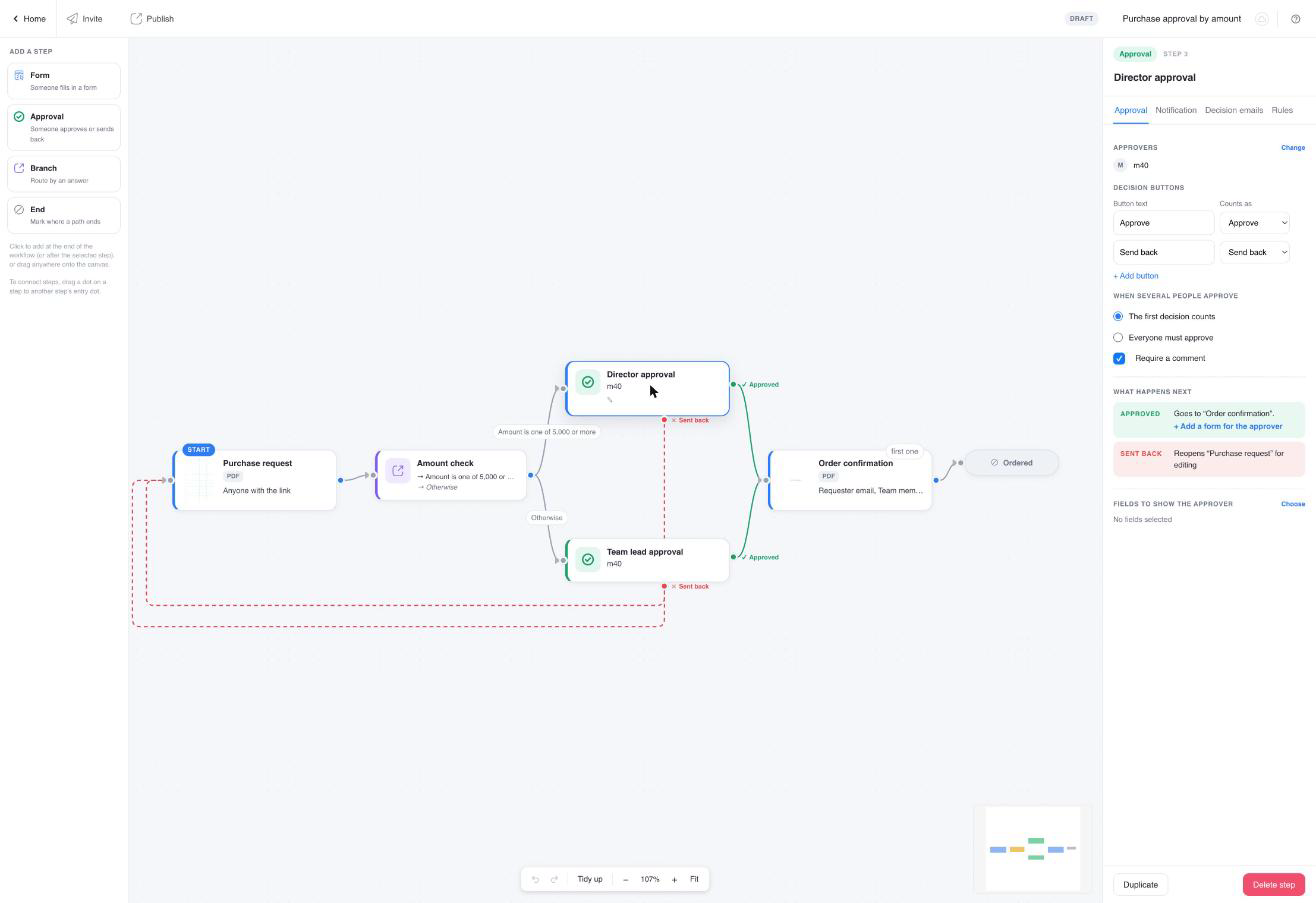
Add an Approval step. Click Approval and choose the approvers: team members, a group, or an email field on the form, such as “Manager email”. If several people approve, choose The first decision counts or Everyone must approve.
-
Decide what happens next. Connect the green Approved dot to the next step, for example an End step or a form the approver signs. Connect the red Sent back dot to the start form: if the manager sends the leave request back, the employee gets the comment and a link to change the dates and resubmit. See Approval with send-back for a complete example.
-
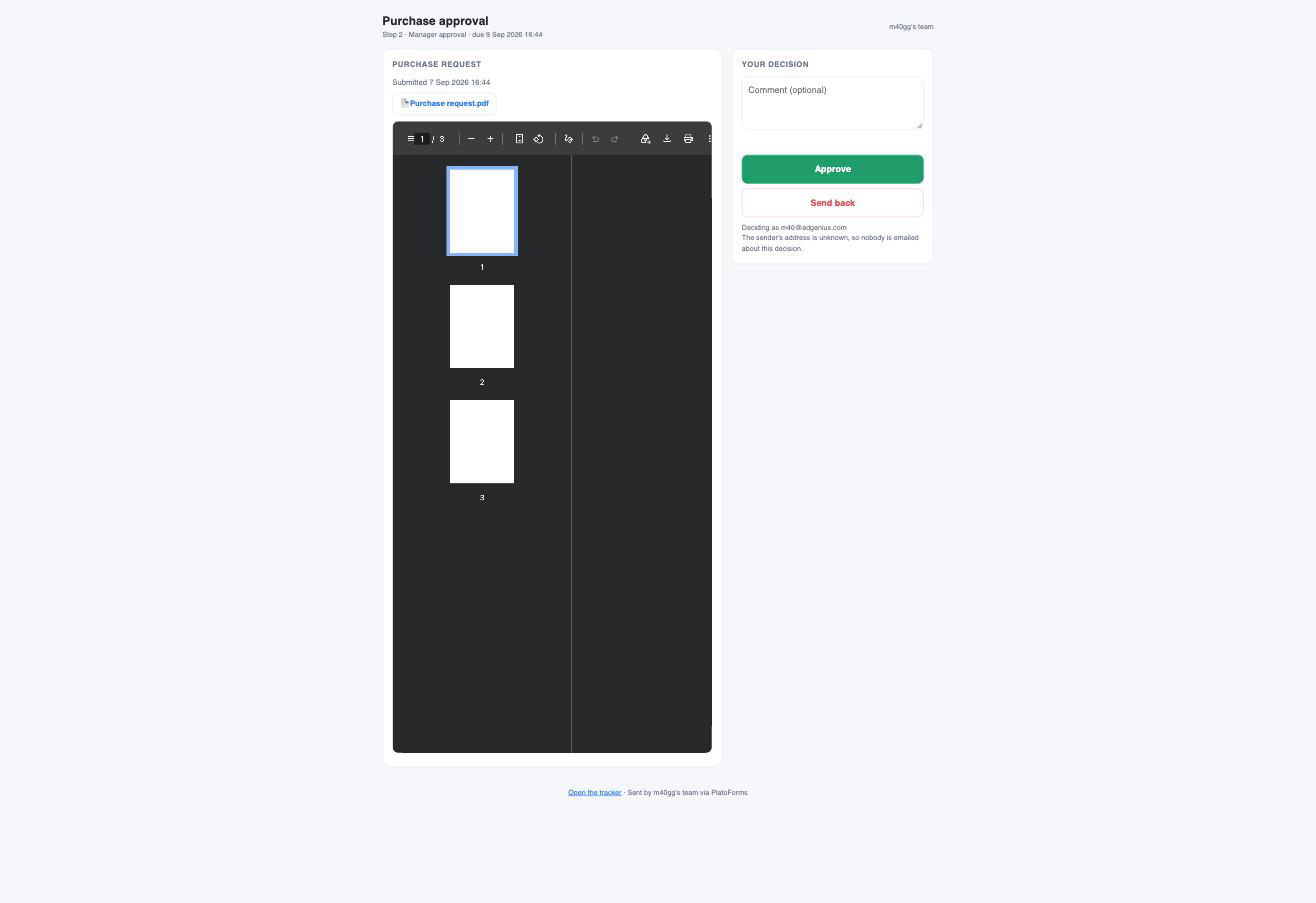
Publish the workflow and share its link. A run starts when someone submits the start form from the workflow’s link. Each approver then gets an email with their own link. They see what was submitted and choose Approve or Send back, and team members do not need to sign in to decide.


The workflow tracker shows every request, who it is waiting on and what was decided.

You can rename the decision buttons, require a comment, and set a deadline with what happens when it passes: notify a team member, reassign the request, or decide automatically.
Existing responses stay in Google Forms and in any linked Google Sheet; the import copies the form, not its answers. Workflows need a paid plan, and every new account starts with a 15-day free trial with access to all features. See approval workflows for more examples.
Need the approver to sign the same PDF? See how to send a PDF for signature.
FAQ
How do I approve Google Form responses?
Google Forms has no approve or reject step, so responses are only stored in the Responses tab and any linked Google Sheet. To approve them, install a third-party approval add-on from the Google Workspace Marketplace, or import the form into a form builder with approval workflows, such as PlatoForms, and add an Approval step.
How to create a Google form with approval?
Build the form in Google Forms, then add approvals in one of two ways. In the form, click More, then Add-ons, and install an approval add-on that emails approvers. Or import the form into PlatoForms, create a workflow with the form as the start step, add an Approval step and choose the approvers.
How do Google approvals work?
Google Drive approvals work on files in Drive, such as a Google Doc or a PDF, not on Google Forms responses. You send a file for approval, and each reviewer approves or rejects it, with an optional note. The file is approved once every reviewer approves, and one rejection rejects it. Approvals are only available on some Google Workspace editions.


