
Find trending topics and quick answers here
Hi, how can we help?
Search by task, feature, or problem—not just a single keyword.
How do I auto-calculate a total score based on user selections?

Question
How do I auto-calculate a total score based on what users select in my form?
Answer
Yes, this is possible using conditional logic. The steps depend on which field type you use.
Example form
The examples below are based on a self-assessment form with two questions:
- How often do you feel burnt out?
- How often do you find it hard to focus?
Each question has five options (Never, Rarely, Sometimes, Often, Always) with corresponding scores (6, 8, 10, 12, 14). The form calculates a total score based on the user’s answers.
Option 1: Dropdown field (recommended)
Dropdown fields have both a Label and a Value for each option — and they can be different. Since the Value is already a number, the form can use it directly in calculations — no extra steps needed.
Form structure
Create the following fields:
| Field | Type | Settings |
|---|---|---|
| How often do you feel burnt out? | Dropdown | Required |
| How often do you find it hard to focus? | Dropdown | Required |
| Total Score | Number | Read-only |
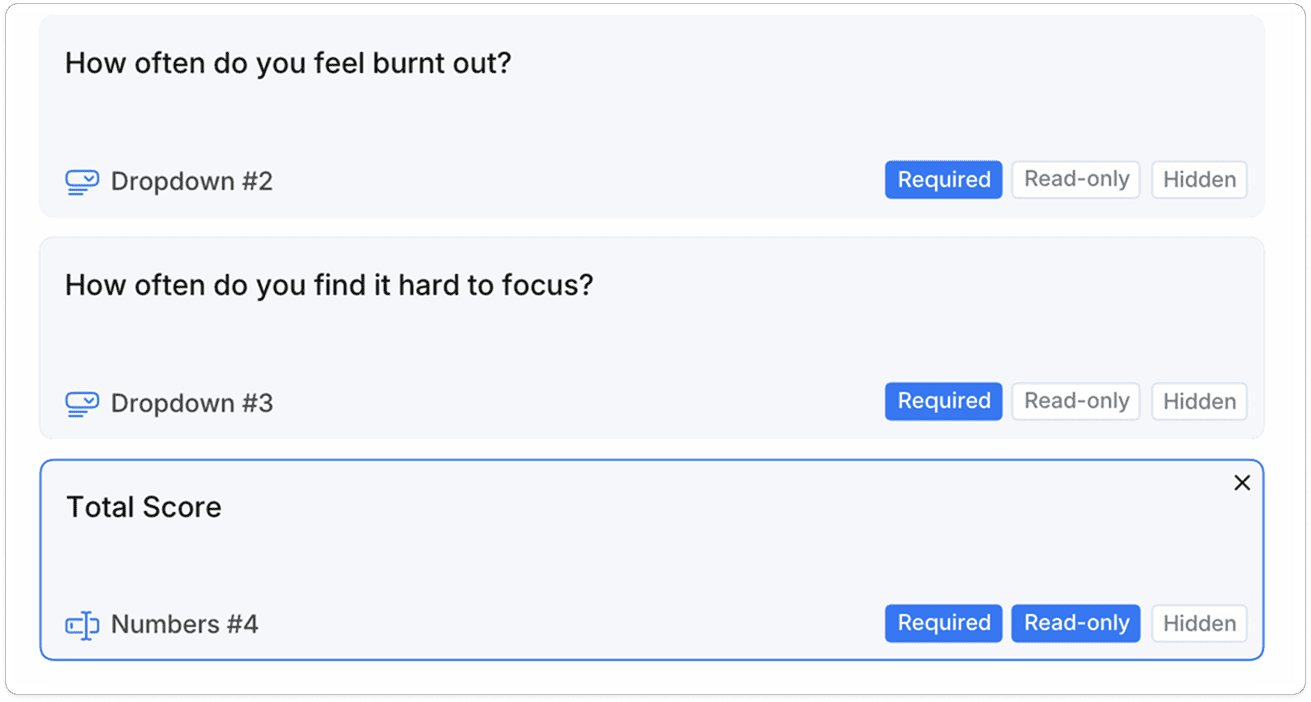
For each Dropdown field, set the options as follows.
| Label | Value |
|---|---|
| Never | 6 |
| Rarely | 8 |
| Sometimes | 10 |
| Often | 12 |
| Always | 14 |
Make sure Value is Same with Label is unchecked.
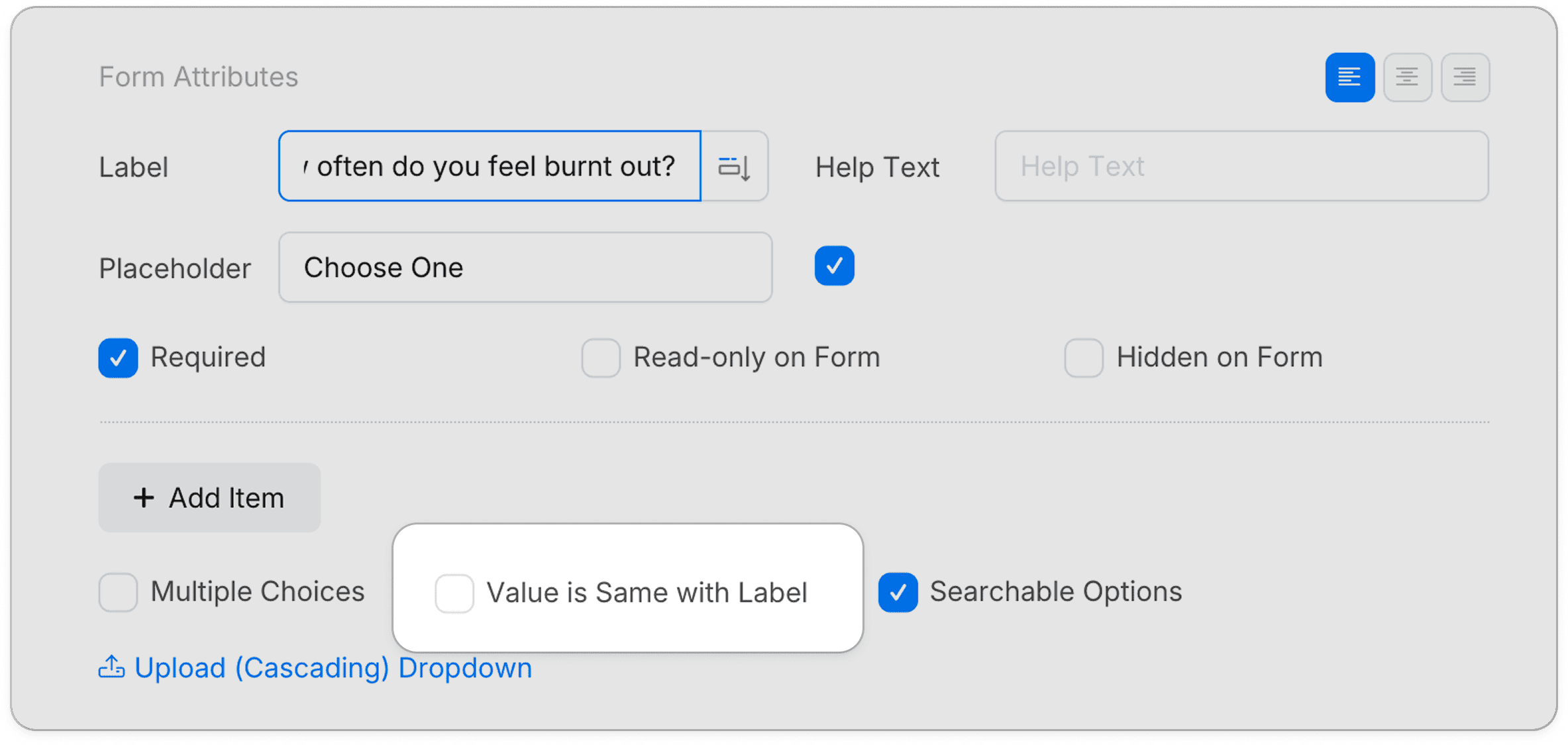
Logic rule
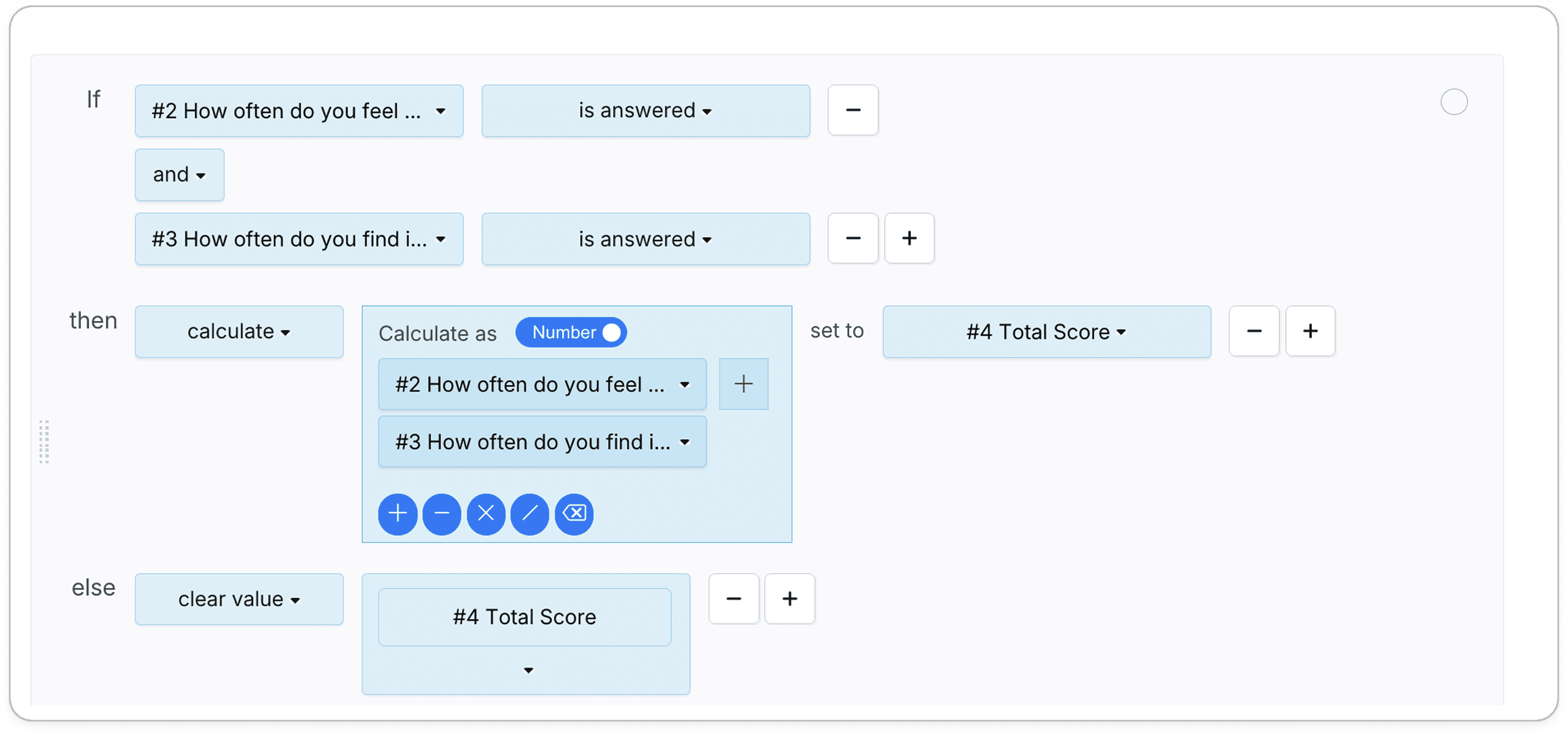
Add one logic rule:
- If:
How often do you feel burnt out?is answered andHow often do you find it hard to focus?is answered - Then: Calculate
How often do you feel burnt out?+How often do you find it hard to focus?, set toTotal Score - Else: Clear value
Total Score
Option 2: Choice field
Choice fields only store display text — they don’t have a separate numeric Value. Because of this, you need a few extra steps compared to Option 1.
Form structure
Create the following fields:
| Field | Type | Settings |
|---|---|---|
| How often do you feel burnt out? | Choice | Required |
| How often do you find it hard to focus? | Choice | Required |
| Burnout Question | Number | Hidden |
| Focus Question | Number | Hidden |
| Total Score | Number | Read-only |
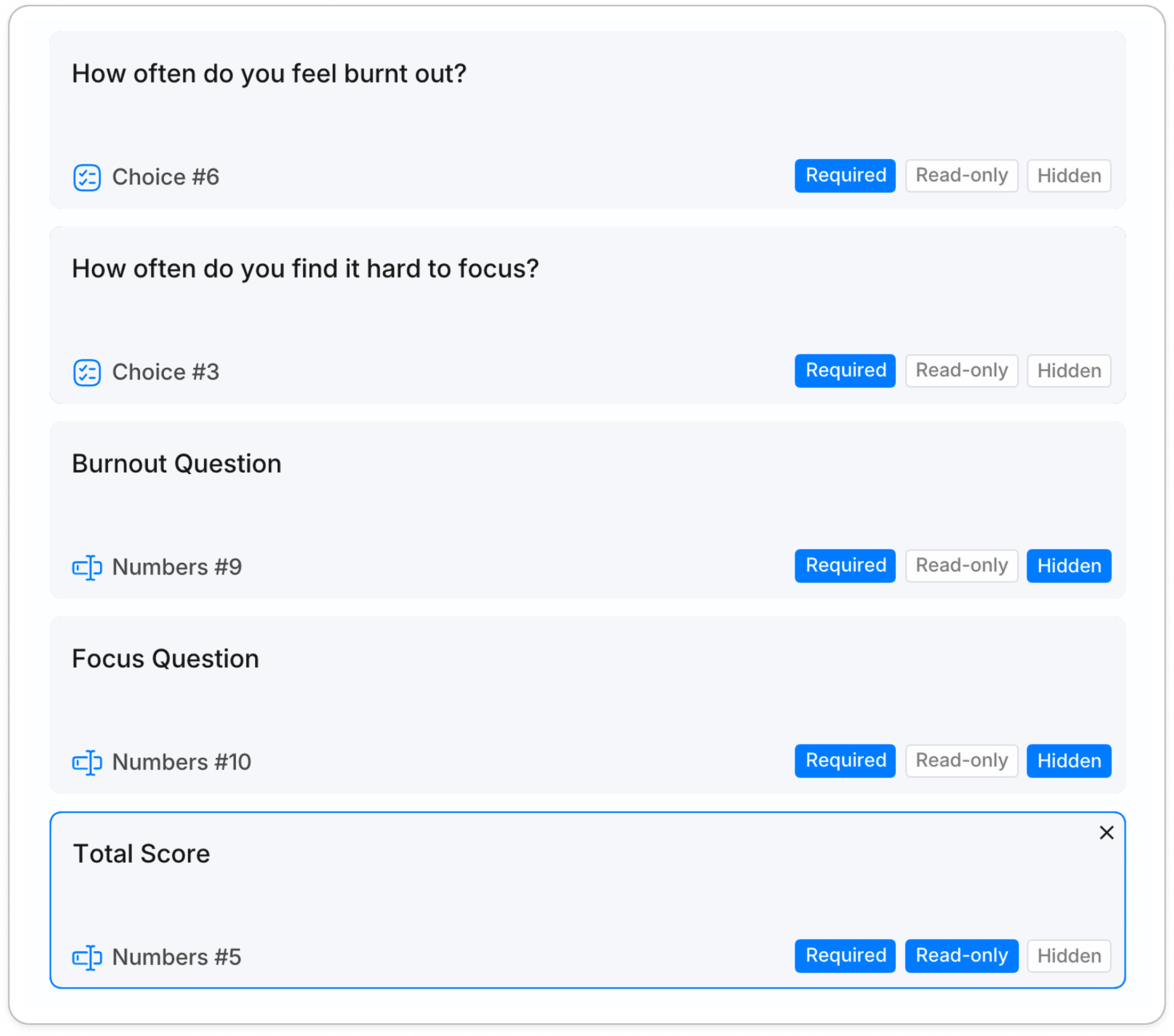
The two hidden fields act as intermediaries to store the score for each question. Users won’t see them.
Step 1: Add scoring logic for each option
For each answer option, create a logic rule. For example, if How often do you feel burnt out? is equal to Never → set value Burnout Question to 6.
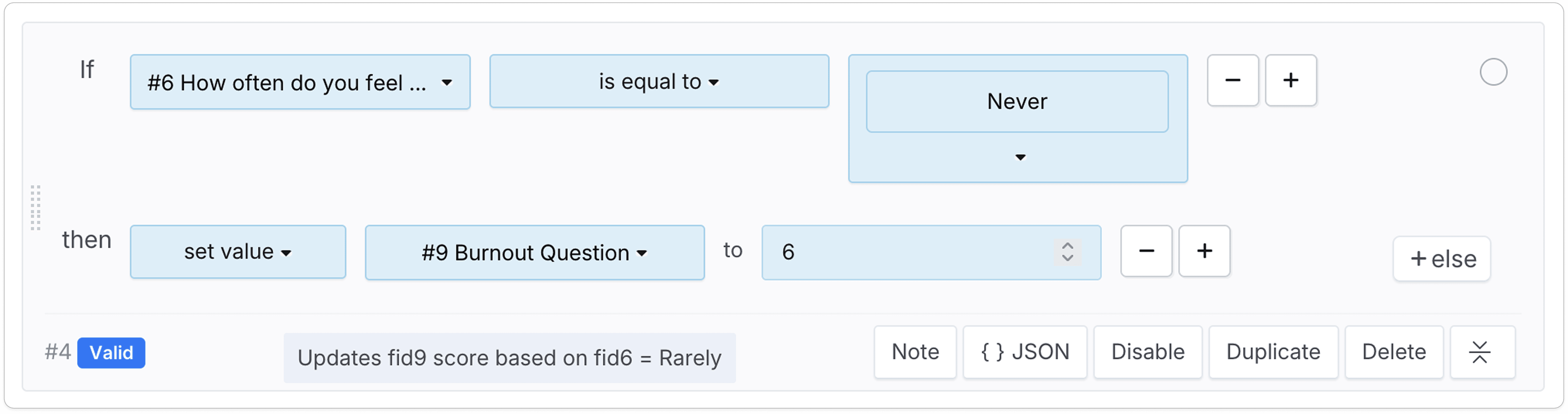
Duplicate and adjust for each option (Rarely=8, Sometimes=10, Often=12, Always=14).
Then repeat the same for How often do you find it hard to focus?, setting values to Focus Question (Never=6, Rarely=8, Sometimes=10, Often=12, Always=14).
Tip: Use Duplicate to copy a logic rule and adjust the values — faster than creating each from scratch.
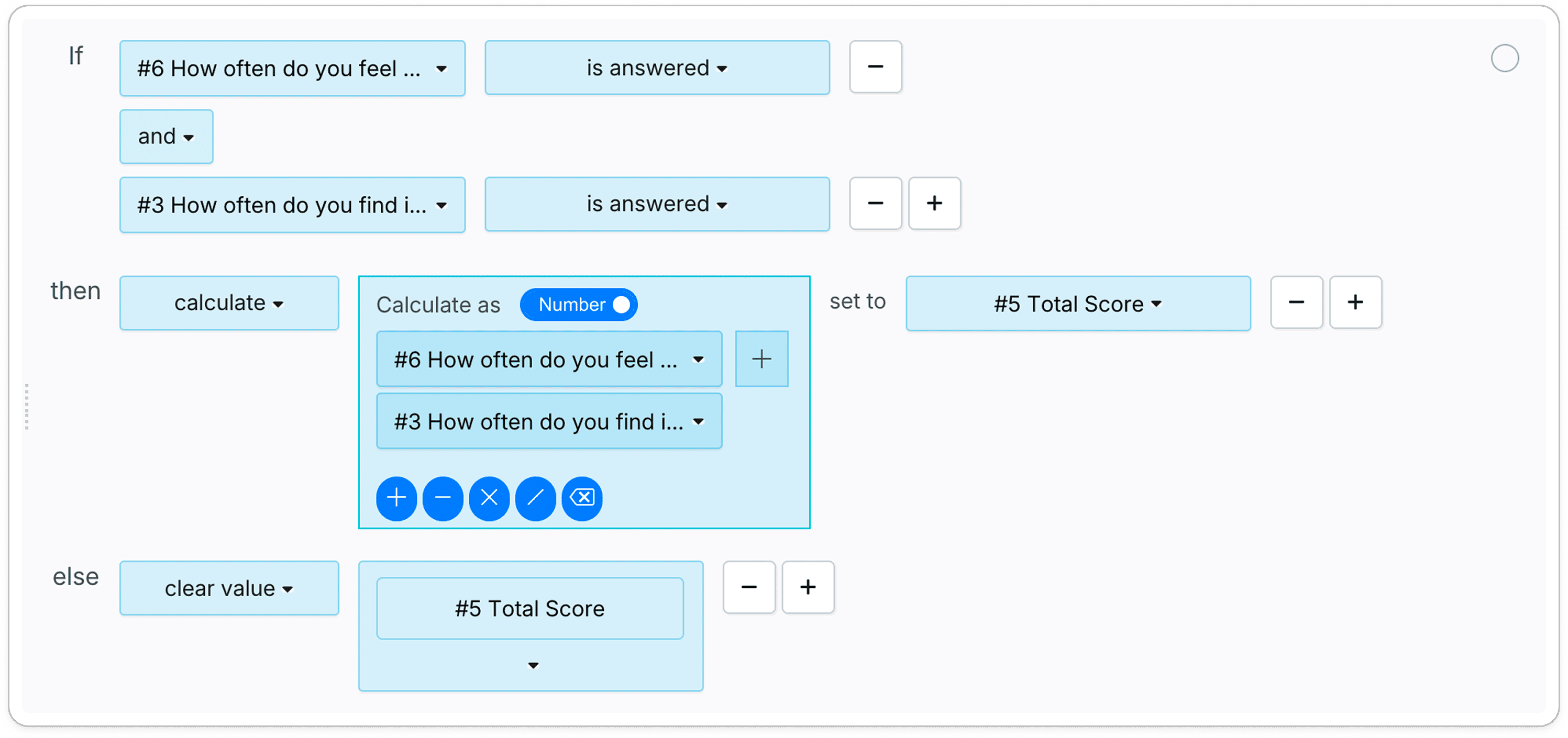
Step 2: Add the total score logic
- If
Burnout Questionis answered andFocus Questionis answered - Then calculate
Burnout Question+Focus Question, set toTotal Score - Else clear value
Total Score
🎬 Watch the walkthrough video:
Option 3: Text Input field
If users type numbers directly into the form, no hidden fields or scoring logic are needed — just set up the total calculation logic directly.
Note: This use case is different from calculating a price based on quantity. In that scenario, a choice triggers a multiplication (e.g. unit price × quantity). Here, each choice is the value being summed — which is why the extra steps are needed for Choice fields.