

Google Forms works well when one person owns the form. When a team gets involved — multiple editors, different roles, sensitive response data — the friction starts to show up in specific, predictable ways.
These aren’t bugs. They’re just the edges of what Google Forms was designed to handle. If your team is running into collaboration issues with Google Forms, or you’re evaluating whether it’s the right fit before building something significant on top of it, the five limitations below are the ones worth understanding.
Feature availability in Google Forms may change. Verify current functionality in Google’s official documentation before making decisions based on this article.
On this page
1. Only two permission levels — nothing in between
Google Forms distinguishes between two access levels around a form: Editors and Responders.
A Responder is anyone with the form link — they can fill it out and submit it. An Editor is a collaborator who can do everything else — modify questions, delete responses, share the form with additional people, and view all submissions.
There’s no viewer-only collaborator role for the form itself. There’s no way to let someone review or approve a form before it goes live without also giving them the ability to change it. There’s no collaborator role that separates “can see responses” from “can edit the form.”
A common example: a department manager needs to review incoming responses without being able to edit or delete them. In Google Forms, there’s no role for that — giving them response access means giving them full editor access to the form itself.
For small teams where everyone needs the same level of access, this is fine. The limitation shows up when you have distinct roles: someone who builds the form, someone who reviews it before it goes live, someone who processes incoming responses, and someone who periodically audits what’s happened. With two levels, you end up either over-permissioning or excluding people who need partial access.
The common workaround is to share the linked Google Sheet with specific people, giving them response data without form editor access. This works, but it means managing permissions in two separate places — which creates its own problems (see limitation 4).
2. Editors get full access to all responses
When you add someone as an editor on a Google Form, they immediately get access to every submission the form has ever collected — all of it, in full.
There’s no way to give an editor access to only a subset of responses. There’s no way to restrict which fields they can see within a submission. There’s no way to let someone process new incoming responses without also giving them the full historical dataset.
This becomes a real constraint in a few common scenarios:
HR forms where responses contain compensation data, performance notes, or personal information that only certain people should see. Adding a new HR coordinator as an editor means they can see everything submitted before they joined.
Healthcare intake forms where different staff members handle different parts of the intake process. PHI needs to be accessible only to specific roles, but Google Forms has no way to enforce that at the field or submission level. For a broader look at what this means for healthcare teams, see Is Google Forms HIPAA Compliant?
Multi-department forms where each department should only see their own submissions. A concrete example: a company uses one Google Form to collect sales inquiries, with both the sales team and customer support team added as editors so either can follow up. Every editor on that form — including support staff — can see every sales opportunity in the pipeline, including deal sizes, contact details, and internal notes that weren’t intended for them. There’s no way to give support access to new inquiries only, or to filter the response view by the department that should handle each submission.
High-volume forms where response processing is divided among a larger team. Individual processors typically don’t need the full submission history — just the queue relevant to them.
The only control available is whether to add someone as an editor at all. Once they’re an editor, the access is complete.
3. No audit log at the form level
Google Forms has no built-in record of who accessed a specific submission, who exported response data, who deleted a response, or when any of these things happened.
Google Workspace administrators can access Drive audit logs through the Admin console — but this requires an enterprise Workspace plan, the logs live at the admin level rather than the form owner level, and they cover Drive activity broadly rather than form-specific access events. For most teams using Google Forms through standard Workspace plans or free Google accounts, this isn’t practically accessible.
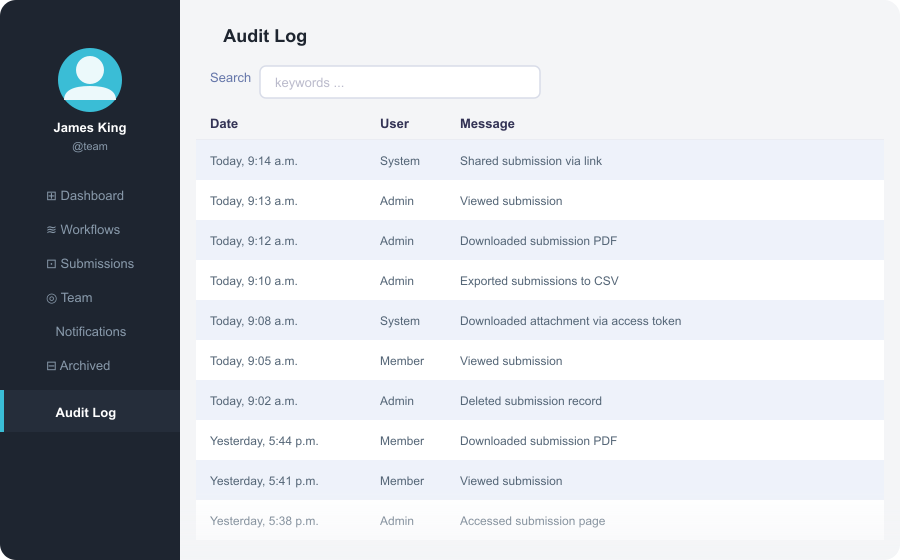
This matters in two ways. First, if something goes wrong — a response disappears, an export happens that shouldn’t have, someone accesses data they weren’t supposed to — there’s no record to reconstruct what happened or who was responsible. Second, for organizations with compliance requirements around access logging (HIPAA, GDPR, SOC 2), the absence of accessible audit logs is a structural limitation, not something that can be configured around. GDPR’s accountability principle (Article 5(2)) requires controllers to be able to demonstrate compliance with Article 5(1) — a requirement that is harder to meet without records of who accessed personal data and when. For a full breakdown of what GDPR requires from form tools, see GDPR Compliance for Online Forms: A Practical Checklist.
4. Form and Sheet permissions are managed separately
When you link a Google Form to a Google Sheet, the permissions on the form and the permissions on the Sheet are completely independent and don’t synchronize automatically.
Adding someone as a form editor doesn’t give them Sheet access. Adding someone as a Sheet viewer doesn’t give them any access to the form. Removing someone from the form doesn’t remove them from the Sheet.
From Google’s own documentation: “When you create a new response spreadsheet, form collaborators automatically get access to it. Further changes to the permissions of the form won’t synchronize automatically. To change or remove access, update permissions on both the form and the linked sheet separately.”
In practice, this means every permission change requires two separate updates — and it’s easy to miss one.
The most common failure mode is staff turnover. Someone leaves the team: their manager removes them from the Google Form, considers the offboarding done, and moves on. Three months later, it surfaces that the former employee still has edit access to the linked Sheet — and with it, the entire response dataset. Nothing in Google Forms flagged the gap, because the form and the Sheet are independent systems as far as Google is concerned.
The reverse happens too: a new team member is added as a form editor but can’t figure out why they can’t see the data — they need separate Sheet access, which nobody told them about, and which the form itself doesn’t prompt for.
For teams that use both the form and the Sheet as part of their workflow, this is ongoing maintenance overhead that compounds over time, particularly on forms that have been running for a while and have gone through multiple rounds of team changes. If you’re thinking about data security more broadly, 7 Signs Your Online Form Builder Is Not Safe for Sensitive Data covers what this kind of permission gap looks like in practice.
5. No version history for form edits
Google Docs and Sheets both have revision history — you can see every change, who made it, and restore any previous version. Google Forms does not provide a built-in revision history comparable to Google Docs or Sheets.
If a team member edits a question, changes an option in a dropdown, reorders fields, or deletes a section, there’s no built-in way to see what changed, who changed it, or what the form looked like before. Rolling back requires manually reconstructing the previous state.
Without version history, teams lose the ability to investigate configuration mistakes or demonstrate how a form changed over time. This matters most in two situations. First, when a change breaks something in a live form — a question that conditional logic depended on gets modified, or a dropdown option gets renamed in a way that misaligns with existing response data. A team member edits a field label, the form stops routing correctly, and there’s no way to see what it looked like before or who made the change. Second, for compliance-sensitive forms where the exact wording of a question at a specific point in time may need to be documented — for legal filings, audit purposes, or regulatory review — and that record simply doesn’t exist.
For forms that multiple people edit actively, the absence of version history means the team has no record of the form’s evolution over time.
What this means in practice
These limitations don’t make Google Forms unusable for teams. For straightforward use cases — collecting event registrations, running internal surveys, gathering one-off feedback — the collaboration model works well enough.
The friction becomes significant when:
- Response data is sensitive and access should be restricted by role or data type
- Staff changes require reliable permission updates across both form and Sheet
- The team needs to demonstrate who accessed what and when for compliance purposes
- Active form editing by multiple people needs to be tracked and potentially reversed
Teams that hit these scenarios regularly tend to end up managing a set of workarounds — separate Sheet permissions, manual change documentation, reliance on admin-level Workspace logs — that add overhead over time.
How PlatoForms handles these scenarios
For reference, here’s how PlatoForms approaches the same problems — not as a hard sell, but as a concrete comparison if you’re evaluating alternatives.
Permission levels: PlatoForms has three separate roles per form — Form Editor (can edit the form), Form Submitter (can submit the form), and Form Submission Viewer (can view response data). Each role is assigned independently, so you can give someone viewer access to responses without giving them edit access to the form, or restrict who can submit without affecting who can view results. These can be set to Public, All Team Members, or specific individuals.
Cross-form permissions: Team Admins have a dedicated Form Permissions page that lets them manage Editor, Submitter, and Viewer access across every form on the team from one place — useful during staff changes without needing to open each form individually. Specific Members can also be granted the same cross-form access via Manage access.
Audit log: Available on teams with HIPAA compliance mode enabled (Silver and Gold plans). Team Admins can view a log of sharing, authentication, and access activity. This is a HIPAA-tier feature, not available on all plans.
Version history: PlatoForms auto-saves your form at regular intervals, and also saves a version each time you publish. You can view all previous versions in the History panel (accessible via ⋯ → History in the form builder), with color-coded markers indicating whether each version was auto-saved, manually saved, or created at publish time. Any previous version can be restored with one click.
If you’re currently using Google Forms and want to bring your existing forms over, the import from Google Forms feature handles the migration without rebuilding from scratch.

Related reading: 7 Signs Your Online Form Builder Is Not Safe for Sensitive Data · GDPR Compliance for Online Forms: A Practical Checklist · Is Google Forms HIPAA Compliant?
Try PlatoForms with Your Own Form
Turn an existing PDF into an online form, or create a new form for your team.
Create your free PlatoForms account →