












An employee submits a leave request that needs approval from HR and their manager. HR can review it first and pass it on to the manager, or both can get the request at the same time and approve in either order. In both cases, both people must approve. Once the signing steps are done, the employee gets the completed PDF by email.
If the employee enters the wrong leave dates, HR can send the request back for correction. This guide shows how to set up both approval setups in PlatoForms, handle corrections, and collect signatures on one PDF.
Choose when HR and the manager review
Both HR and the manager must approve the leave request. Choose when the manager gets their task.
| Approval setup | When the manager gets the request | What to connect in PlatoForms |
|---|---|---|
| HR first | After HR approves and signs. | Connect HR approval → HR signing form → manager approval → manager signing form. |
| Either order | At the same time as HR. Either can approve first. | Add two parallel Approval steps. Connect both Approved paths to the HR signing form and choose Wait for all of them. Connect the manager’s signing form after HR’s. |
In both setups, the employee gets the completed PDF after the manager signs. The PDF contains the leave request and both signatures.
Set up approvals in order
HR approves and signs before the manager reviews. Put the steps in this order: employee request → HR approval → HR signing form → manager approval → manager signing form. The manager gets their review task after HR submits the signing form. Use this order if the manager should receive the request only after HR finishes both tasks.
Watch: Two Approvers, One Automated Workflow.
Set up approvals in either order
In the parallel approval video, the employee submits a leave request. HR and the manager each get an approval email at the same time. Either can approve first. Once both approve, HR signs, then the manager reviews and signs. The employee gets one PDF with their request details and both signatures.
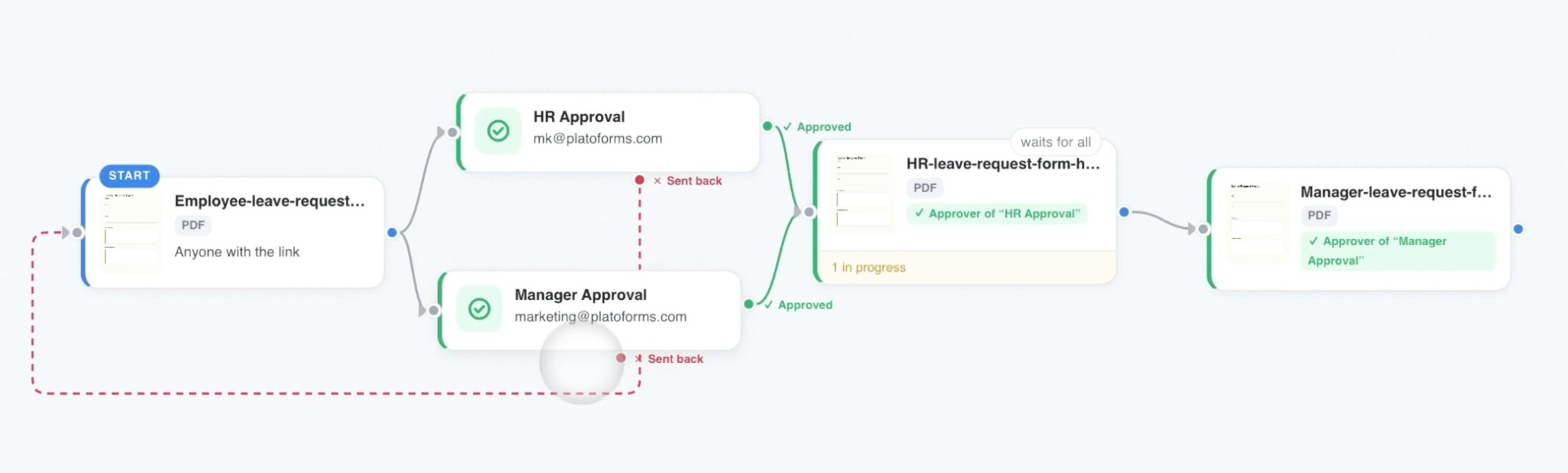
- Prepare the forms. Use your existing leave PDF for the request. Add the employee’s name, email, and leave dates. In this example, you’ll enter the approvers’ email addresses in the workflow. Make two signing forms that reuse the same PDF, one for HR and one for the manager. Give each its own signature field and publish the forms.
- Set up the start step. Add the request form to the canvas. In Who hears back, select the employee’s email field so replies go to the right person when they start from a shared link.
- Add the two reviews. Connect the request form to HR approval and Manager approval. On the Notification tab of each approval step, enter the email address for HR or the manager. Give the steps distinct names so you can pick the right reviewer later.
- Connect both decisions. Connect each green Approved path to HR signs. Set that form to Wait for all of them. Connect each red Sent back path to the request form.
- Set up the handoff. Connect HR signs to Manager signs. On each signing form, choose the approver of the matching step and turn on Combine data across steps. In When a run completes, add the employee as a recipient.
Watch: Workflow Approvals — Approve in Any Order ·
What happens when HR sends the request back?
If the employee enters the wrong leave dates, HR can choose Send back and ask them to correct the dates. The employee opens the link in the email, fixes the dates, and submits again. In the parallel setup, HR and the manager both get a new approval task. Any review task that was still open from the first submission closes when HR sends the request back.
Send a leave request back for changes
In both setups, connect the red Sent back path from HR Approval to the employee’s leave request form. If the dates are wrong, HR can write “Please correct your leave dates” and click Send back. The employee gets an email with HR’s comment and a link to edit the request.
On the Approval tab, turn on Require a comment if HR should leave a note for every decision. This setting applies to both Approve and Send back.
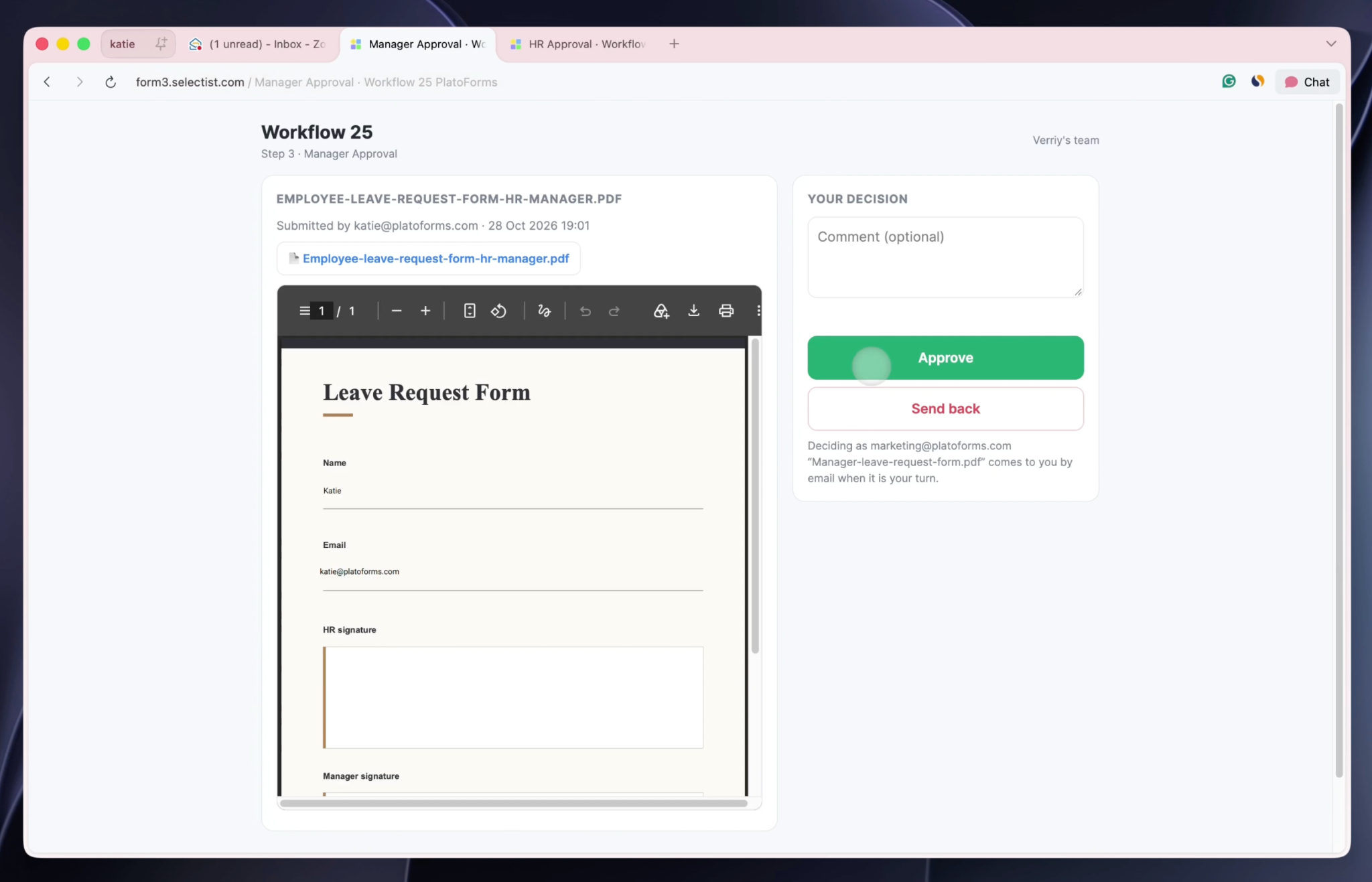
After the employee corrects the dates and submits again, HR gets a new approval task first in the sequential setup. In the parallel setup, HR and the manager each get a new approval task.
Collect both signatures on one PDF
When each person signs depends on the approval setup you chose.
- HR first. HR approves and signs. The manager then receives the request to review, approve, and sign.
- Either order. HR and the manager both approve before anyone signs. Then HR signs first, and the manager signs next.
Use a separate Form step for each signature, both based on the same leave request PDF. In each signing step’s Notification tab, check that the form goes to the person who approved the matching step. In Data & PDF, turn on Combine data across steps on both signing forms. HR’s signature is added to the employee’s PDF, then the manager’s signature is added to that same document.
If you want the manager to see the employee’s leave details and HR’s signature while signing, use a PDF Fillable Form for the manager’s signing step. In Data & PDF, turn on Display the previous PDF’s data in this form.
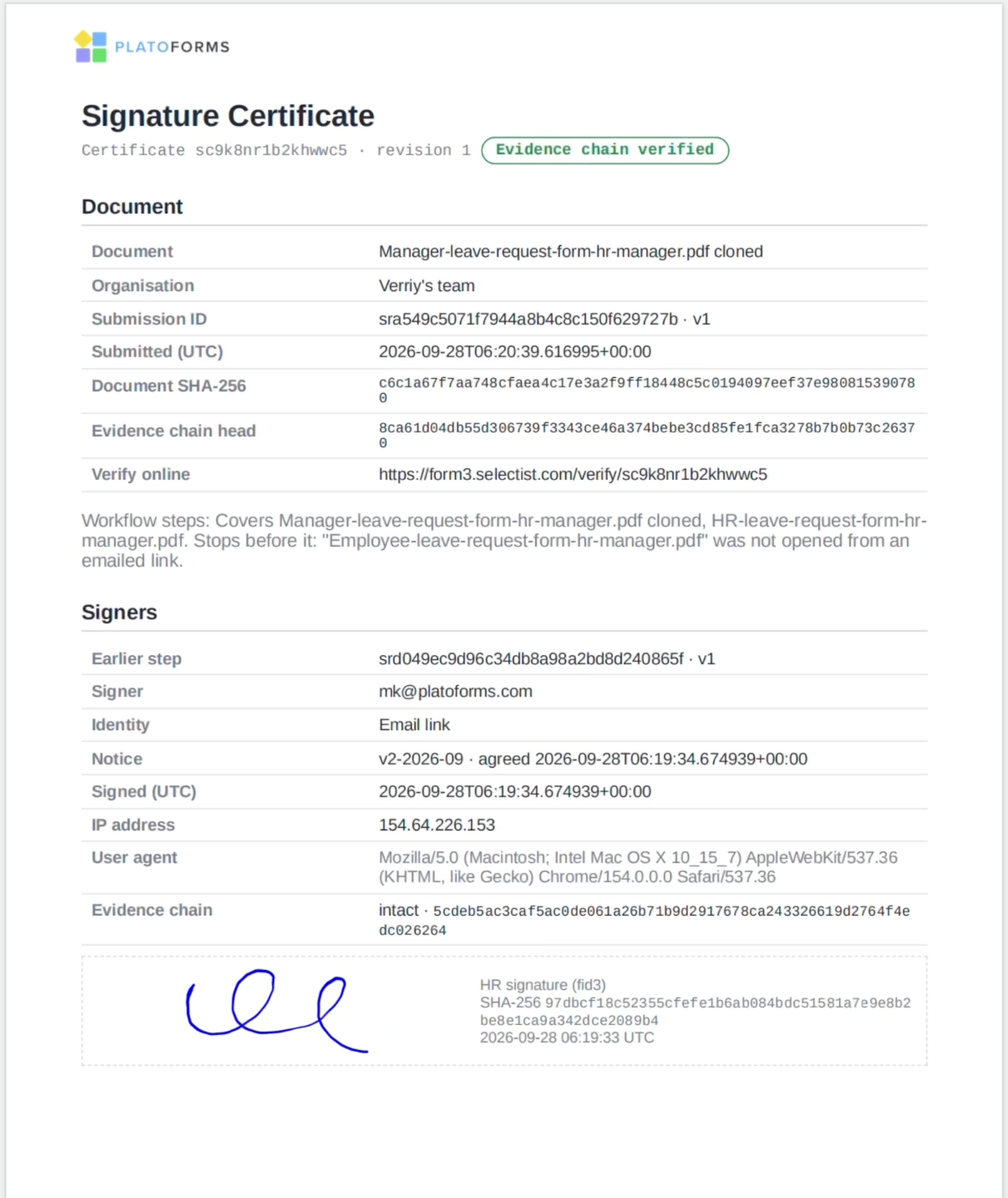
The approval record page shows who approved or sent the request back, along with their comments. If you also need a record of who signed and when, turn on Create signature certificate in Data & PDF on the signing steps. Use the links assigned to the signers. If an approver goes straight from their approval to signing, that also works when their signing step is ready.
Send the completed PDF to the employee
On the workflow panel, open When a run completes and select Send to the person who started the workflow. For a shared workflow link, select the employee’s email field under Who hears back on the start step. For an invitation-only workflow, leave Who hears back set to None to use the invitee’s email address.
In both leave request setups, the workflow finishes after the manager signs. By default, the completion email attaches the finished PDF and includes a download link. If the approval record page is enabled, it’s added to the end of the PDF. The signature certificate is a separate PDF that you can download from Submissions.
Who gets an email?
- HR and the manager get a link when it’s their turn to review or sign.
- The employee gets HR’s comment and a link to fix the dates if HR sends the request back.
- After the manager signs, the employee gets the completed PDF by email.
Set review and signing emails under Notification on each step. Set the send-back message under Decision emails on the HR approval step.
Test the workflow before you share it
Check the workflow checklist, then publish it and submit a test leave request through the Share link. If your team already uses the workflow, Clone it and test your changes on the copy.
- Check when the next task starts. In the HR-first setup, the manager should get the review link after HR signs. In the parallel setup, approve as one reviewer first. The signing step should wait until the second reviewer approves.
- Send back a request with the wrong dates. Check that the employee gets HR’s comment and can fix the dates using the link in the email.
- Open the finished PDF. After the manager signs, check the employee’s completion email. Open the PDF and look for the correct dates and both signatures.
While a request is waiting, open it in the Workflow Tracker to see who has the next task. If they missed the email, use Nudge to send it again.
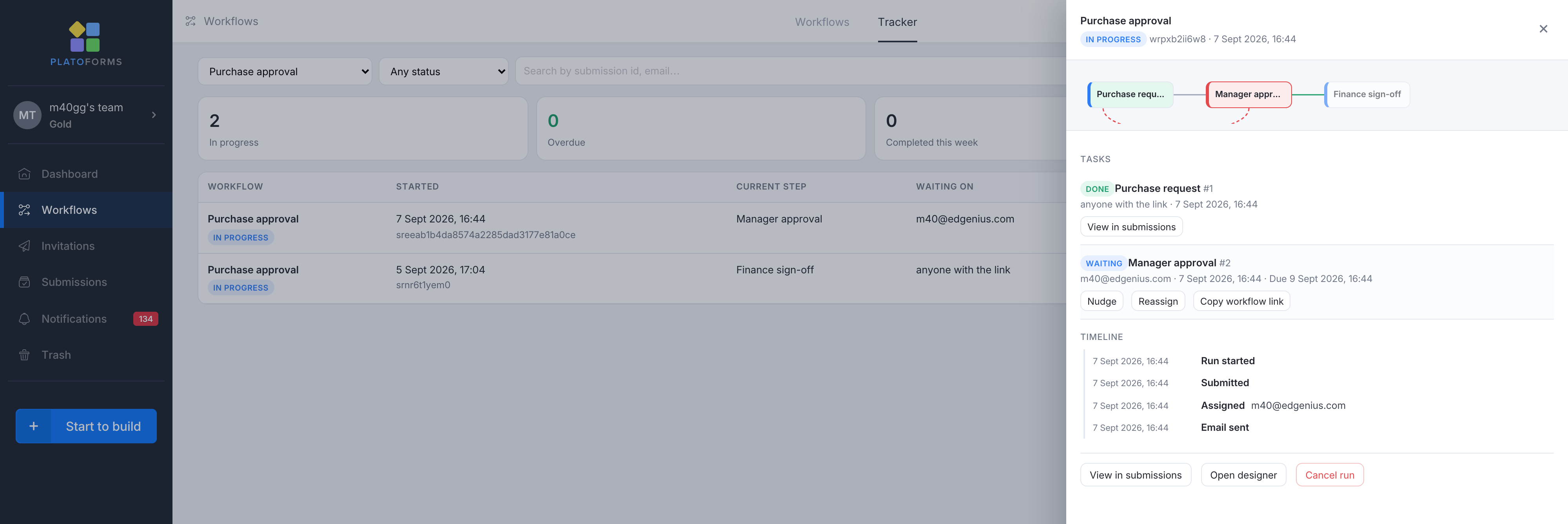
The Tracker shows the current task and the steps already completed.


