Form analytics with Insights

See what people answer. And where they stop.

Insights creates a ready-to-use report for every PlatoForms form, with submission trends and charts based on its fields. Follow visitors from opening the form to submitting it, see which fields they stop at, and let AI group written answers by theme and sentiment, without building a spreadsheet first.

Illustration with sample data. Every form gets a report; journey data appears as visitors arrive, and AI themes after you approve the categories.

Three ready-made packs and the visitor journey

Start with a common report

  1. Feedback form
  2. Customer feedback pack
  3. AI themes

Turn open answers into themes

Start from the Customer feedback pack on a survey or feedback form, then let AI propose themes for text answers. Once you approve them, every answer gets a theme and a sentiment.

Use AI in Insights
  1. 0–10 rating
  2. NPS score
  3. Weekly alert

Keep an eye on your NPS

The NPS pack shows the score, its spread and its trend. An NPS alert is checked every Monday and emails your team when the score drops or falls below a level you set.

Set up alerts
  1. Sign-up form
  2. Registration pack
  3. Share link

Track sign-ups day by day

For an event registration form, the Registration pack charts sign-ups per day, the choices people made and the top answers. On a paid plan, share a read-only link with the organizers.

Start from a pack
  1. Application form
  2. Visitor journey

Find the question people quit on

The visitor journey counts who opened, started and submitted a long form, and highlights the field that loses the largest share of visitors who started it, once the form has at least 100 visitors.

See the visitor journey
KPI tiles, goals and period comparison

How many people responded, and is it changing?

KPI tiles show total submissions, this period, the change and the daily average. Set a submission goal with an optional deadline and watch the tile fill up. Turn on Compare to previous period to see last period as a dashed line, with labels such as New top answer when something shifts. Daily charts mark unusual days, at least twice that weekday’s average over the previous four weeks.
Read the Insights overview
An Insights report with KPI tiles, a submission trend and the visitor journey
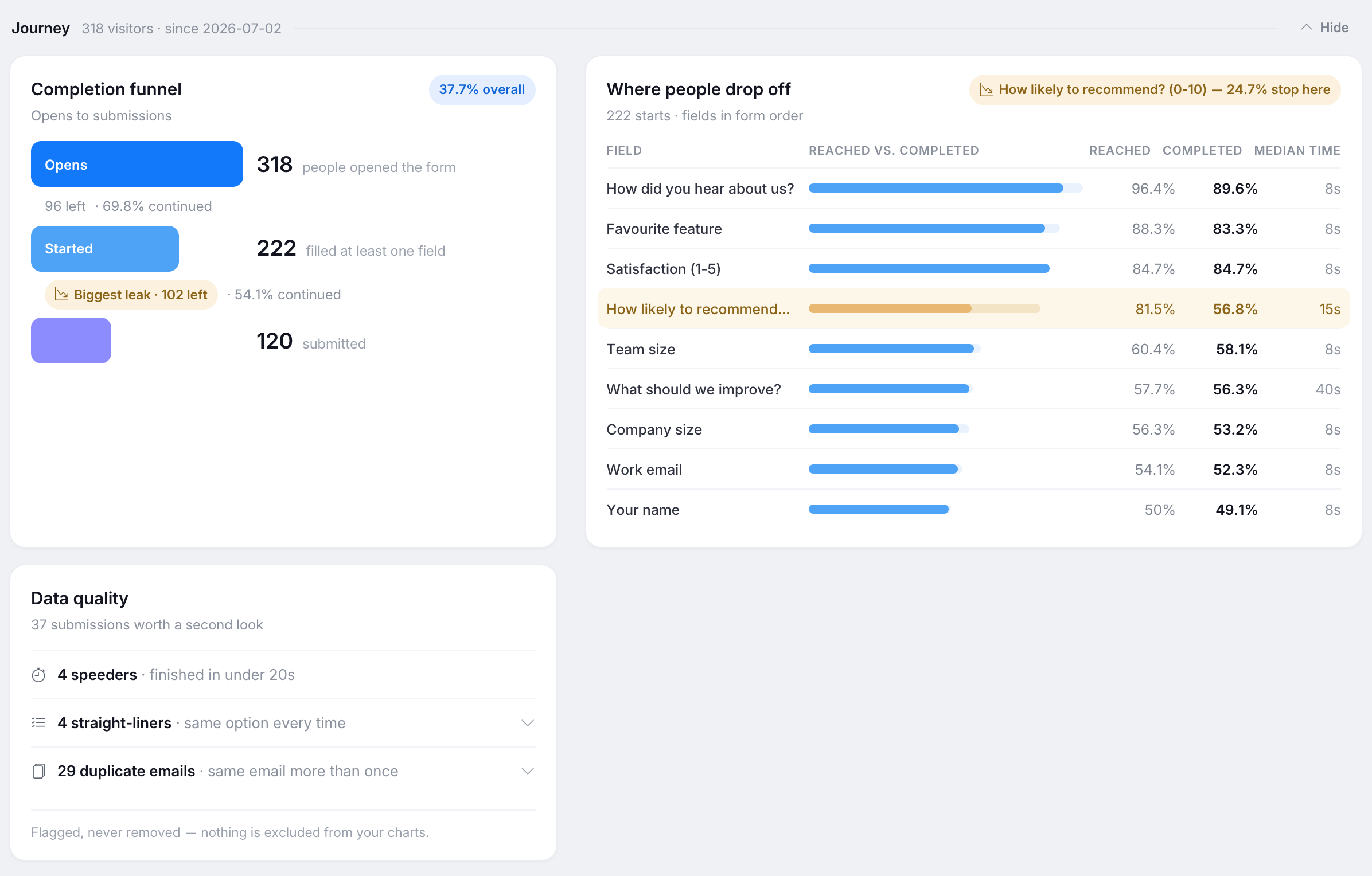
The visitor journey with a completion funnel and the fields where people stop
Completion funnel and field drop-off

Where do people stop?

Submissions only count the people who finished. The visitor journey also counts those who opened the form and those who started it, and marks the stage with the biggest leak. A field table shows how many visitors reached and completed each field and the median time spent on it, so you can investigate which question may need to be shortened, simplified or moved.
See the visitor journey guide
Breakdowns, cross-tabs and filters

Do groups answer differently?

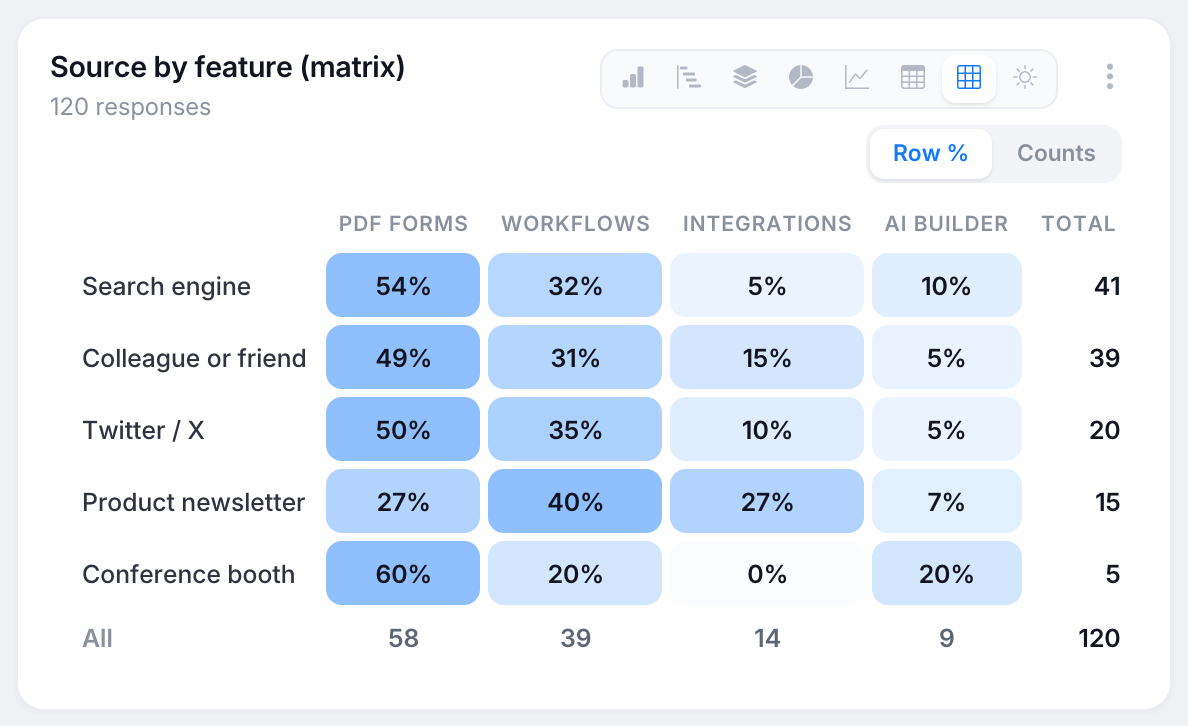
Break a chart down by another question, such as satisfaction by plan, and view it as a cross-tab with row percentages or counts. A Meaningful difference or No clear difference chip helps you judge whether the pattern stands out statistically before drawing a conclusion. Click a chart value to filter the whole report to it, and save the filters you use often.
Explore your data
A cross-tab matrix showing how answers differ by source, with row percentages
A word cloud of the words that recur in text answers
Word clouds, AI themes and Ask your data

What are people saying?

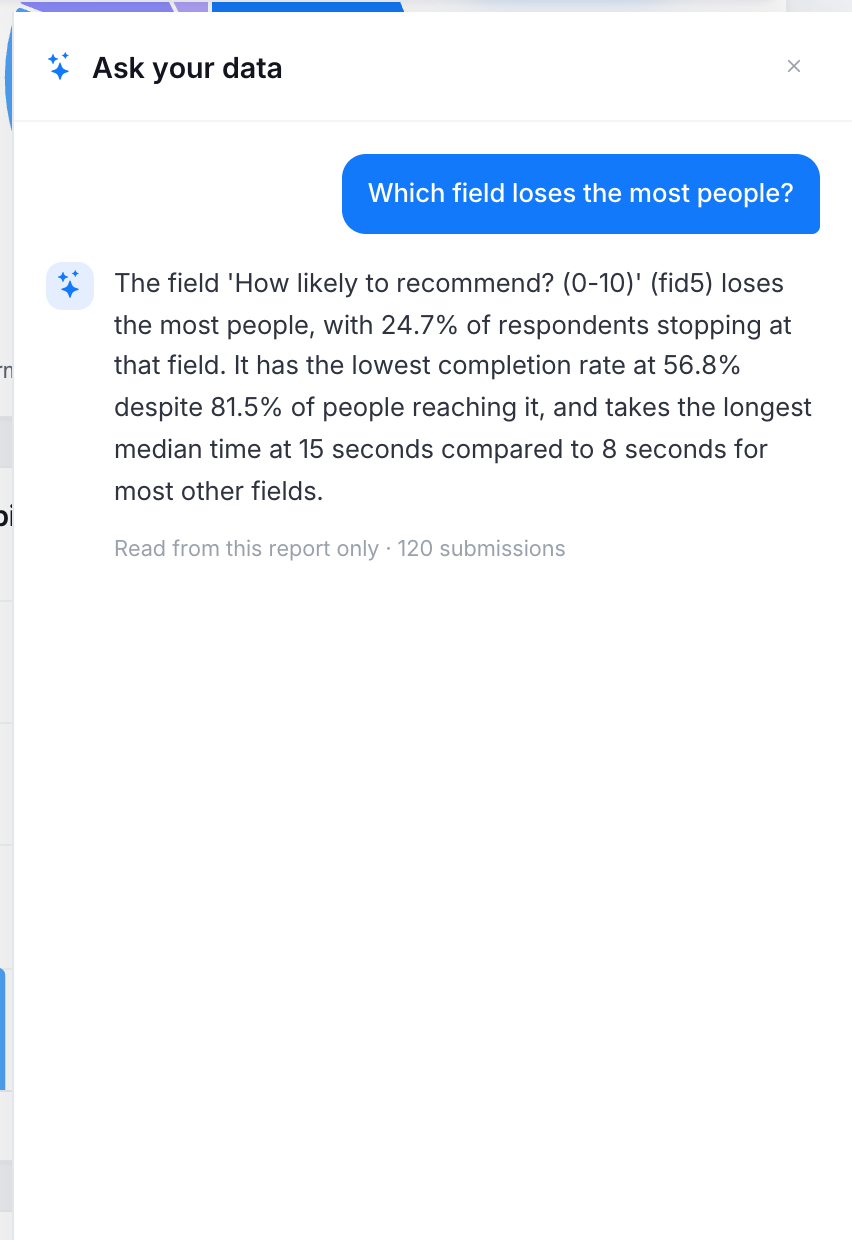
A word cloud shows the words that recur in text answers. For a closer read, Analyze with AI proposes categories from the answers; after you review and approve them, every answer gets a theme and a sentiment. AI can also write a summary with representative quotes, or answer your questions about the report, citing the number behind each claim.
Use AI in Insights
Alerts, share links, digests and exports

Who needs to know?

Set email alerts on weekly submissions, NPS or completion rate, checked every Monday. Share a read-only report by link, with an optional password and expiry date, or embed it on a page. Schedule a weekly or monthly email digest with a PDF copy of the report, or download the report as a PDF or its aggregated chart data as a CSV.
Set up alerts and sharing
The Alerts dialog with a weekly submissions alert, checked every Monday
Your form decides your report

What each question type shows

Insights picks a chart based on the type of each reportable field you add. Add the right questions and you unlock the analysis you need. See Charts and analysis for every chart type.

If the form has Insights can show
Choice or dropdown questions Pie and column charts, breakdowns, cross-tabs and significance chips
A rating or slider A statistics card with the median, quartiles and spread
A 0–10 “How likely are you to recommend” rating An NPS chart, the NPS pack and NPS alerts
A short-text question Top answers and example-answer quote walls
A long-text question A word cloud, AI themes and sentiment, and AI summaries
An email field Duplicate-submission detection in Data quality
Multiple pages Fill time for each submission, for better speeder detection

Start faster with a template pack: Customer feedback, NPS or Registration adds a ready set of charts in one step. See Design forms for Insights.

Calculated, not guessed

Numbers you can check

How the numbers are calculated

  • Tested before it is called a difference

    Significance chips use a standard chi-square test and need at least 30 responses.

  • No markers on thin data

    The biggest-leak and worst-field markers need at least 100 visitors. Below that, the journey shows a Low volume label instead.

  • Labels without AI

    Change labels such as New top answer are calculated from the report data and do not use AI.

What stays in your control

  • Flagged, not removed

    Speeders, straight-liners and duplicate emails are counted in Data quality but stay in every chart, so you decide what to do with them.

  • Your submissions stay as they are

    Filters and category cleanup change what the report shows, not the submissions. Edited submissions update their values instead of counting twice.

  • You approve the AI categories

    AI proposes categories for text answers; you edit and approve them before anything is classified. Categories you set by hand take precedence.

Plans and pricing

How much does Insights cost?

Insights is included in every plan, including Free, where a report can hold up to 5 charts. Breakdown fields, share links and email digests need a paid plan. AI features use your team’s monthly AI allowance.

FreeInsights on every plan
up to 5 charts per report
15 daysfree trial
no credit card

On paid plans

  • Breakdown fields and cross-tabs
  • Share links and embeds
  • Email digests, weekly or monthly
See all plan limits

FAQ

Questions about form analytics

What to know before you open your first report.

1. What is form analytics?
Form analytics shows what people answer on a form and how they move through it: how many open it, start it and submit it, and where they stop. In PlatoForms, Insights does both. It charts the submitted answers and shows a visitor journey with a completion funnel and field-level drop-off.
2. How do I see where people drop off my form?

Open the form’s Insights report and look at the Journey band. Once the form has at least 100 visitors, the field that loses the largest share of visitors who started the form is highlighted. Forms published before Insights launched need to be re-published to collect field-level data. See Visitor journey.

If a field loses many visitors, consider whether it can be shortened, simplified, made optional or moved later. For common causes and fixes, see form abandonment reasons and solutions.

3. Can AI analyze open-ended responses?
Yes. For a text field, Analyze with AI proposes categories from the answers. After you review and approve them, every answer is assigned a category and a sentiment, and the chart shows themes instead of single sentences. You can also generate a summary with representative quotes. See AI in Insights.
4. Does the AI read my raw submissions?
Ask your data and AI summaries read only the report’s aggregated numbers. Analyze with AI reads the distinct answers to the text field you select. The data is not used to train models. In HIPAA workspaces, AI options ask for explicit consent before report data is sent to a third-party AI model.
5. Can I get these reports for a Google Form?
Yes, for new responses. Import the Google Form into PlatoForms: its questions, sections and field types are copied, and the form gets an Insights report like any other PlatoForms form. Existing responses are not imported; they stay in your Google Sheets, so the report starts with the submissions collected after you publish the PlatoForms version. See Import from Google Forms and how to analyze Google Forms responses.
6. Where do I find Insights?
On the Submissions page, select a form and click Insights in the toolbar, or choose Insights from the gear menu on a form card in the Dashboard. Every form already has a default report. If a form has no submissions yet, click Try Insights with a sample report to explore a demo form with generated data. Its submissions do not count toward plan quotas. To add more reports for the same form, see Create and switch reports.
7. Can I share a report with people outside my team?
Yes, on a paid plan, with a read-only link or an embed. A report can have several links, and revoking one disables it and every embed that uses it immediately. Alerts and email digests go to team members who can view the form’s submissions. See Packs, alerts and sharing.

Open your first report

Start for free

Every form gets a report automatically. No credit card required.