
PlatoForms User Guide
與 Google 試算表整合
標籤
使用 PlatoForms,您可以將線上表單連接到 Google 試算表,確保所有提交的數據自動儲存在試算表中,方便存取和分析。本文將指導您完成設置此整合的步驟,讓您能夠有效地組織和利用表單數據。
與 Google 試算表整合
-
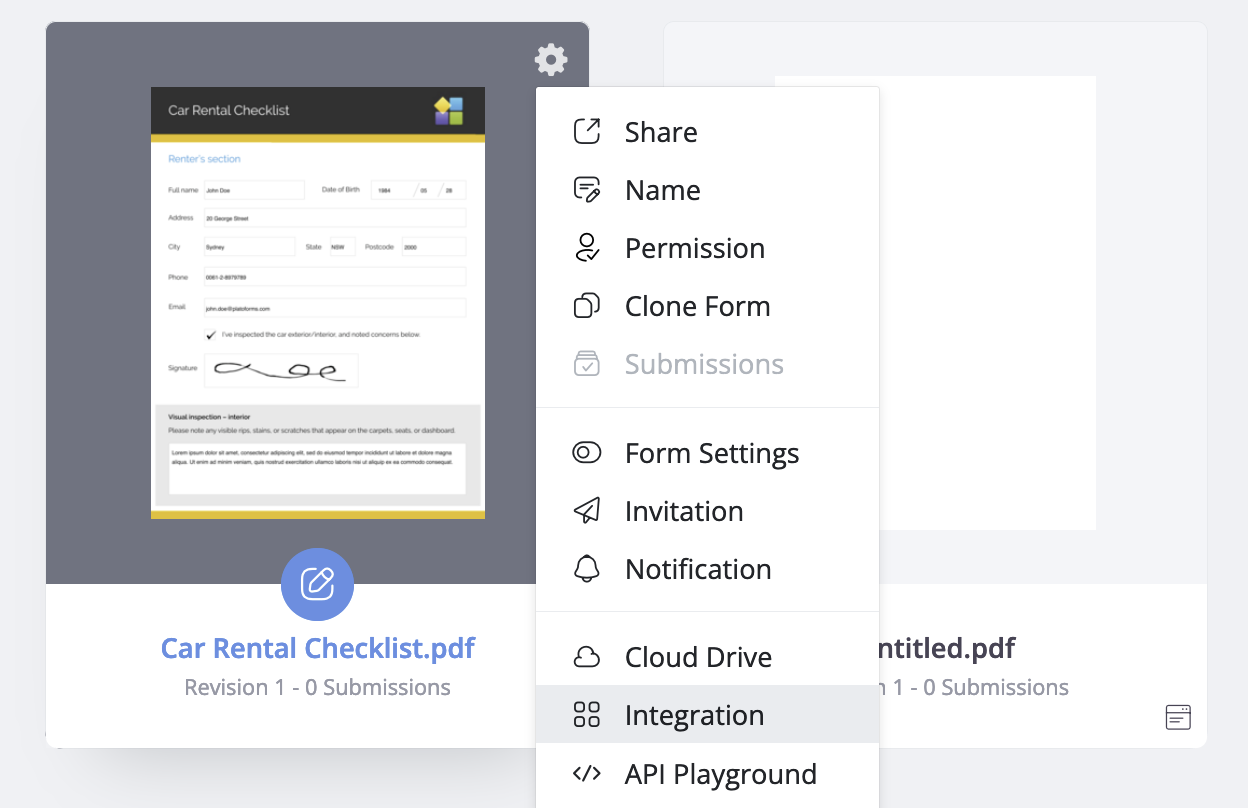
前往儀表板並將滑鼠懸停在所需的表單上。
-
點擊表單右上角的 設定(齒輪) 圖示,然後選擇 整合。
-
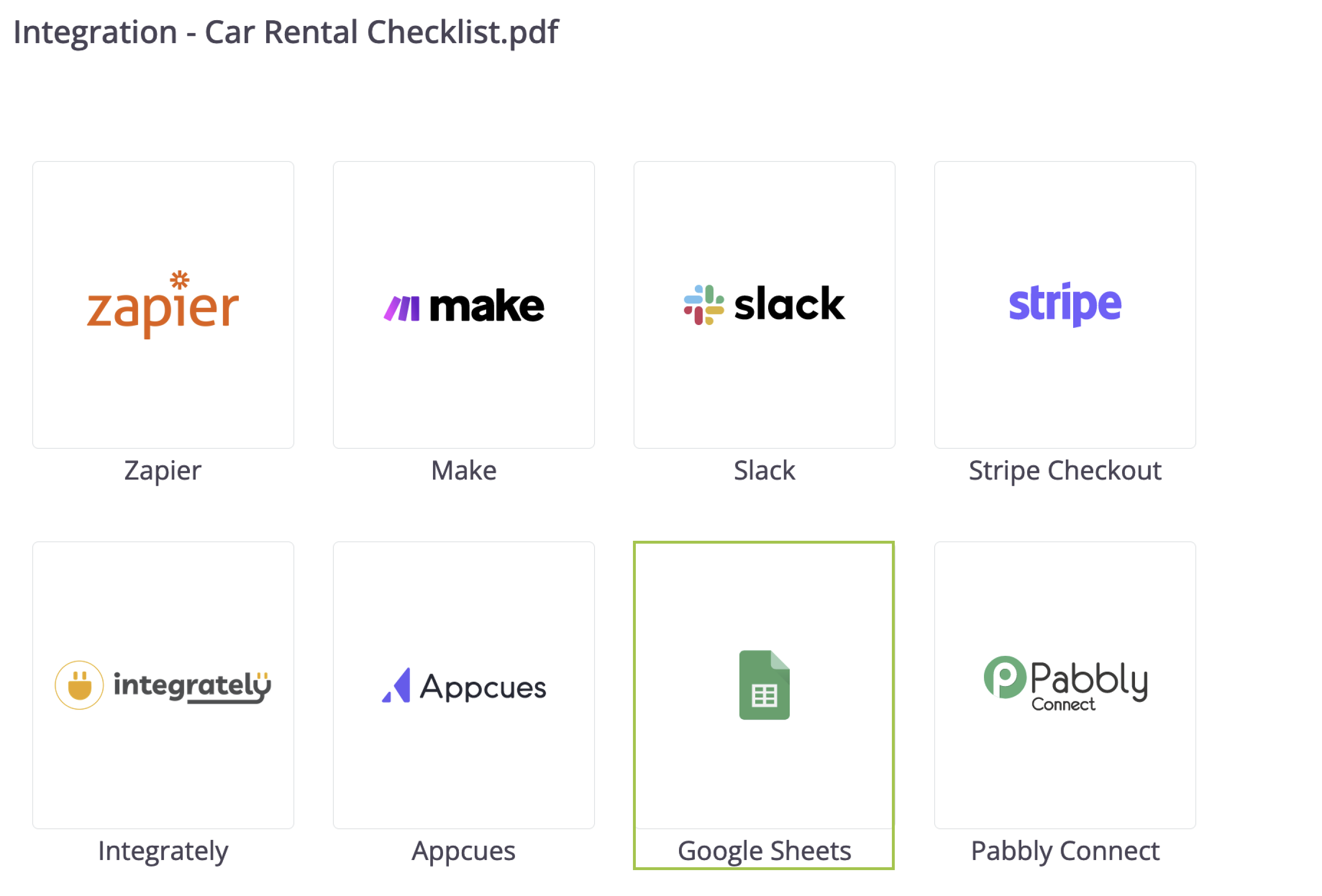
在展開的 整合 面板中,選擇 Google 試算表 > 連接 Google 試算表。
-
按照螢幕上的提示授予 PlatoForms 存取您的 Google 帳戶的權限。
-
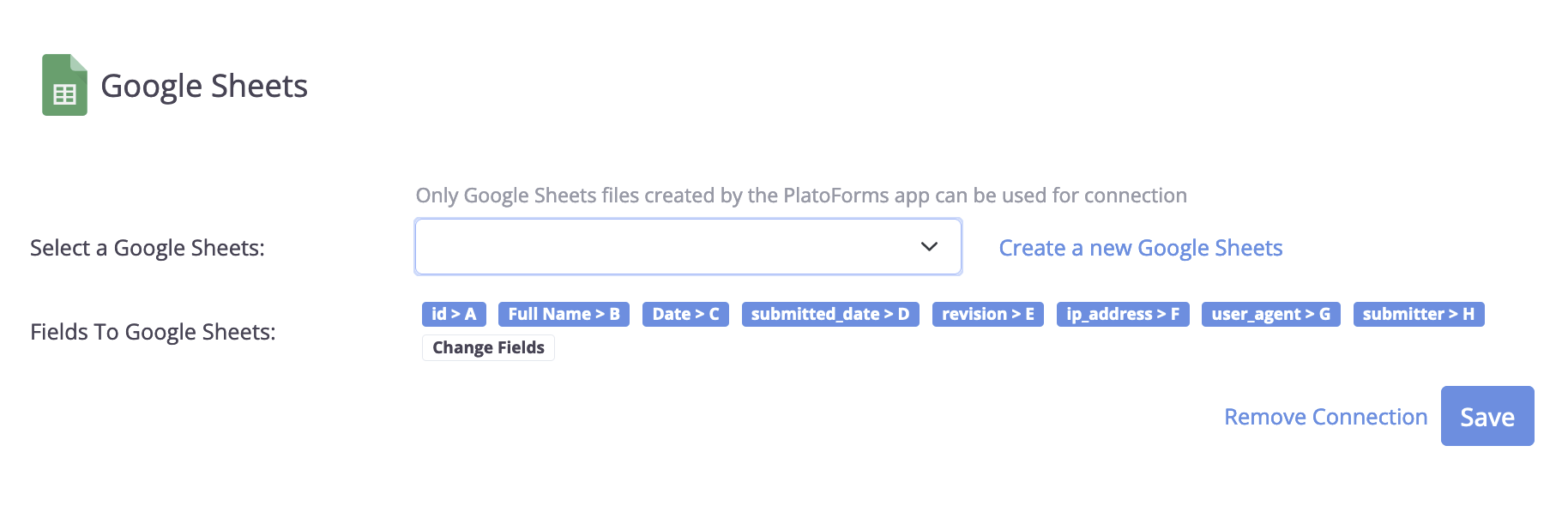
成功連接後,您會在面板上看到兩個欄位:
-
選擇 Google 試算表: 從下拉列表中選擇現有的試算表,或點擊 建立新的 Google 試算表 來生成一個新的。
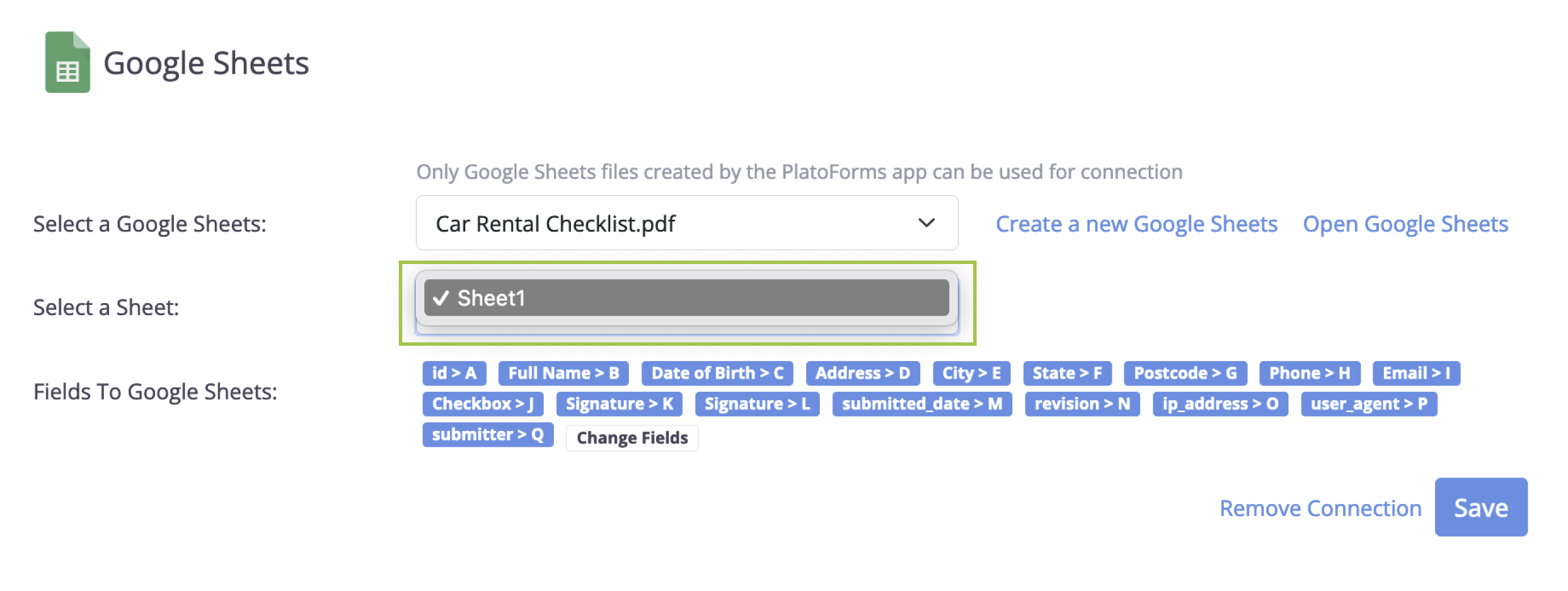
如果您建立了一個新的 Google 試算表,其名稱將與您在 PlatoForms 上的線上表單標題相符。然後,您會看到一個新的欄位 選擇一個工作表,您可以選擇該新試算表中的特定工作表來儲存通過表單提交的所有數據。
-
欄位至 Google 試算表: 這些是將上傳到您的 Google 試算表的提交欄位。使用 更改欄位 選項來選擇或取消選擇它們。
- 點擊 儲存 以應用您的設定。
完成這些步驟後,所有新的表單提交將自動儲存到您指定的 Google 試算表中。