
與 Google Sheets 整合
本頁內容
使用 PlatoForms,您可以將線上表單連接到 Google Sheets,確保所有提交的數據自動存儲在電子表格中,便於訪問和分析。本文將指導您設置此整合的步驟,讓您能夠有效地組織和利用表單數據。
與 Google Sheets 整合
-
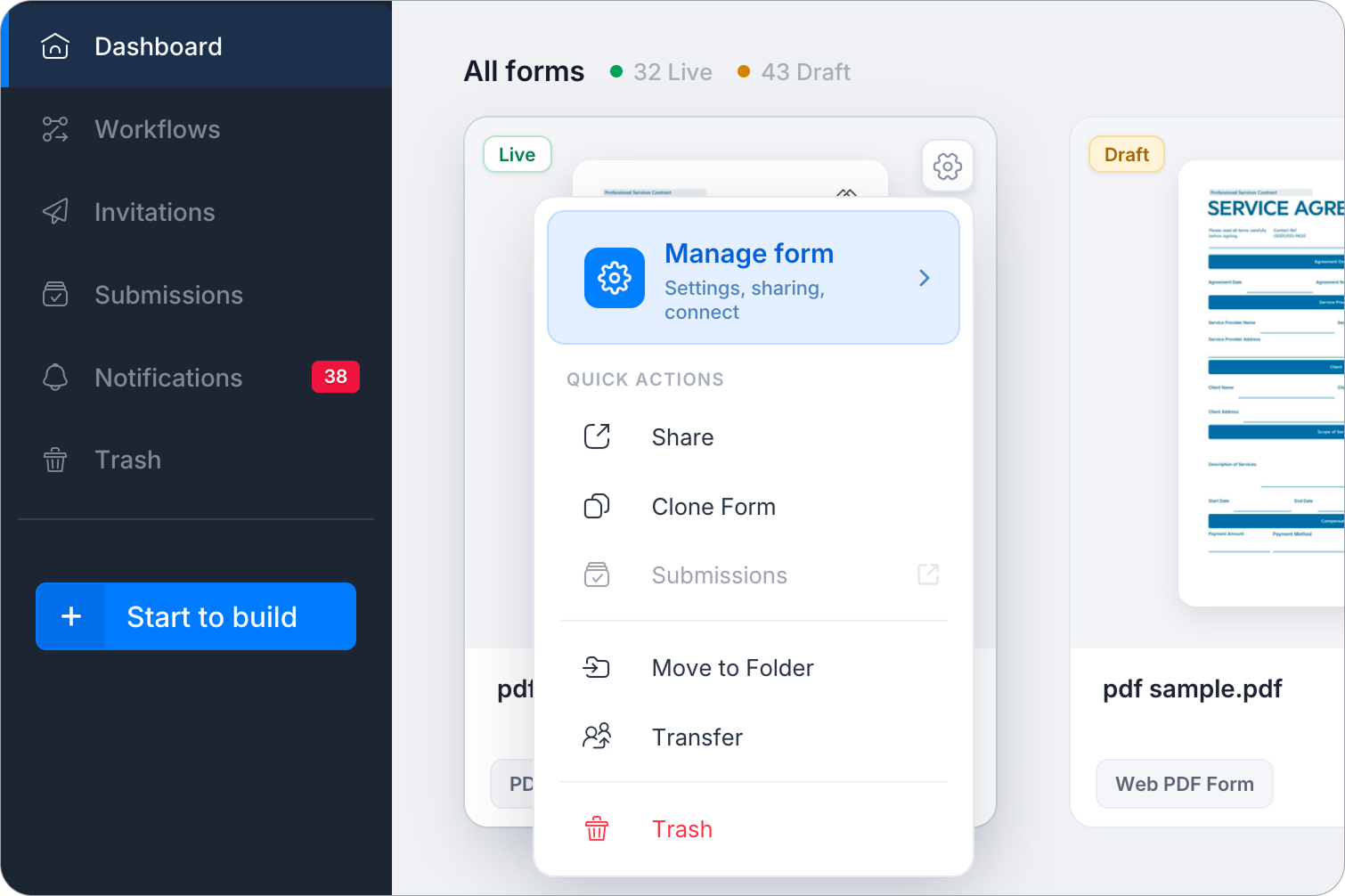
在 儀表板 上,將滑鼠懸停在表單上,點擊右上角的 設置(齒輪圖標),然後點擊 管理表單。
-
在左側邊欄中,點擊 整合。
-
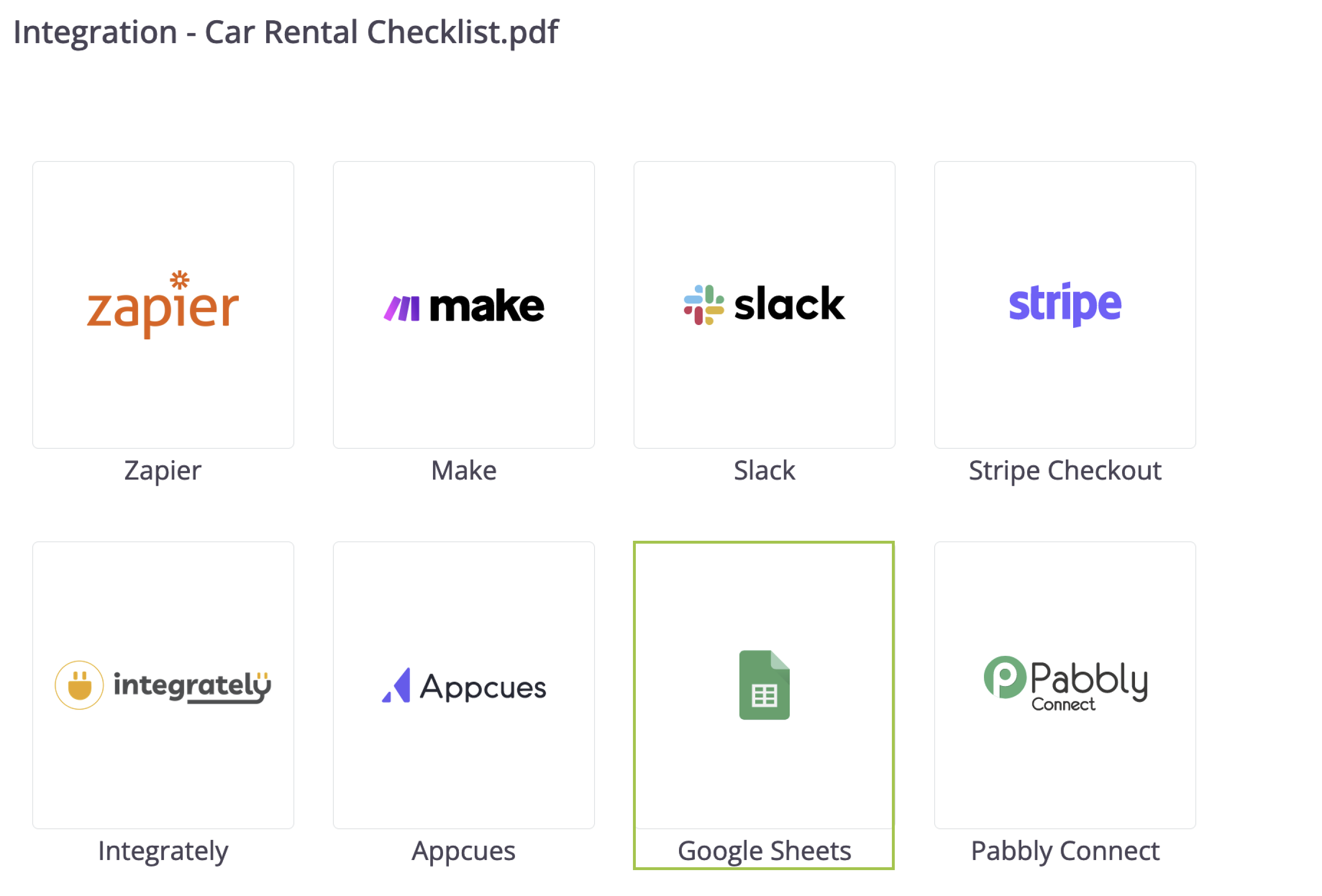
找到 Google Sheets 卡片並點擊 連接。
-
按照屏幕上的提示授予 PlatoForms 訪問您的 Google 帳戶的權限。
-
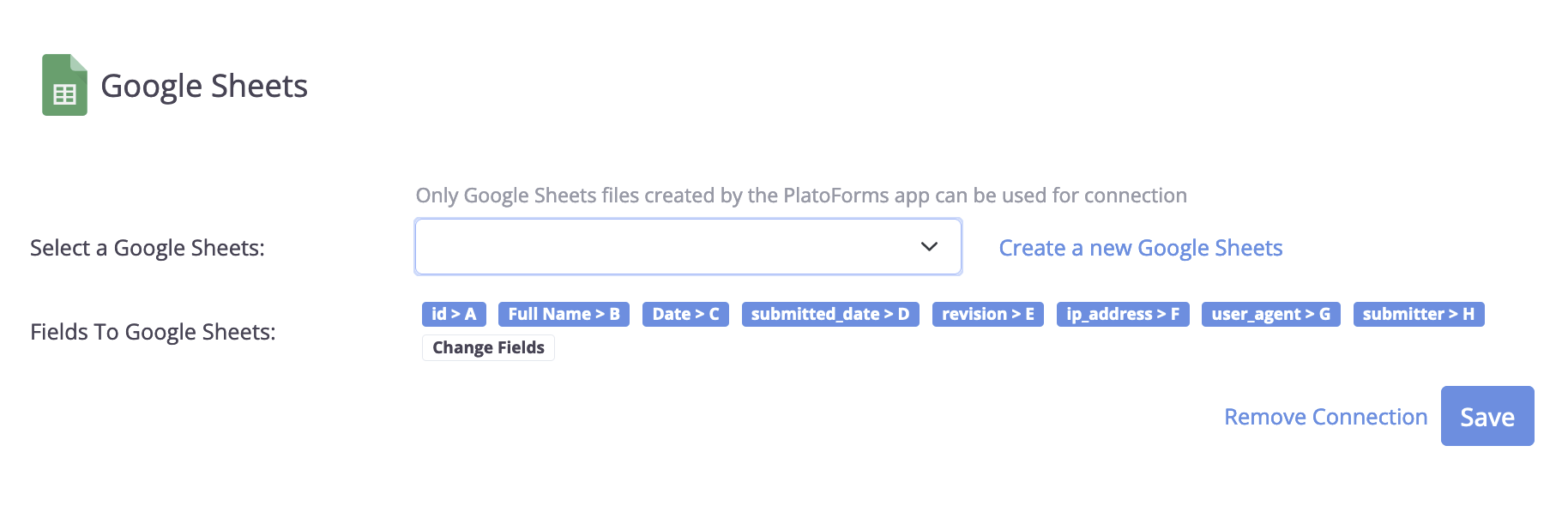
成功連接後,您將在面板上看到兩個欄位:
-
選擇一個 Google Sheets: 從下拉列表中選擇 PlatoForms 先前創建的試算表,或點擊 創建新的 Google Sheets 來生成一個新的。您自己在 Google Sheets 中創建的試算表不會列出:只有 PlatoForms 創建的試算表可以連接。
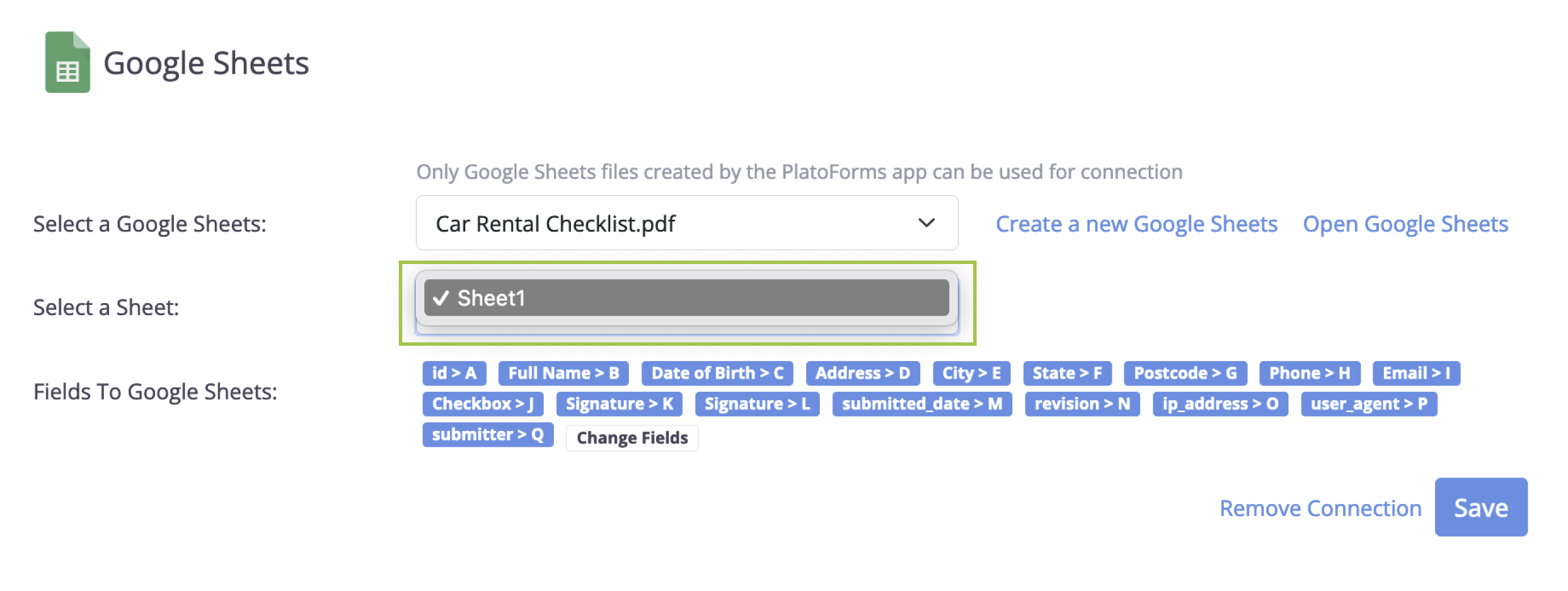
如果您創建了一個新的 Google Sheet,其名稱將與您在 PlatoForms 上的線上表單標題匹配。一旦選擇了一個試算表,您將看到一個名為 選擇工作表 的欄位,您可以在其中選擇該試算表中的特定工作表,以存儲通過表單提交的所有數據。
-
欄位到 Google Sheets: 這些是將上傳到 Google Sheets 的提交欄位。使用 更改欄位 選項來選擇或取消選擇它們。
- 點擊 保存 以應用您的設置。
完成這些步驟後,所有新的表單提交將自動保存到您指定的 Google Sheet 中。
試算表如何填寫
- PlatoForms 不會寫入標題行。請在第 1 行輸入您自己的列標題;新行將添加在數據的最後一行之下。
- 每次提交會添加一行。當提交被編輯並再次提交時,會添加新行,且不會更改先前的行;修訂欄位用於區分它們。
- 後來添加到表單的欄位在 更改欄位 中未被勾選。勾選它們並點擊 保存,然後再次發布表單,以便其值被發送。