
与 Google 表格集成
本页内容
通过 PlatoForms,您可以将在线表单连接到 Google 表格,确保所有提交的数据自动存储在电子表格中,便于访问和分析。本文将指导您完成设置此集成的步骤,使您能够高效地组织和利用表单数据。
与 Google 表格集成
-
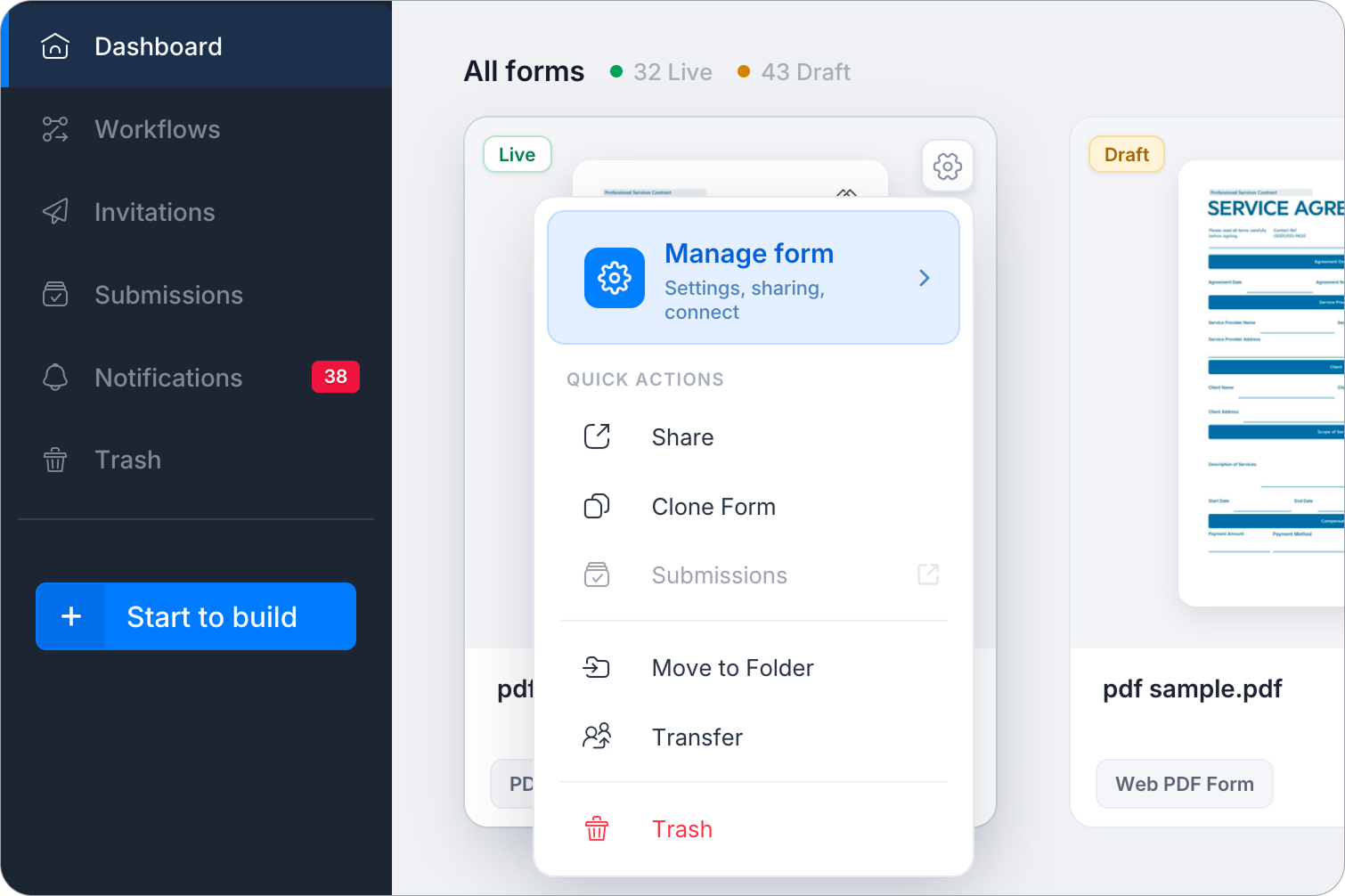
在 仪表板 上,将鼠标悬停在表单上,点击右上角的 设置(齿轮图标),然后点击 管理表单。
-
在左侧边栏,点击 集成。
-
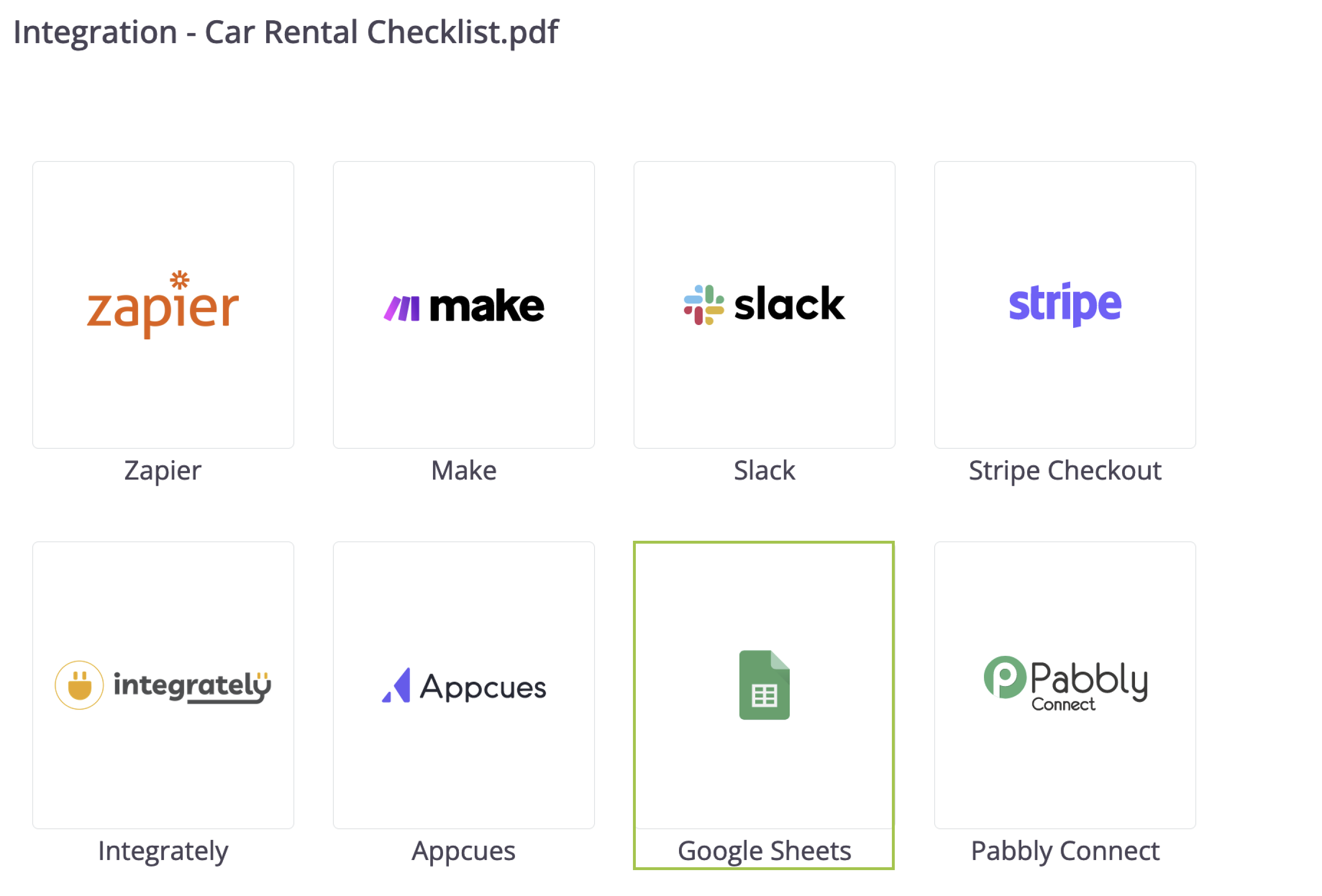
找到 Google 表格 卡片并点击 连接。
-
按照屏幕上的提示授予 PlatoForms 访问您的 Google 帐户的权限。
-
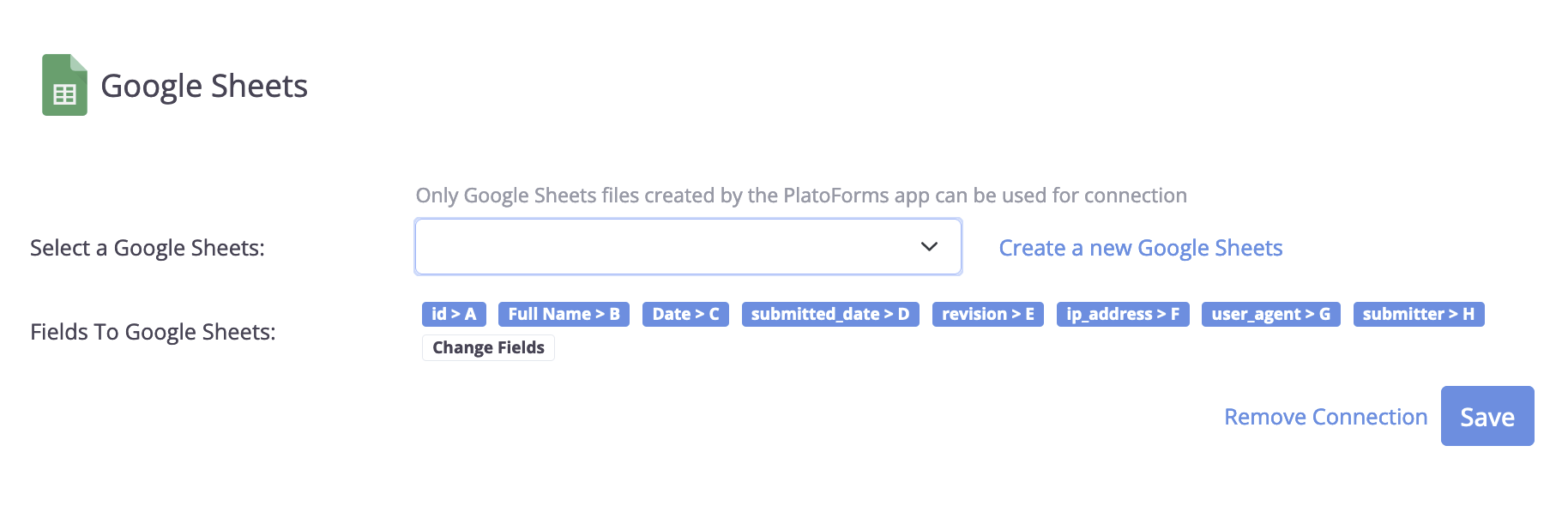
成功连接后,您将在面板上看到两个字段:
-
选择一个 Google Sheets: 从下拉列表中选择 PlatoForms 之前创建的电子表格,或点击 创建新的 Google Sheets 以生成一个新表格。您自己在 Google Sheets 中创建的电子表格不会列出:只有 PlatoForms 创建的电子表格可以连接。
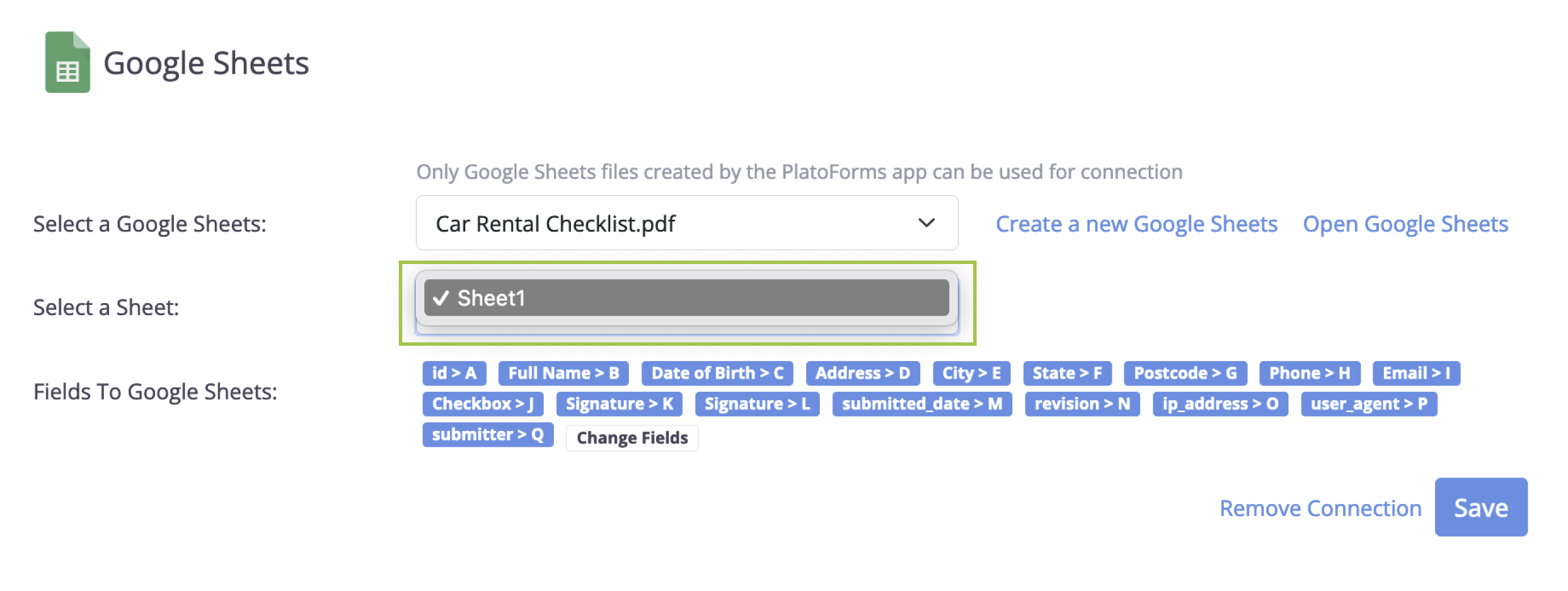
如果您创建了一个新的 Google 表格,其名称将与您在 PlatoForms 中的在线表单标题相匹配。一旦选择了一个电子表格,您会看到一个名为 选择一个表格 的字段,您可以在其中选择该电子表格中的特定表格,以存储通过表单提交的所有数据。
-
字段到 Google 表格: 这些是将上传到您的 Google 表格的提交字段。使用 更改字段 选项根据需要选择或取消选择它们。
- 点击 保存 以应用您的设置。
完成这些步骤后,所有新的表单提交将自动保存到您指定的 Google 表格中。
表格如何填充
- PlatoForms 不会写入标题行。请在第 1 行输入您自己的列标题;新行将添加在数据的最后一行下面。
- 每次提交都会添加一行。当提交被编辑并再次提交时,会添加新行,之前的行不会更改;修订 列用于区分它们。
- 后来添加到表单的字段在 更改字段 中未被勾选。勾选它们并点击 保存,然后再次发布表单,以便发送它们的值。