
与 Google 表格集成
标签页
通过 PlatoForms,您可以将在线表单连接到 Google 表格,确保所有提交的数据自动存储在电子表格中,便于访问和分析。本文将指导您完成设置此集成的步骤,使您能够有效地组织和利用表单数据。
与 Google 表格集成
-
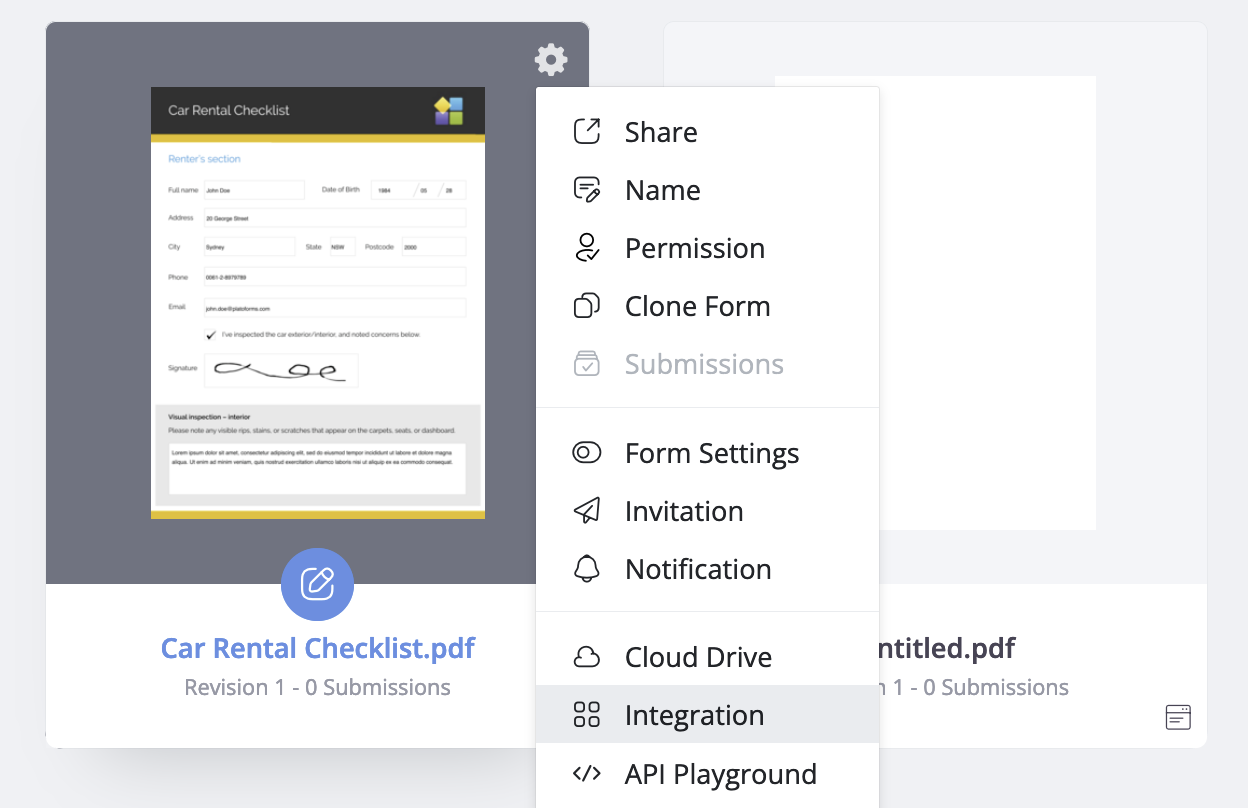
导航到仪表板并将鼠标悬停在所需的表单上。
-
点击表单右上角的 设置(齿轮) 图标,然后选择 集成。
-
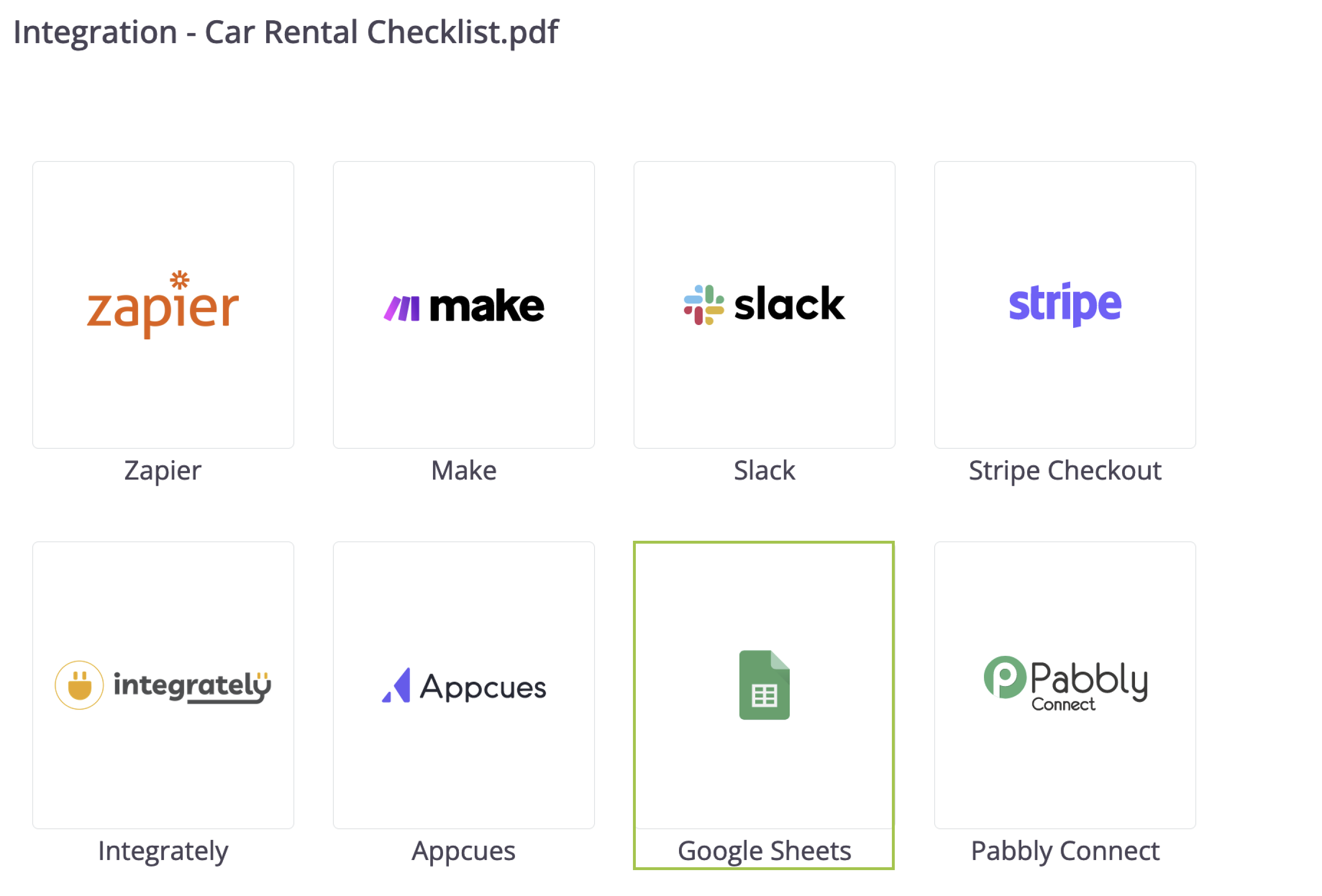
在展开的 集成 面板中,选择 Google 表格 > 连接 Google 表格。
-
按照屏幕上的提示授予 PlatoForms 访问您的 Google 帐户的权限。
-
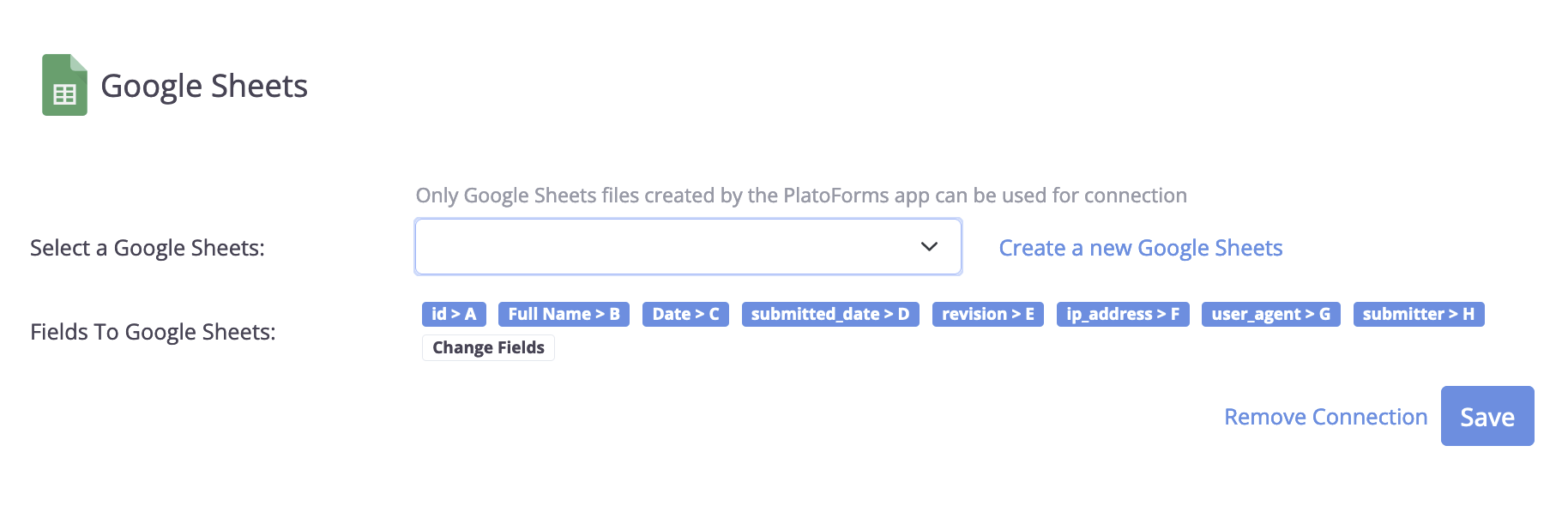
成功连接后,您将在面板上看到两个字段:
-
选择一个 Google 表格: 从下拉列表中选择一个现有的表格或点击 创建一个新的 Google 表格 以生成一个新的表格。
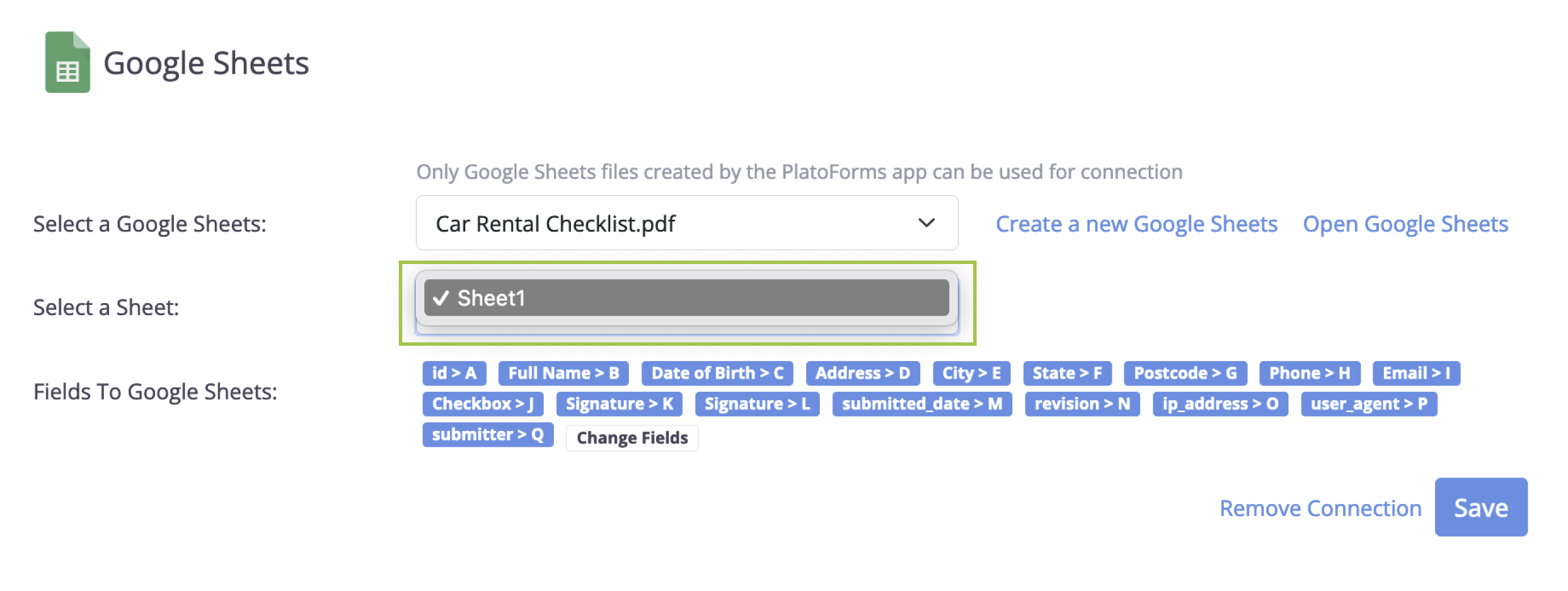
如果您创建了一个新的 Google 表格,其名称将与您在 PlatoForms 中的在线表单标题相匹配。然后,您会看到一个名为 选择一个工作表 的新字段,您可以选择该新表格中的特定工作表来存储通过表单提交的所有数据。
-
字段到 Google 表格: 这些是将上传到您的 Google 表格的提交字段。使用 更改字段 选项根据需要选择或取消选择它们。
- 点击 保存 以应用您的设置。
完成这些步骤后,所有新的表单提交将自动保存到您指定的 Google 表格中。