
Set address autocomplete
Tabs
Address autocomplete helps users enter addresses faster and more accurately by suggesting locations as they type.
PlatoForms uses Google Maps to power address autocomplete for Address fields.
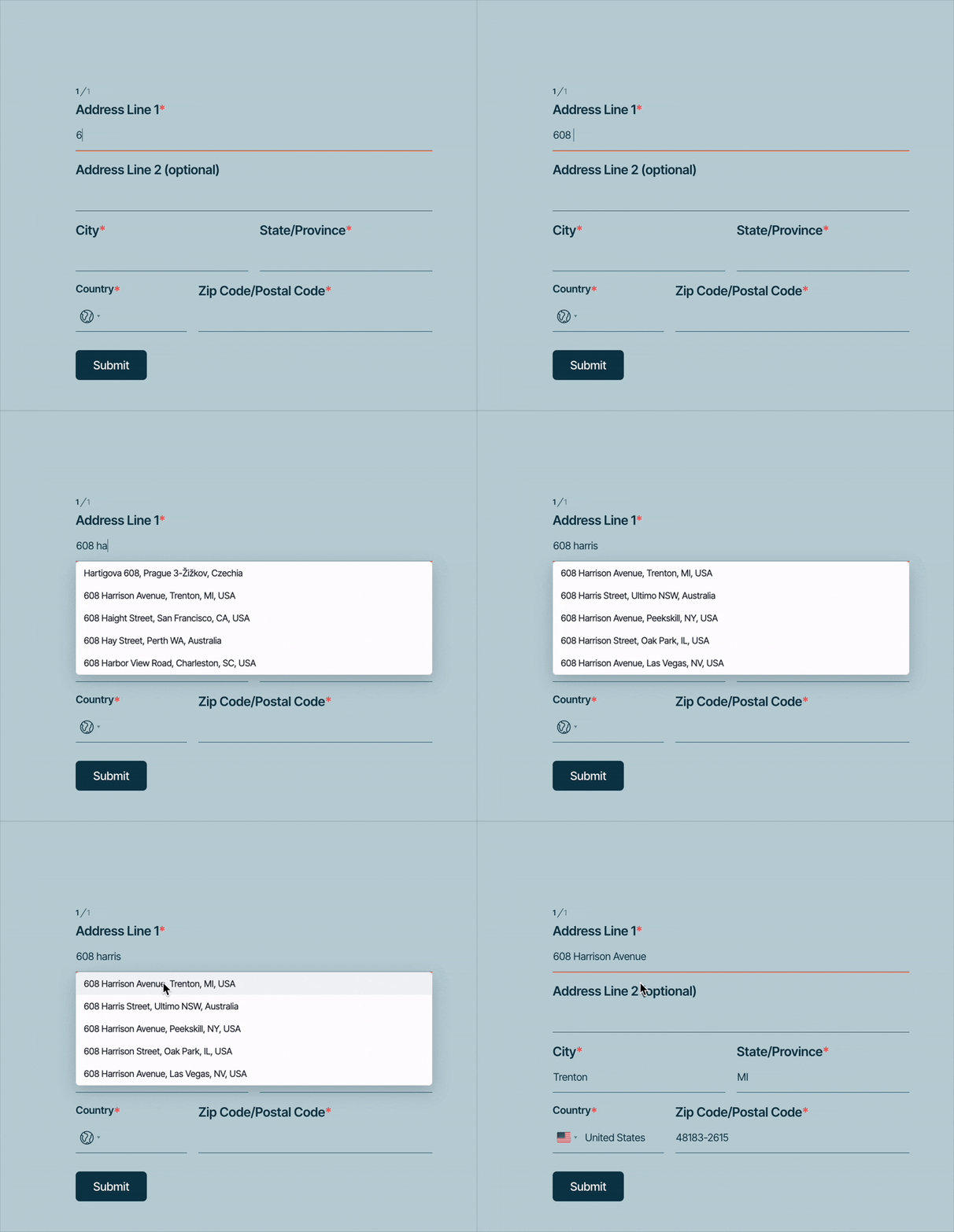
Autocomplete options
You can choose one of the following options for address autocomplete.
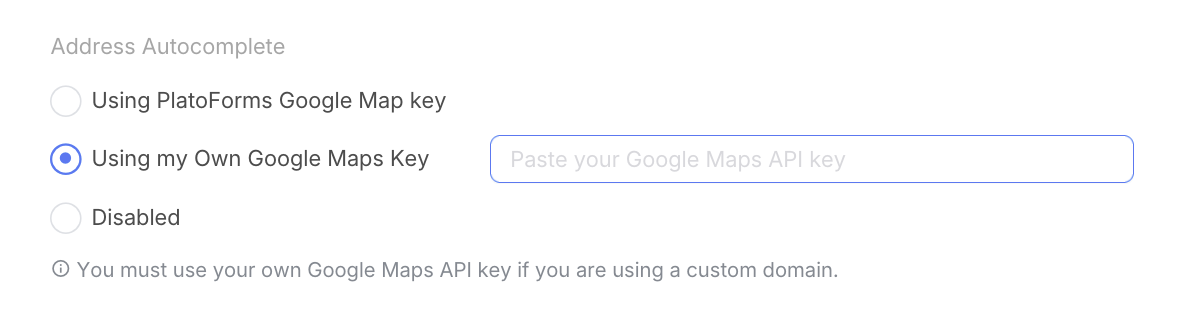
Use PlatoForms Google Maps key
Uses PlatoForms’ built-in Google Maps key.
Choose this option if:
- You are using the default PlatoForms domain (
forms.platoforms.com) - You want to enable autocomplete without additional setup
No configuration is required.
Use my own Google Maps API key
Uses your own Google Maps API key.
If your form uses a custom domain, you must use your own Google Maps API key.
This option is recommended when:
- Your form is published on a custom domain
- You need control over API usage or billing
- Your organization has security or compliance requirements
After selecting this option, paste your API key into the field provided. For more details, refer to Get a Google Maps API key.
Disabled
Turns off address autocomplete.
Users will enter address information manually.
Get a Google Maps API key
If you use a Custom Domain, or if you want full control over your API usage and limits, you must connect your own Google Maps API key.
Prerequisites
Before you begin, ensure the following are met, or the API will fail to return data:
-
Billing must be enabled: Google requires a valid Billing Account (linked to a credit card) for all Google Cloud projects using Maps APIs. Even if your usage stays within Google’s $200 monthly free credit, the API will not work without an active billing method.
-
HTTPS requirement: Your form domain must use the
https://protocol for the API key restrictions to validate correctly.
Open Google Cloud Console
Go to the Google Cloud Console and sign in with your Google account.
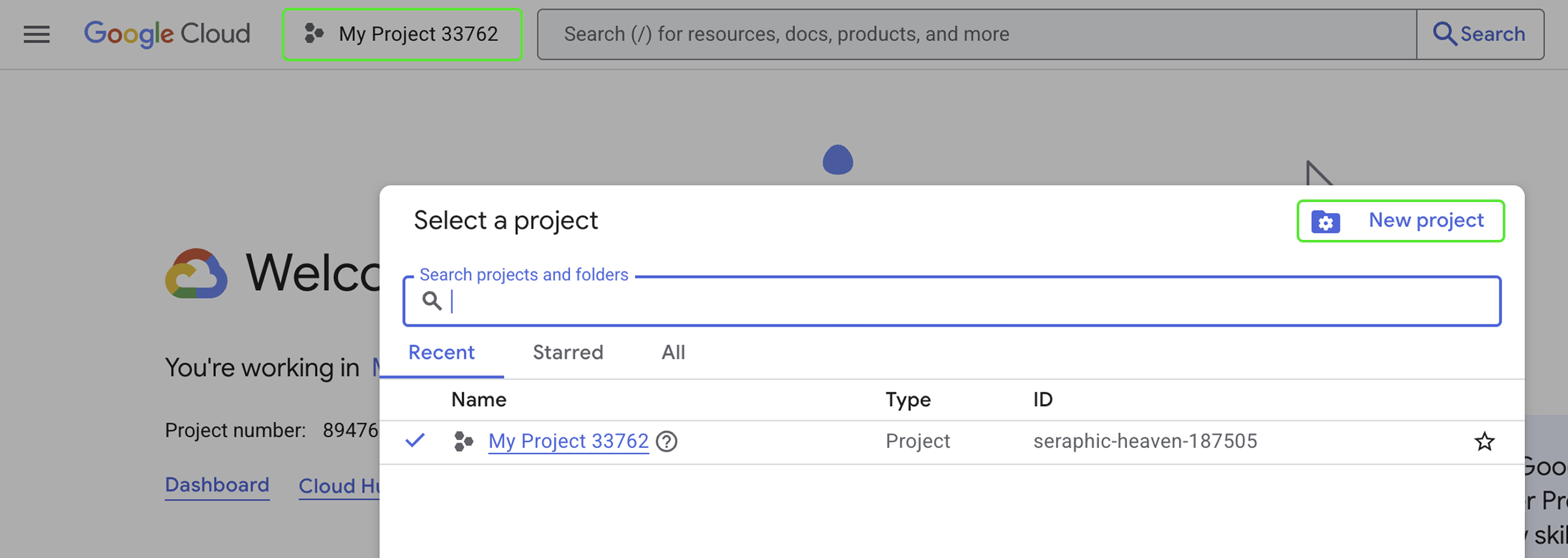
Create or select a project
-
Click the Project Selector at the top of the page.
-
Select an existing project or click New Project.
-
Give it a clear name like “Address Autocomplete” to easily identify its purpose later.
Enable required Google Maps APIs
Google APIs are disabled by default. You must manually enable specific services for address autocomplete to function:
-
Navigate to APIs & Services > Library.
-
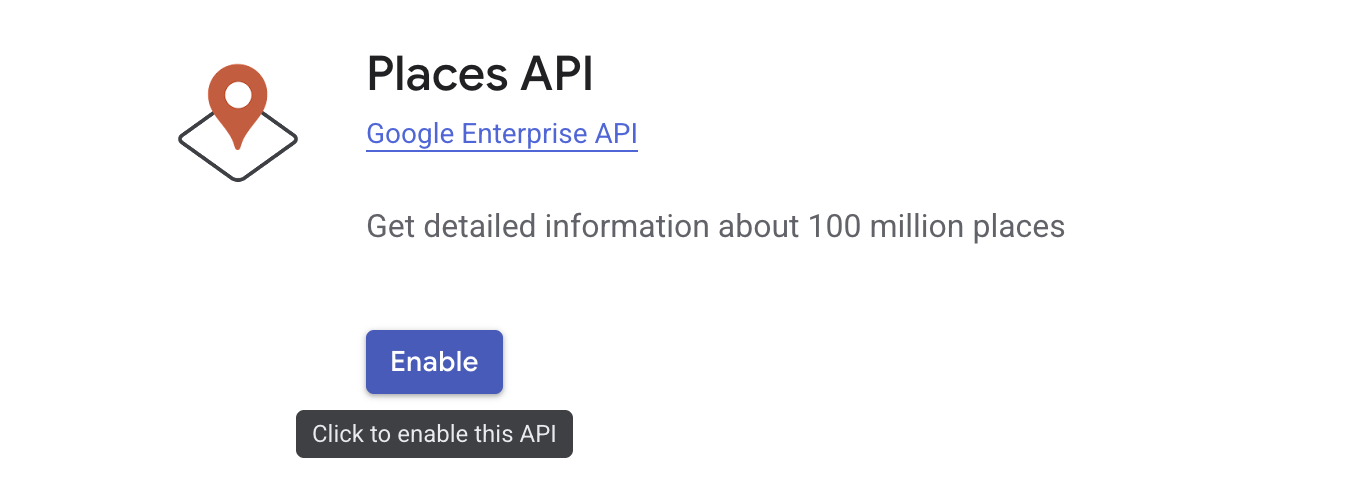
Search for and click Enable for the following three APIs:
-
Places API: The standard engine for address search. -
Places API (New): The updated version of the Places service. Enabling both ensures compatibility with modern web standards and PlatoForms’ latest updates. -
Maps JavaScript API: Required to render the maps library and interactive elements on your web forms.
Ensure all three show as “API Enabled” in your dashboard before moving to the next step.
-
Create your API key
-
Go to APIs & Services > Credentials.
-
Click + Create credentials and select API key.
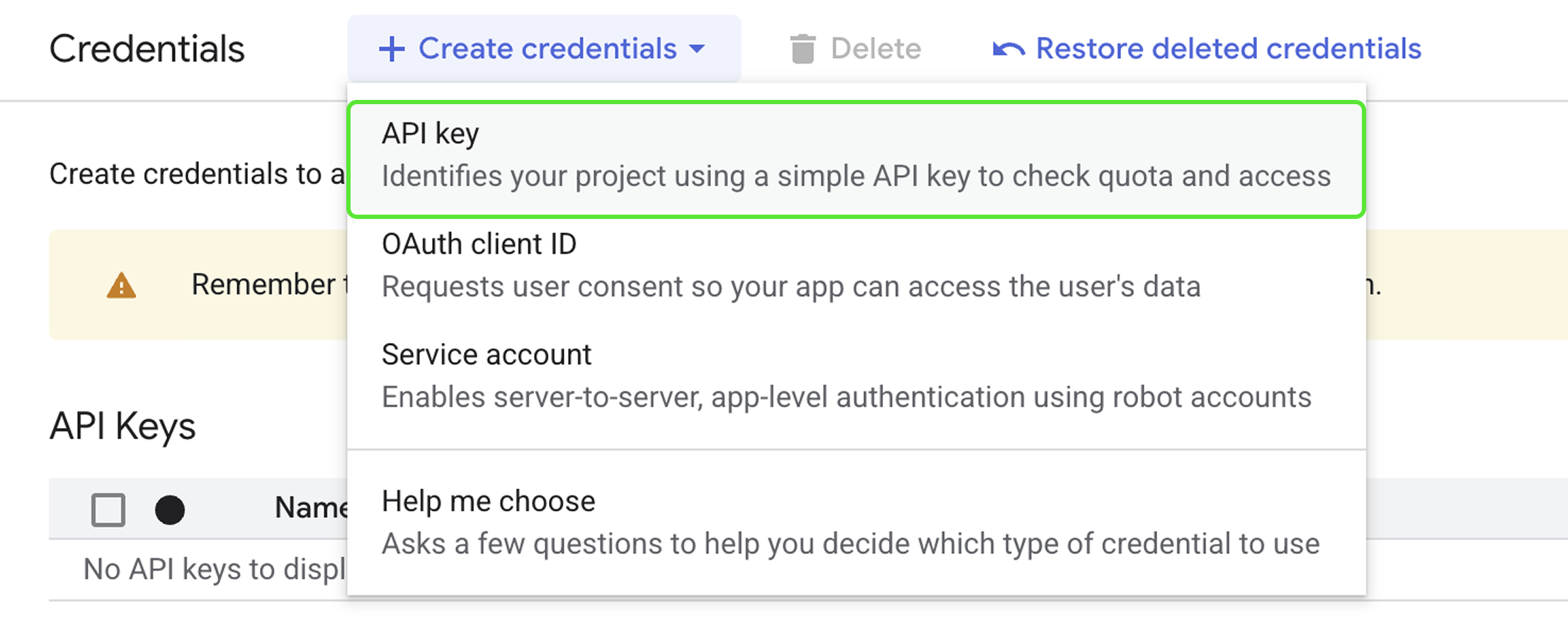
A dialog will appear with your new key.
-
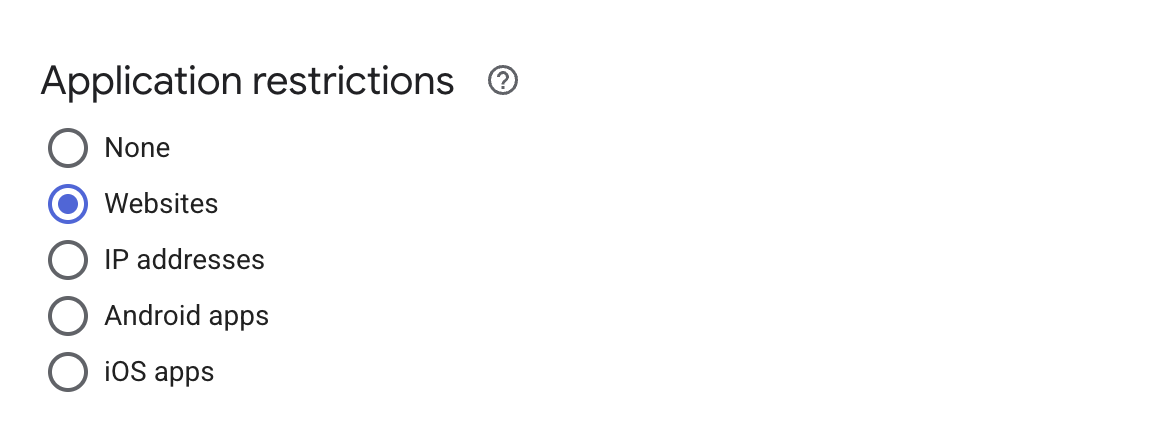
Set application restrictions:
-
Under Application Restrictions, select Websites.
-
Under Website restrictions, click + Add, and enter your domain.
-
To allow all subdomains, use a wildcard at the beginning (e.g.,
*.yourdomain.com). -
If you use a specific subdomain, enter it directly without a wildcard (e.g.,
forms.yourdomain.com).
NoteMake sure to remove
http://orhttps://from the URL. Using the wildcard format*.yourdomain.comis usually the best approach, as it automatically covers all your subdomains.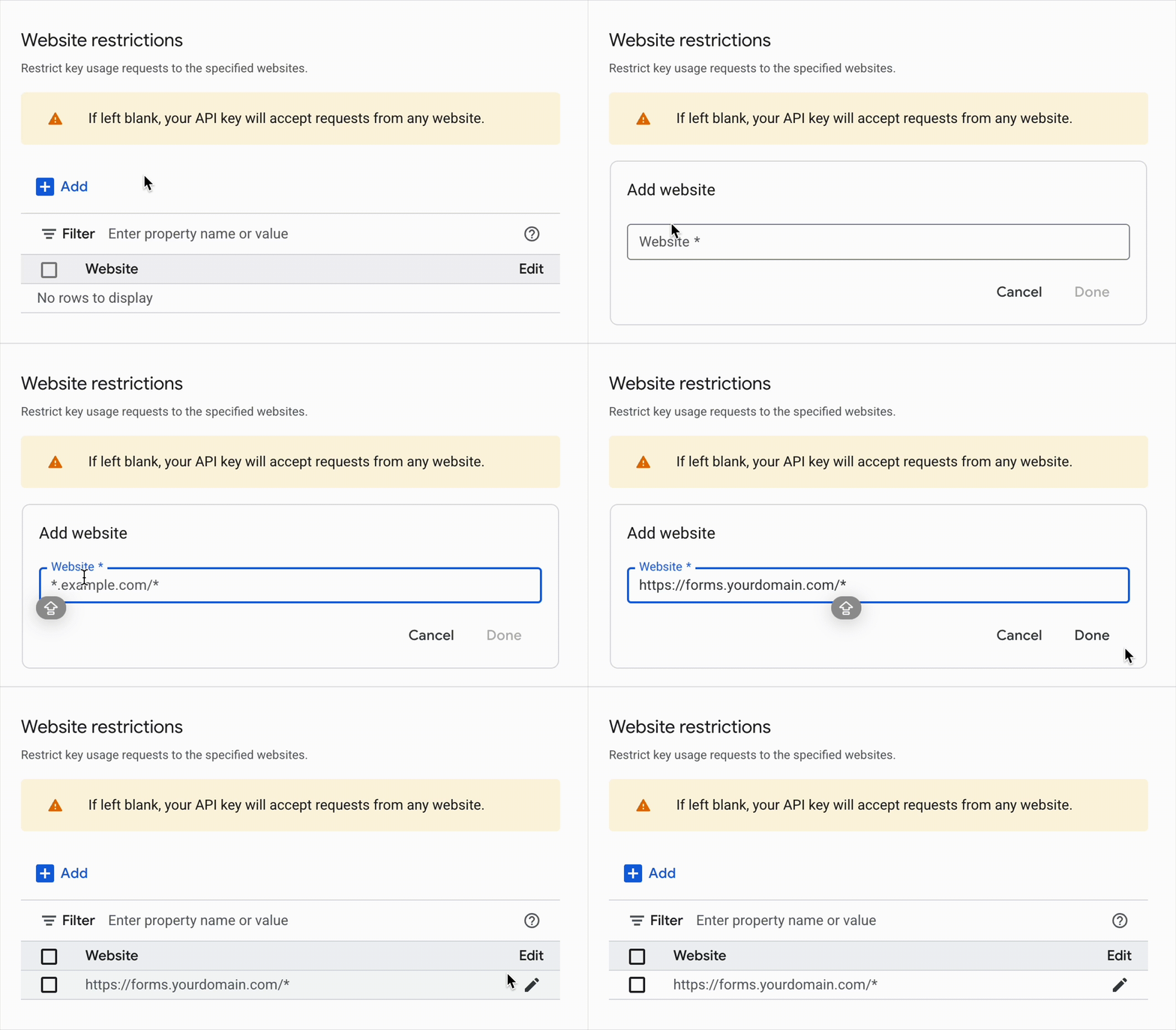
-
-
-
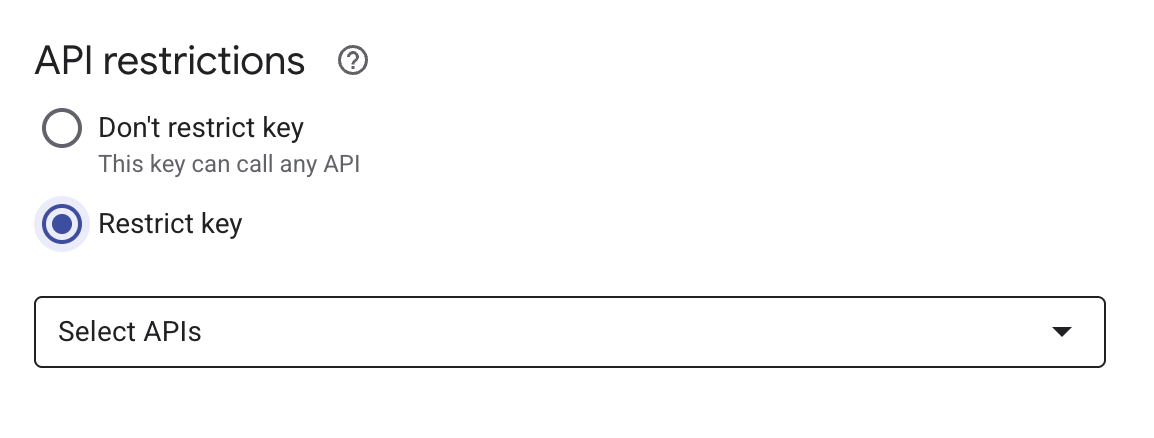
Set API restrictions:
-
Under API restrictions, select Restrict key.
-
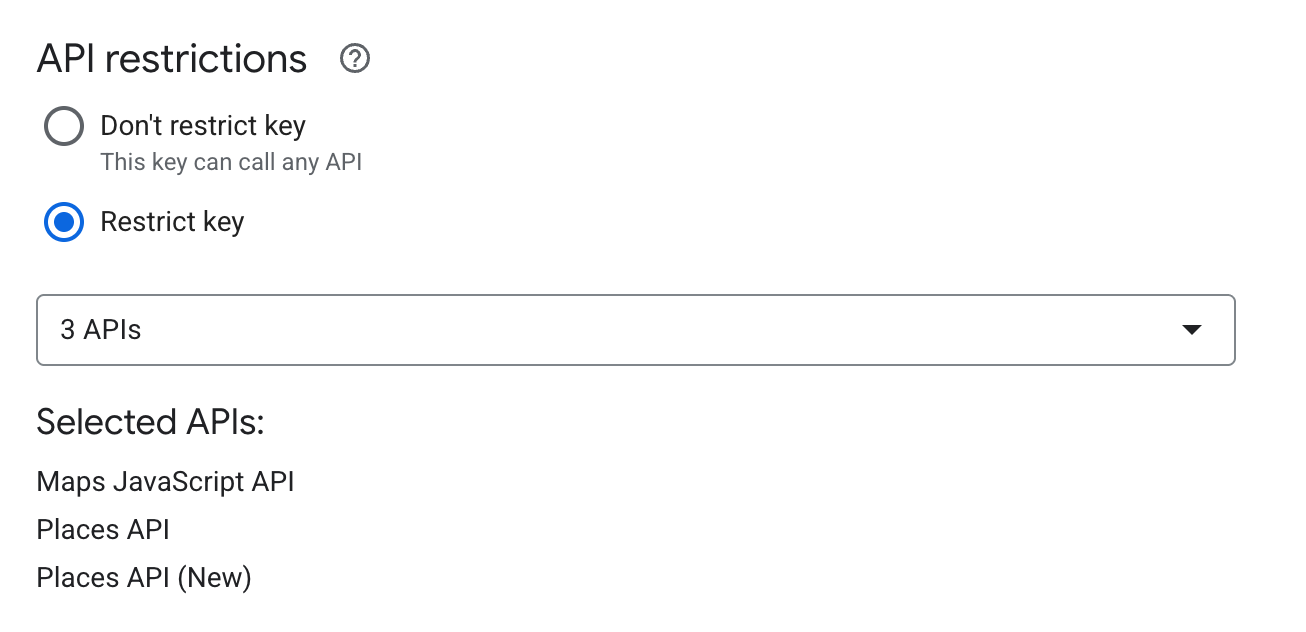
Click the Select APIs dropdown and search for/select these three APIs: Places API, Places API (New), and Maps JavaScript API.
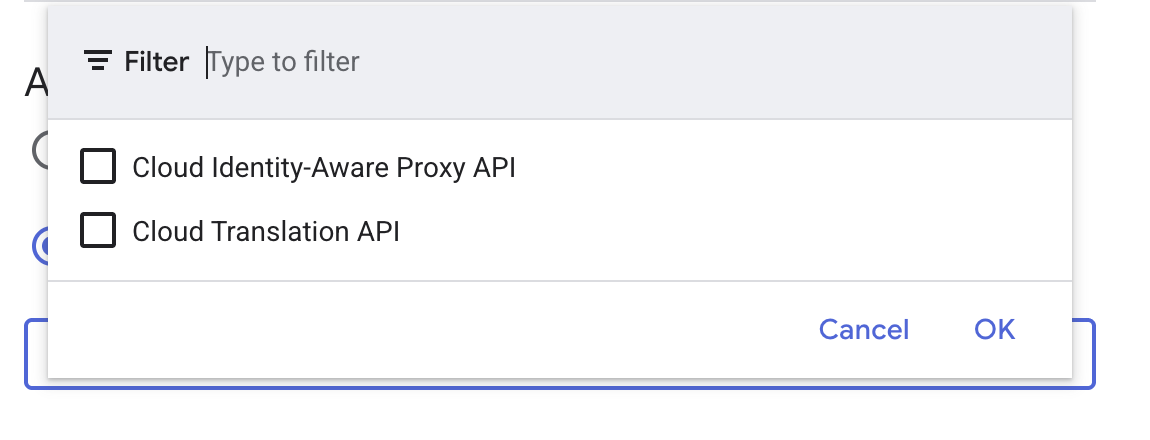
Ensure the dropdown reflects “3 APIs” (as shown in the image below).
-
-
Click Save.
The page will automatically redirect back to the main Credentials dashboard. You will see your newly created API key appearing in the “API Keys” list.
-
Click the Copy icon (the double-square symbol) next to the key in the list to copy it to your clipboard.
Enable address autocomplete
-
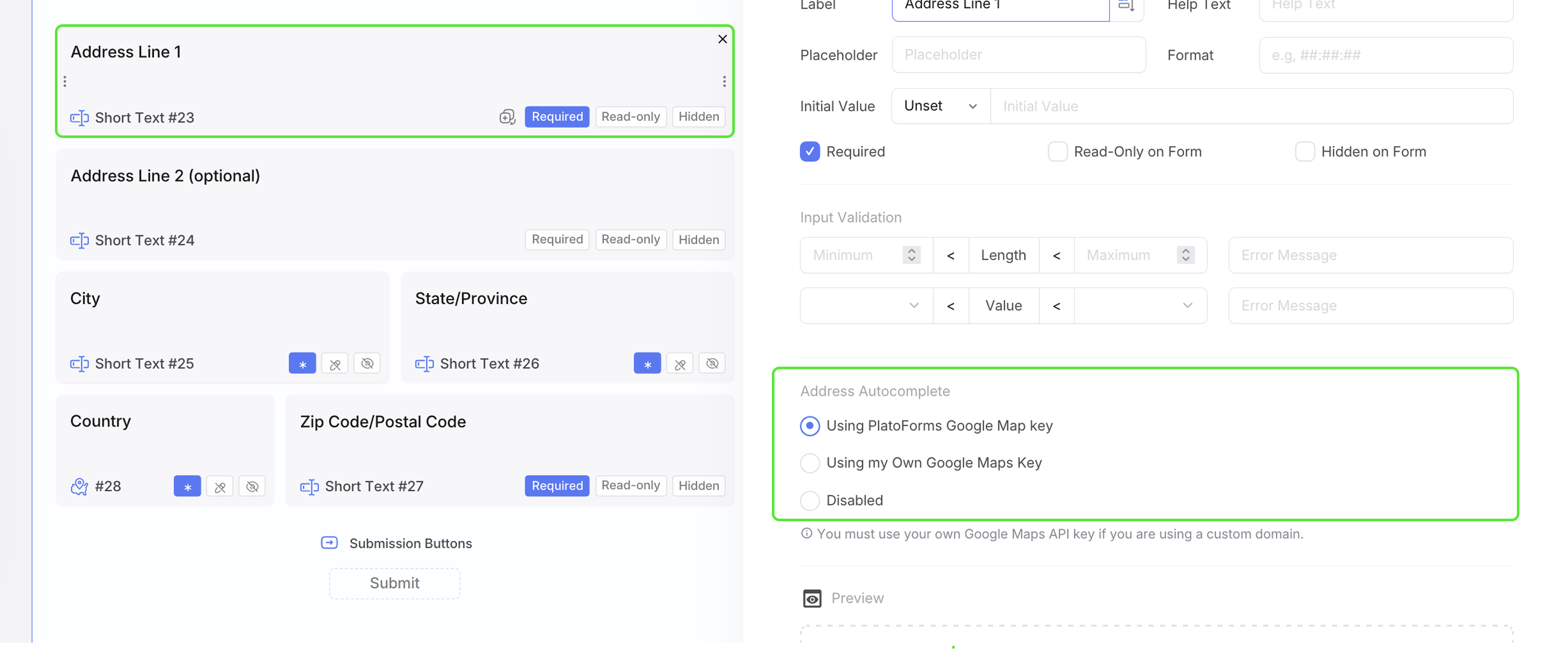
Open the PlatoForms form builder and select your Address Line 1 field.
-
In the right-hand settings panel, find Address Autocomplete.
-
Choose Using my Own Google Maps Key.
-
Paste your key into the field and save your form.
Address autocomplete applies to the entire Address field and automatically fills related sub-fields such as City, State, Zip Code, and Country when available.