
Set Address properties
Tabs
The Address field lets you collect a complete address in a single, structured block.
It groups multiple address-related inputs together to improve clarity, data accuracy, and form completion—especially for applications, registrations, and shipping workflows.
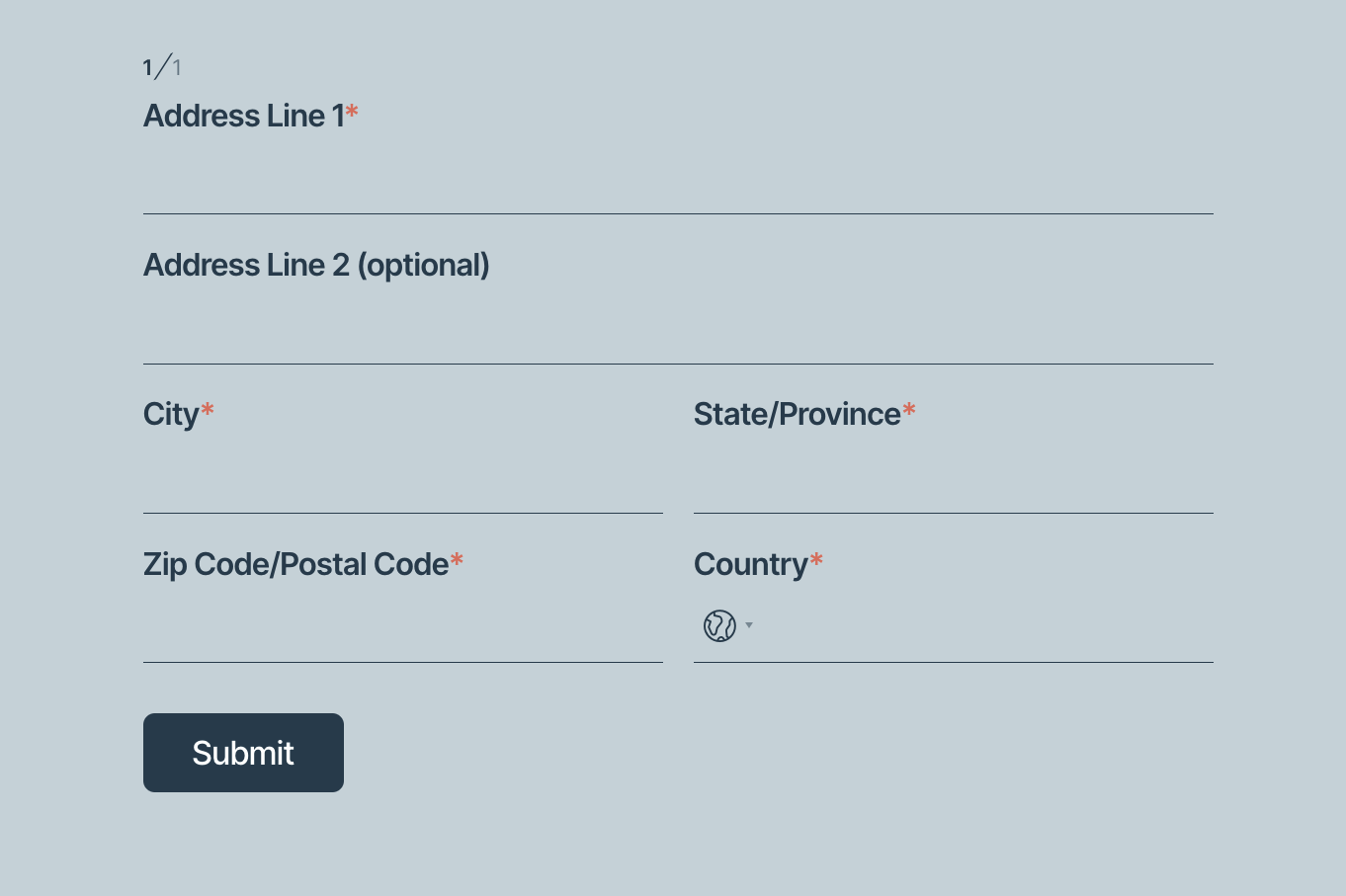
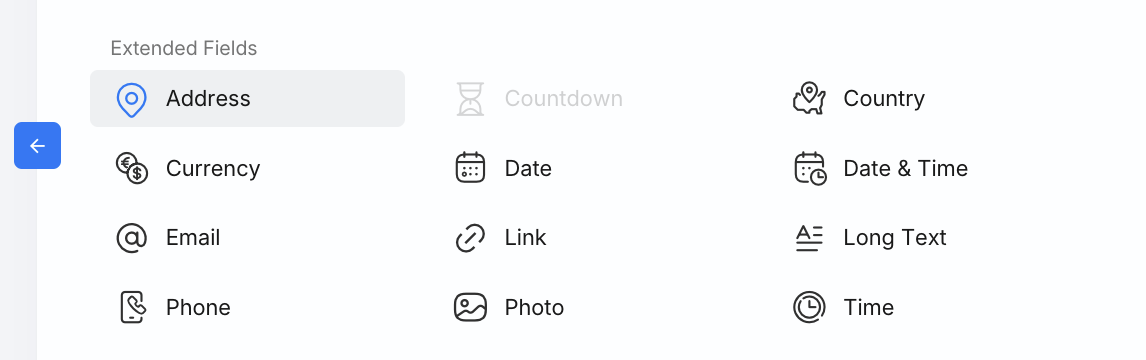
Add field
To add an Address field, in the form builder, select Address from Extended Fields in the left toolbar.
Address field structure
The Address field is a composite field whose sub-fields are visually grouped and logically connected.
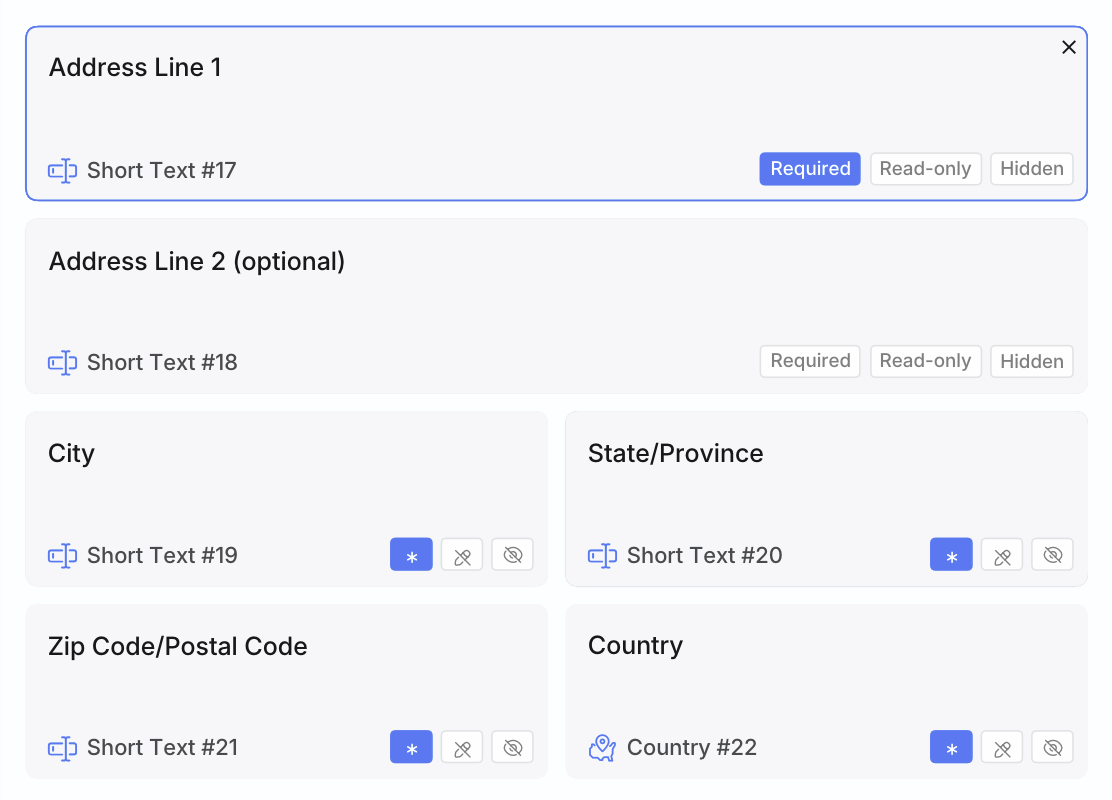
By default, the Address field includes:
- Address Line 1
- Address Line 2 (optional)
- City
- State / Province
- Zip Code / Postal Code
- Country
Each sub-field behaves like an individual field while remaining part of the same Address group.
Reorder sub-fields
You can reorder address sub-fields to match different regional address formats.
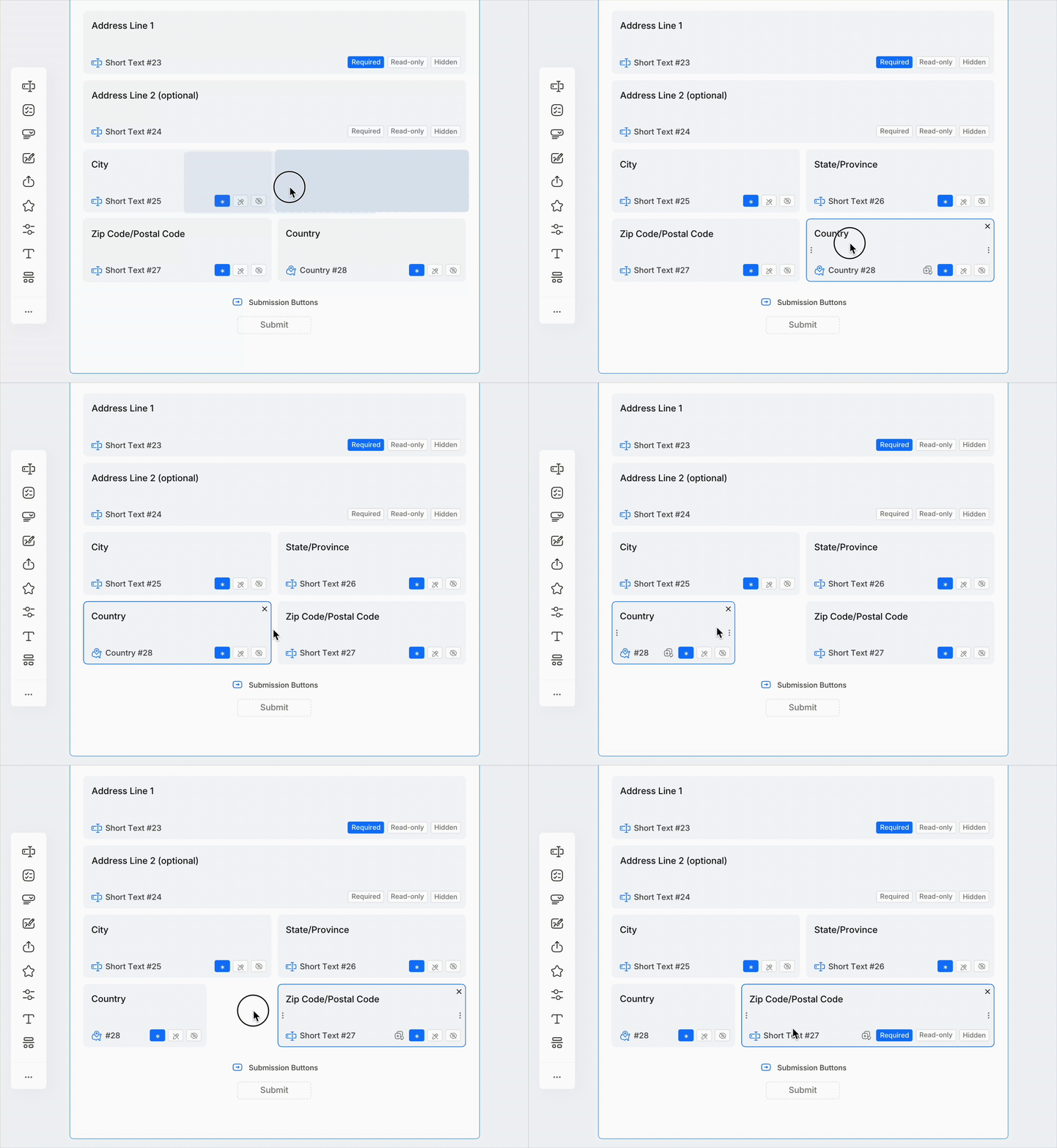
- Drag and drop sub-fields to change their order
- Layout updates instantly in the form preview
- Changes apply to both desktop and mobile views
Different countries expect different address orders. Reordering sub-fields helps reduce confusion and form errors.
Configure sub-field properties
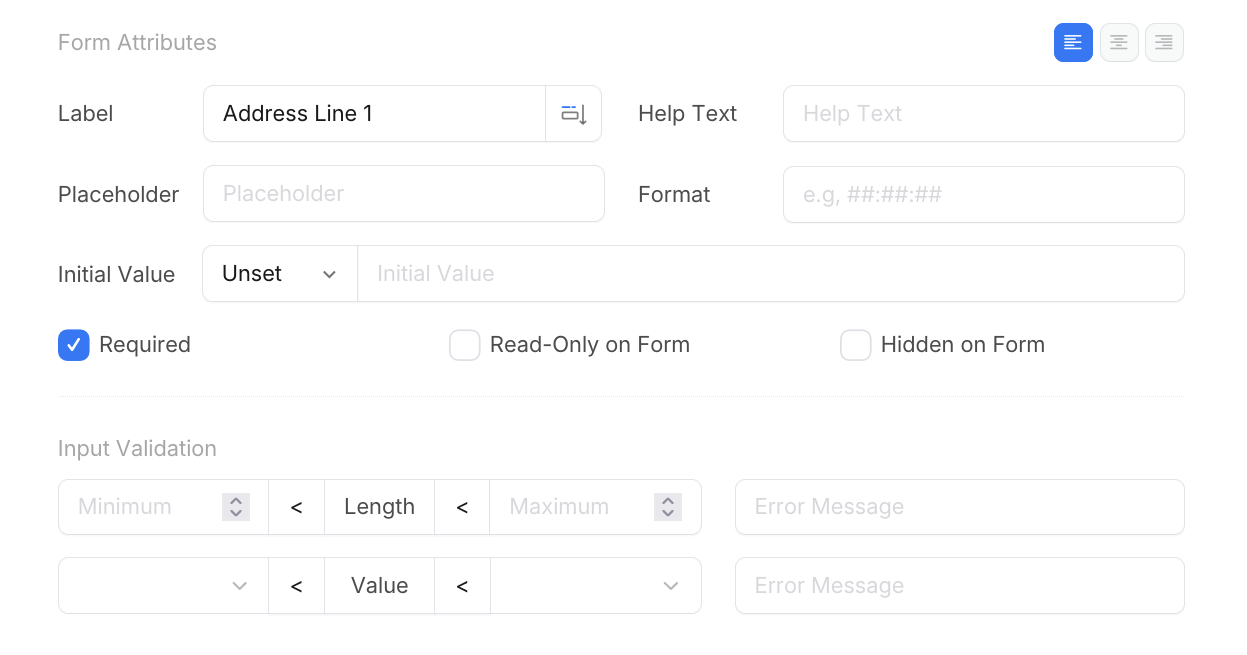
Each sub-field can be configured individually using common field settings such as labels, placeholders, required rules, visibility, and validation.
Address Autocomplete
PlatoForms supports Address Autocomplete powered by Google Maps to help users enter addresses faster and more accurately.
For setup instructions, API requirements, and custom domain rules, see Set address autocomplete.
Using Address fields with conditional logic
The Address field works with Conditional Logic.
You can show or hide the entire Address block based on previous answers.
A common pattern is to show the Address field only when a user selects options like “Shipping required” or “Physical address needed.”
For more details, refer to Set Form Logic.
Best practices
- Place the Address field after key decision questions
- Avoid making all sub-fields required
- Use Address Autocomplete to reduce typing errors
- Test the layout on mobile before publishing