
Set Countdown properties
Tabs
The Countdown field lets you add a visible time limit to a form, with optional reminders before time runs out.
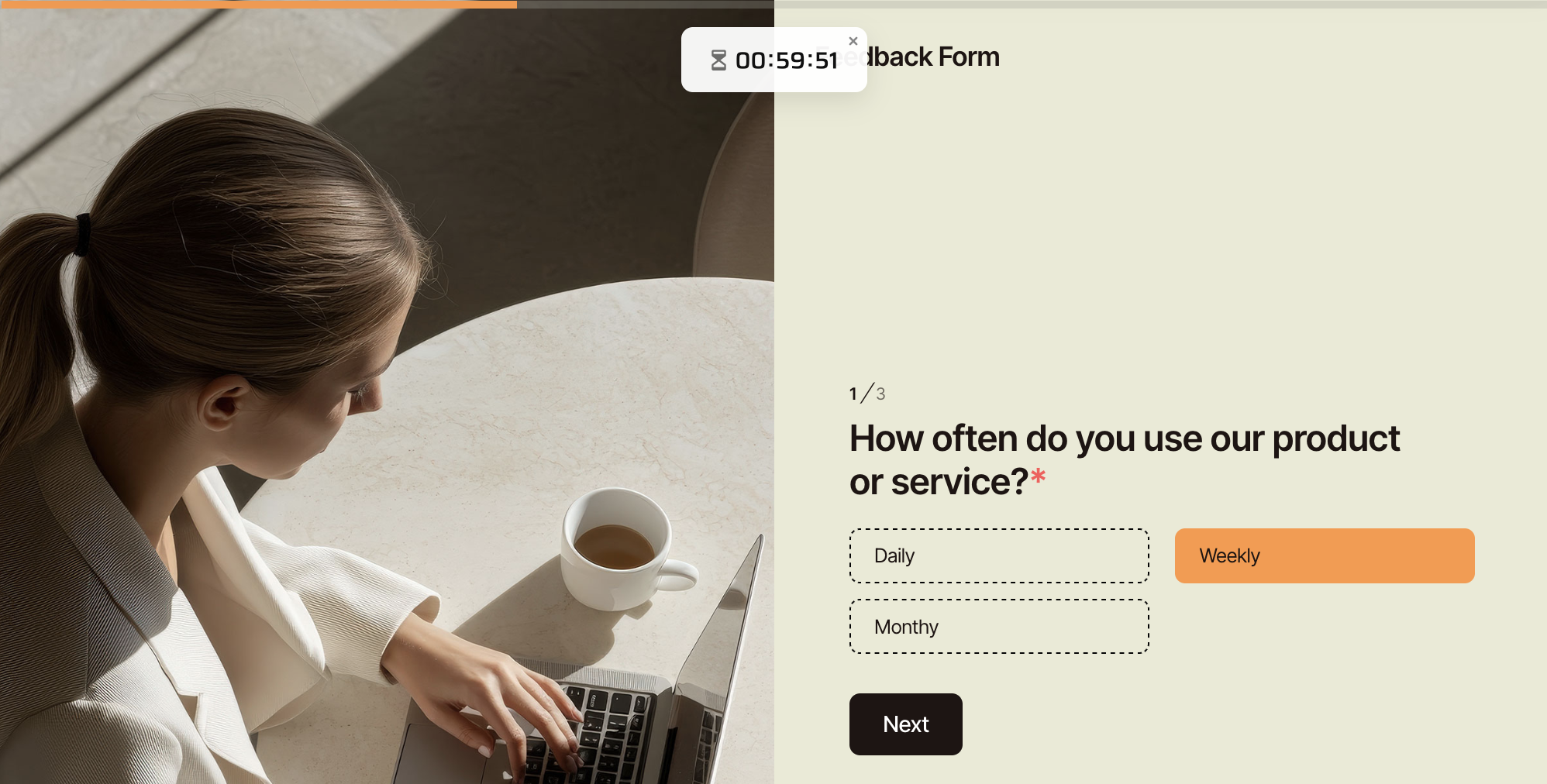
- Available in all form types.
- Controls timing only and does not collect input.
Video tutorial
Want a step-by-step visual guide? Check out the video below:
Add field
To add a Countdown field, in the form builder, click the Countdown button in the left Toolbar.
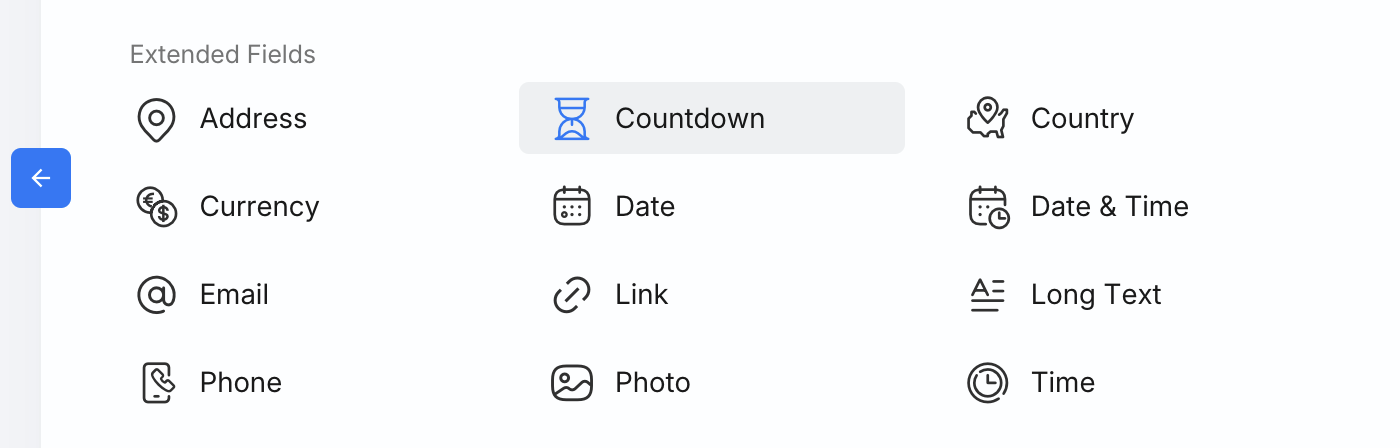
After adding a Countdown field, click on the field to open its attributes panel.
Start Type
Choose when the countdown starts:
-
Duration from open — starts when the form is opened; set the duration in minutes

-
Fixed deadline — sets a shared Date & Time deadline for all respondents
Display mode
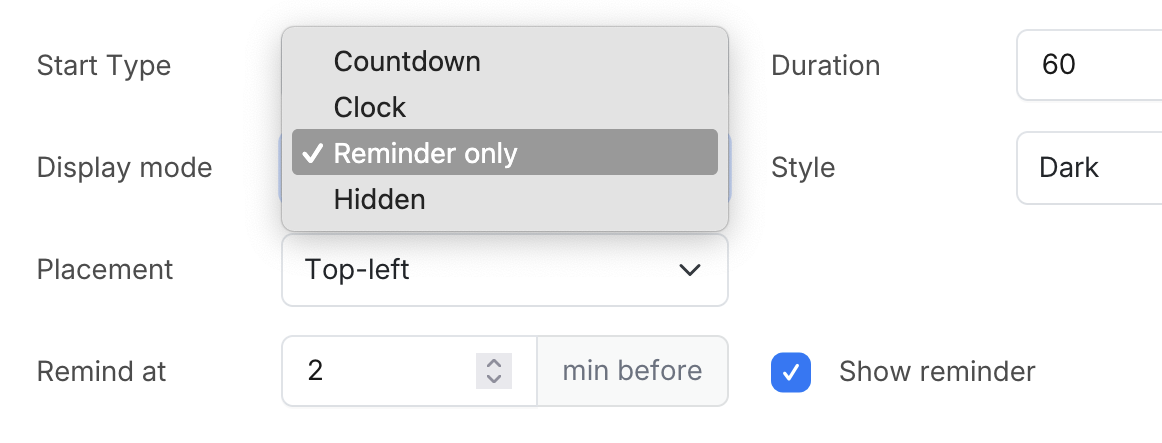
Controls how the countdown is shown on the form. Currently supported:
- Countdown — shows the remaining time with a countdown icon
- Clock — shows the remaining time in HH:MM:SS format with a clock icon
- Reminder only — hides the timer; reminder messages are shown only if Show reminder is enabled
- Hidden — hides all countdown UI
Set reminder
Enable reminders to notify users shortly before time runs out.
Turn on Show reminder to enable reminders, then set how many minutes before the deadline the reminder appears using Remind at.

Reminder message
Customize the reminder text. You can use the following variables:
{countdown}— remaining time in countdown format{minutes}— remaining time in minutes
Deadline reached message
When the countdown ends, the Deadline reached message is shown. You can customize this message to clearly guide users on what to do next.