
Set Form Logic
Tabs
With Form Logic, you can build dynamic forms that adapt to respondent answers.
What is Form Logic?
Form Logic allows you to tailor your forms according to respondents’ answers, eliminating irrelevant questions to enhance the user experience. This leads to increased engagement and higher completion rates, resulting in more efficient and personalized surveys.
Form Logic tips
Before setting up Logic, consider these valuable tips:
- Plan Ahead: Design your form’s logical flow and questions for a smooth experience.
- Keep it Simple: Avoid excessive rules to prevent user confusion.
- Test Thoroughly: Test various scenarios to ensure logic functions correctly.
- Clear Instructions: Explain why certain questions appear based on responses.
- User Experience: Personalize the form for a seamless journey.
- Avoid Complexity: Don’t create overly intricate branching paths.
- Review and Improve: Gather feedback and refine your logic for the best results.
Set Form Logic
To set up Logic for your form, follow these steps:
-
Click the Logics button in the top left of form builder.

-
In the Logics panel, you have three ways to create or manage logic:
Option 1: Manual setup
In the Logics panel, click the + New Logic button in the top left to build rules manually.
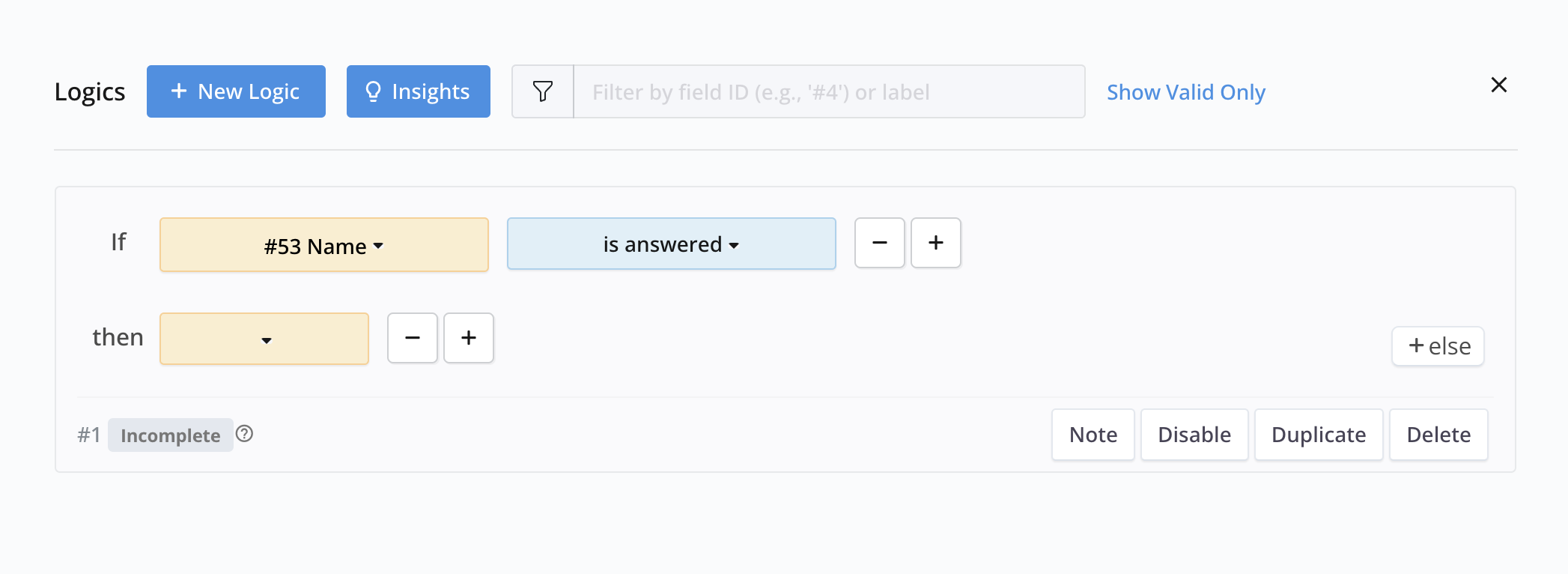
- Set Conditions (“If”): Choose a field (e.g., “Coffee or tea?”), select criteria (e.g., “is equal to”), and set a value (e.g., “Coffee”).
- Define Actions (“Then”): Select an outcome (e.g., “show”) and the target field (e.g., “Cream or sugar?”).
Option 2: Generate with AI
Use natural language to build complex rules quickly.
-
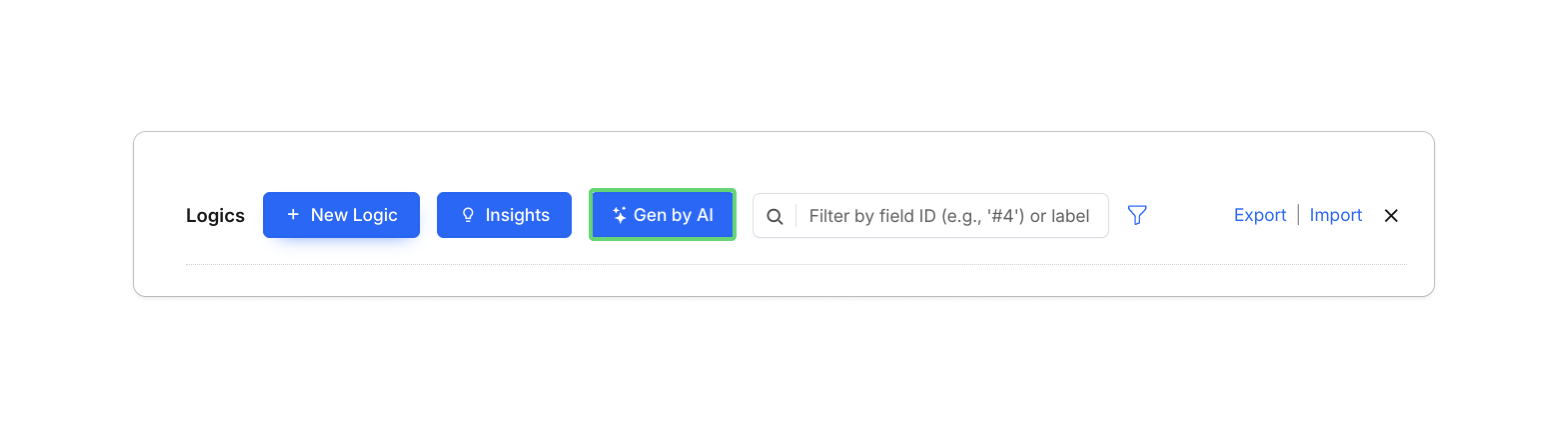
Click Gen by AI in the Logics panel.
-
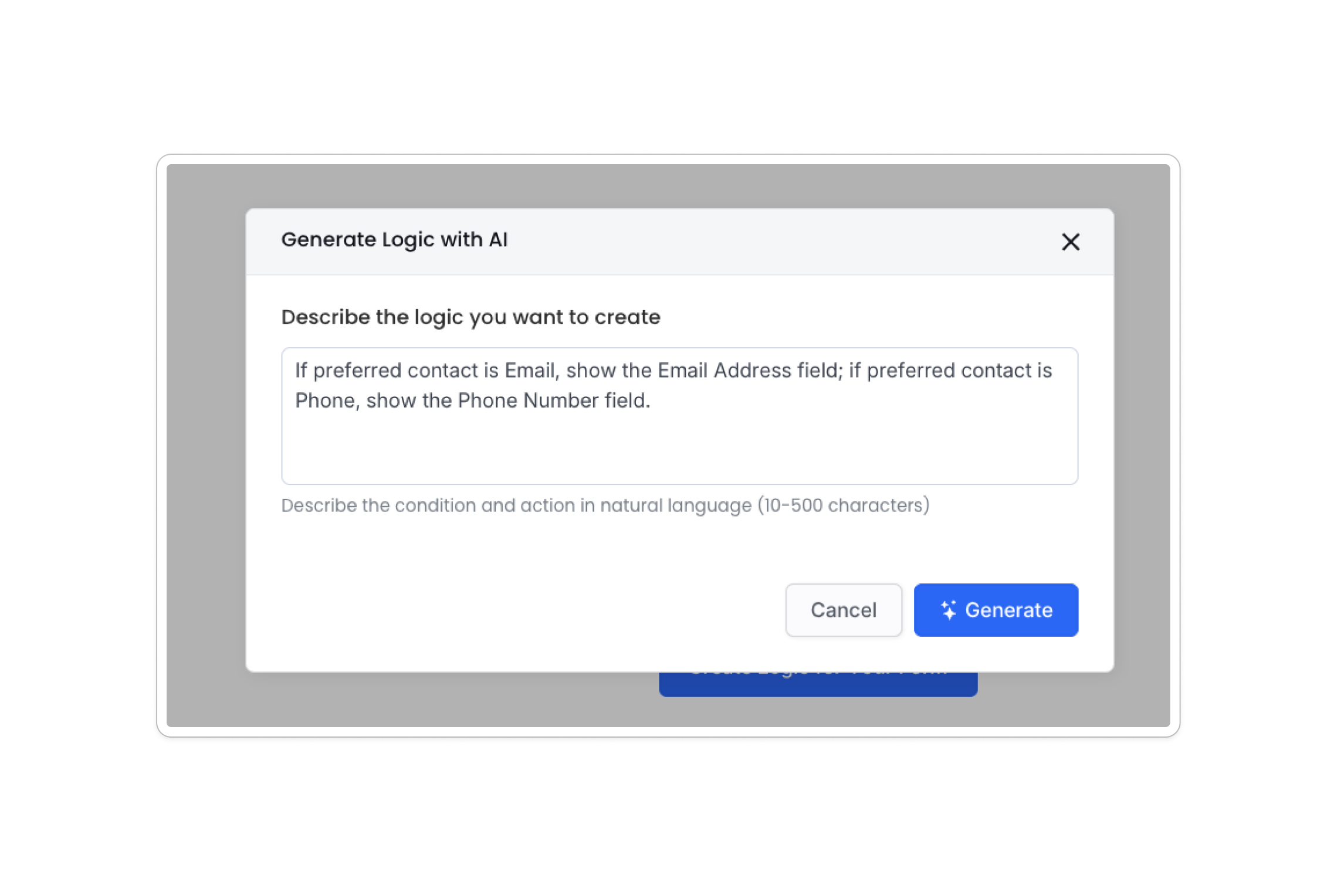
Describe your rule in plain English (e.g., “If preferred contact is Email, show the Email Address field; if preferred contact is Phone, show the Phone Number field.”).
-
Click Generate to automatically create the corresponding rules.
Option 3: Edit via JSON
For technical users, you can edit the logic’s raw code for precise control.
-
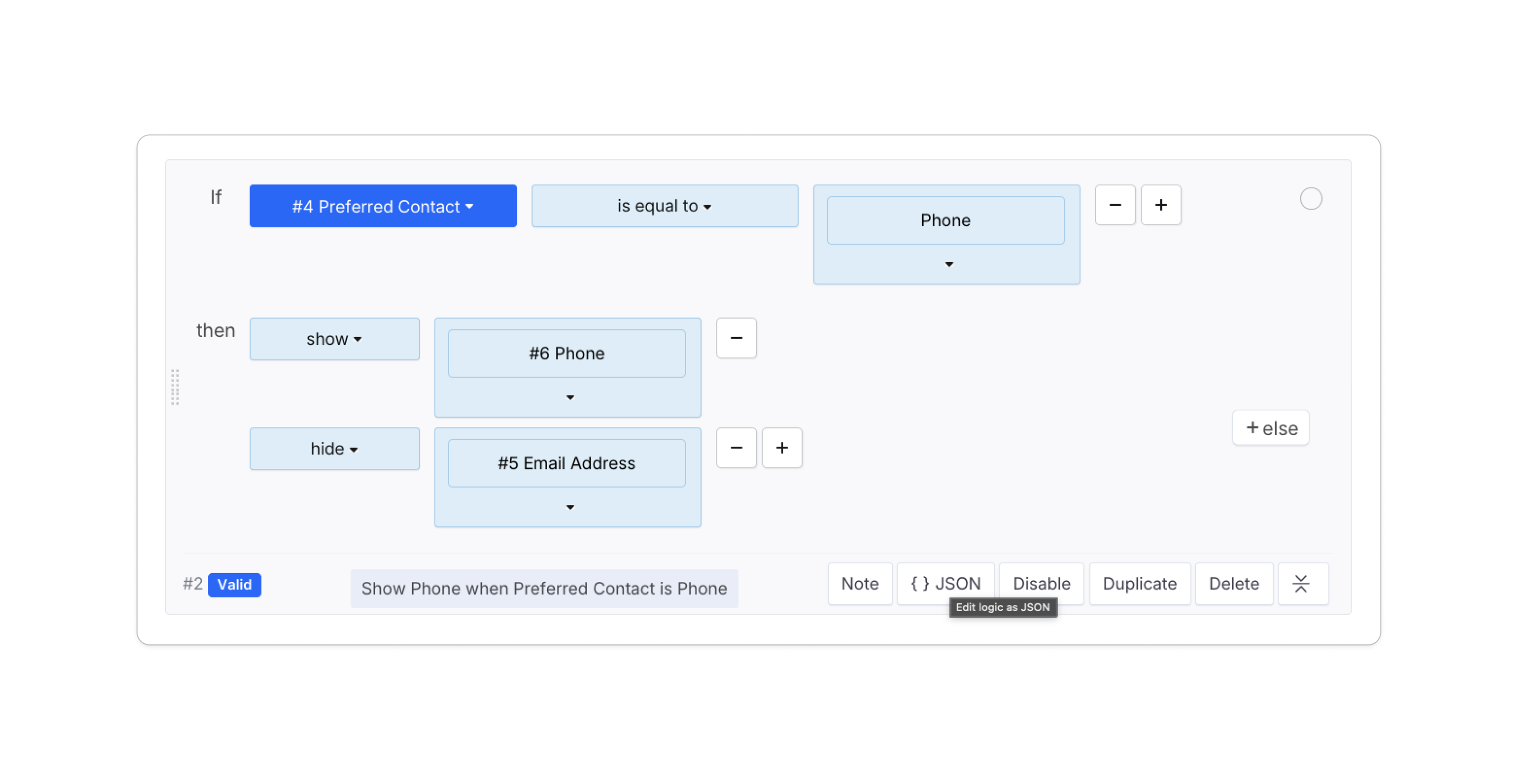
Select an existing logic and click the { } JSON button.
-
Modify the code directly in the editor. Use the Field Reference on the right to find correct IDs (e.g.,
fid4).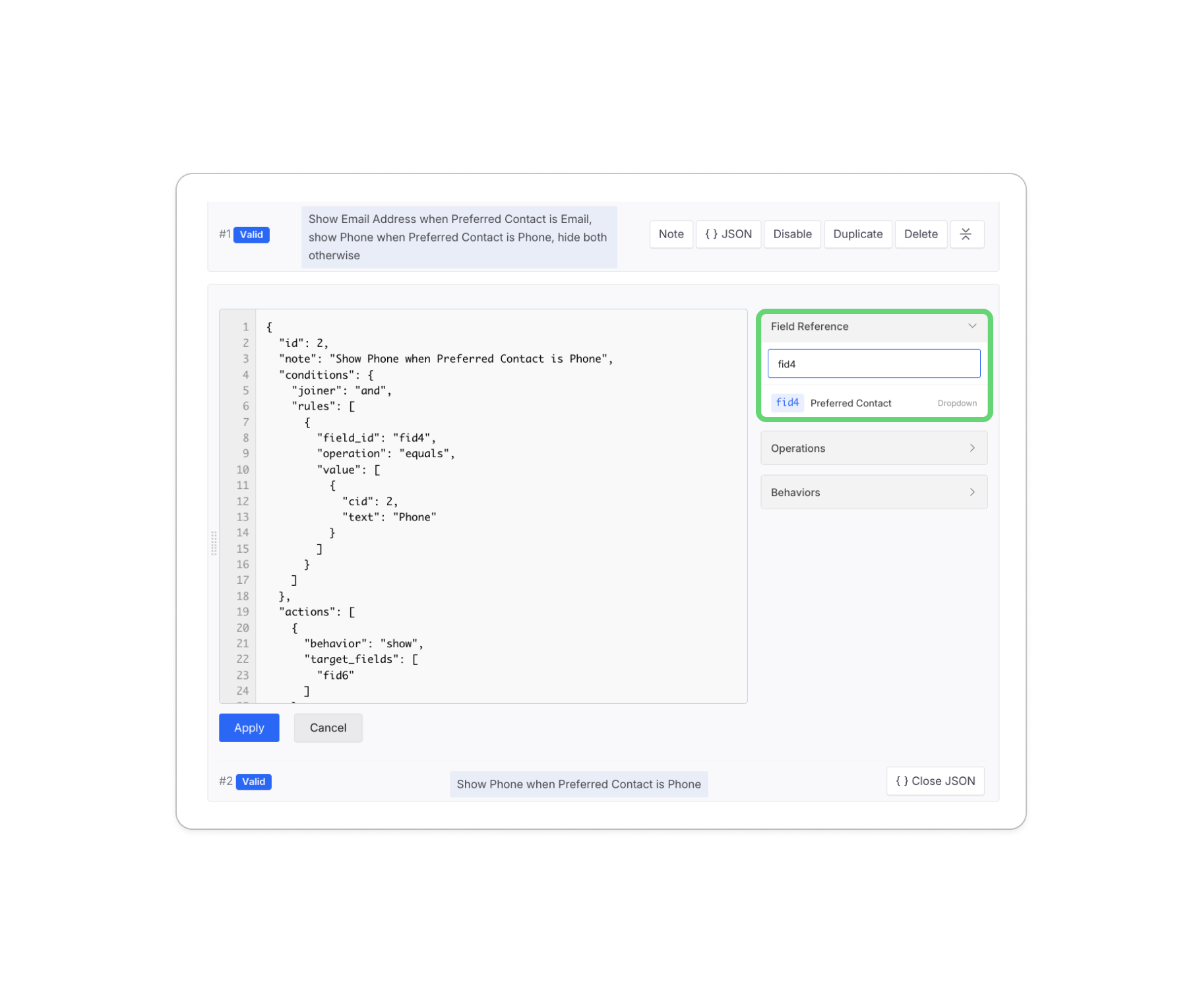
-
Click Apply to sync changes back to the visual builder.
Export and Import Logics
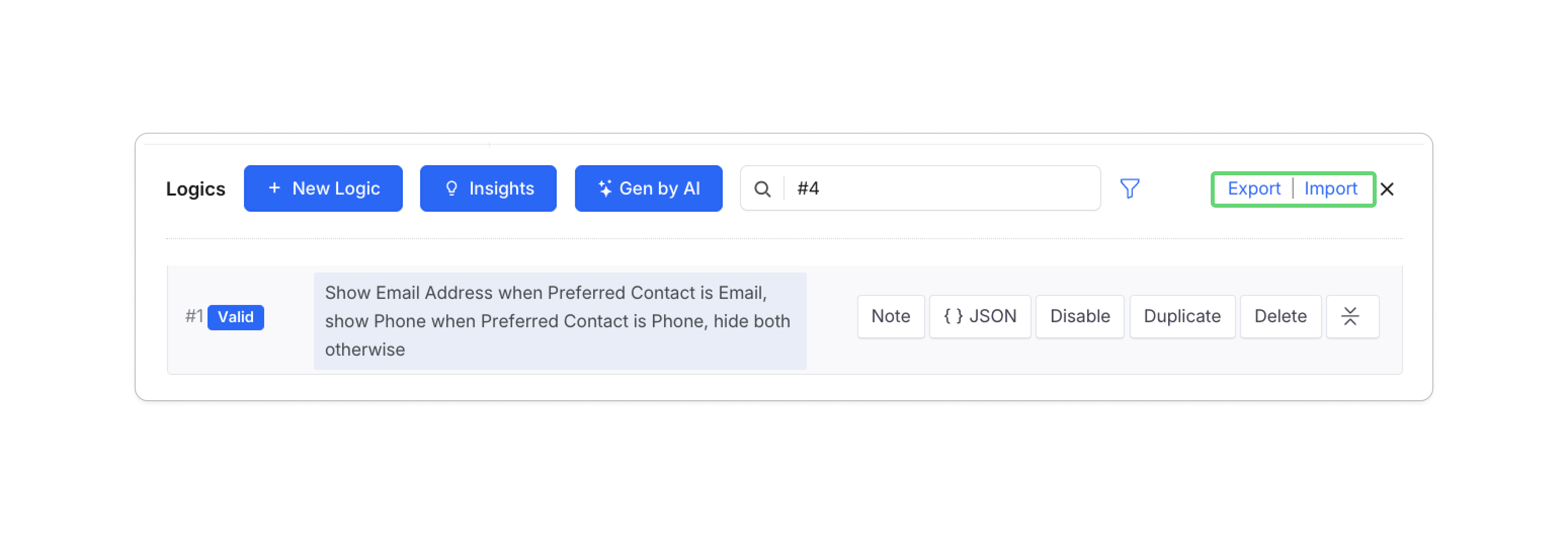
You can manage large sets of logic rules efficiently through the Export and Import functions found at the top right of the Logics panel.
-
Export: Downloads all existing logic rules as a JSON file for backup or to use in another form.
-
Import: Allows you to upload a logic configuration file.
WarningImporting will overwrite ALL existing logics. Please back up your current settings using the Export tool before proceeding.
Filter multiple Form Logics
When managing numerous logics in your online form, locate the logics you want to find quicky from the following two ways:
-
Option 1: Click Logics in the attributes panel of a specific field to open the Logics panel.

The Logics panel will display all the logics related to that field.
-
Option 2: Use the filter to search for keywords. Follow these steps:
-
Click the Logics button in the top left of form builder.
-
In the Logics panel, enter the Field ID (e.g., “#61”) or Field Label (e.g., “Coffee or tea?”) in the Filter Bar at the top.
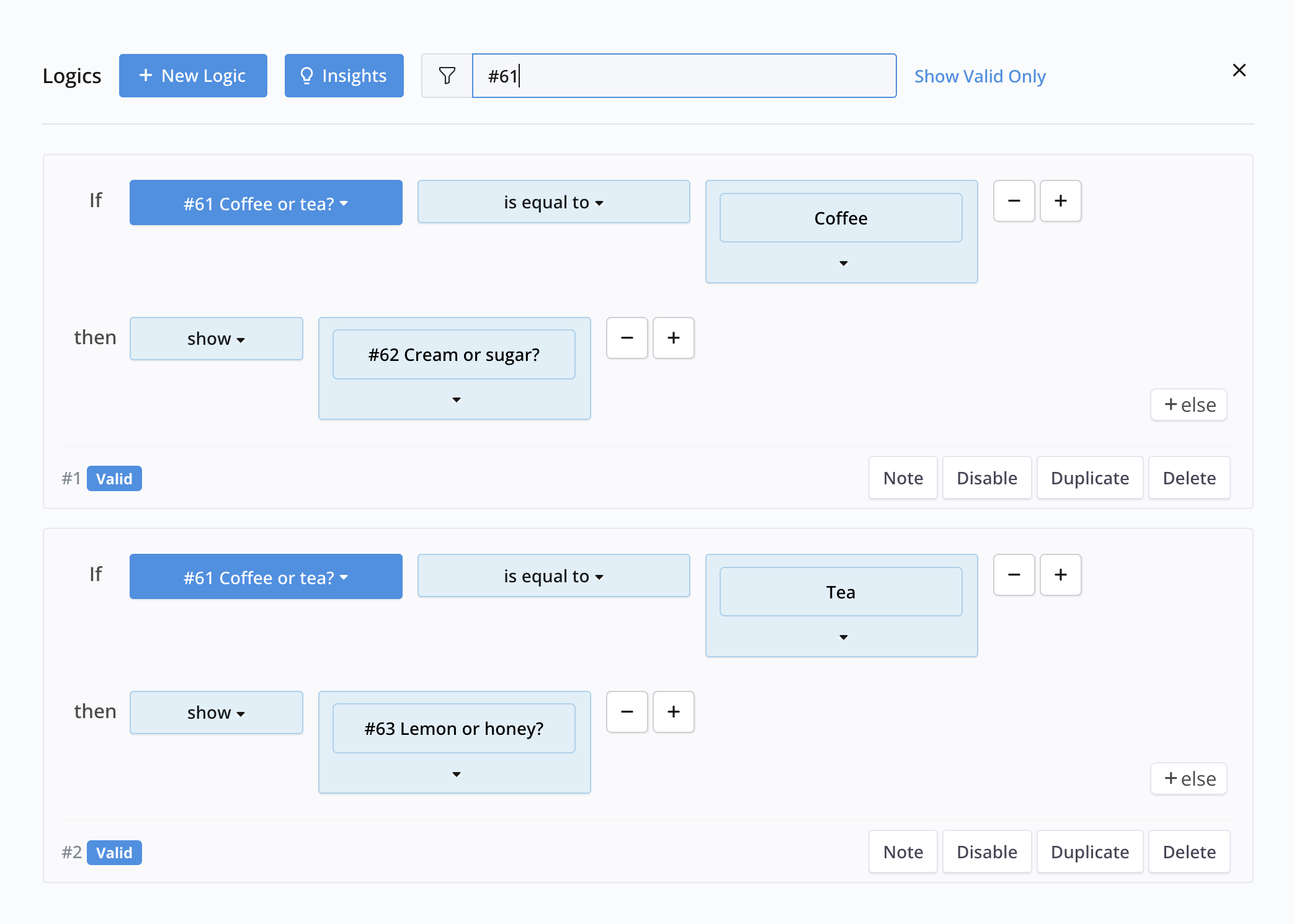
All relevant logics linked to the selected field will be highlighted.
-
Reuse fields with Form Logic
In our web PDF forms or master forms, you can easily reuse the same field content on any page of the PDF. To do this in an online PDF form, you can utilize form logic.
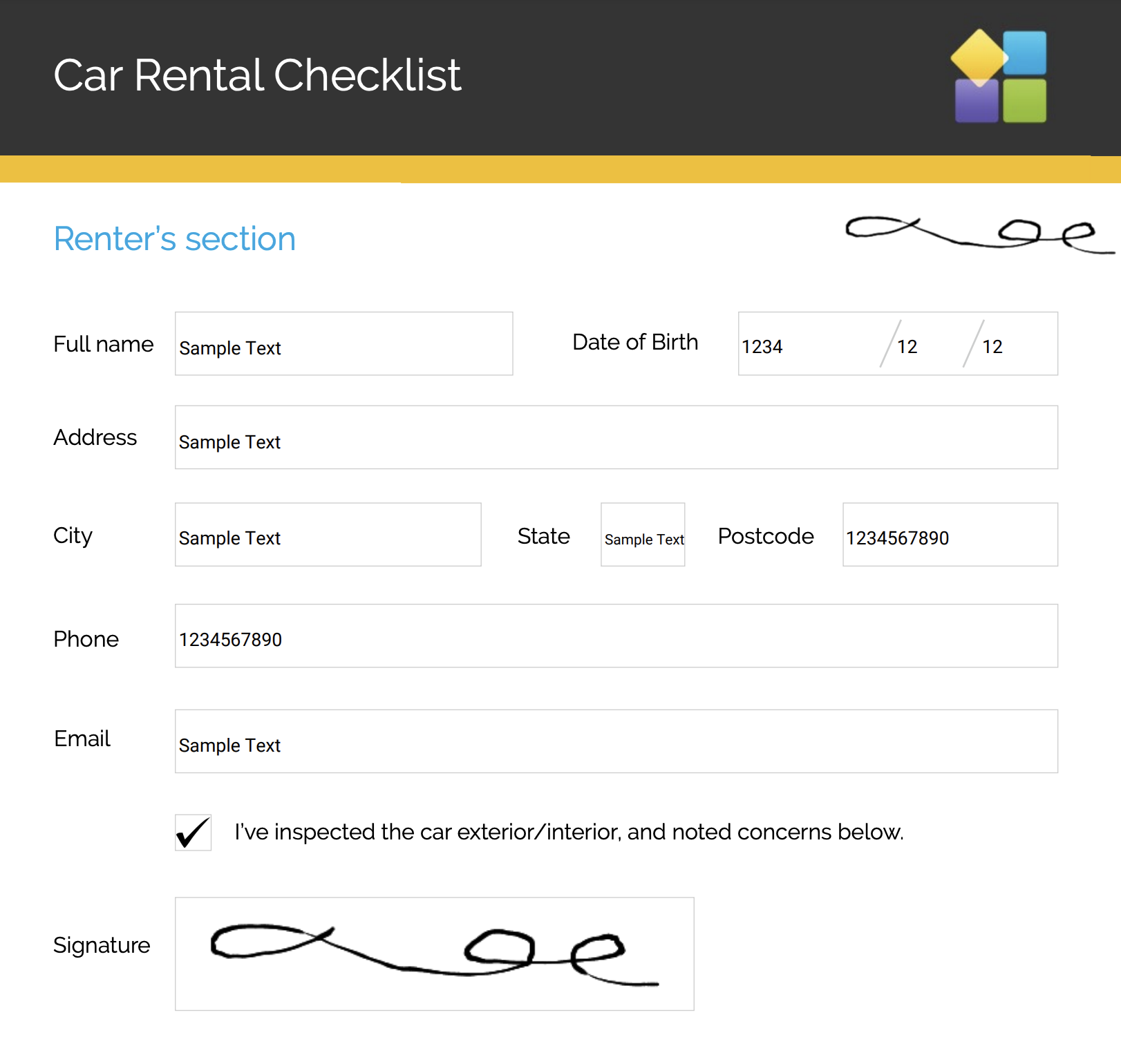
For instance, as illustrated below, you can duplicate the content from “Signature #74” to “Signature #75”. Consequently, when a respondent signs on “Signature #74”, their signature will automatically appear on “Signature #75”, eliminating the need for them to enter it repeatedly.
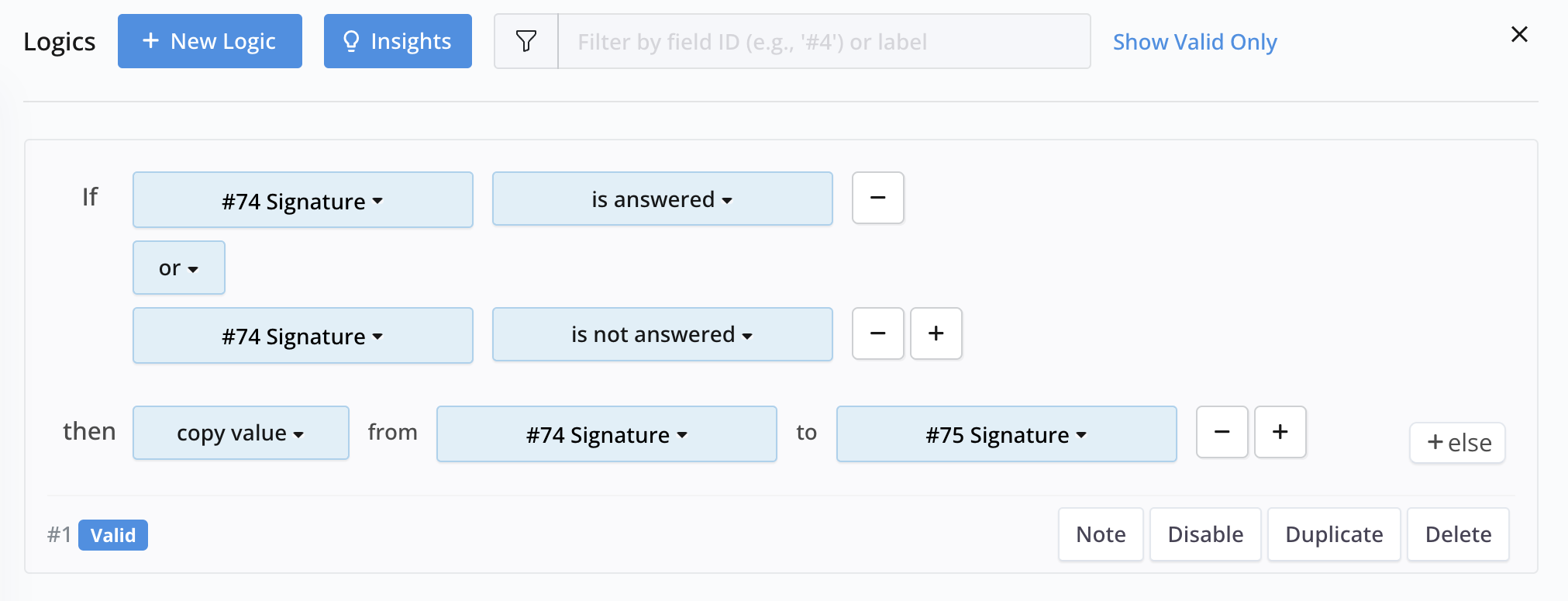
Please make sure to set both “is answered” and “is not answered” as conditions. This ensures that when “Signature #74” is cleared, “Signature #75” will also be cleared.
The printed PDF looks like this:
For a more seamless experience, you can set “Signature #75” to Read-Only on Form.
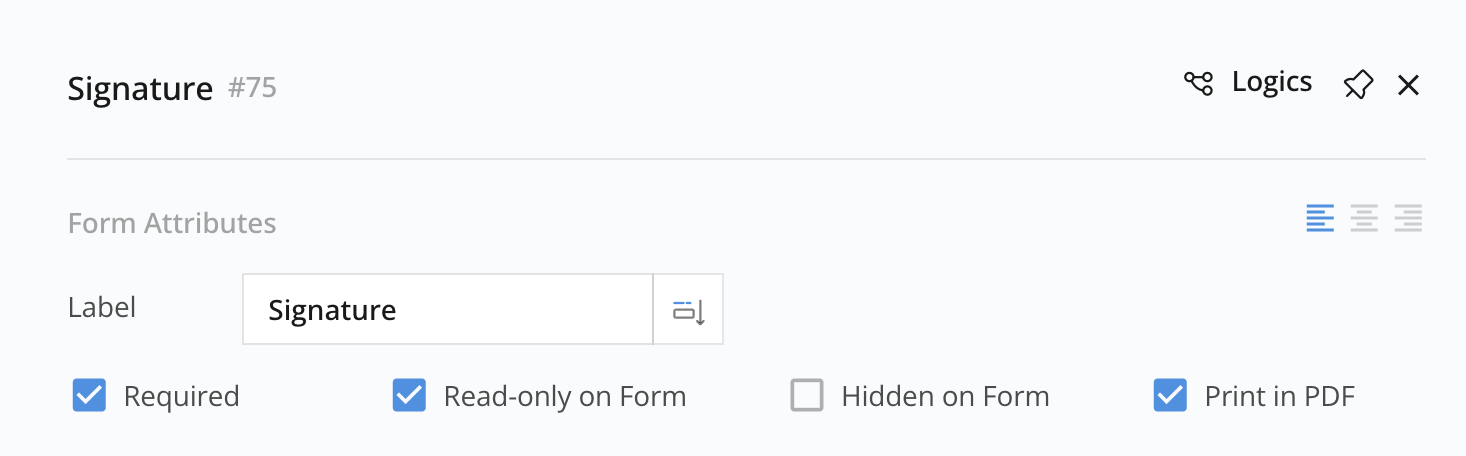
This will prevent confusion for respondents since they won’t be able to modify the content in “Signature #75”.
Keep in mind that the logic setting works one-way, copying from #74 to #75, and not the other way around.
Further explore Form Logics
For additional examples and practical applications of Form Logics, refer to the Commonly used Form Logics section.