
Transfer forms to another account
Tabs
In this chapter, you’ll learn how to transfer your form to another PlatoForms account.
This feature is useful when you need to hand over form ownership to a teammate, client, or another account, without recreating or duplicating the form.
Transfer a form
-
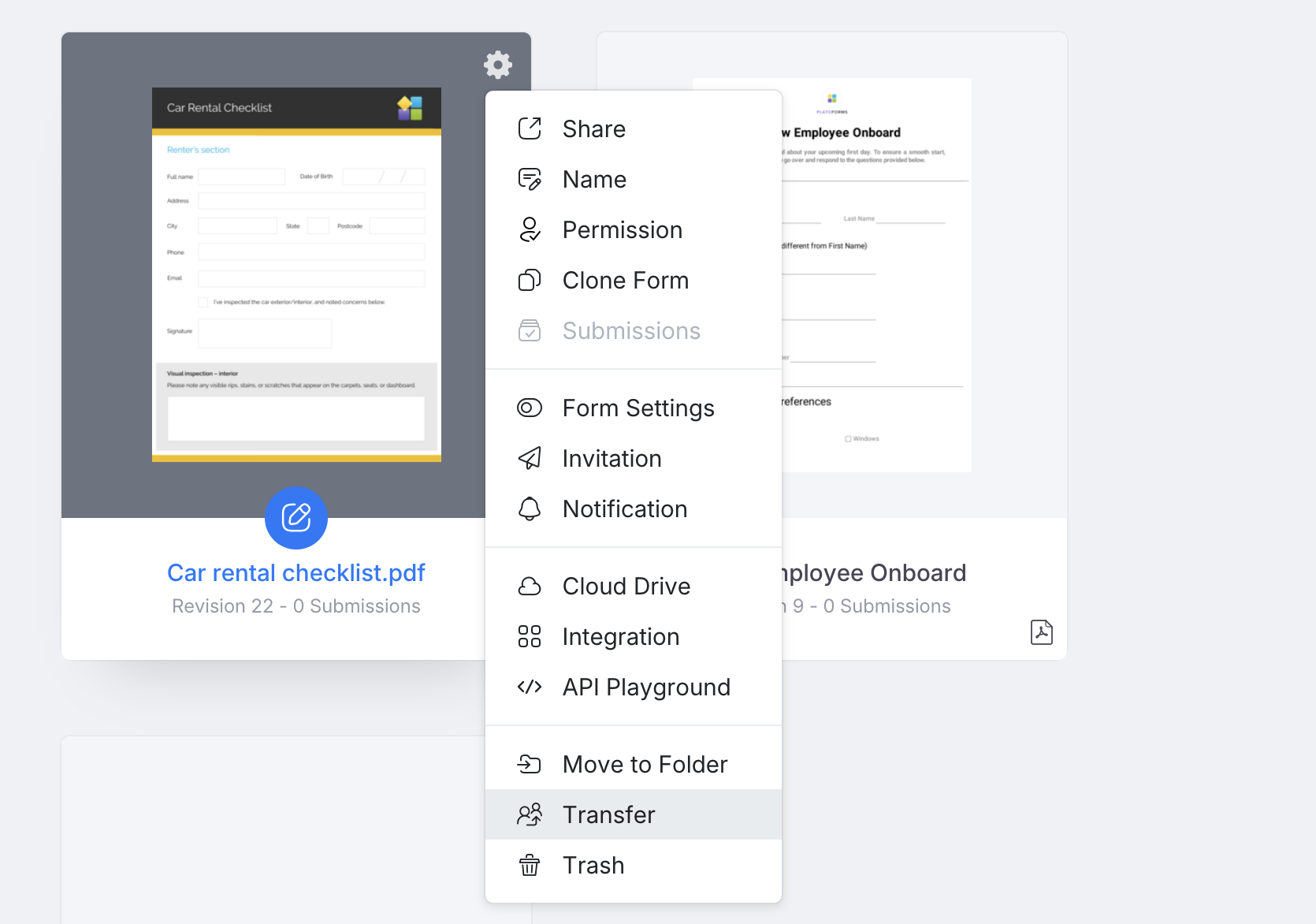
Hover over the desired form on the Dashboard.
-
Click the Settings (gear) icon in the top right corner and select Transfer.
-
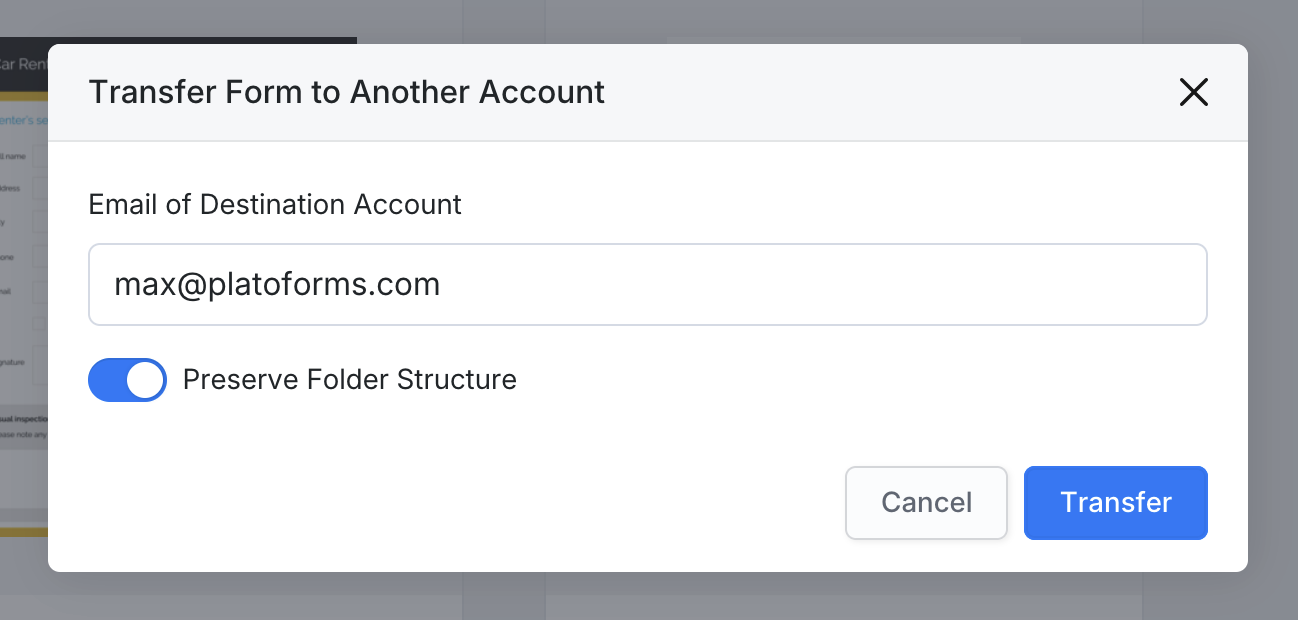
In the pop-up window, enter the email address of the destination account.
-
(Optional) Toggle Preserve Folder Structure if you want the form to appear inside a new folder with the same name in the recipient’s dashboard.
-
Click Transfer, then confirm the action.
Once confirmed, the form and all of its submissions will be moved to the specified account.
This action cannot be undone.
When the transfer fails
If you see the error “The specified account does not exist”, double-check that the entered email address is associated with an active PlatoForms account.
Only existing accounts can receive transferred forms.