
Field types
Tabs
PlatoForms provides a wide range of field types for building flexible Online Web Forms.
Some fields are also available in Online PDF Forms, depending on whether they can be rendered and filled directly in a PDF.
By default, fields listed on this page are available in both Online Web Forms and Online PDF Forms, unless stated otherwise.
Field categories
Fields in the form builder are grouped into three categories based on their purpose:
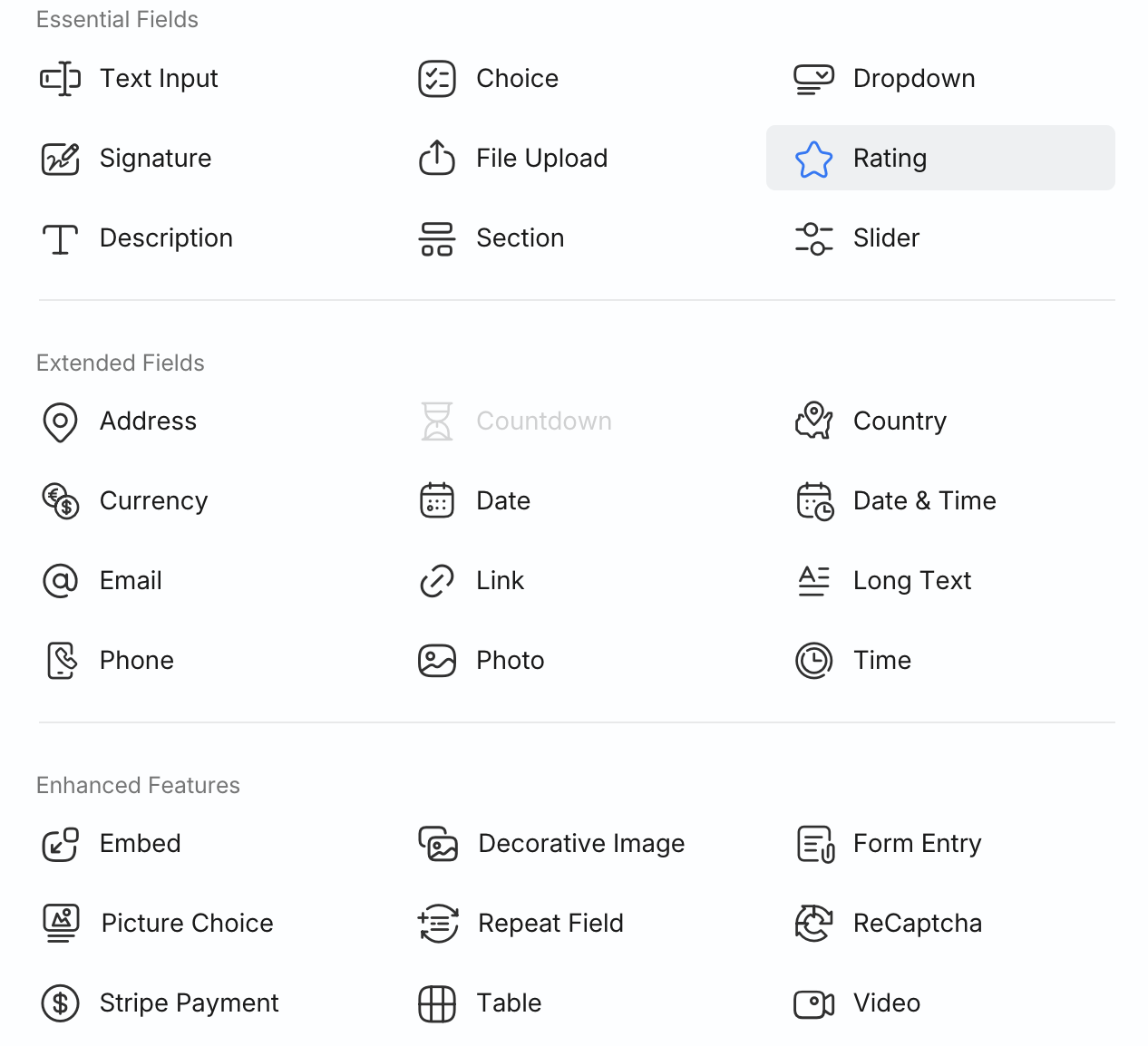
- Essential fields — core inputs and structure used in most forms
- Extended fields — specialized input types and system-level controls
- Enhanced features — advanced capabilities beyond standard data collection
Essential fields
Essential fields cover the most common inputs and basic structure needed to build a form.
Text Input
Text Input fields are great for collecting various types of information. PlatoForms offers these options:
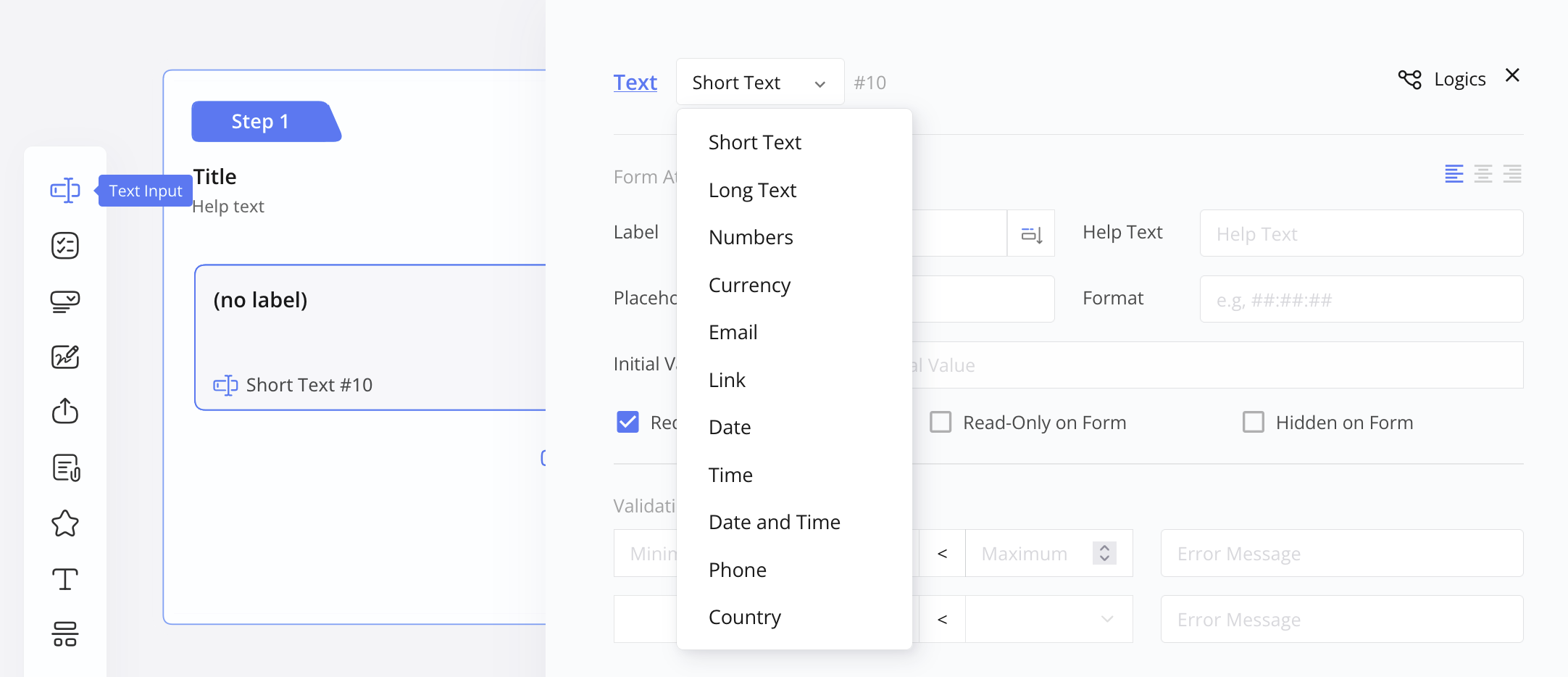
| Type | Description |
|---|---|
| Short Text | For short answers like names or titles. |
| Long Text | For detailed responses or longer comments. |
| Numbers | Collect numerical data, such as ages or quantities. |
| Currency | For monetary values like prices or costs. |
| Gather email addresses from users. | |
| Link | Collect website or URL addresses. |
| Date | Record dates like birthdays or deadlines. |
| Time | Capture specific times, such as appointment slots. |
| Date and Time | Gather both date and time details. |
| Phone | Collect phone numbers from users. |
| Country | Allow users to select or enter their country. |
Choice
Choice fields offer predefined options for respondents to select from, commonly used for single or multiple-choice questions.
| Fields | Description |
|---|---|
| Single Choice | Create questions with multiple options for respondents to choose one. |
| Multiple Choices | Ask multiple-choice questions with several options; respondents can choose more than one. |
For more details, check Set Choice properties.
Dropdown
The Dropdown field presents a concise list of options, perfect for when you want to conserve space while providing multiple choices.
You can also:
- Allow multiple selections
- Require a response
- Enable search functionality
- Specify a default choice and placeholder
For more details, see Set Dropdown properties.
Signature
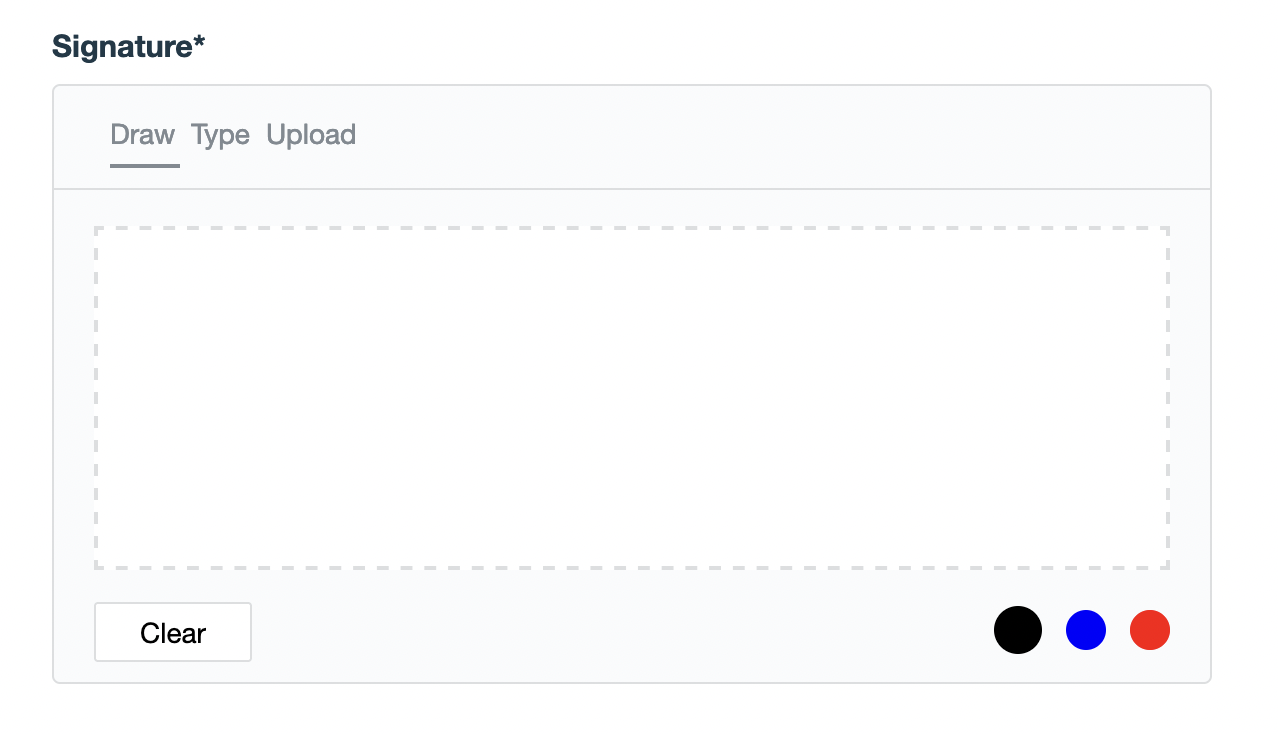
The Signature field allows respondents to provide electronic signatures for verification or consent.
Rating
Rating fields allow respondents to rate items using a scale.

Slider
Slider fields let respondents select values or ranges by sliding a marker along a scale.

Description / Static Text
Description (web PDF form) / Static Text (online PDF form) allows you to add explanatory or static information.
Section Break
A Section Break divides a form into distinct sections.
Page Break
Page Breaks help organize a form into multiple pages.
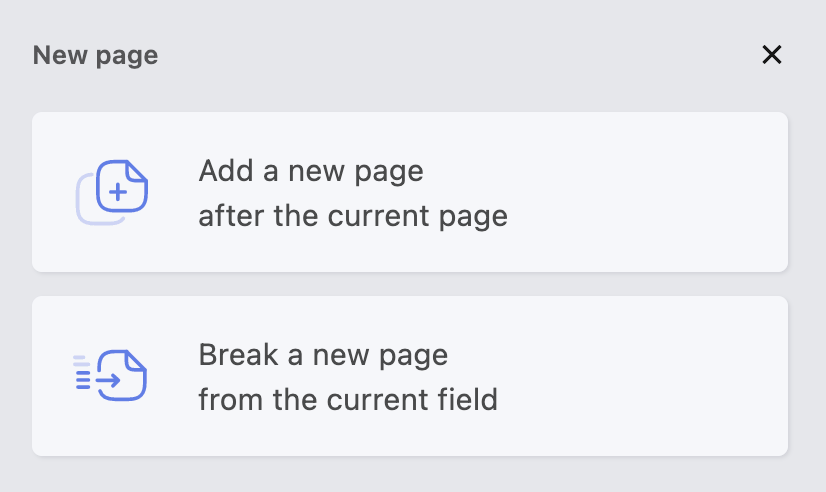
- Add a New Page
- Break a New Page
Extended fields
Extended fields provide structured input types and system-level controls.
Photo
The Photo field enables respondents to upload a single image.
Countdown
The Countdown field lets you add a visible time limit to a form and optionally remind users before time runs out.
This field controls timing and behavior and does not collect user input.
Availability: Online Web Forms only
For details, see Set Countdown properties.
Enhanced features
Enhanced features add advanced capabilities beyond standard data collection.
File Upload
The File Upload field lets respondents attach files such as images or documents.
For more details, see Set File Upload properties.
Availability: Online Web Forms only
Embed
The Embed field allows you to embed rich media such as tweets or videos.
Availability: Online Web Forms only
Decorative Image
The Decorative Image field adds visual elements to your form layout.
Availability: Online Web Forms only
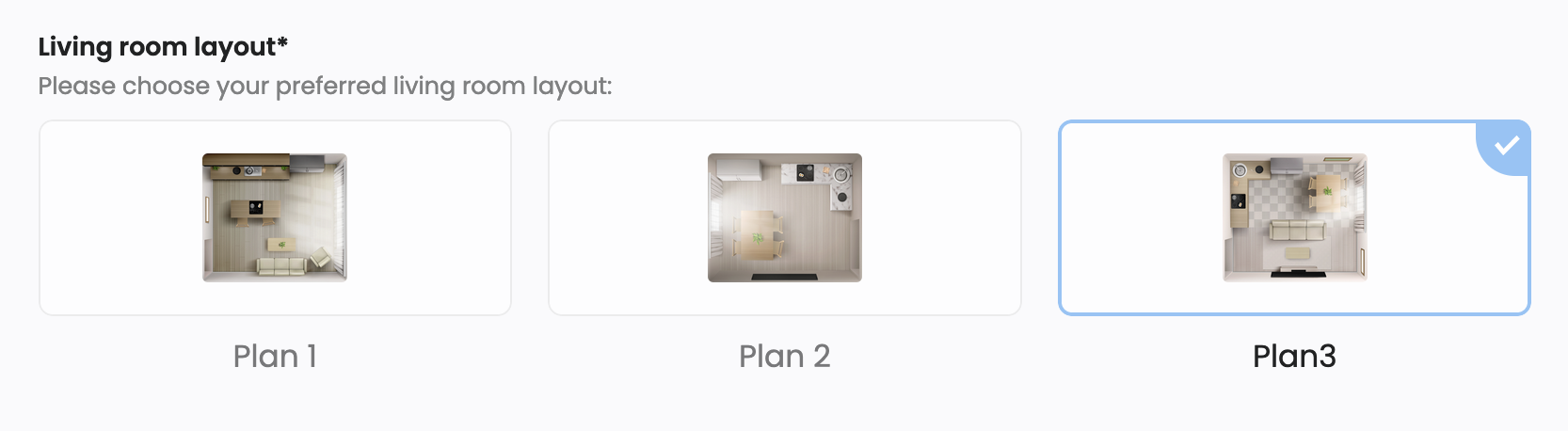
Picture Choice
The Picture Choice field presents selectable options as images.
Table
The Table field allows respondents to enter structured data in rows and columns.
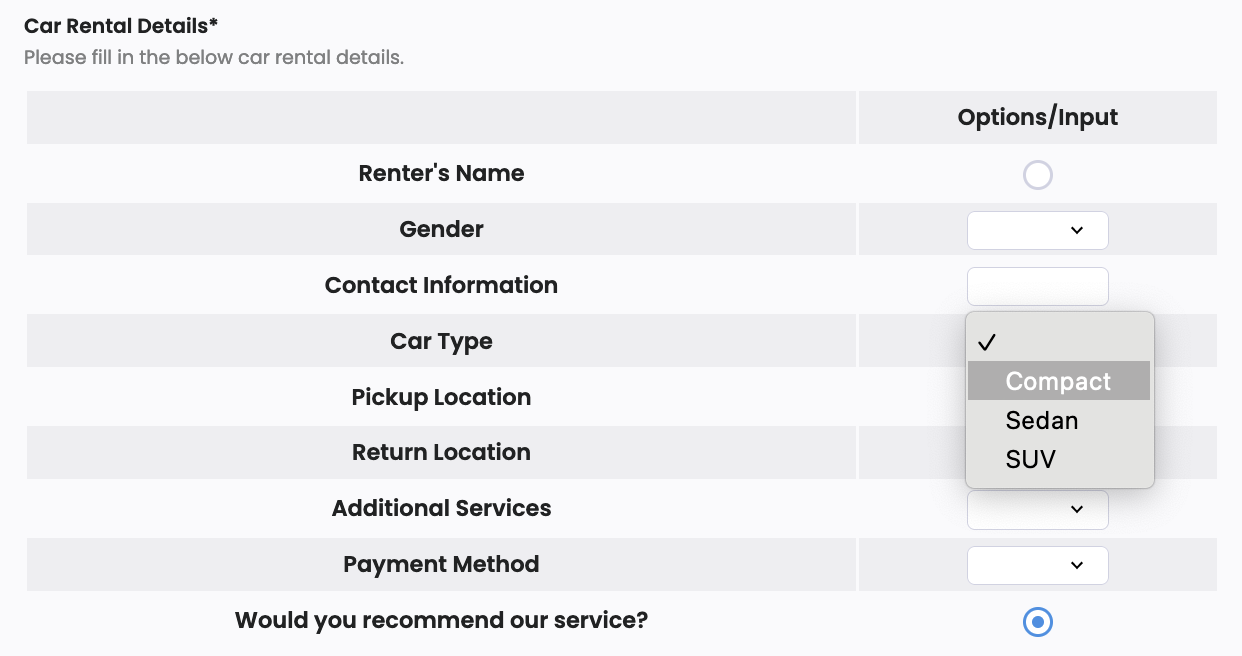
For details, see Table properties.
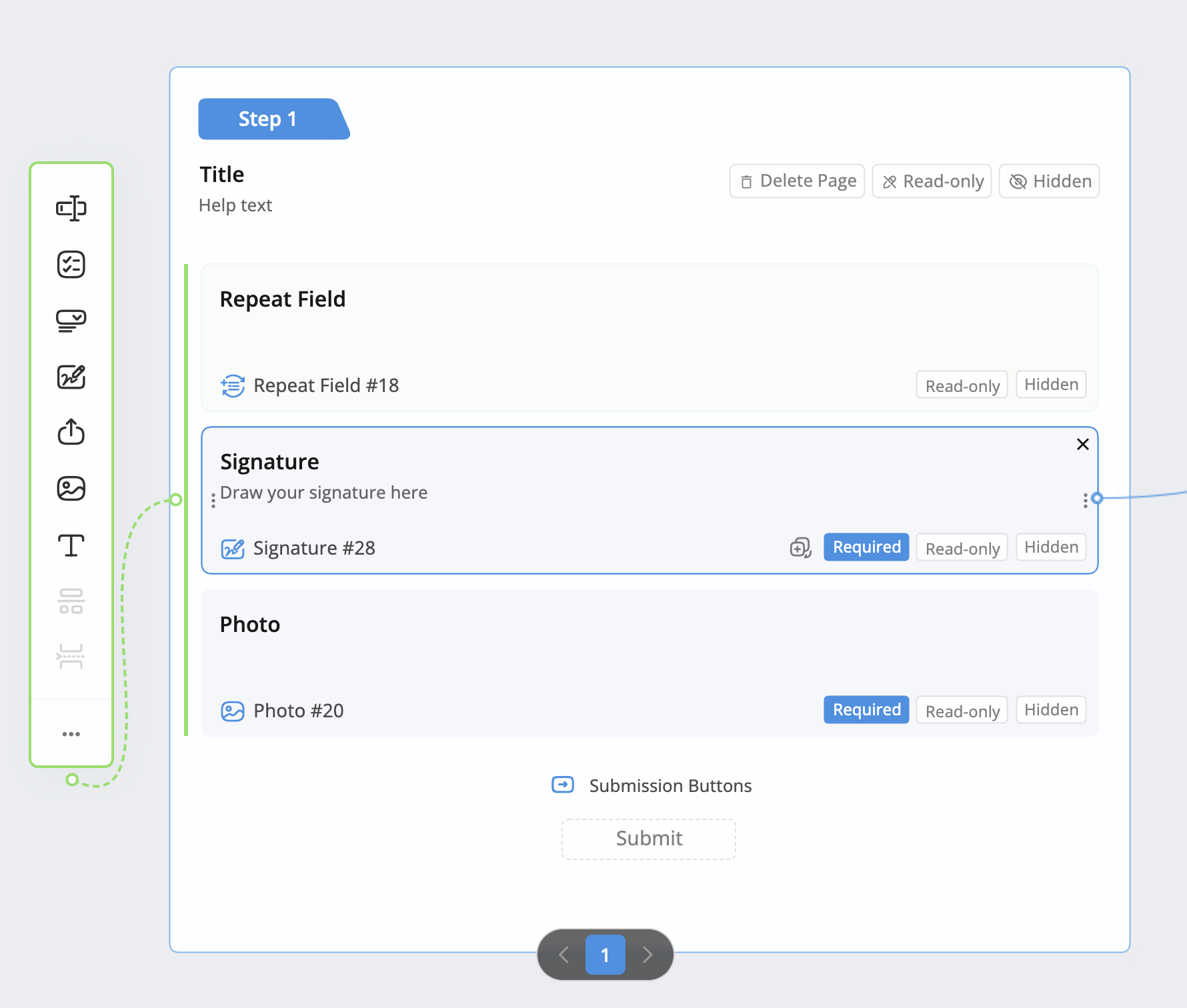
Repeat Field
The Repeat Field allows users to repeat a group of fields multiple times.
Availability: Online Web Forms only
Stripe Payment
The Stripe Payment field allows you to securely collect payments.
For setup instructions, see Stripe integration.
Availability: Online Web Forms only
ReCaptcha
The ReCaptcha field helps protect forms from spam and automated submissions.

Availability: Online Web Forms only
Video
The Video field allows you to embed video content into your form.
Availability: Online Web Forms only
Web forms and PDF-based forms
Web forms support the full set of field types described above.
PDF-based forms support a subset of fields that can be rendered and filled directly in a PDF.
When editing a PDF-based form, only Form & PDF fields are available.
Web-only features such as Countdown, Embed, Payments, and other enhanced features are not supported in PDFs.