
Generate Forms with AI
Tabs
What’s AI Form Generator?
AI Form Generator helps you build forms quickly and easily—no manual setup required.
Just describe what you want, and AI creates the form for you.
It automatically:
- Adds relevant fields like text boxes, checkboxes, dropdowns, and signatures
- Lays out a clean, responsive form ready for editing
- Saves you the time of building everything from scratch
Video tutorial
Reading isn’t your thing? Watch the guide in action.
How to Generate a Form with AI
-
Go to your Dashboard.
-
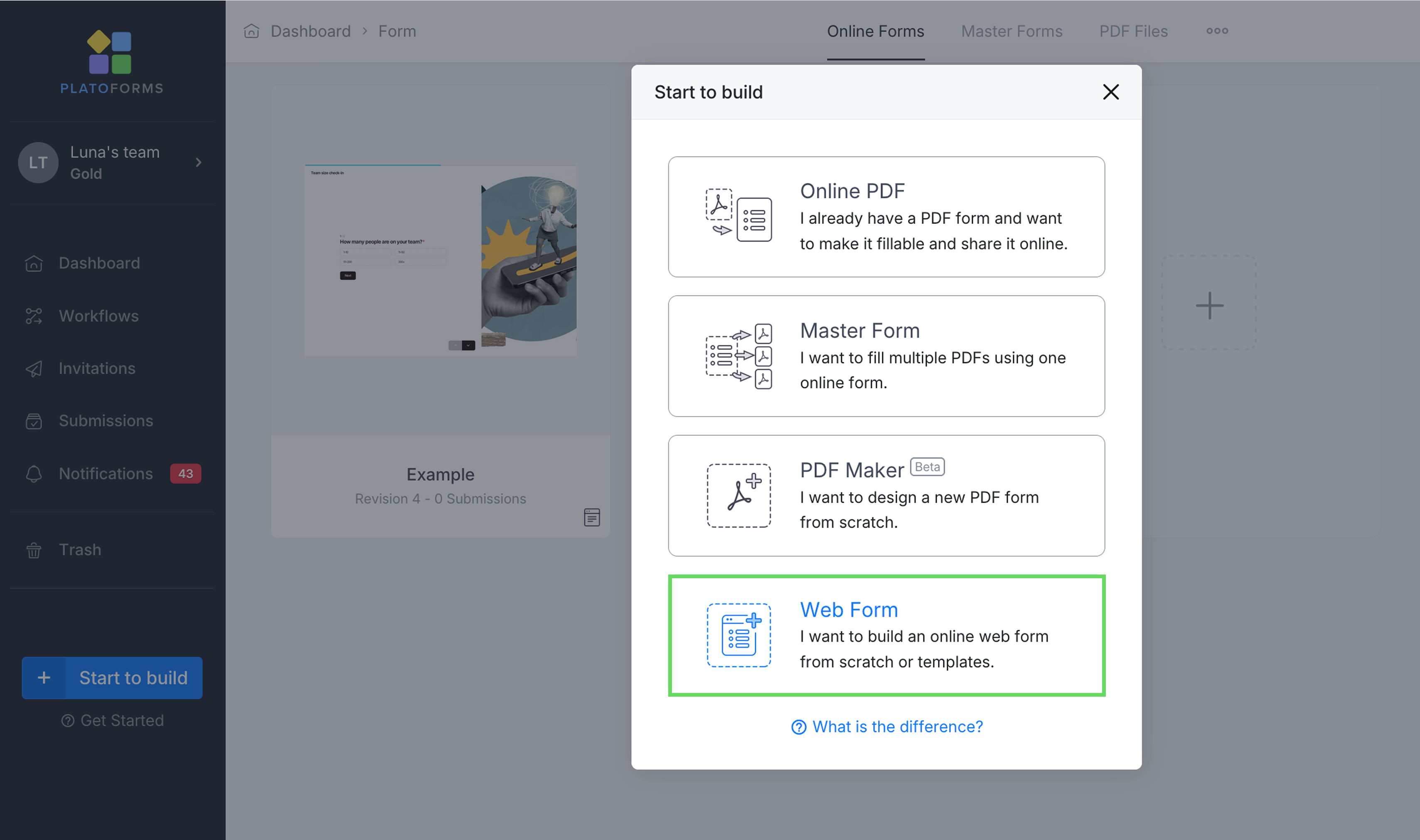
Click Start to Build and select Web Form.
-
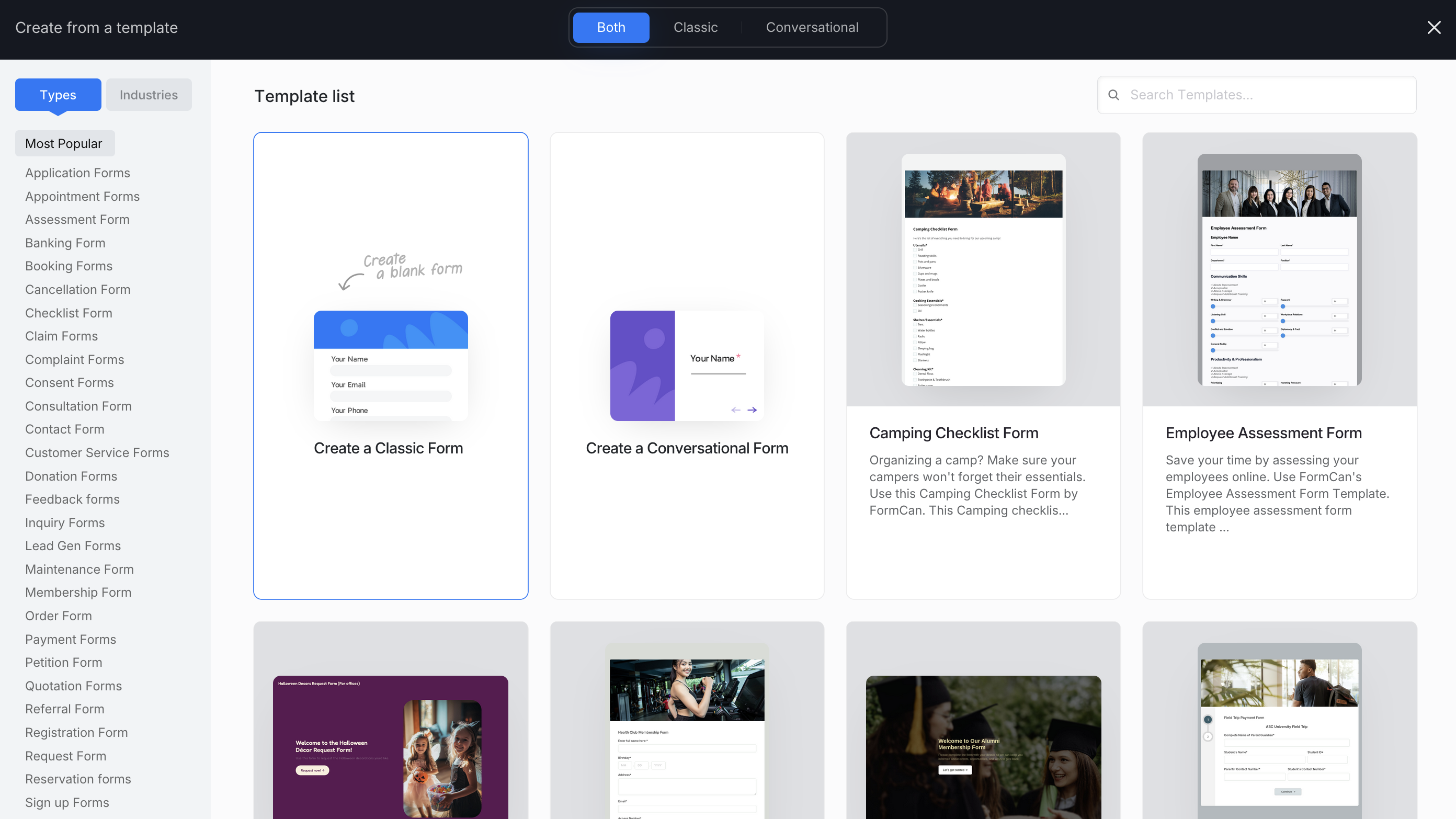
Choose Create a Classic Form, Create a Conversational Form, or select a template.
 Note
NoteYou can switch between Classic and Conversational layouts anytime after creation. Even when using a template, you can still edit or customize the fields.
-
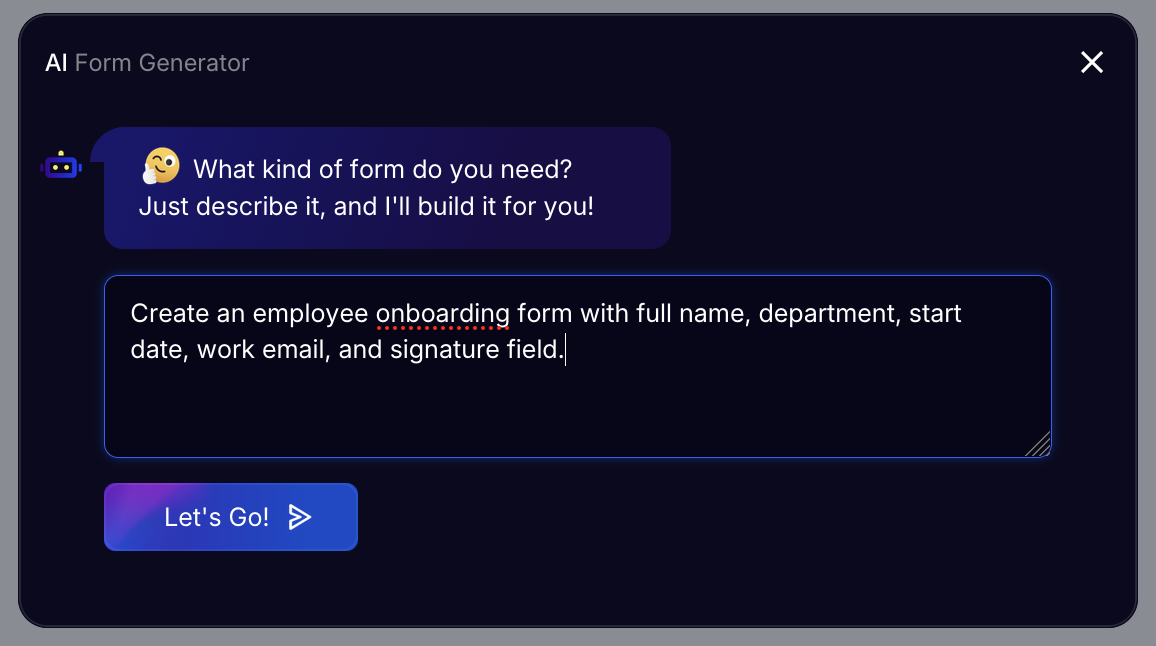
After opening the form builder, you’ll see an AI input bar at the bottom. Click the input box and describe your form in plain text.
Example“Create an employee onboarding form with full name, department, start date, work email, and signature field.”
-
Click Let’s Go.
-
Choose your preferred form length (Short, Standard, or Extended), add any extra details, and click Continue.
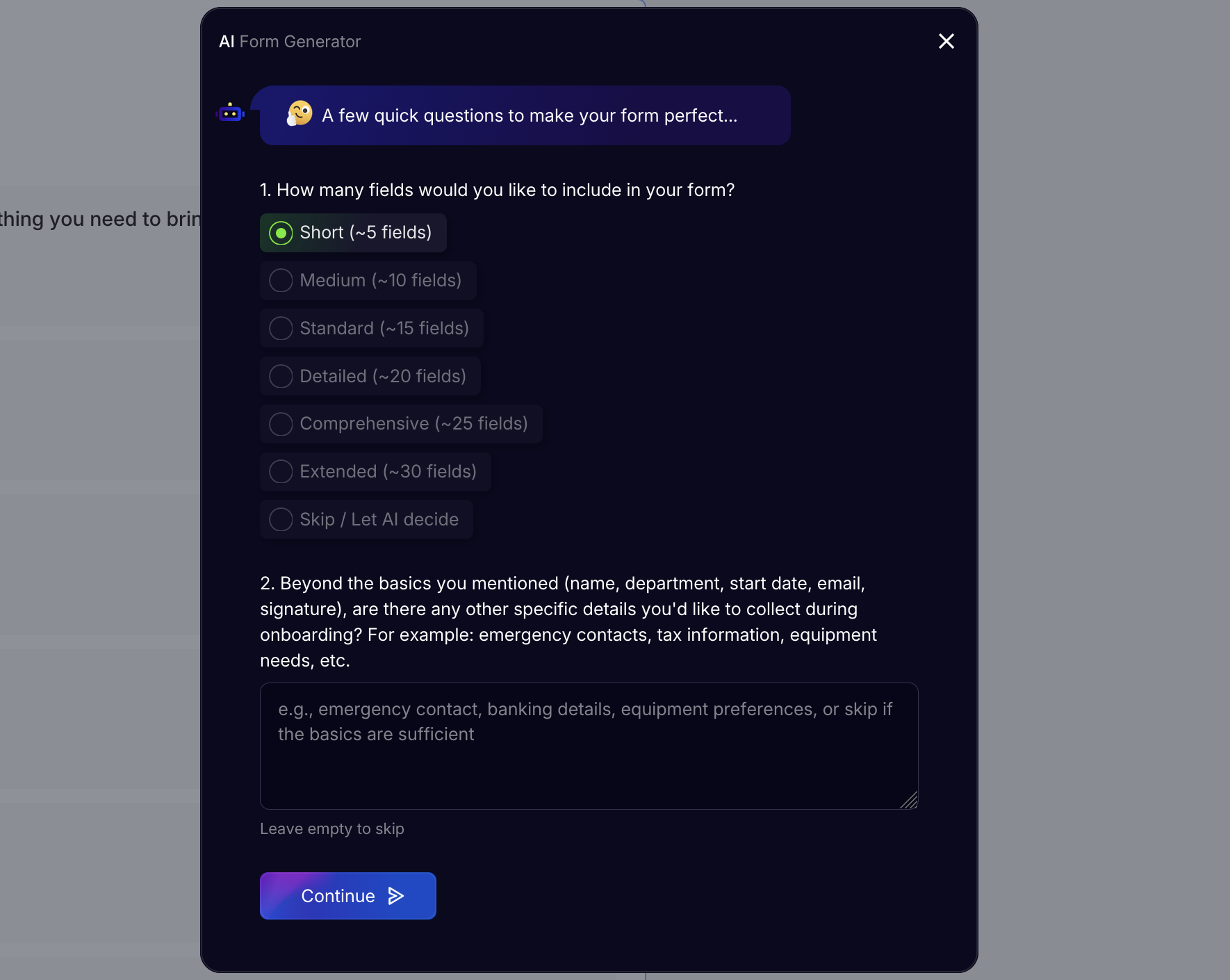
It takes a few seconds for AI to process your request.
-
Once your form is ready, select your preferred layout:
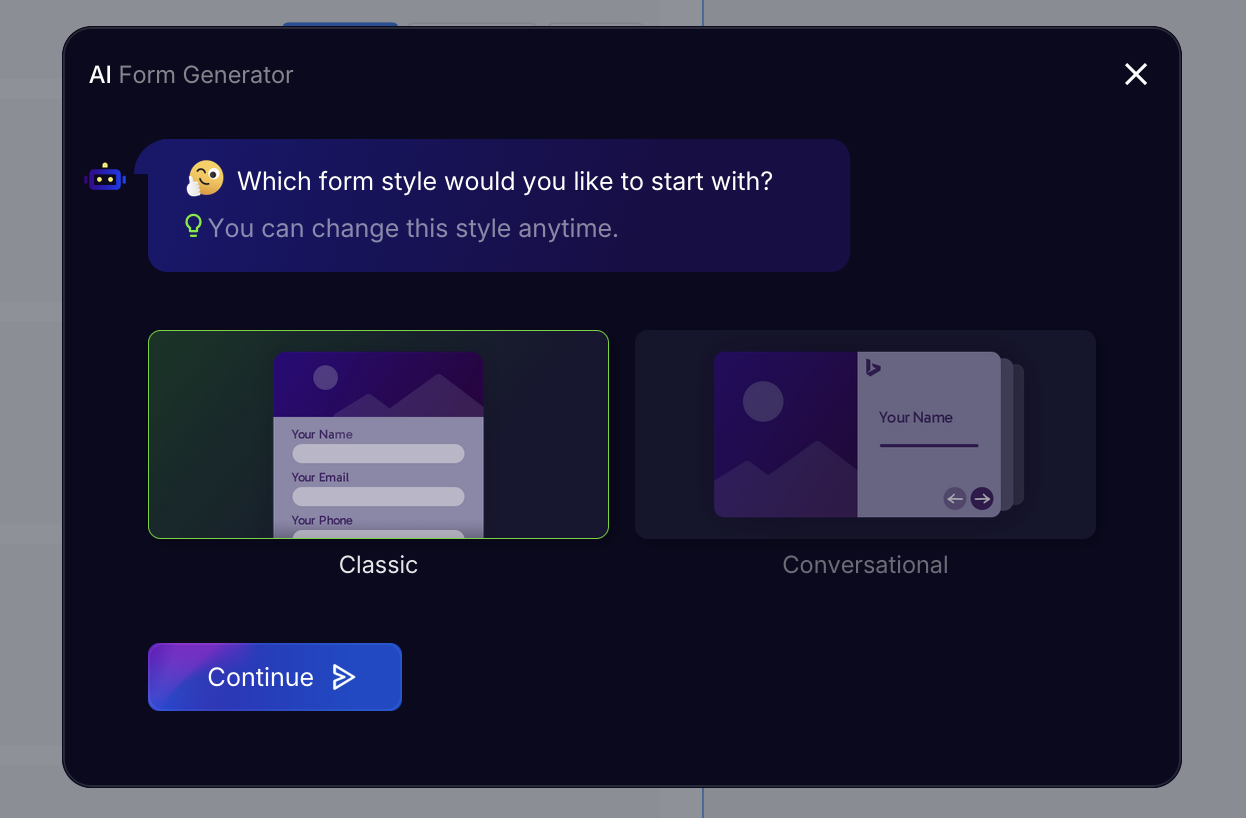
- Classic Form: All questions appear on one page.
- Conversational Form: One question at a time, chat-style.
-
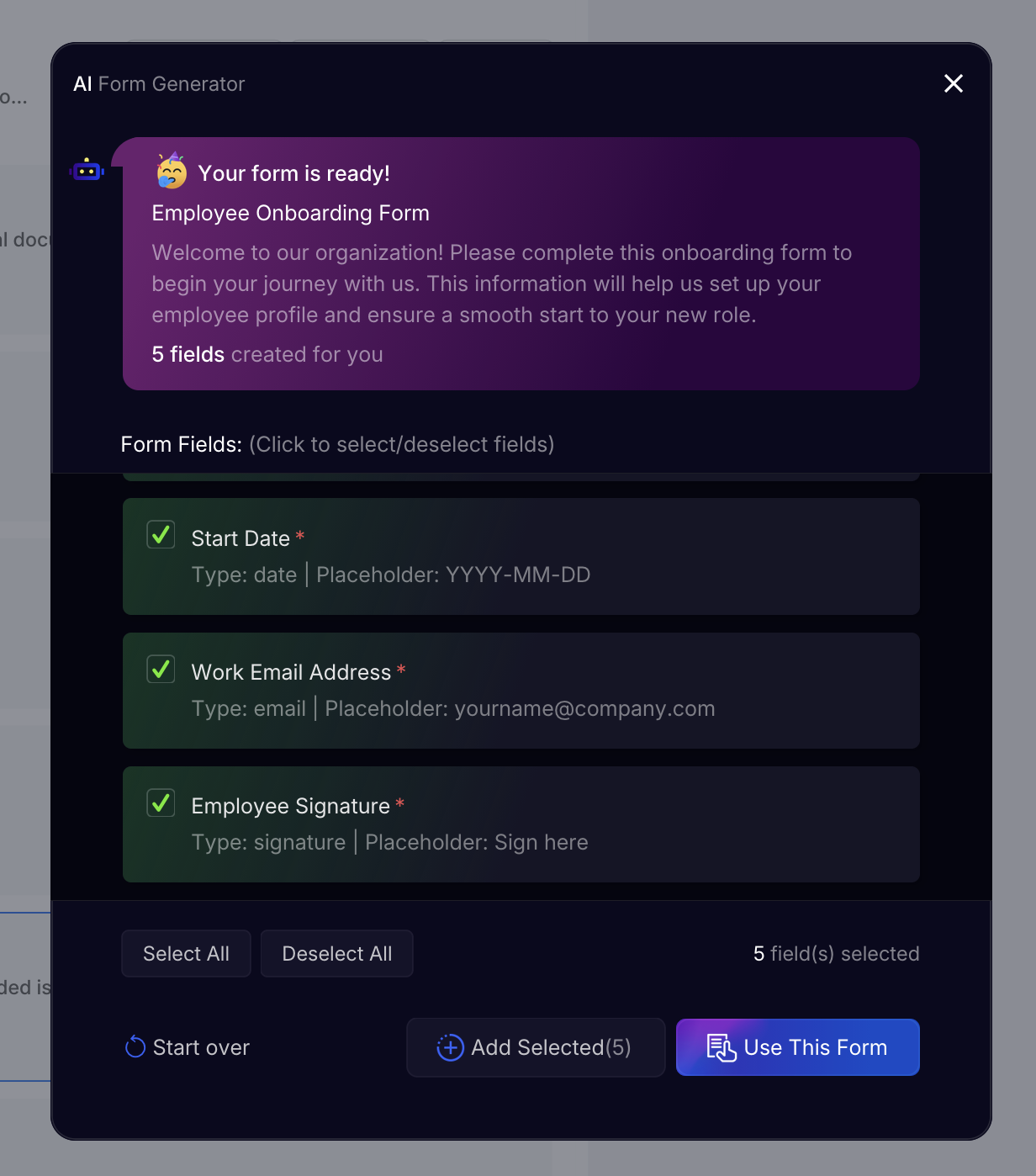
Review the AI’s suggested fields. You can select or deselect fields, adjust field types, and edit placeholders as needed.
-
When you’re ready, choose one of the following options:
-
Use This Form
Adds the selected fields to your current form.
If your form already contains fields, the selected ones will replace existing fields. -
Add Selected
Adds the selected fields to your form without replacing existing ones.
If your form already has fields, the new ones will be added to the next page. -
Start Over
Discards the current AI suggestions and starts a new AI generation.
-
-
Once the selected fields are added to the builder, customize fields, logic, or themes before publishing.