
Clone forms
Tabs
PlatoForms allows you to clone existing forms to reuse their structure, logic, and settings. You can create an identical copy of a PDF form or clone a PDF form into a Web Form (WoF) format.
What is form cloning?
Cloning allows you to create a new form by copying an existing one. Instead of building from scratch, the new form inherits the fields and logic from the original, saving you time on setup and configuration.
Clone a form
-
On the Dashboard, hover over the form you want to duplicate.
-
Click the Settings (gear) icon in the top right corner and select Clone Form.

A pop-up window will appear. The available options in this window are dynamic and depend on the type and state of the source form.
Cloning options by form type
1. Original PDF Form options:

- Reuse PDF: Use the same PDF file from the original form.
- Reuse Fields: Use the fields from the original form but upload a new PDF.
- Convert to Master Form: Reuse the fields from the original form to create a Master Form and its linked forms.
- Convert to Web Form: Clone the form as a responsive Web Form (WoF).
- Keep the original form’s URL: The new form adopts the URL of the original form, while the original form is assigned a new URL. Note that the original URL remains inaccessible until the new form is published.
2. Web Form (WoF) and Cloned WoF options:
If you are cloning an existing Web Form or a form that has already been cloned into a WoF format, the options are simplified:
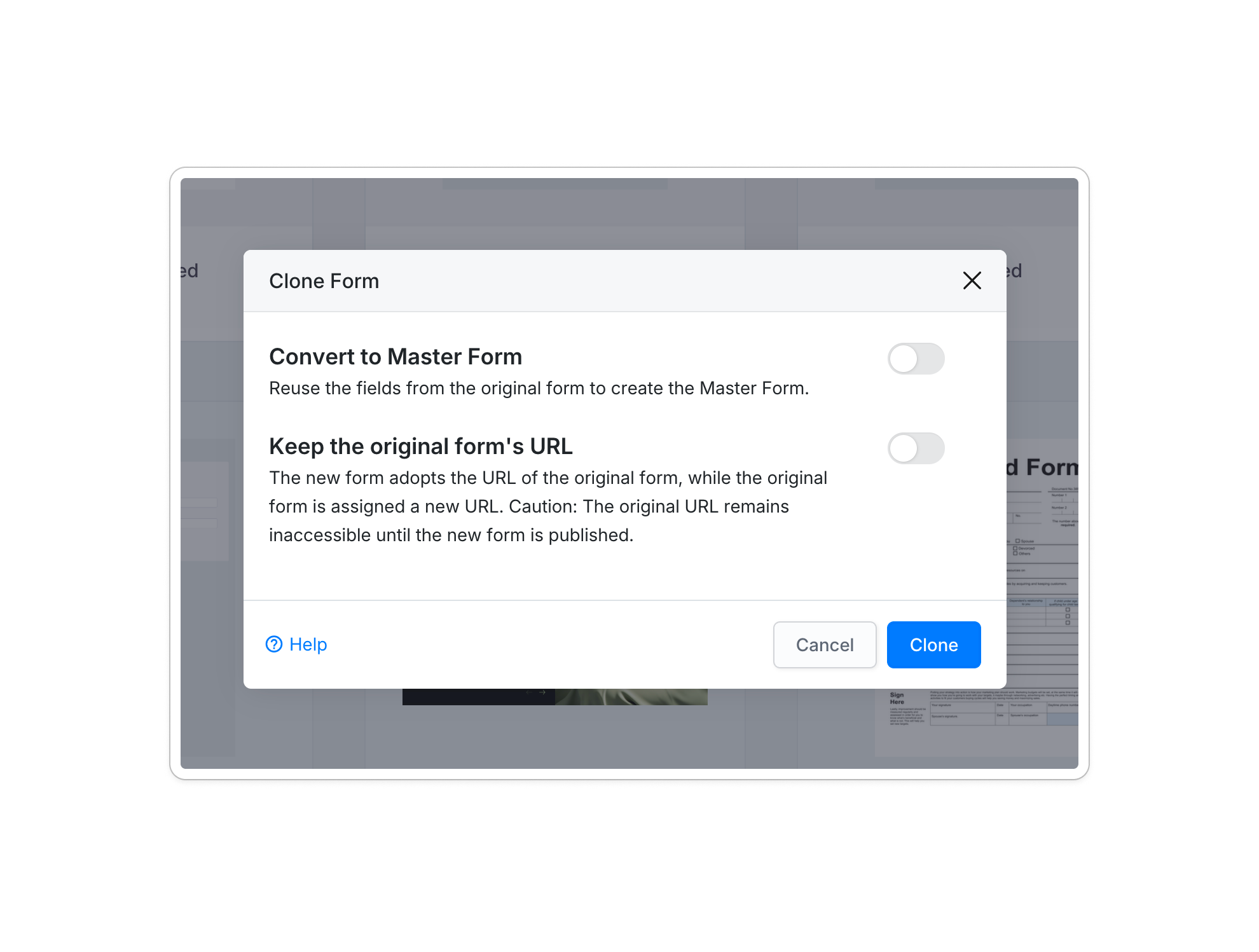
- Convert to Master Form: Reuse the fields from the original form to create the Master Form.
- Keep the original form’s URL: The new form adopts the URL of the original form, while the original form is assigned a new URL. Note that the original URL remains inaccessible until the new form is published.
3. Advanced options for Cloned PDF-based forms:
When cloning a form that was previously cloned from a PDF, you will see advanced conversion paths:
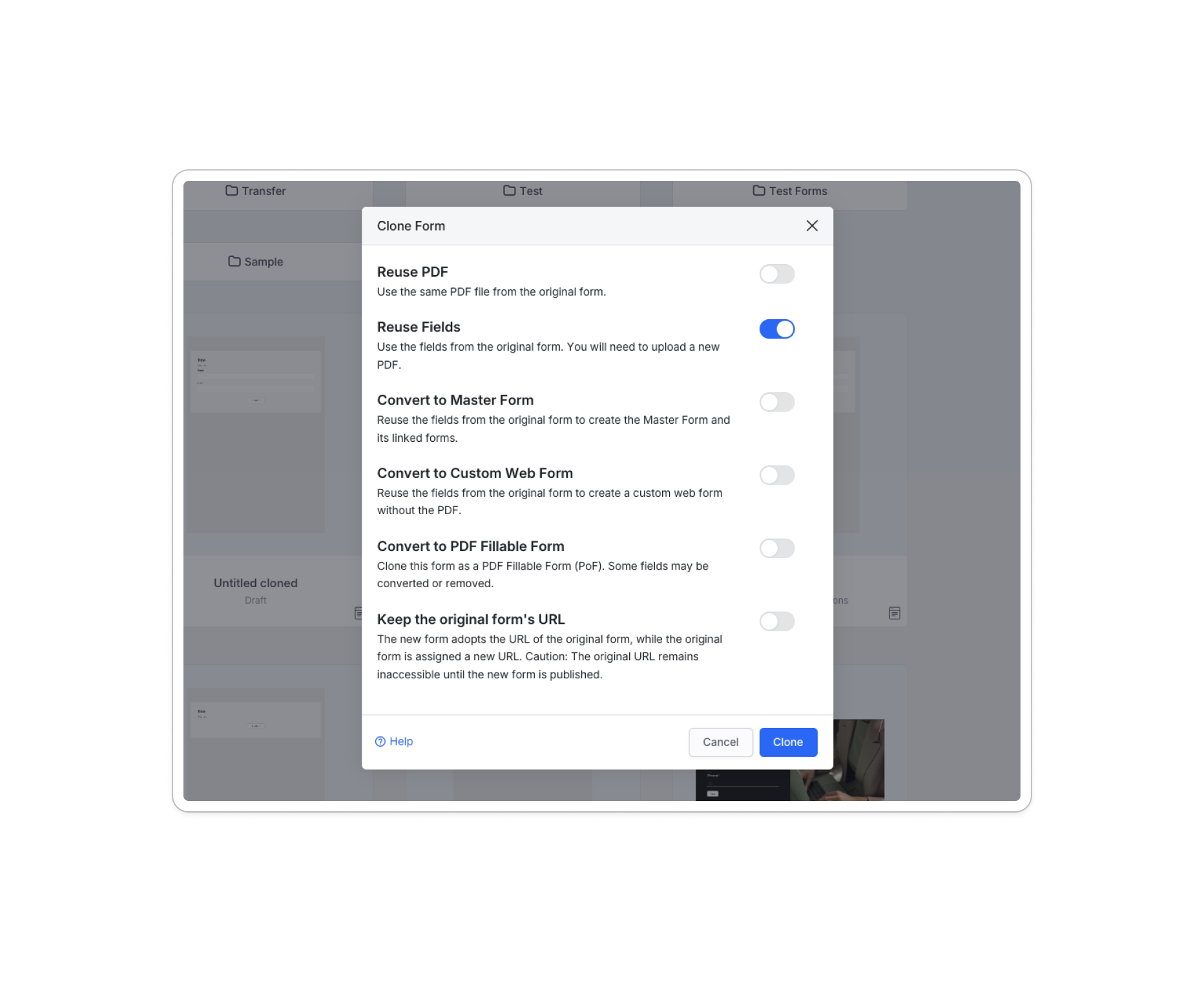
- Convert to Custom Web Form: Reuse fields from the original form to create a custom web form without the PDF.
- Convert to PDF Fillable Form (PoF): Clone the form into a PDF Fillable Form (PoF). Note that some fields may be converted or removed.
Clone a PDF Form to a Web Form
When cloning to a Web Form format, the system transitions the layout from a fixed PDF to a responsive web view.
- Field migration: Compatible fields (e.g., Name, Numbers, Country) are automatically carried over.
- Compatibility warnings: Features unique to PDF forms are not supported in Web Forms. If incompatible items are detected, the system will display a warning.
- Review & Continue: You can review preserved and discarded fields before clicking Clone. The original form remains unaffected.
Set up the cloning options (PDF to PDF)
When cloning between PDF forms, you can customize how assets are reused:
-
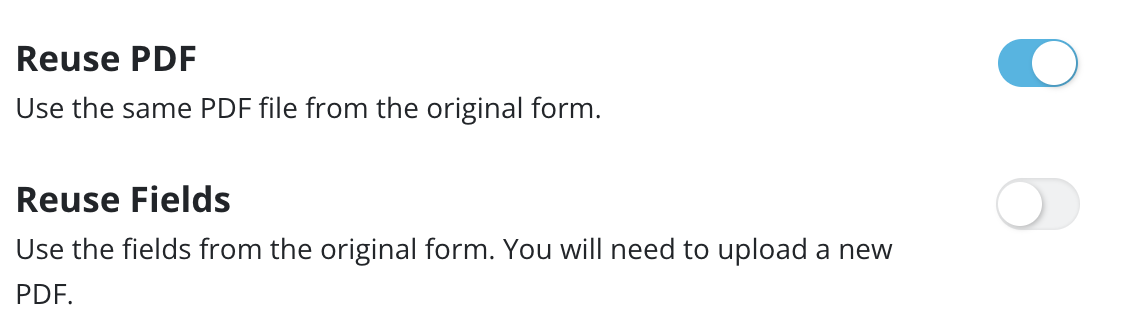
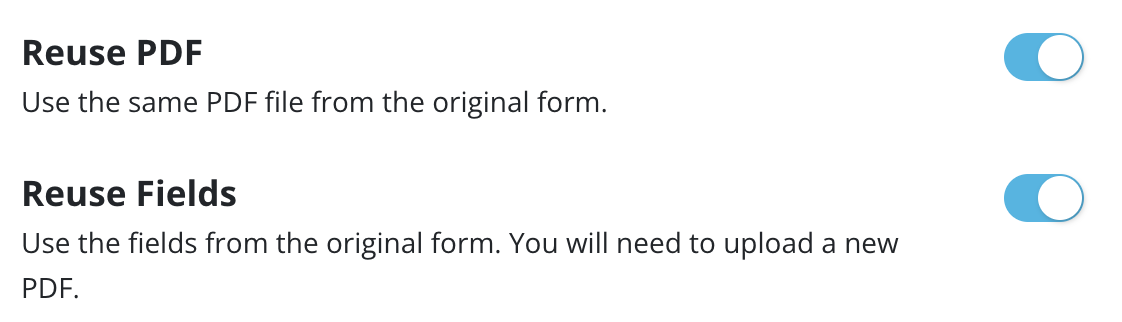
Reuse PDF (On) + Reuse Fields (Off): This allows you to use the same PDF background from the original form but without reusing its fields. You can start fresh by adding and mapping new fields to the existing PDF.
-
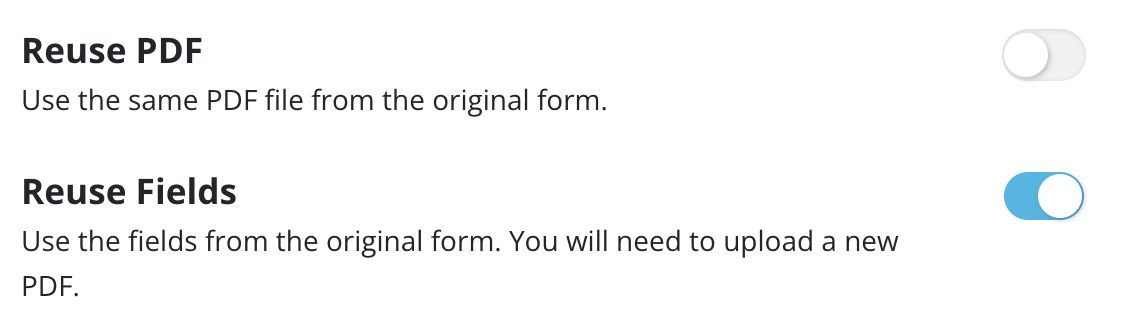
Reuse PDF (Off) + Reuse Fields (On): This option retains all fields, logic, and settings from the original form without using its PDF. The fields appear in the new form in their original positions, allowing you to upload a new PDF background and then move or edit the fields to fit the updated layout.
 Note
NoteWhen you disable Reuse PDF to upload a new PDF file, you might have to adjust the page order. See the Remap page order section for details.
-
Both Enabled: This creates a near-identical copy by reusing both the PDF background and the original fields. This is the most efficient option for making minor updates to an existing form.
Remap page order
This feature is available for PDF forms only. When cloning without reusing the original PDF (switching off Reuse PDF), you must adjust the page order if the new PDF’s layout differs from the original.
When to remap pages
Remapping is required if:
- A new page is inserted into the middle of the PDF (pages added only at the end do not require remapping).
- Pages are removed from the middle of the document.
- The existing page sequence is rearranged.
How to remap pages
-
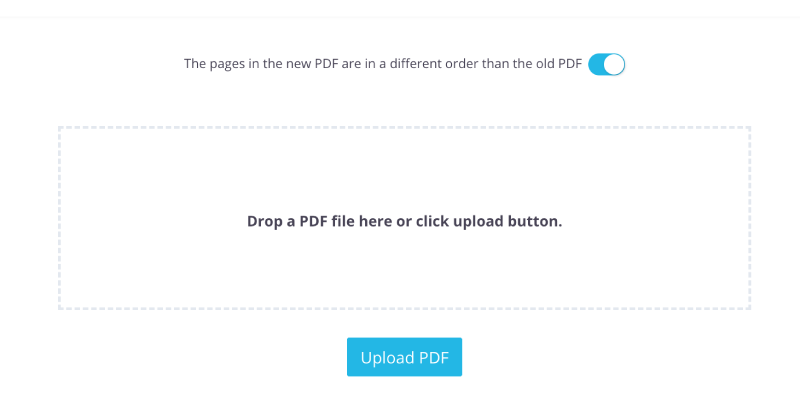
Before uploading the new file, enable the Pages in new PDF are in a different order than old PDF toggle.
-
Drag and drop your file or click Upload to add the new PDF.
-
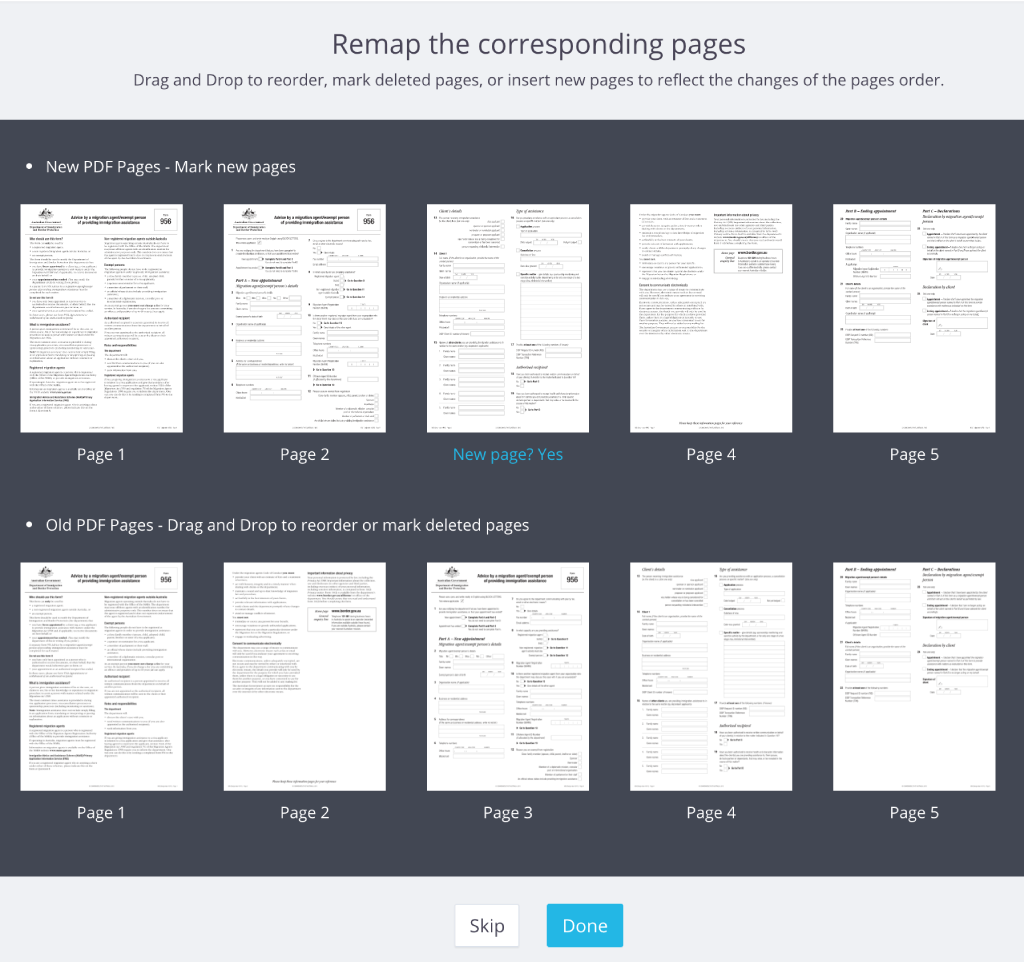
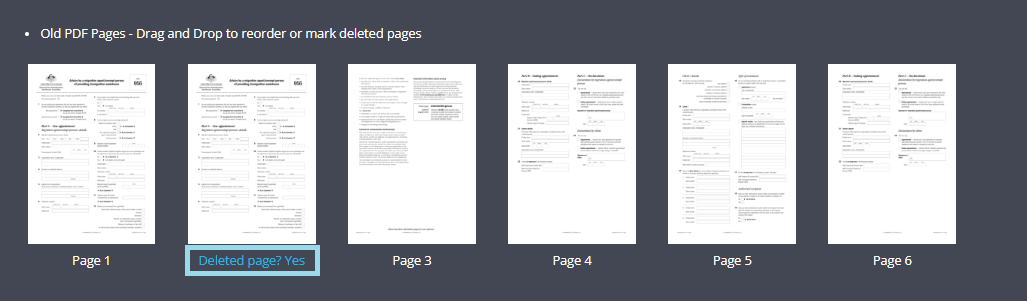
In the Remap the corresponding pages screen, identify new or removed pages.
 Note
NoteThe top row displays pages from your new upload; the bottom row shows pages inherited from the original form.
-
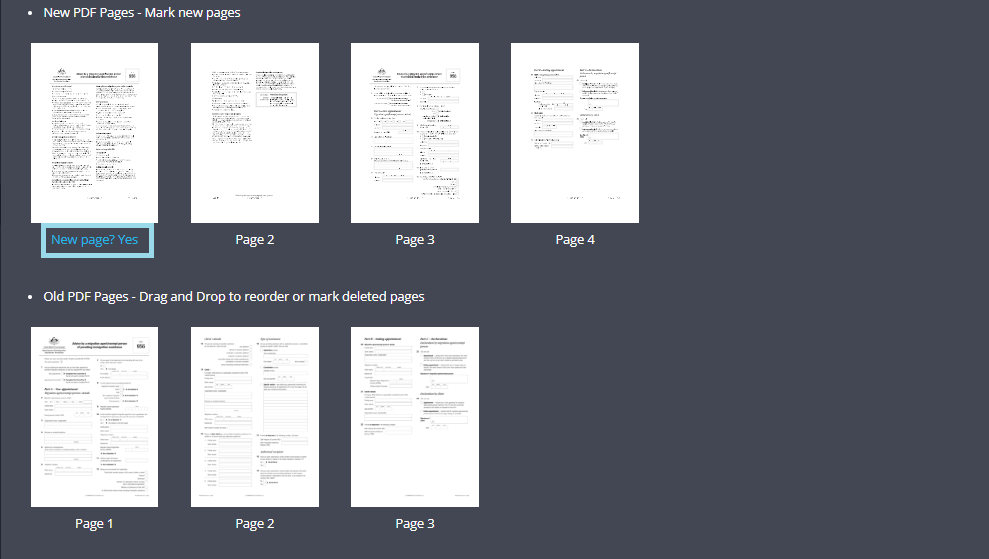
Click New page? Yes to incorporate a new page into your cloned form.
-
Click Deleted page? Yes to remove unwanted pages from the clone.
-
-
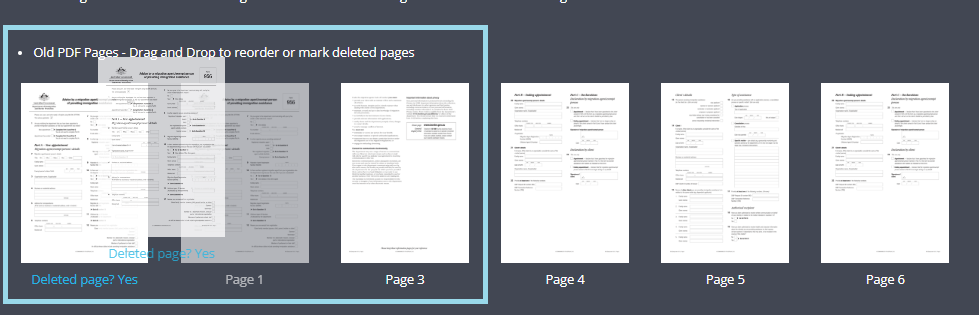
Once pages are marked, drag and drop them to arrange the final sequence.
-
Click Done to finalize. You will enter the form builder with all fields, logic, and settings applied to the new layout.
Video tutorials
How to clone a form (Part 1)
This video covers the basics of duplicating forms and template management:
- Form duplication: Basic process of duplicating a form on the dashboard.
- Reuse PDF: How to use the original background with fresh fields.
- Master Forms: Converting a clone into a reusable template base.
How to reuse fields (Part 2)
This video focuses on updating documents while preserving your work:
- Reuse fields: Keeping existing field logic while replacing the PDF.
- URL management: Instructions for maintaining the public URL during updates.
- Page remapping: Step-by-step guide for handling PDFs with rearranged or added pages.