Integrate with Stripe
Tabs
About Stripe integration
PlatoForms seamlessly collaborates with Stripe, a highly regarded payment processing service. This integration empowers you to seamlessly create a payment field within your form, enabling submitters to provide credit card details for payment when submitting the form. The best part? PlatoForms doesn’t charge any fees for your transactions.
Here’s the breakdown:
-
Seamless collaboration: PlatoForms and Stripe work in tandem, ensuring secure and smooth payment handling.
-
Payment field: Integrate a dedicated payment field in your form to specify the payment amount.
-
Submit and pay: Submitters complete the process by entering their credit card details after form submission.
Please note:
- Stripe integration is available with premium plans.
- You can test payments using the Stripe integration’s test mode.
Two ways to use Stripe
-
Stripe Checkout (Integration): Redirects users to a Stripe-hosted page. This is the classic way to accept payments, including Apple Pay and Google Pay.
-
Stripe Payment Widget (New): Adds a payment field directly inside your form so users don’t have to leave the page.
Integrate with Stripe
-
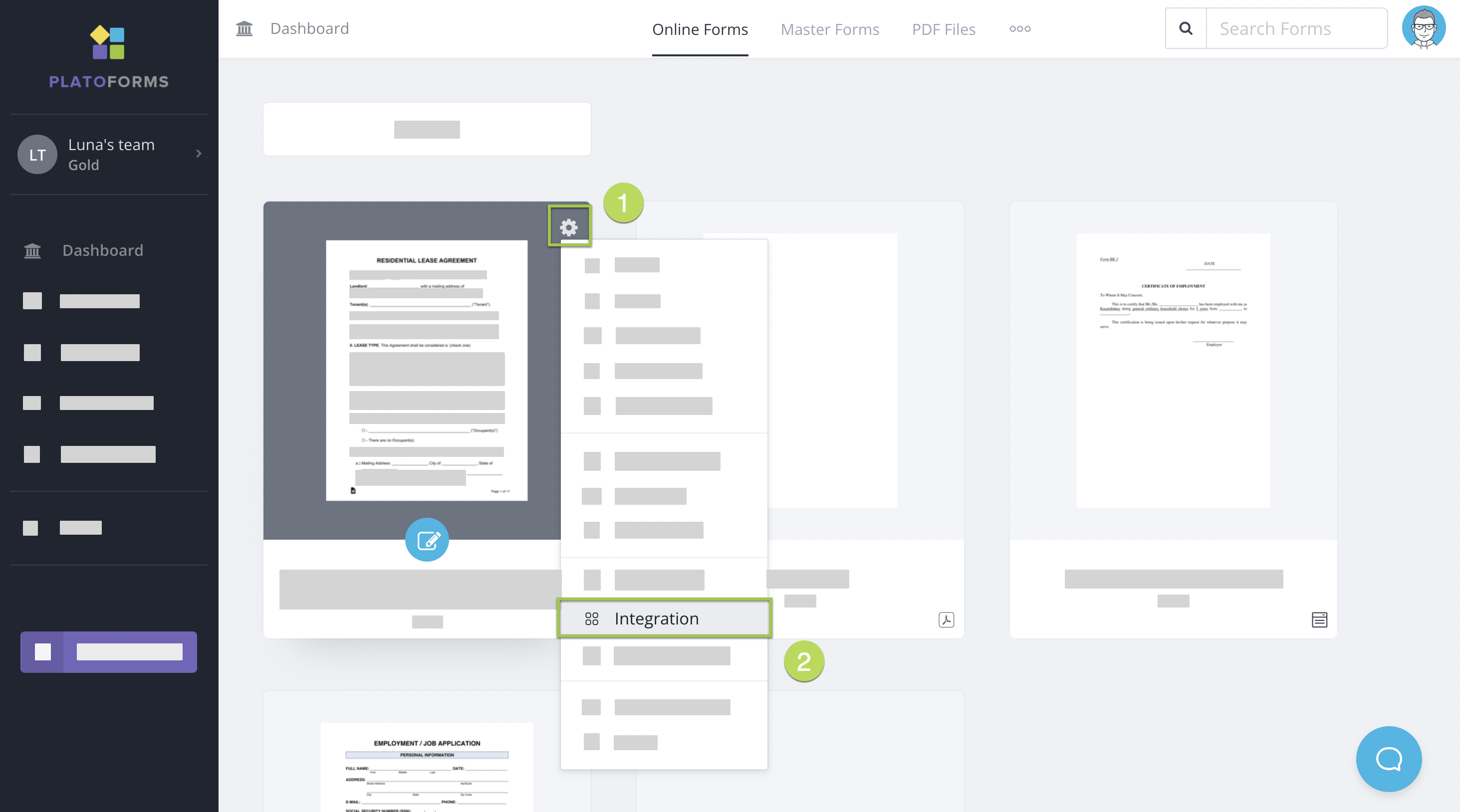
Go to the Dashboard.
-
Hover over the form you want to Integrate with Stripe.
-
Click the settings button at the top right corner of the form.
-
From the dropdown menu, select Integrate.
-
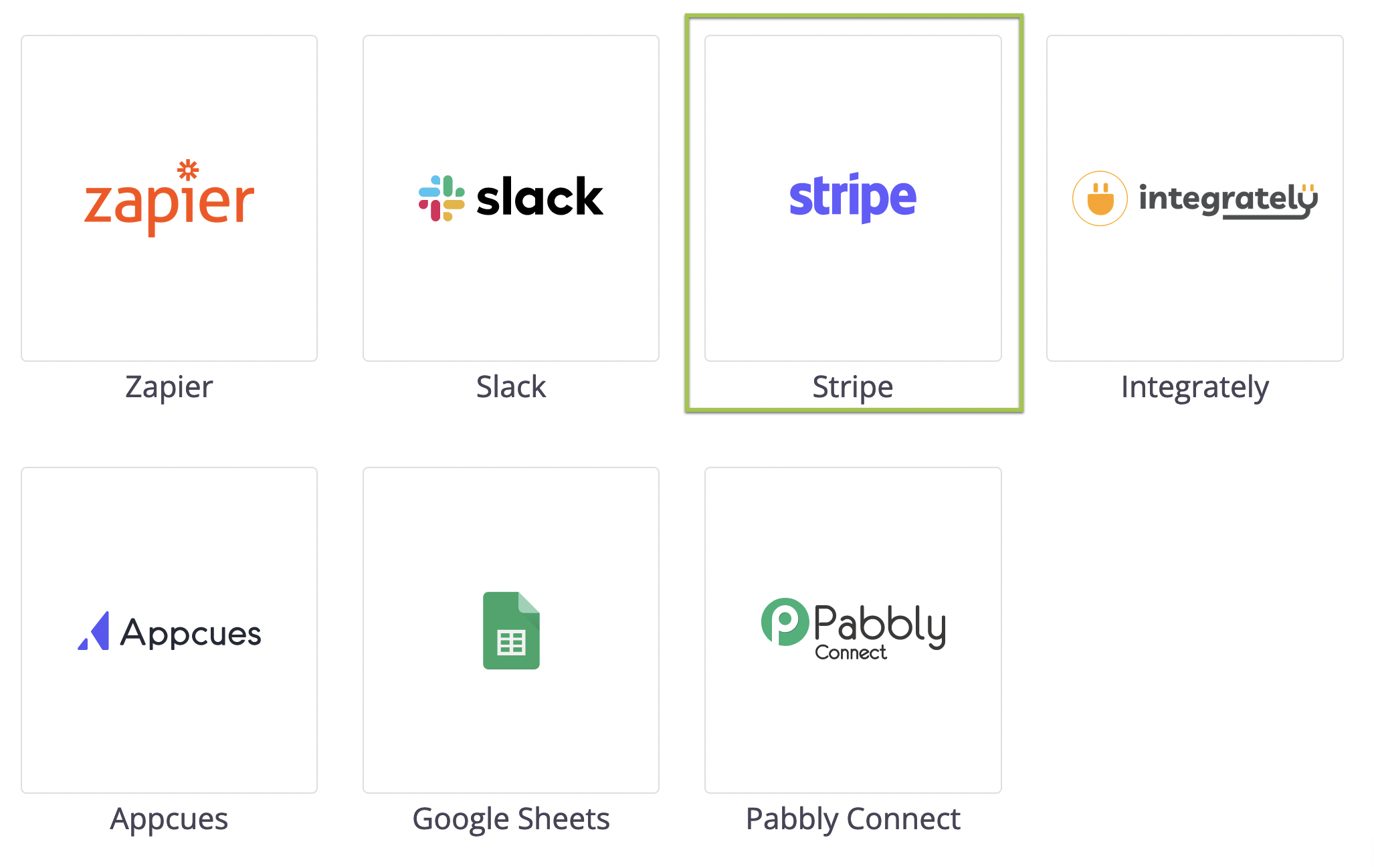
In the window that opens, select the Stripe logo.
-
Select which mode to connect:

- To preview your form, select Connect with Stripe (Test Mode). You can input a test credit card number to complete the payment. This mode will help you to verify whether the payment function is working as expected without an actual credit charge.
- For published form, select Connect with Stripe. This mode accepts the valid credit and processes the payment.
-
In the pop-up window that opens, follow the prompts to create your free Stripe account.
Use Stripe Payment widget
-
Open your form in the builder.
-
In the Widget Panel on the left, click More Widgets (three dots) > Stripe Payment (Under Enhanced Features) to add it to your form.
-
Click the widget to set:
-
Connect: Link your Stripe account for both Live and Test modes.
-
Amount: Set a Fixed Amount or select Amount from a form field to use a dynamic price (the
{{pricing}}tag in the label will show the actual amount).
-
Enable Apple Pay
To use Apple Pay, you must manually add your form domain to your Stripe account.
-
Log in to your Stripe Dashboard.
-
Go to Settings > Payment methods > Payment method domains.
-
Click Add a new domain and add your form links:
-
Live:
form.platoforms.com -
Preview:
design.platoforms.com -
HIPAA:
secure.platoforms.com -
Custom Domain: e.g.,
myform.company.com
-
Payment process
Here’s a screenshot of the payment dialogue when you’re previewing the form:

- When you’re in the preview stage: Use a test credit card for form submission.
- When you published the live form: Payment process is alike, requiring a real credit card.
Review payments: test and live modes
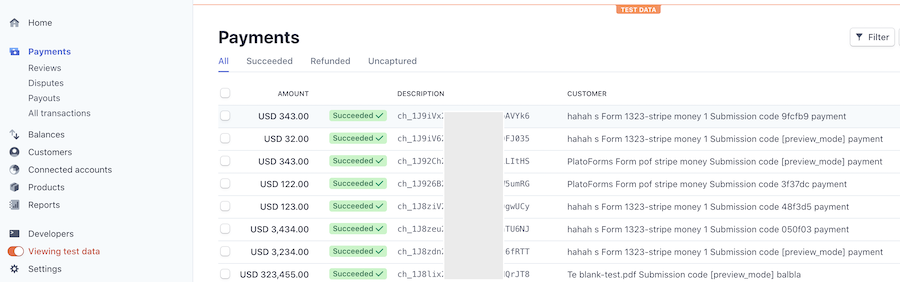
- Check Stripe account: Log in to review payments.
- Distinguish test/actual payment: Toggle on/off View test data for clarity.
Customize customer info
Integration Settings: Tailor CUSTOMERS info (excluding currency code).