
Create your first online form
Tabs
Create your first form. See exactly what to click from dashboard to shareable link. Perfect for beginners.
Video tutorial
To get started quickly, watch how to create your first form in 3 minutes.
Access the Dashboard
-
Log in to PlatoForms after setting up your account.
-
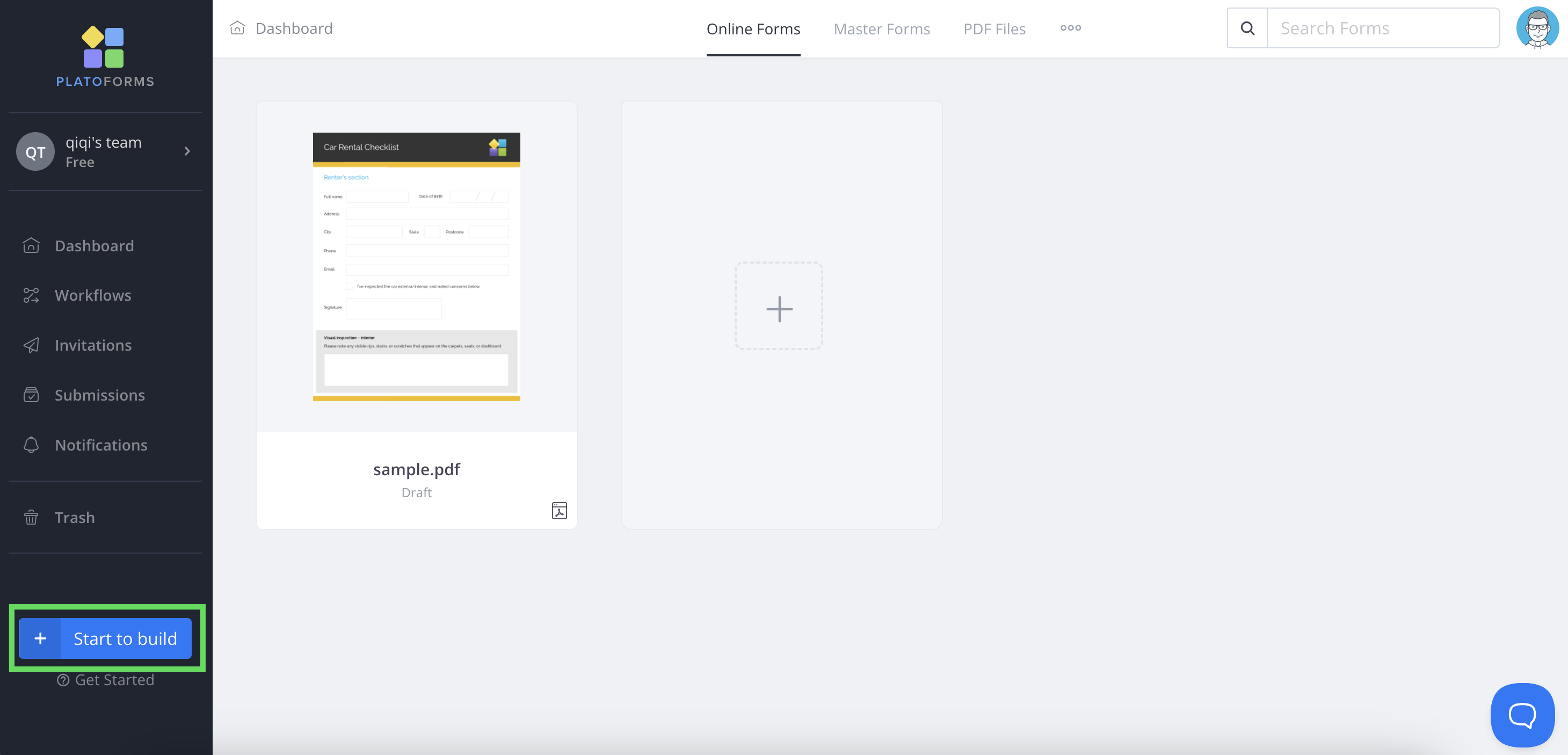
Your dashboard has three main areas:
- Left sidebar: Click to access Workflows, Invitations, Submissions, and other tools.
- Top tabs: Switch between your forms and sort by date or name
- Main area: View your forms and create folders to organize them
Create form
-
Look for the blue Start to build button in the bottom left corner.
-
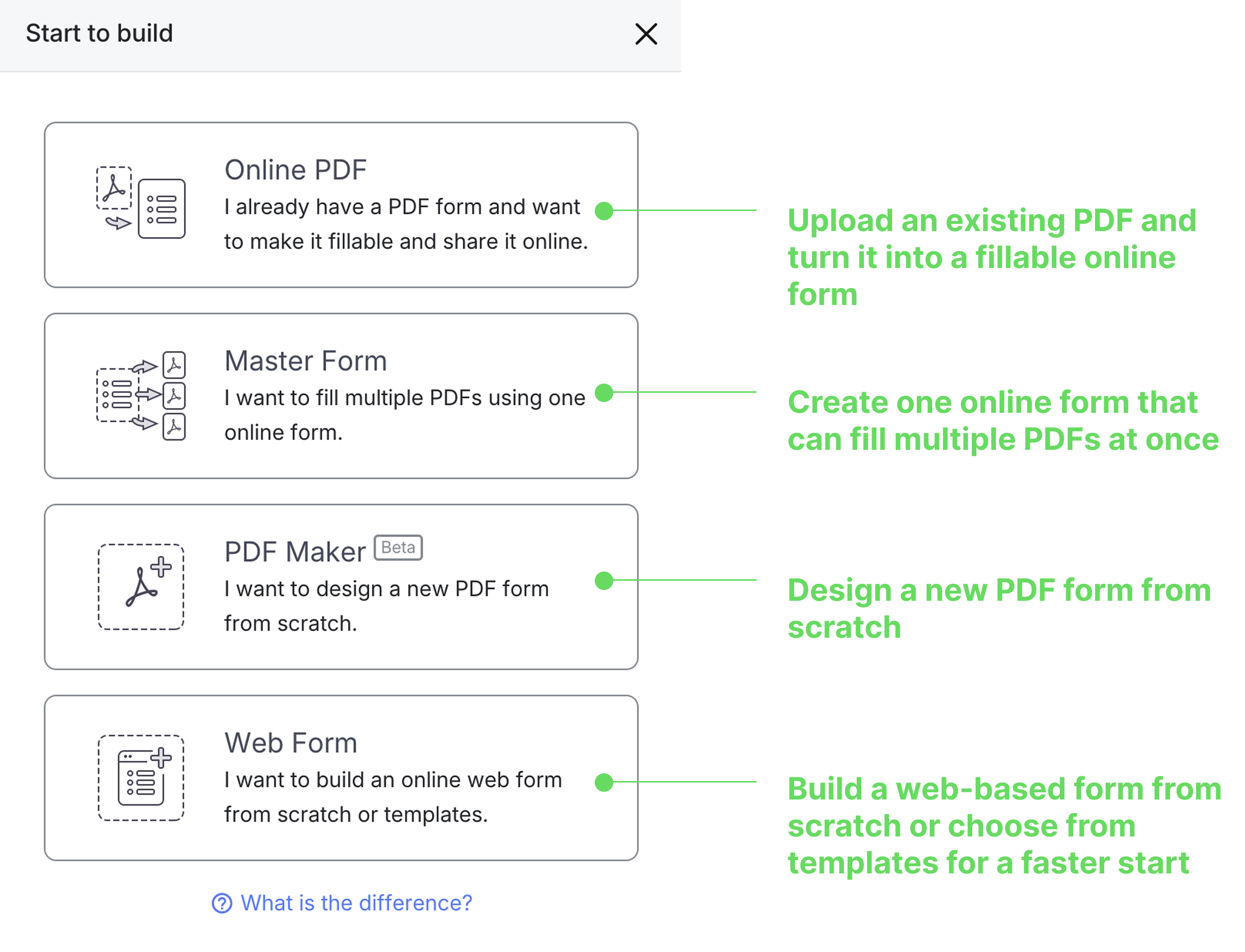
Choose your form type from these four options:
NoteNeed help choosing? See detailed comparisons and examples in our Form types guide.
-
Have a PDF to convert?
Click Online PDF → Upload your PDF to make it fillable and share it online. -
Need one form for multiple PDFs?
Click Master Form → Set up your master form to connect one online form with multiple PDFs. -
Want to design a new PDF?
Click PDF Maker → Start from a blank PDF canvas and add fields directly. -
Want to build a web form?
Click Web Form → Build an online form from scratch or from templates for a faster start.
-
(Optional) Upload PDF
If you choose Online PDF, you’ll need to upload a PDF for conversion into an online form.
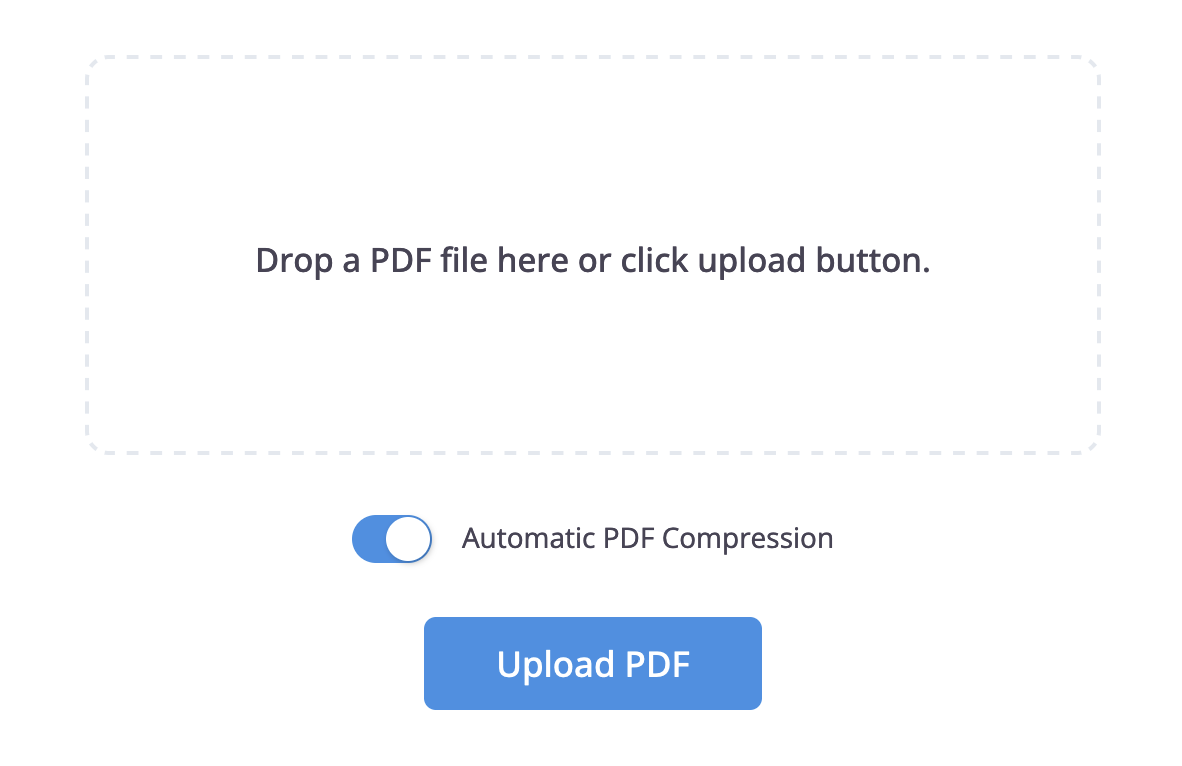
Automatic PDF Compression
You can upload any size file. Automatic PDF compression is set to default so that files over 10MB are automatically compressed to stay under our email limit, preserving all formatting and styles.
- Broken elements? Disable Automatic PDF Compression and re-upload your file
- File still too large for email? Check our email notification solutions.
Choose a form type
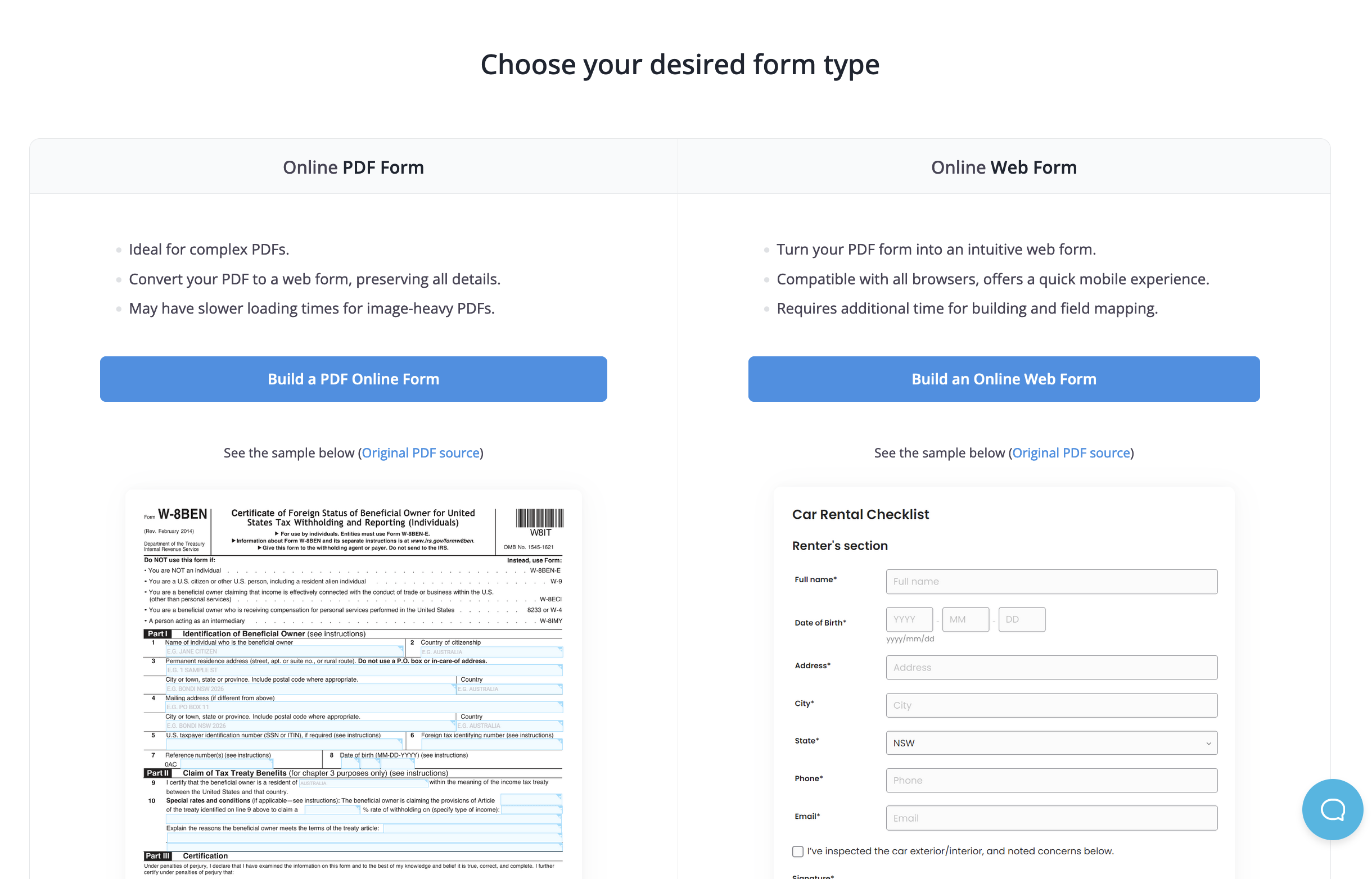
- Keep original PDF layout? Select Build a PDF Online Form - preserves your document’s exact appearance
- Want modern web experience? Select Build an Online Web Form - creates a mobile-friendly interface
(Optional) Use AI to recognize fields
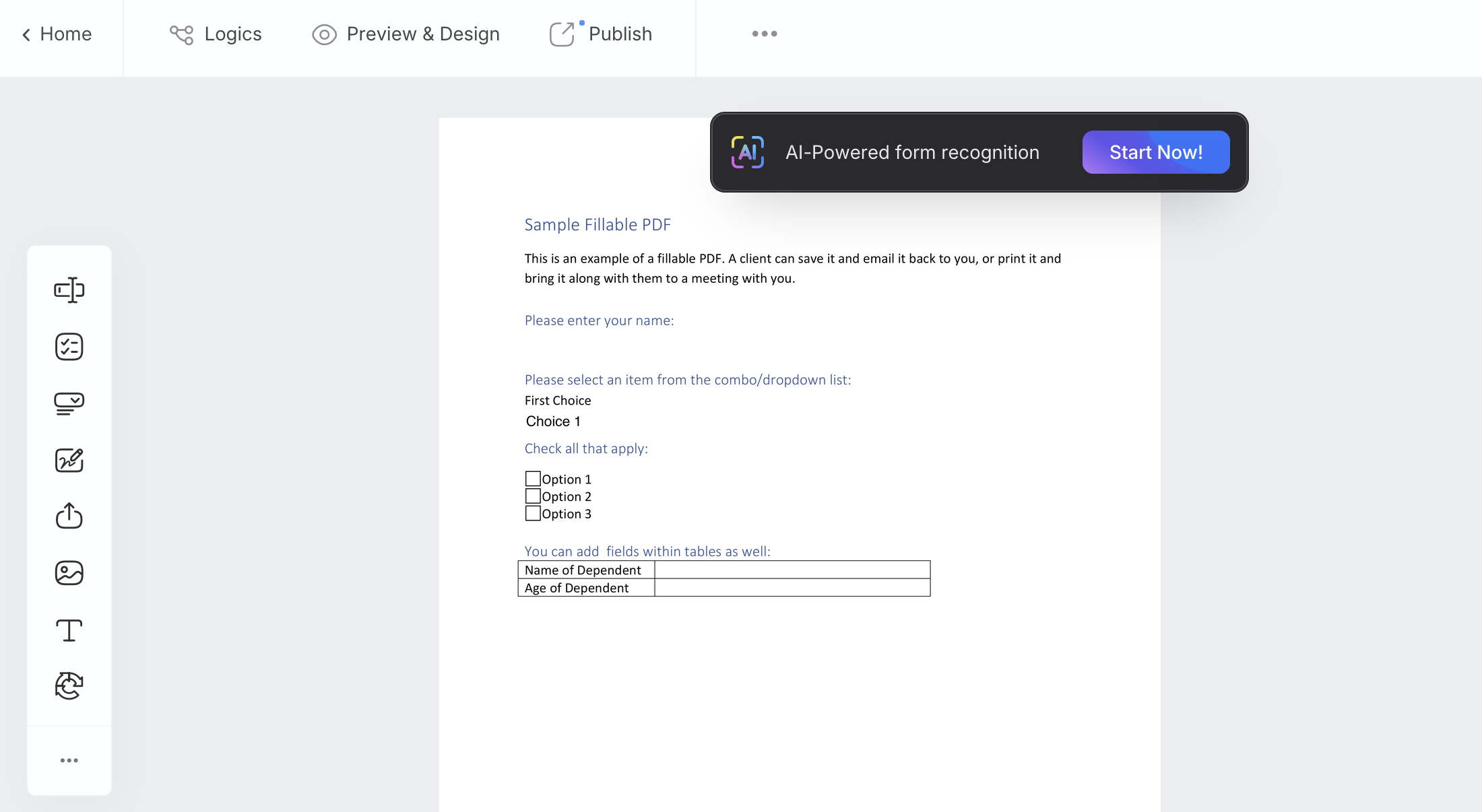
After choosing the form type, you’ll see the AI-Powered form recognition bar in the form builder.
-
Click Start Now to begin AI recognition. Alternatively, find the AI Recognition Form option in the ••• menu.
-
After your AI-powered form is ready, click Load Form.
Add form fields
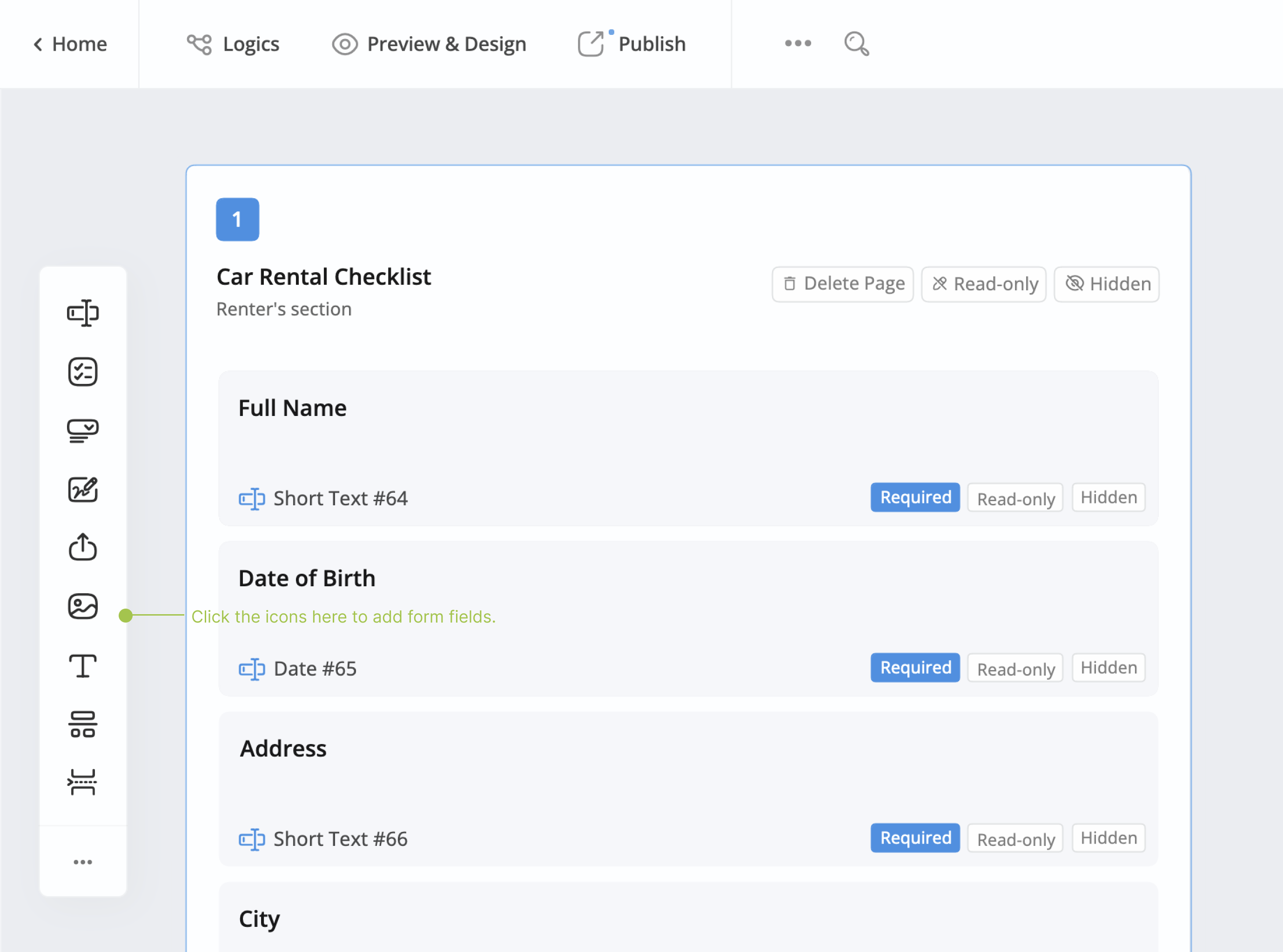
After creating an online form, you’ll go to the form builder to add form fields. These are spaces on the form where people can type or choose information, like names, emails, or other details.
-
Click the icons in the Toolbar to add form fields.
-
Customize fields as needed.
NoteFor more details about fields, refer to the Form fields section.
Customize form design
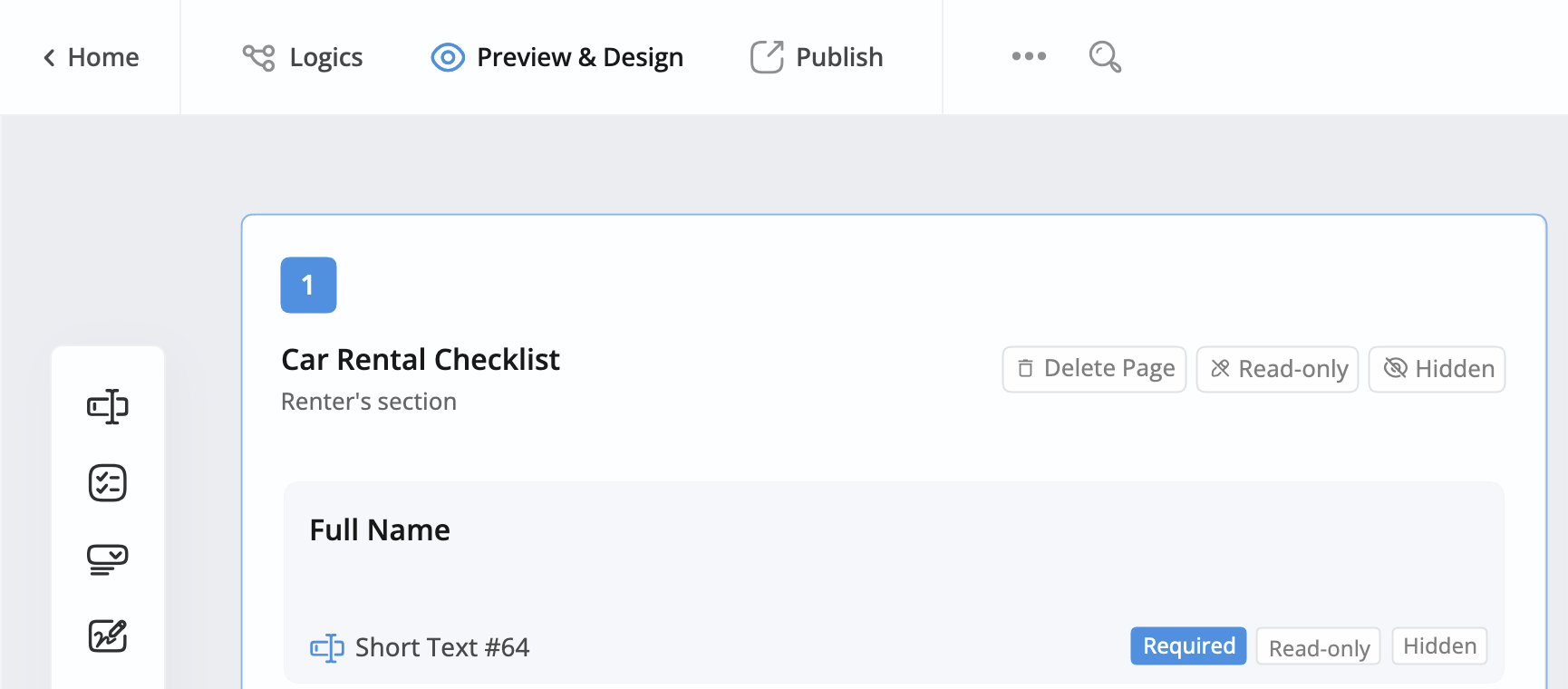
After finishing your form fields, you can go to the preview and design page to customize the appearance.
-
In the top left of the form builder, click Preview & Design.
-
Design your form look on the preview page.
- For Web PDF Form, you can pick a theme and customize the form design.
- For Online PDF Form, you can cutomize the form look.
(Recommended) Switch to conversational mode
For forms with multiple sections or complex workflows, consider switching to conversational mode to improve user experience:
-
On the preview page, click the Conversational toggle button, and click Confirm to switch modes.
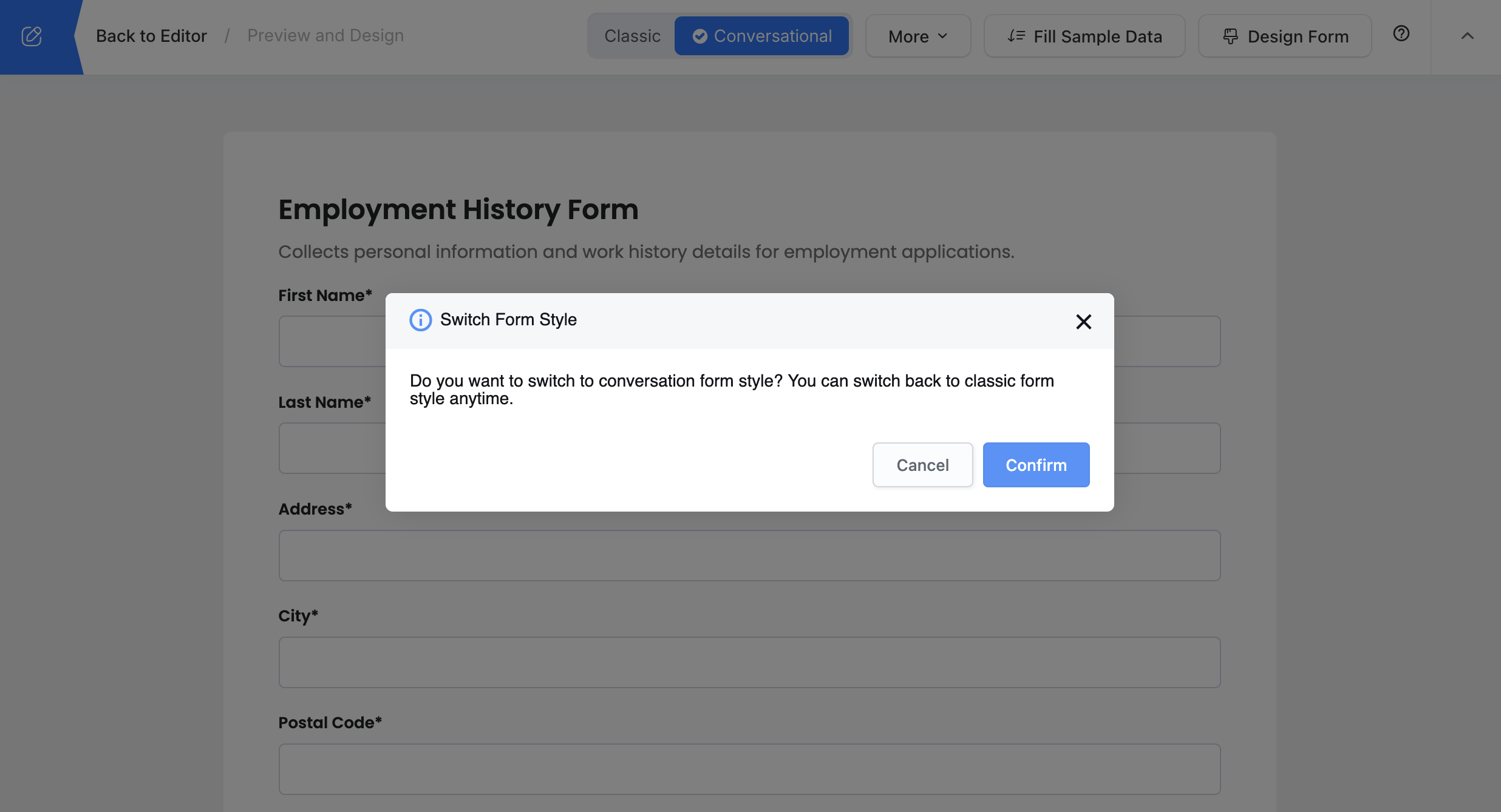
When enabled, your form will present one question at a time instead of showing all fields at once.
-
Customize the conversational flow, like set welcome messages, choose the progress indicator design, etc.
Conversational forms work especially well for surveys, applications, intake forms, and any multi-step processes. Learn more about conversational form design.
Adjust form settings
Before sharing your form with form fillers, customize settings like notifications and multi-languages for a personalized experience.
-
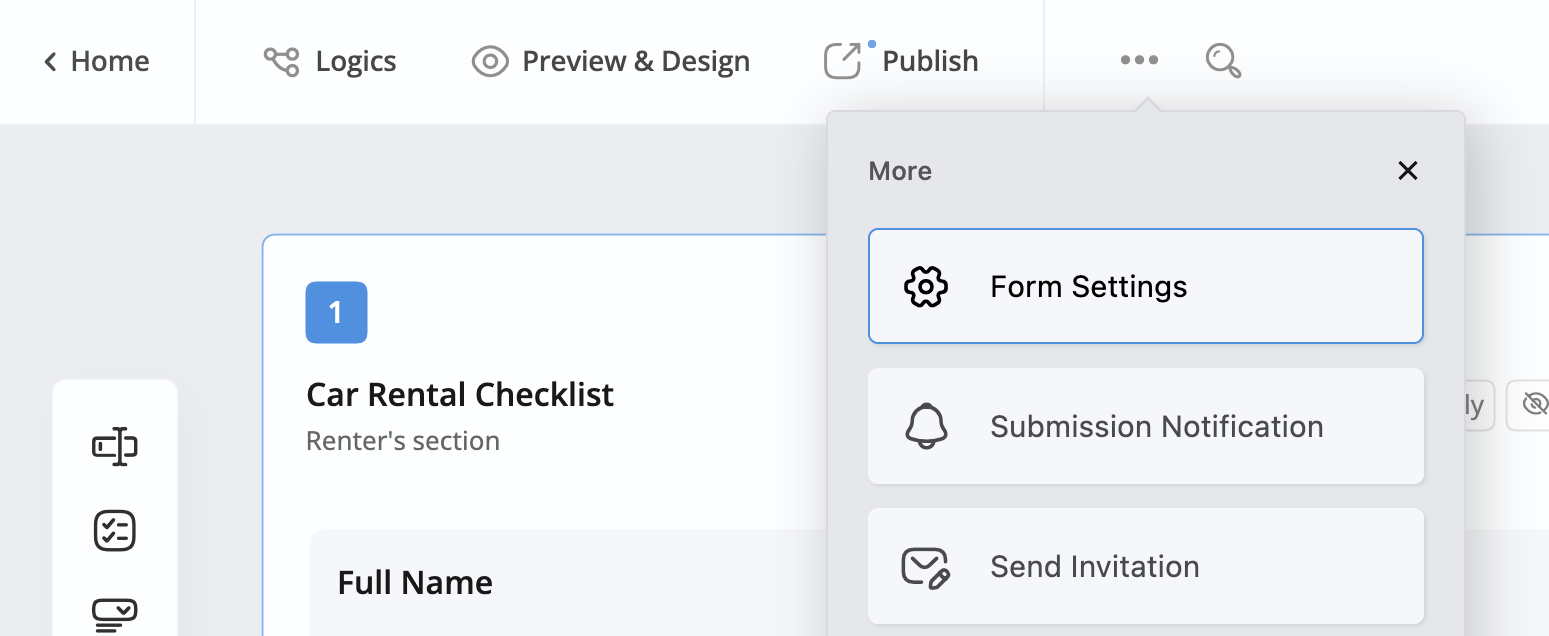
In the top left of the form builder, click the ••• icon button and then click Form Settings.
-
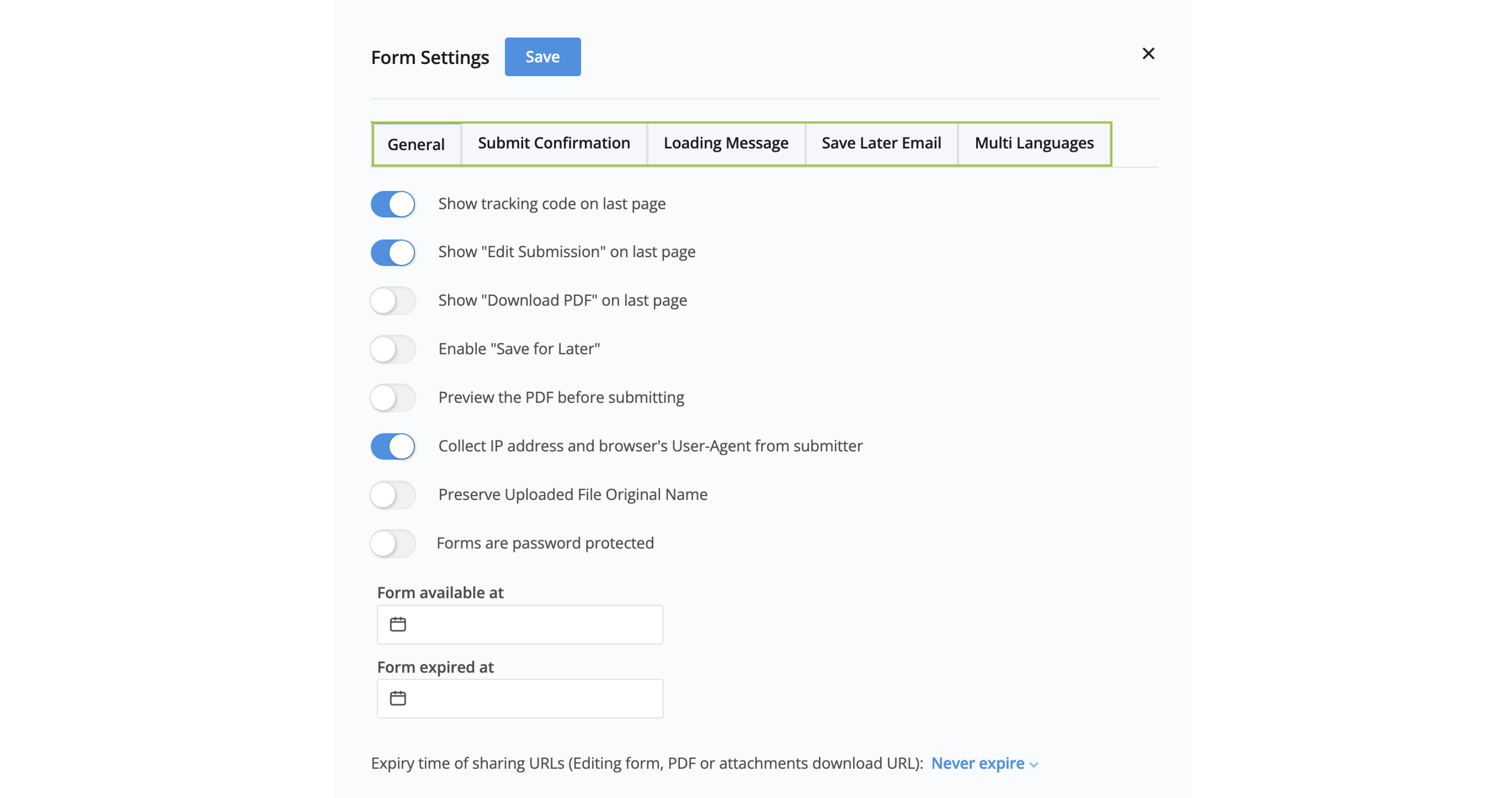
Switch between tabs to customize your form settings.
-
Click Save to confirm your settings.
NoteFor more details, refer to the Manage form settings section.
Publish your form
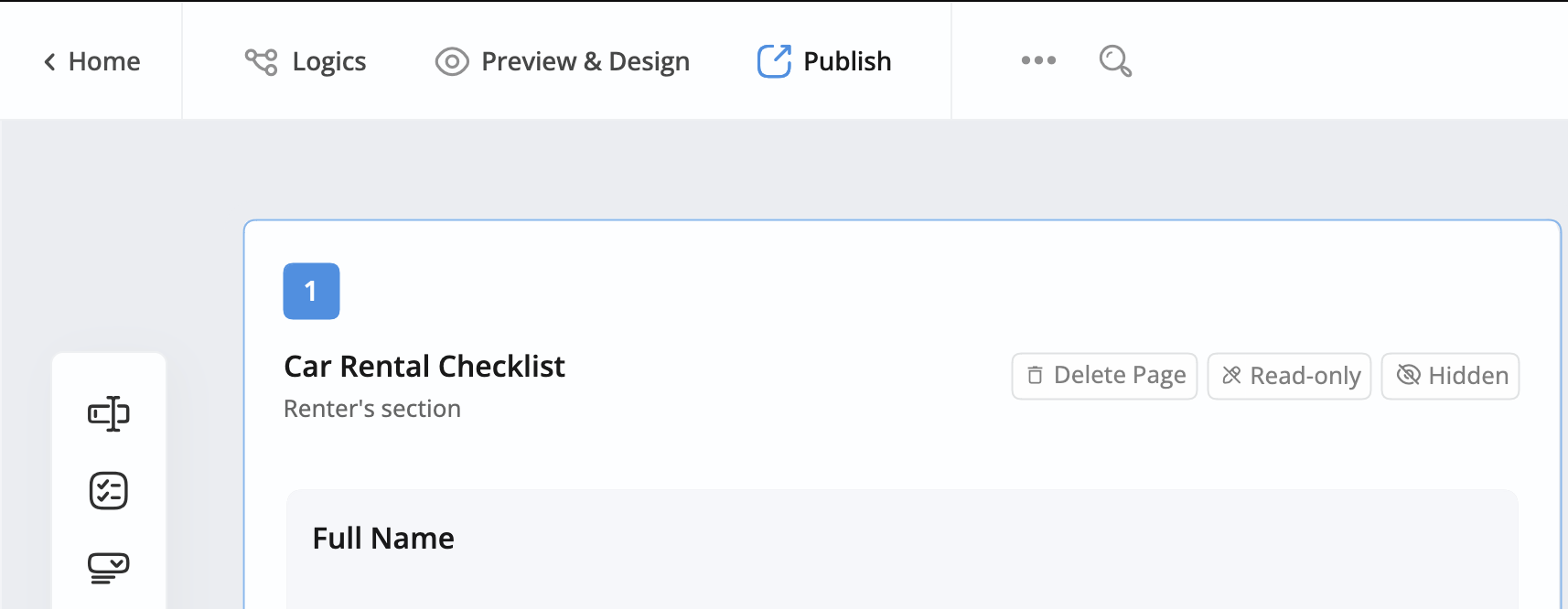
Once your online form is complete, return to the form builder and click the Publish button at the top left.
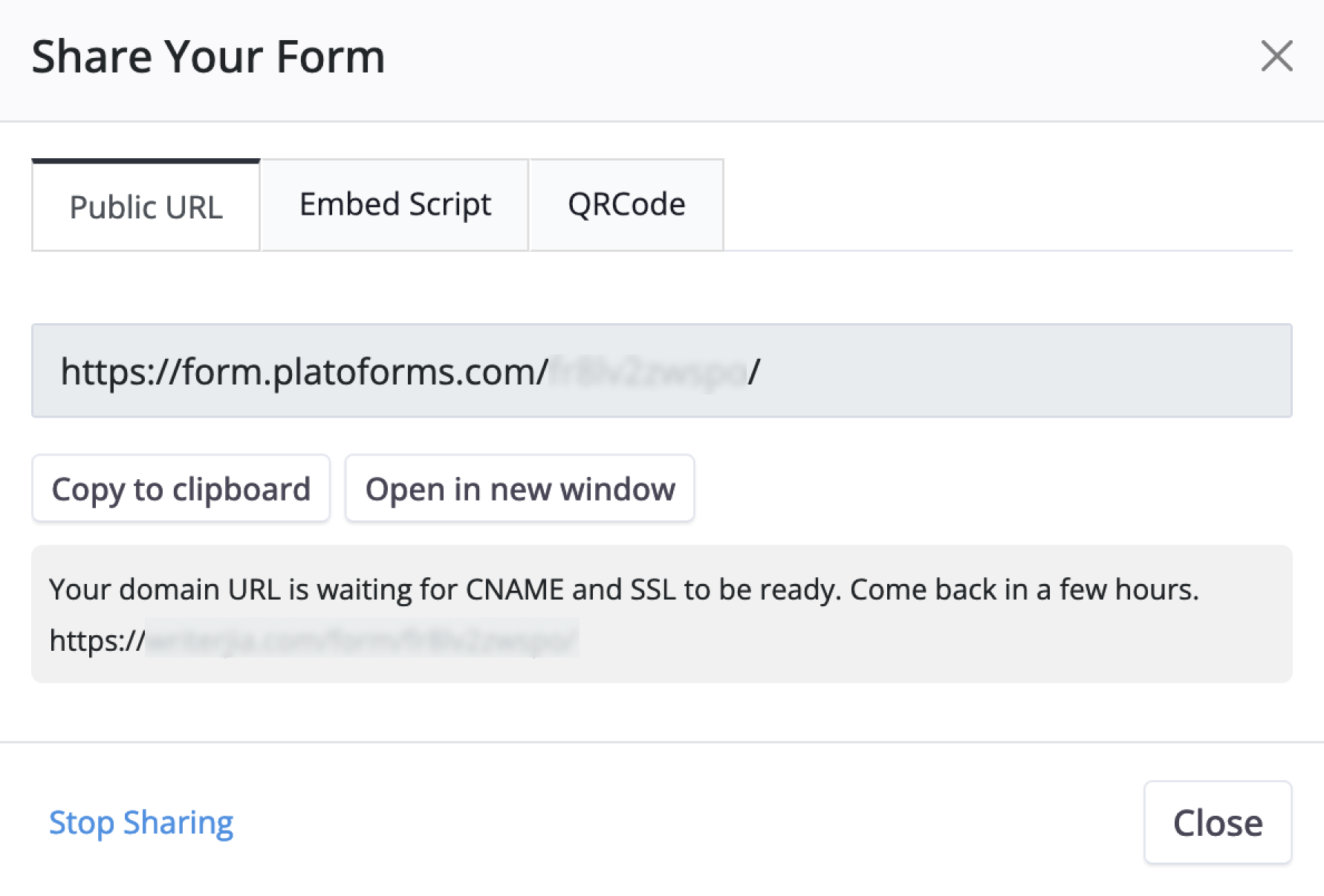
Once published, you’ll receive a Public URL, Embed Script, or QRCode for sharing with others:
-
Public URL: A direct link to your published PDF form. You can simply share this link with others, and they can access and fill out the form using their web browser.
-
Embed Script: Code snippet that displays your form directly on your website or web application. Users can fill out the form without leaving your page. Choose from four embed options - standard, modal popup, floating button, or full-page display.
-
QRCode: A simple and efficient way to share your forms. Like Embed Script, which integrates forms into your website, QR Codes let users access and complete forms easily. Display the QR Code on your website or materials, and users can scan it with their mobile devices to quickly access and fill out the form. Just like Embed Script, QR Codes enhance interaction while maintaining a seamless journey.