










Auto-detect PDF form fields with AI
On this page
This guide shows how to let AI add the fields to your PDF form, how to load and edit the results, and what to know about AI credits and page limits.
What is AI field detection?
AI field detection is a PlatoForms feature that scans a PDF you upload and adds fillable form fields for you, so you don’t have to place each field by hand. It reads the structure of the PDF, such as labels and help text, to decide which fields to add and where. You then review and edit the detected fields before you publish.

Where it works:
You can use AI detection in:
- PDF Fillable Form People fill directly on your PDF pages. The completed file keeps the original layout.
- Web PDF Form People fill a mobile-friendly web form. PlatoForms then creates the completed PDF on your original PDF pages.
Auto-detect your form
-
On the Dashboard, click + Start to build > PDF → Online Form, then choose PDF Fillable Form or Web PDF Form.
-
Upload your PDF.
-
After uploading, you’ll see the AI-Powered form recognition bar. Click Start Now!.
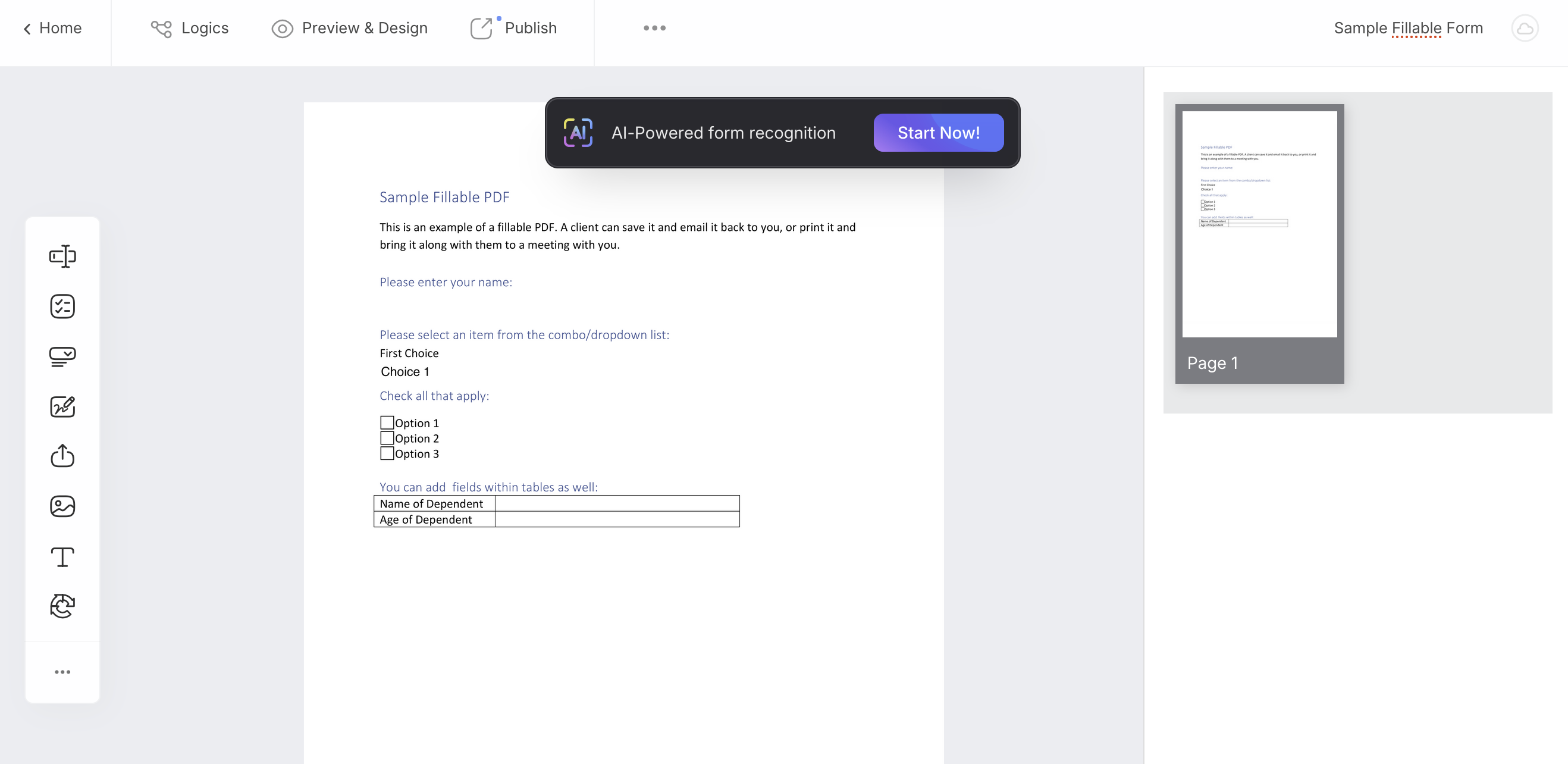
The recognition time may vary depending on your PDF. Detection uses your team’s AI credits: first your plan’s monthly AI allowance, then any AI credits your team bought before September 2026, then your usage credit if AI is set to Pay from balance.
NoteIf you miss the bar, find the AI Recognition Form option from the ••• menu.
-
Once done, click Load Form! to open your form with the detected fields.
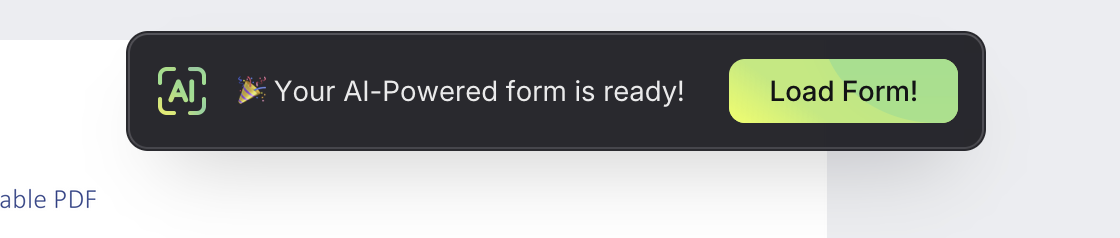
This replaces all fields currently on the form with the detected ones. The previous version is saved in History first, so you can restore it.
Edit the form
You can select any detected field and make changes as needed.
Best practices
AI field detection works best for:
-
Small to medium forms that need a quick setup
-
Forms with a clear layout and readable labels
It’s not recommended for:
-
Large forms: detection is limited to PDFs of up to 10 pages for most teams, or 20 pages while your team’s usage credit balance is above zero. Over the limit, detection is refused with a message naming your team’s limit, and nothing is charged.
-
Forms that contain hundreds of fields
NoteTo avoid overuse, AI field detection is limited in frequency and may not run for very large forms.
Common questions
Is AI field detection free?
Detection uses AI credits. Every plan, including Free, comes with a monthly AI allowance, and detection draws on it first. On the Usage > AI tab it appears as PDF Page Parsing and PDF Form Analysis. The number of credits depends on the PDF and isn’t shown before you run it. See AI credits.
How many pages can AI detect at once?
Up to 10 pages for most teams, or 20 pages while your team’s usage credit balance is above zero. A longer PDF is refused with a message naming your team’s limit, and nothing is charged.
Will detection overwrite fields I already added?
Yes. Load Form! replaces all fields on the form with the detected ones. The previous version is saved in History first, so you can restore it.
What if a field is detected wrong?
Select the field and edit it, or delete it and add the right one from the toolbar. Check the detected fields before you publish the form.
Can I get the AI-suggested fields back later?
In a Web PDF Form, choose Reset to AI Suggested. It restores the AI-suggested fields if you ran AI detection on the form before; otherwise it resets to an empty form. See Reset Web PDF Form.
How is this different from the AI Form Generator?
AI field detection starts from a PDF you upload and finds its fields. The AI Form Generator starts from a description and builds a new Web Form.