
Customize thank-you messages and redirect links
On this page
With PlatoForms, you can make your forms personalized by setting up special thank-you messages and redirect links based on what people enter. This guide will show you how to do it, using the example of students picking their majors.
Access form settings
To open Manage Form, you have two options:
-
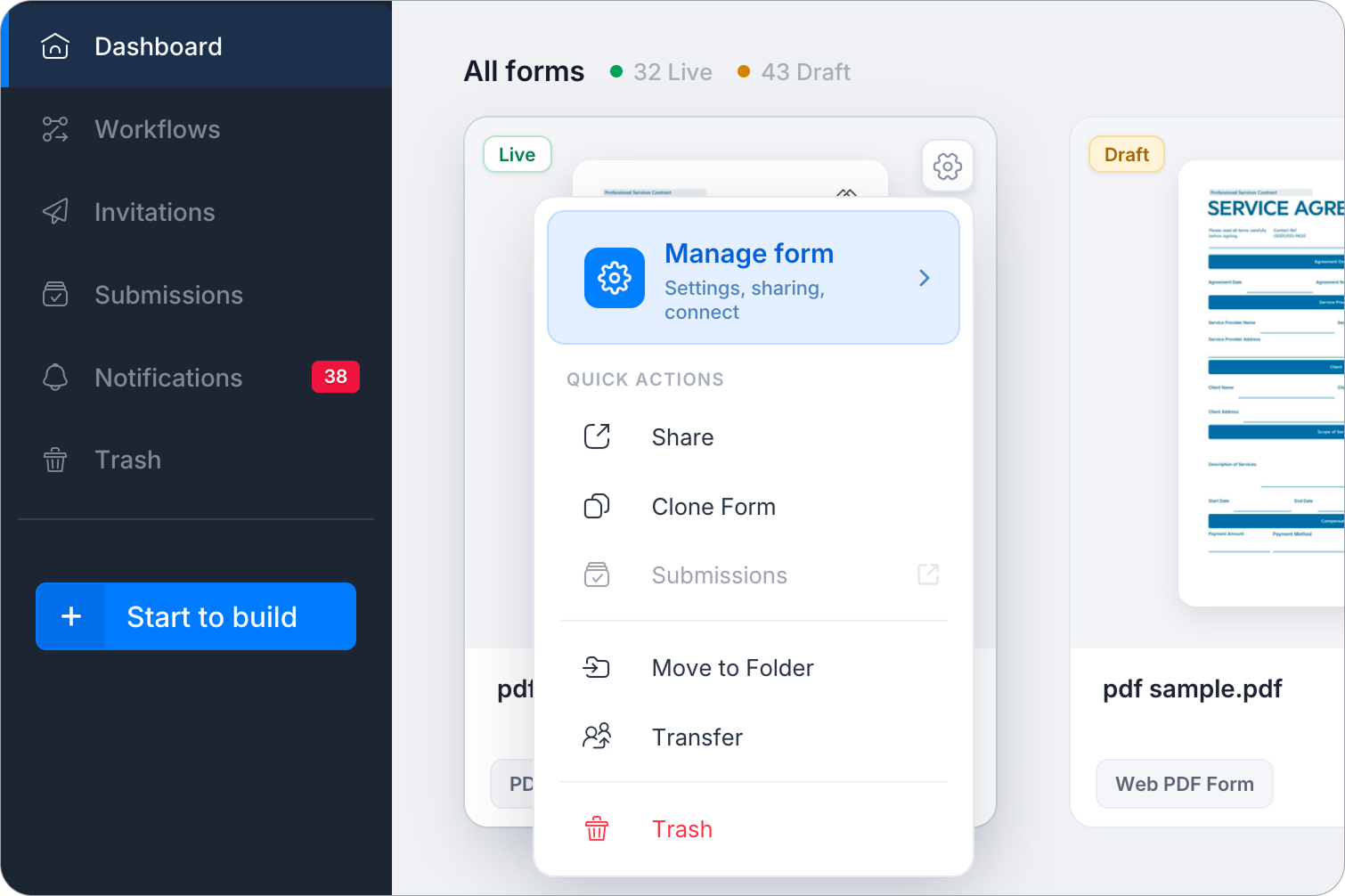
Option 1 (from the Dashboard): Hover over the form, click the Settings (gear) icon, then click Manage Form.
-
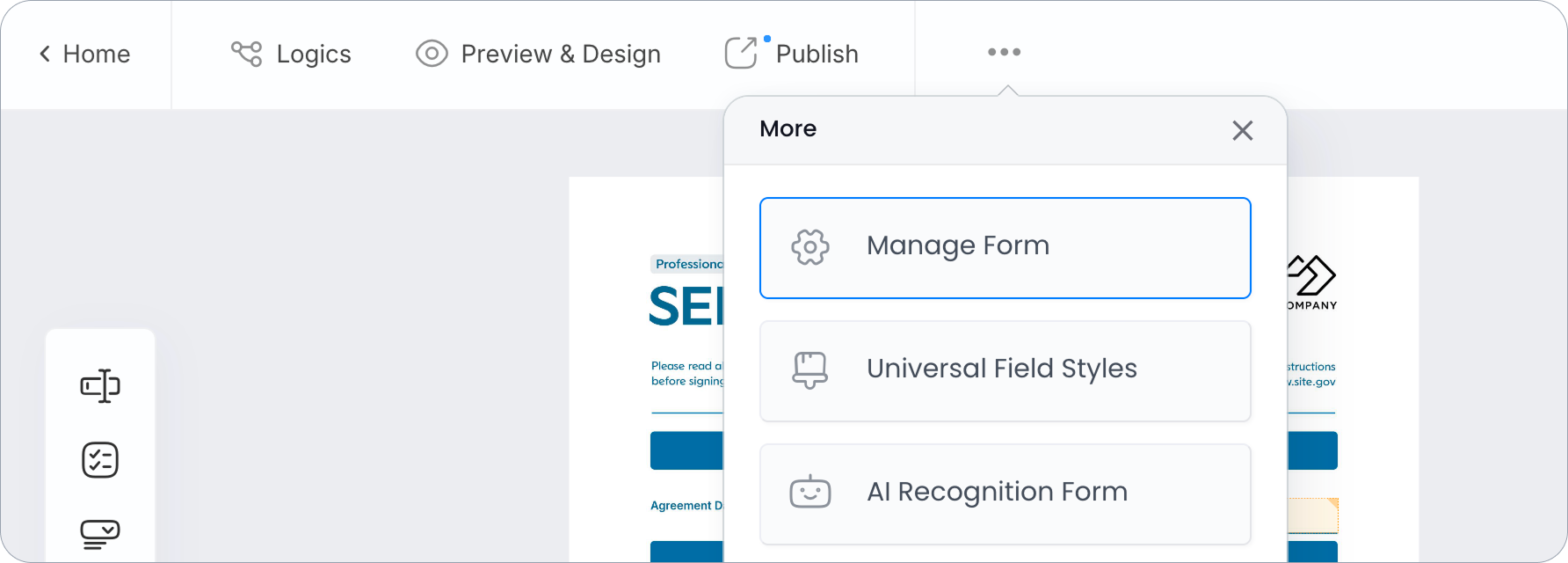
Option 2 (from the form builder): Click the more options (•••) icon at the top left, then choose Manage Form.
Set up thank-you messages and redirect links
-
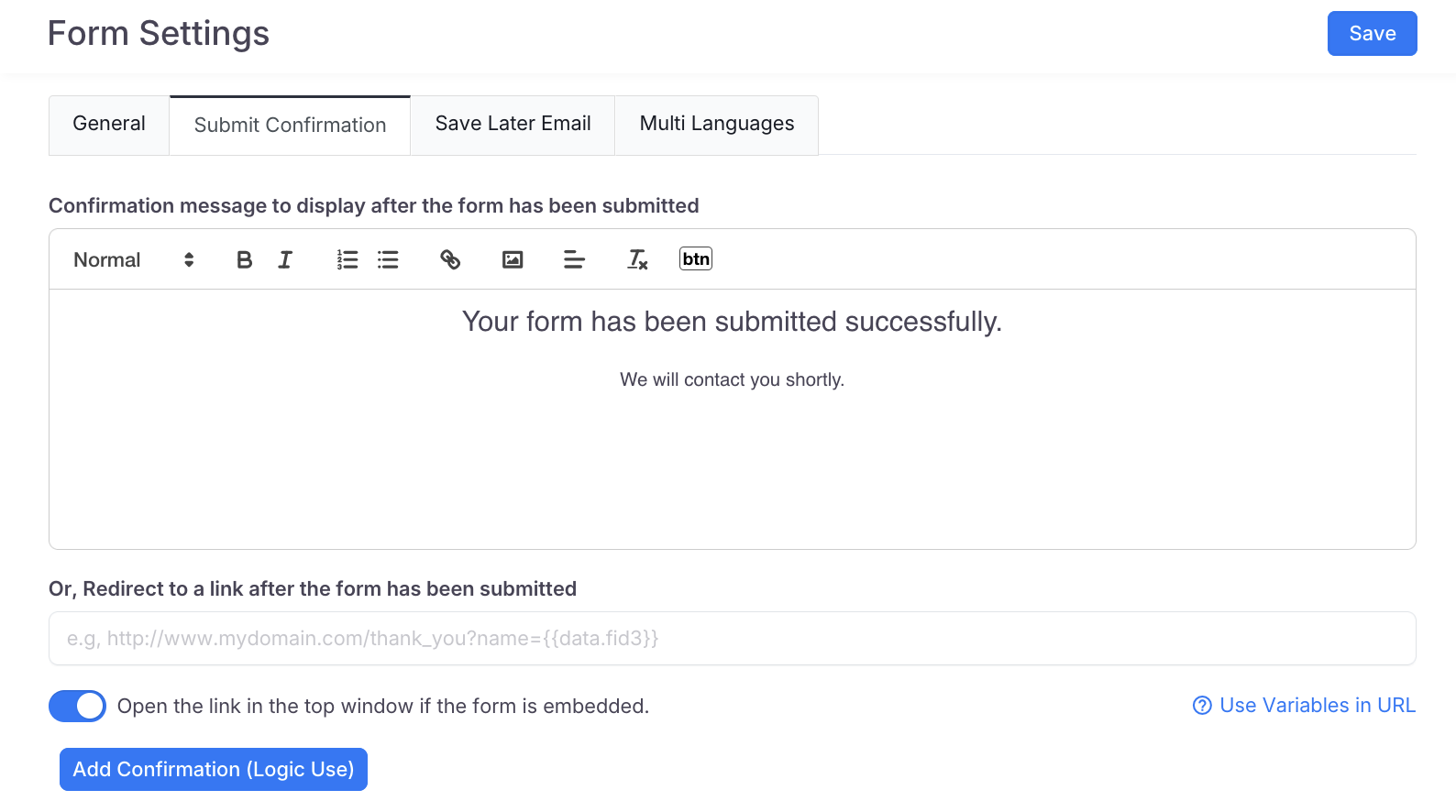
Within Manage Form, select the Thank-you page tab.
-
Customize your thank-you message or redirect link. If your form may be embedded on a website, Open the link in the top window if the form is embedded. sends the whole website page to the redirect address instead of only the embed frame. It is on for the default page and off for extra pages.
-
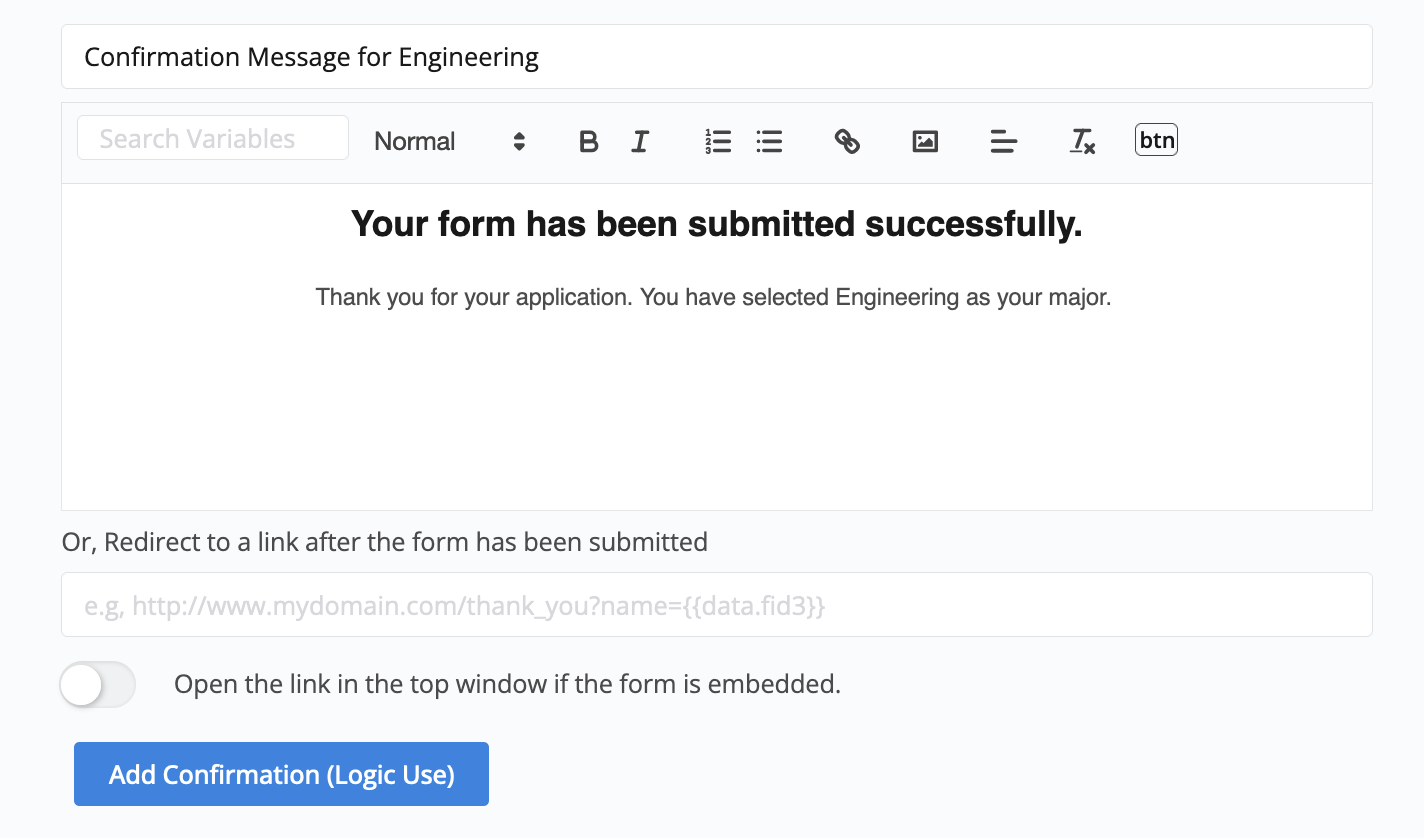
Click the Add thank-you page (Logic use) button to make a new set of settings. Keep doing this until you’ve set up all the options you need.
 Example
You’re creating a form for student enrollment applications, and you’ve added a Dropdown field where students can select their major, “Computer science” or “Engineering”. Depending on the major they choose, the form will show different thank-you messages or redirect them to different links.
-
Give each set of settings a name, then click Save to keep your changes.
Apply conditional logics
-
Return to the form builder and open the Logics panel.
-
Set up logics to determine which thank-you message or redirect link to show based on the student’s selection. Use the set thank-you page action and choose the page by its name. An extra page is shown only when a set thank-you page rule picks it.
ExampleFor instance, if a student picks “Computer Science”, set the thank-you page to
Default. If they choose “Engineering”, set it to theengineering-specific message.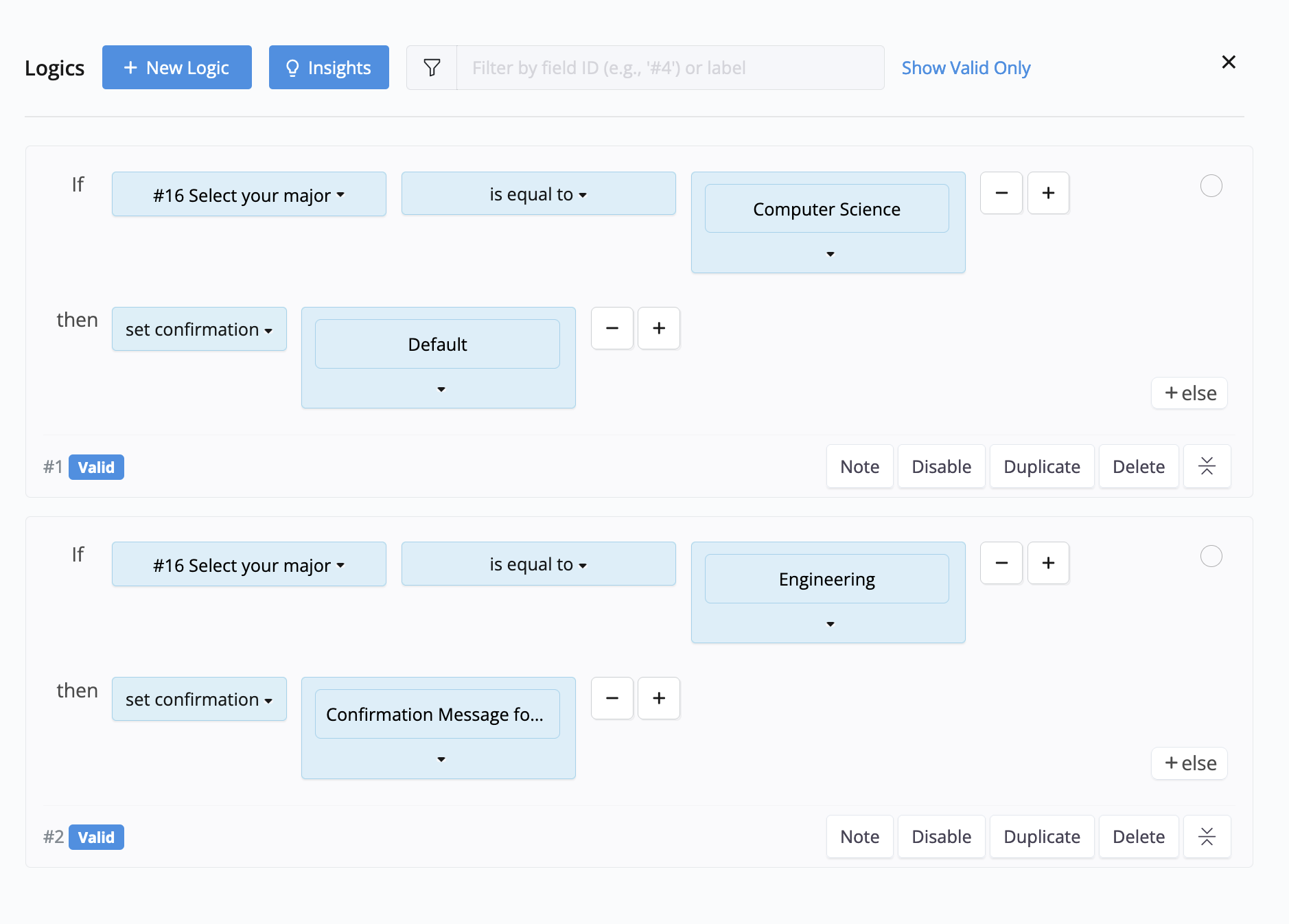
To end the form early without submitting, use the exit to page (no submit) action with the target Thank-you page. Nothing is saved and no email is sent. Together with set thank-you page on the same rule, the person sees that specific page. This action is not offered on PDF Fillable Forms. On a form in the Conversational style it works differently: the answers given so far are submitted and the usual notifications run; to end a Conversational form without submitting, use a page as the exit target instead.
Before publishing your form, be sure to test it to ensure that the thank-you messages or redirect links work as expected.