










Use signature certificate
On this page
A signature certificate is the record that goes with a signed form. It shows who signed, when, what they agreed to and a fingerprint of the signed document, and it links to a public page where anyone holding the document can check it. This article explains when a certificate is produced, how to set it up, what the signer sees and what the certificate contains.
For the legal side, which laws it is designed for and which documents it is not suitable for, read Legally binding electronic signatures.
When a certificate is produced
A certificate is produced only when the form knows who was asked to sign. That is the case when the form is sent through:
- an invitation with both Tracking Invitation and Signature Certificate on, or
- a workflow step with Create signature certificate on.
Signature Certificate is available on paid plans and during the free trial.
A form filled in from its public link produces no certificate, because there is no record of who received the link. A form embedded on your website is filled from the public link too, so it produces no certificate either. The Signature field still works there as before.
Every Signature field on the form goes on the certificate. A form with three signature fields produces one certificate listing all three.
Set up the form
Add the Signature field
-
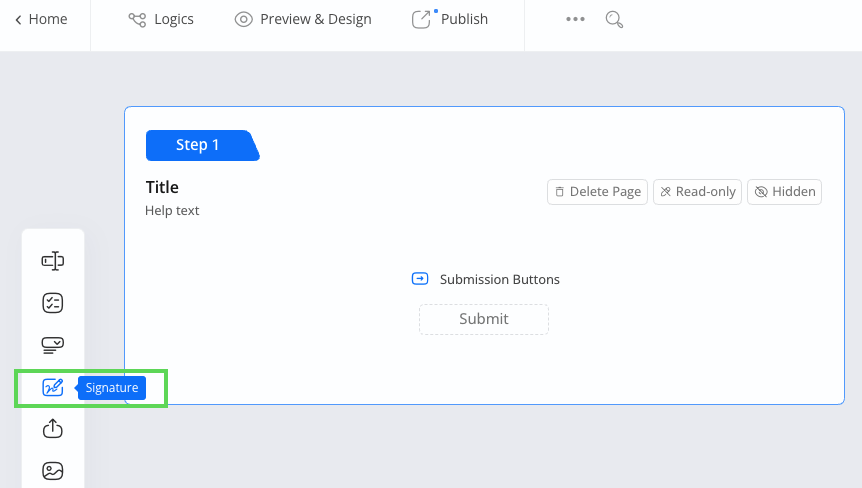
In the form builder, add a Signature field.
-
Click the field to open its properties panel.
The consent notice
The Signature field has a Consent notice: one sentence shown under the signature pad on fills that will produce a certificate. The default wording is:
By signing and submitting this form, I agree to sign electronically, with the same legal effect as signing by hand.
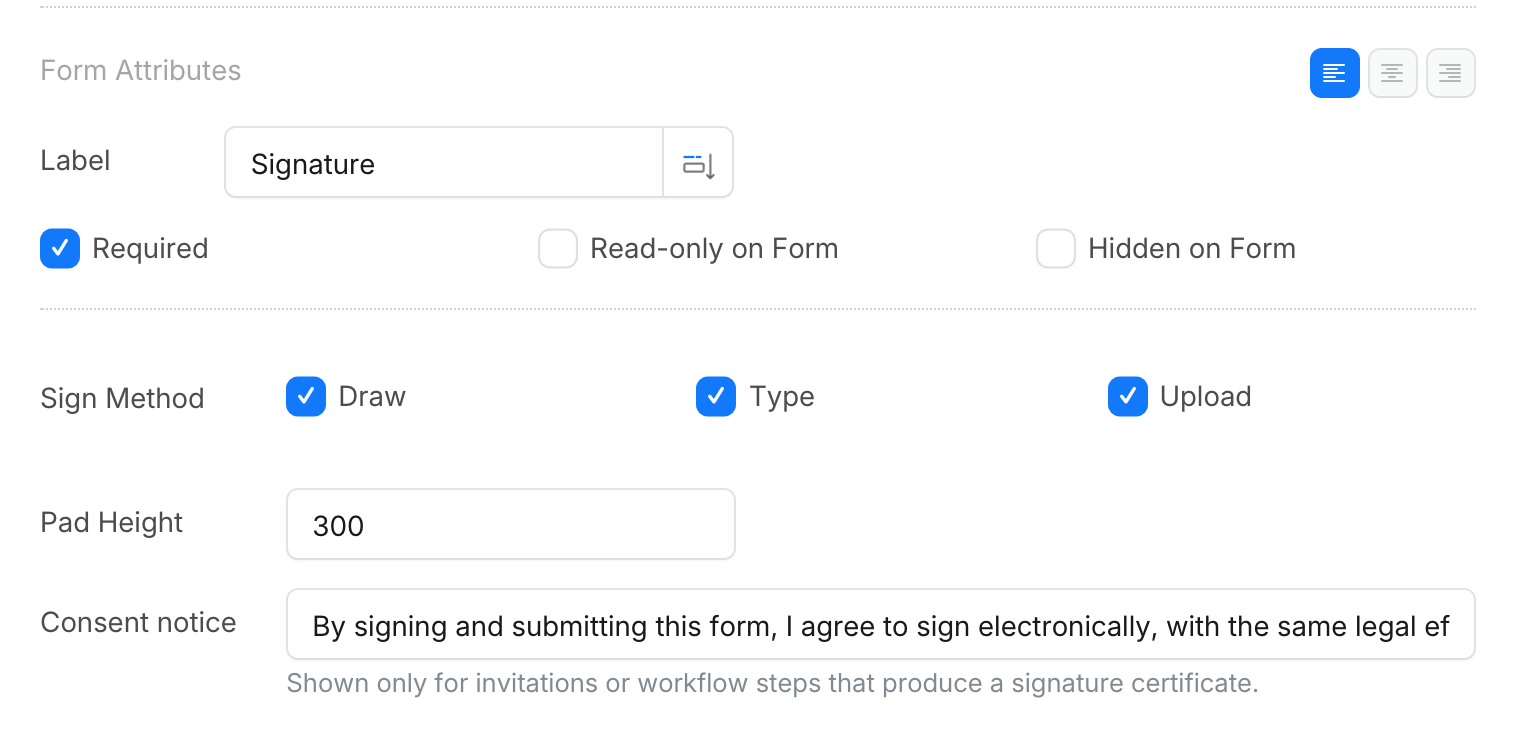
You can edit the sentence. It is a text of the field, so it is translated like any other field text on the Multi-language page, in every language you offer the form in. The certificate records the exact wording and language the signer saw.
The notice appears only on invitation and workflow fills that produce a certificate. On the public link, or when the certificate option is off, the field shows no notice.
Forms created before the signature certificate was upgraded keep the certificate they had, and their Signature panel has no Consent notice. Forms you create from now on get the new certificate automatically.
Turn the certificate on
Invitations. In Manage Form > Invitations, keep Tracking Invitation on and turn on Signature Certificate before sending. An invitation sent with tracking off is not stored, so it produces no certificate. Every recipient of that invitation gets the notice and a certificate.

Workflows. In the workflow designer, open the step that collects the signature and turn on Create signature certificate. The step’s task link then carries the signer’s record, and the certificate is issued when that step is submitted.
What the signer sees
The signer opens the invitation or task link and fills in the form as usual. Under the signature pad they see the consent notice, in the form’s own style and language. On a PDF form, the notice appears under the pad in the existing signing pop-up. There is no extra checkbox, pop-up or step.
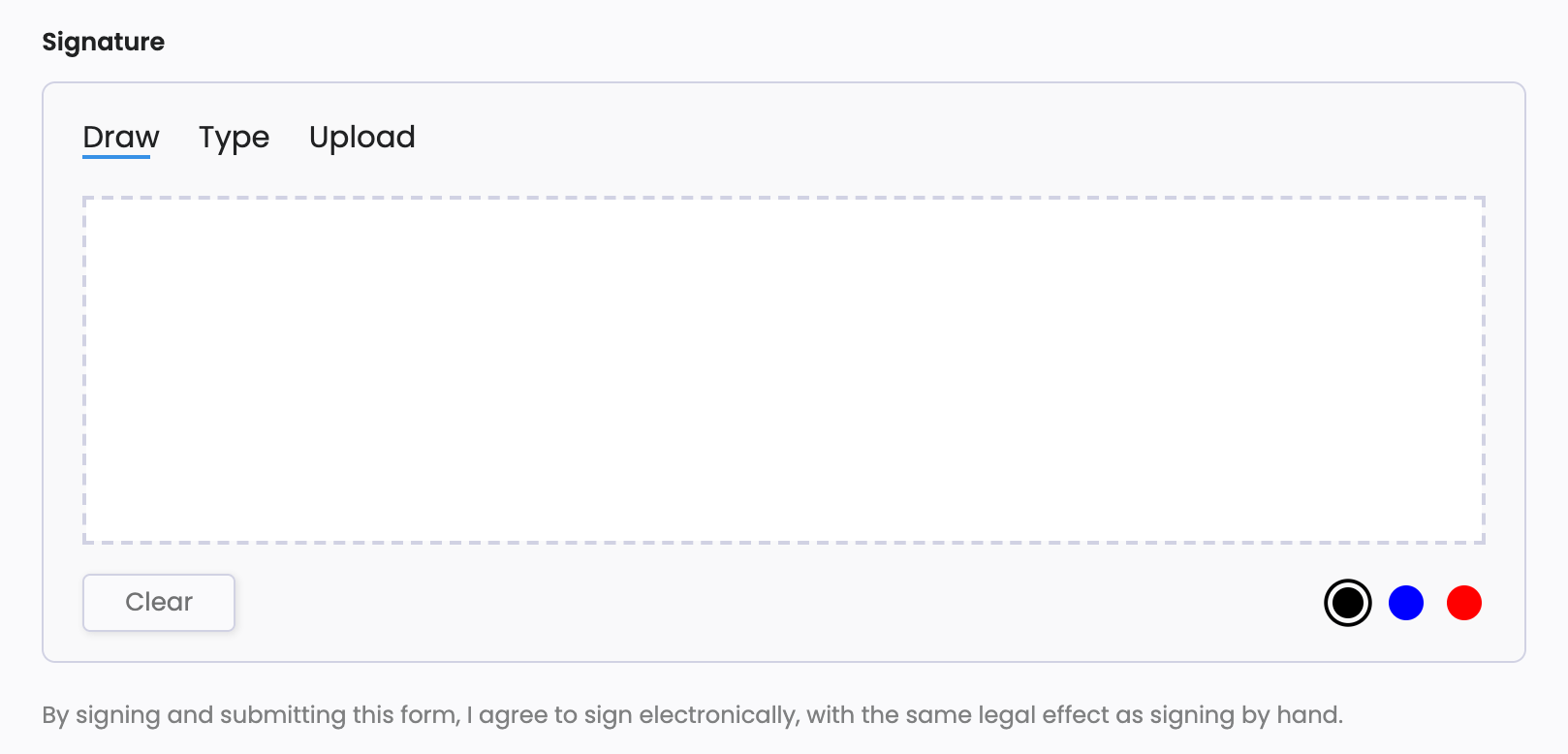
By drawing, typing or uploading a signature and then submitting the form, the signer agrees to the notice. The certificate records that agreement together with the wording shown.
After the submission
On the Submissions page
When the submission arrives with a certificate, the submission’s actions include:
- Download Signature Certificate, the certificate as a PDF, and its SHA256 checksum so a recipient can confirm the file is the one you issued.
- Verify signatures online, the public verification page for this certificate.

The certificate is also available through the API and in the submission webhook, alongside the submitted PDF, while the submission has not been edited. Once the submission has been edited, its API data has no certificate block.
When a signed submission is edited
Only the first submitted version of a submission is signed. When the submission is edited and submitted again (by the signer with Edit Submission, by a team member, through the API, or after a workflow send back), the new version is accepted, but no signing is recorded and no new certificate is issued. The first version’s certificate stays the record of what was signed:
- The row’s Actions menu no longer offers Download Signature Certificate, and the certificate icon’s tooltip reads “Signature Certificate Available on Revision 1”. Download the certificate from Actions > Revisions …, where revision 1 has a Signature Certificate link.
- The verification page shows Superseded by a later version. It still shows the signed version and when it was signed, plus a Current version row with the latest version number.
- A page that edits the submission, such as Edit Submission, does not show the consent notice under the Signature fields.
- When a workflow sends a certified step back, the run’s certificate does not include the approval decisions.
To collect a new signature on changed content, send a new invitation.
In your notification email
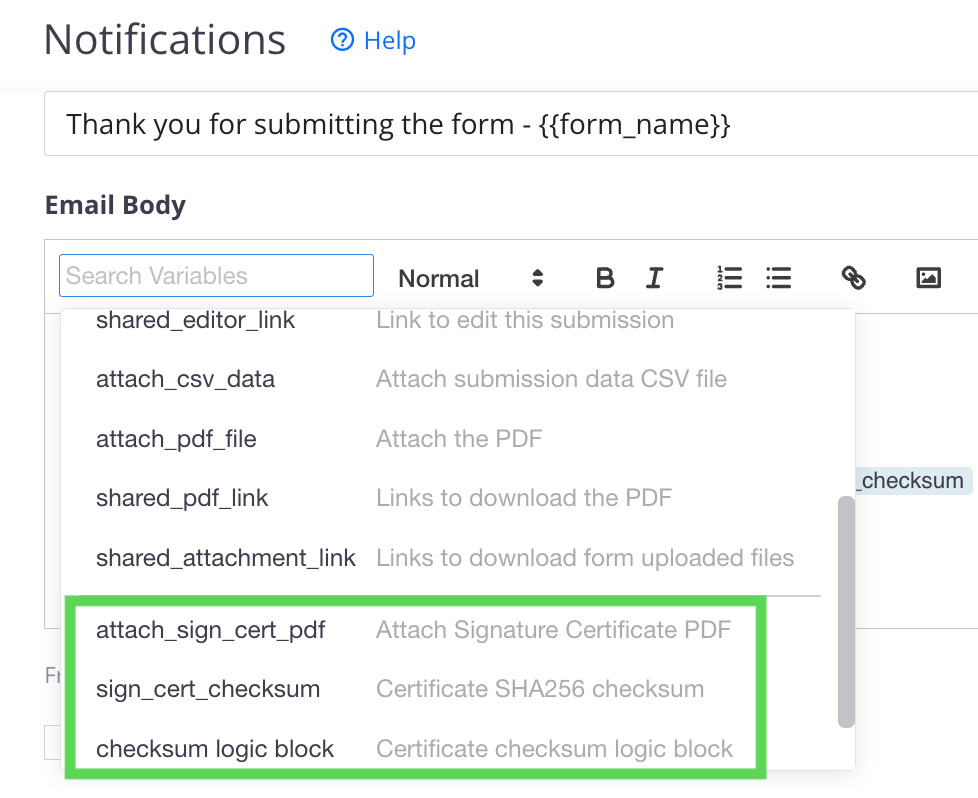
The default notification email attaches the certificate and prints its checksum. Forms created before this was the default need two variables in the Email Body under Notifications:
{{attach_sign_cert_pdf}}attaches the signature certificate to the email.{{sign_cert_checksum}}prints the certificate’s SHA256 checksum.
What the certificate contains
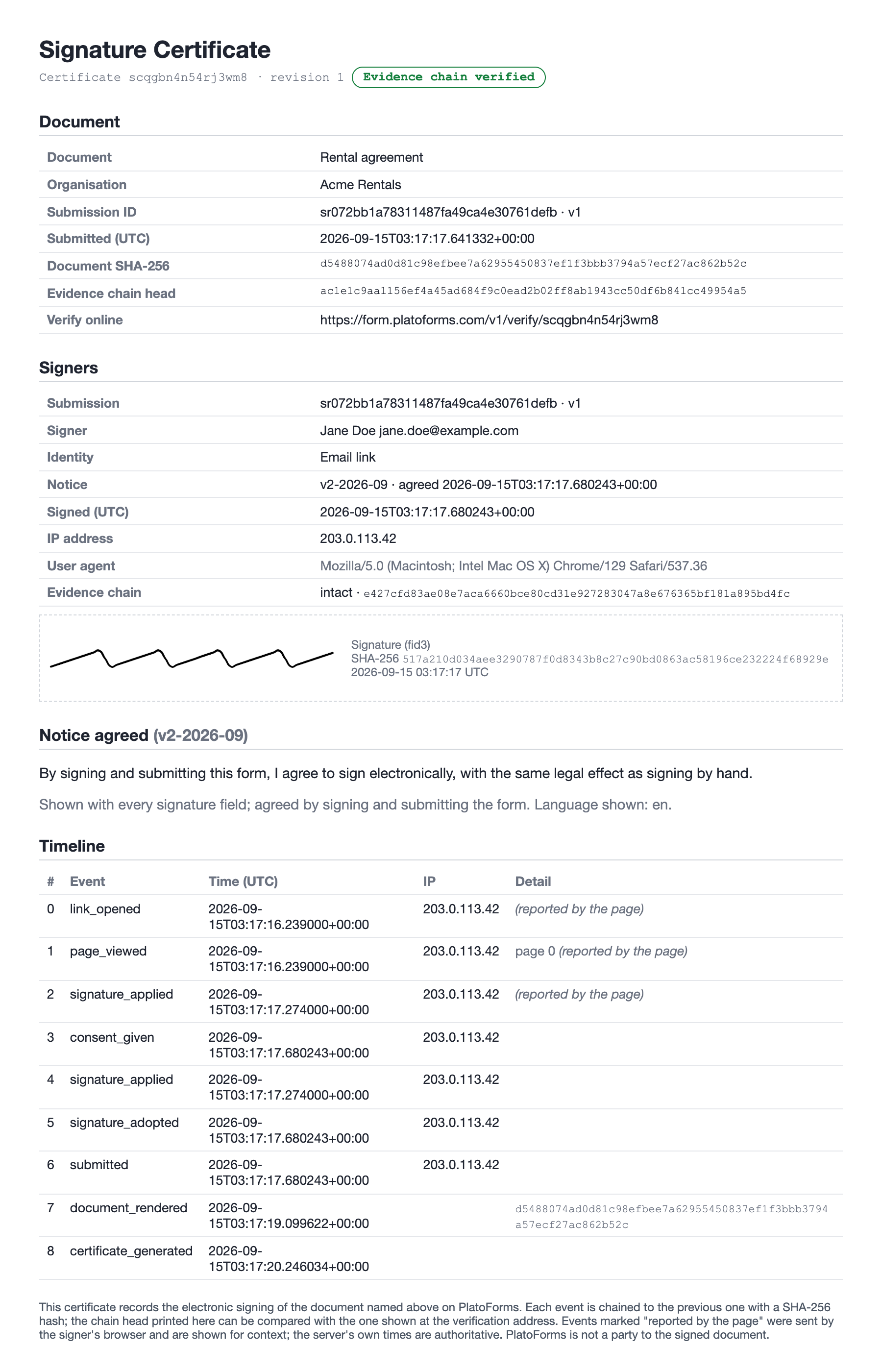
- Signers. Each signer’s email address from the invitation or task, the time of signing in UTC, IP address and browser, and an image of each signature with its own fingerprint.
- Notice agreed. The consent notice exactly as it was shown, with its language and version.
- Document fingerprint. The SHA-256 hash of the signed PDF. For a workflow, also the hash of the final PDF when the workflow completes.
- Timeline. Every recorded event in order: link opened, pages viewed, signature applied, notice agreed, submitted, document rendered, certificate issued. Each event carries a hash that includes the previous event’s hash, so a change to any past event shows up as a break in the chain.
- Verification link. The address of the public verification page.
Verify a signature online
Anyone holding the certificate’s link can open the verification page. It shows whether the evidence chain is intact, the signers with their email addresses partly masked, the notice they agreed to, the document fingerprint and the timeline. Nothing on the page is editable.
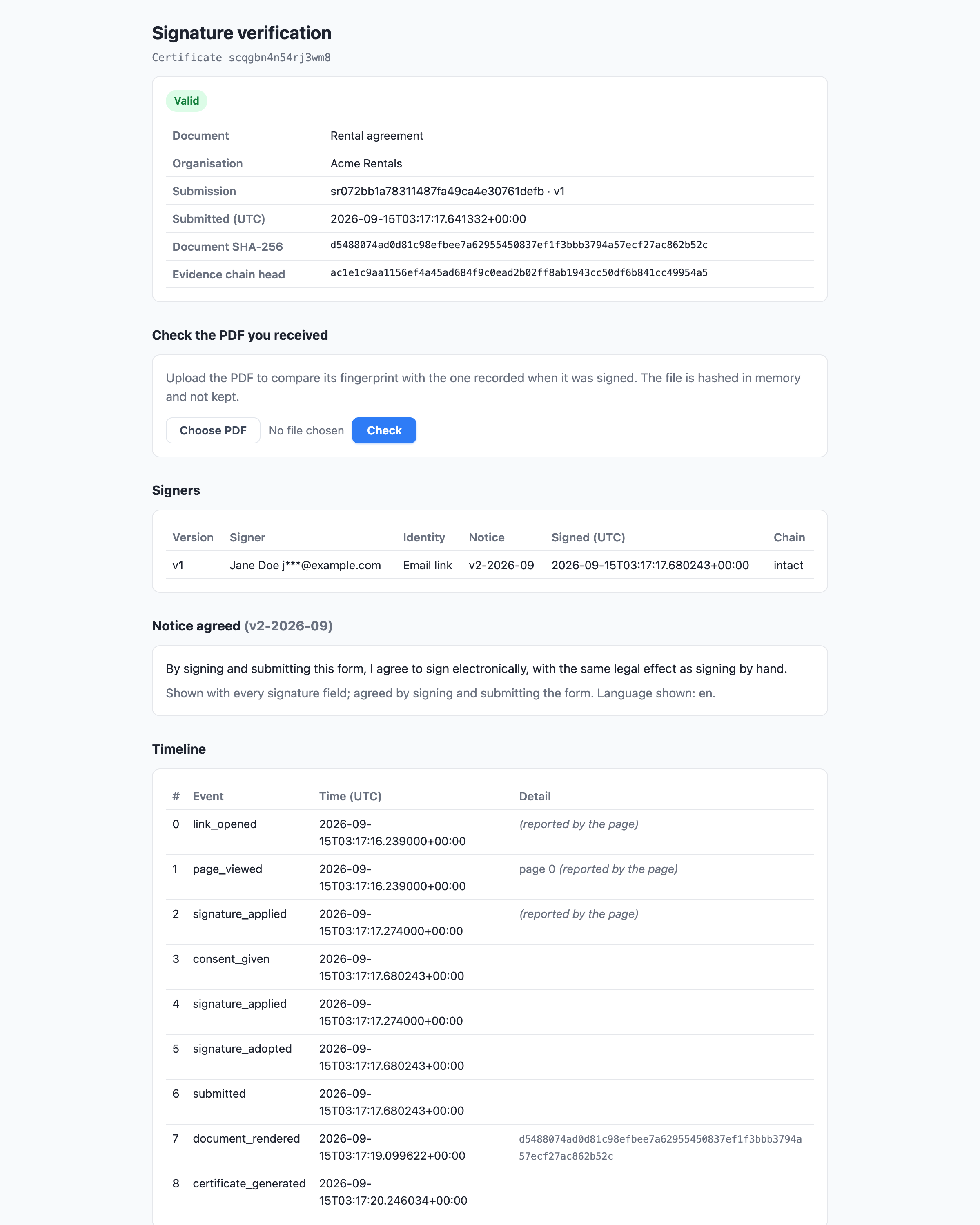
To check a document, choose the signed PDF and click Check. The page compares the file’s fingerprint with the one recorded when it was signed and reports a match or a mismatch. The file is only hashed and is not stored. The same information is available as JSON at the page’s address with .json appended, for your own systems. To explain the check to the other party, share How can I prove a PlatoForms e-signature is valid?.
For teams with HIPAA compliance enabled, the page shows only the verdict, the fingerprints and the number of signers until a matching document is uploaded.
How long the evidence is kept
The certificate and its timeline stay with the submission for as long as the submission exists, under your team’s data-retention setting.
In addition, a copy of the certificate PDF and its full timeline is written to write-once storage when the certificate is issued and kept for seven years. Deleting the submission does not remove that copy, and the verification page keeps answering for it, marked as a retained copy. This protects the evidence if a signed document is deleted by mistake.
What the certificate does not do
The certificate is designed to meet the requirements for a standard electronic signature in most jurisdictions. Be aware of its limits:
- Identity. The signer is identified by the email address the invitation or task was sent to. There is no ID check, SMS code or digital certificate for the signer.
- Time. Times come from PlatoForms’ servers, not from an independent timestamp authority.
- The PDF itself. The signed PDF and the certificate are not cryptographically sealed. Their integrity is shown by the fingerprints recorded on the certificate and on the verification page, not by the files alone.
Some document types, such as wills, notarised deeds and some property transfers, require a witnessed or qualified signature in most countries and are not suitable for this feature.