
Build a workflow
On this page
This article takes you from an empty canvas to a published workflow: prepare your forms, create the workflow, add and connect the four kinds of step, see what the property panel shows for each step, fix the checklist’s red items and publish. It also covers how to change a published workflow, what each workflow status means, and the other actions on the Workflows page. The articles that follow go into each kind of step.
Video tutorial
This video follows a leave request from start to finish: an employee submits it, HR and then the manager approve and sign it, and the employee receives the completed PDF and its signature certificate.
Before you begin
- Create and publish all the forms your workflow needs before you add the steps. You pick one published form for each form step.
- Any form type works as a step: online PDF forms, web forms and master forms.
- When several people fill in or sign the same PDF, give each of them their own copy of the form with only their fields active. The quickest way is to clone the form with Reuse PDF on, then hide or remove the fields that person does not fill in. When you build the workflow, turn on Combine data across steps on the later steps so everyone’s entries end up in one PDF.
A car rental agreement: the customer’s form has the personal details, the salesperson’s form has the car and price fields, and the manager’s form has only the signature. All three use the same uploaded PDF.
Create a workflow
-
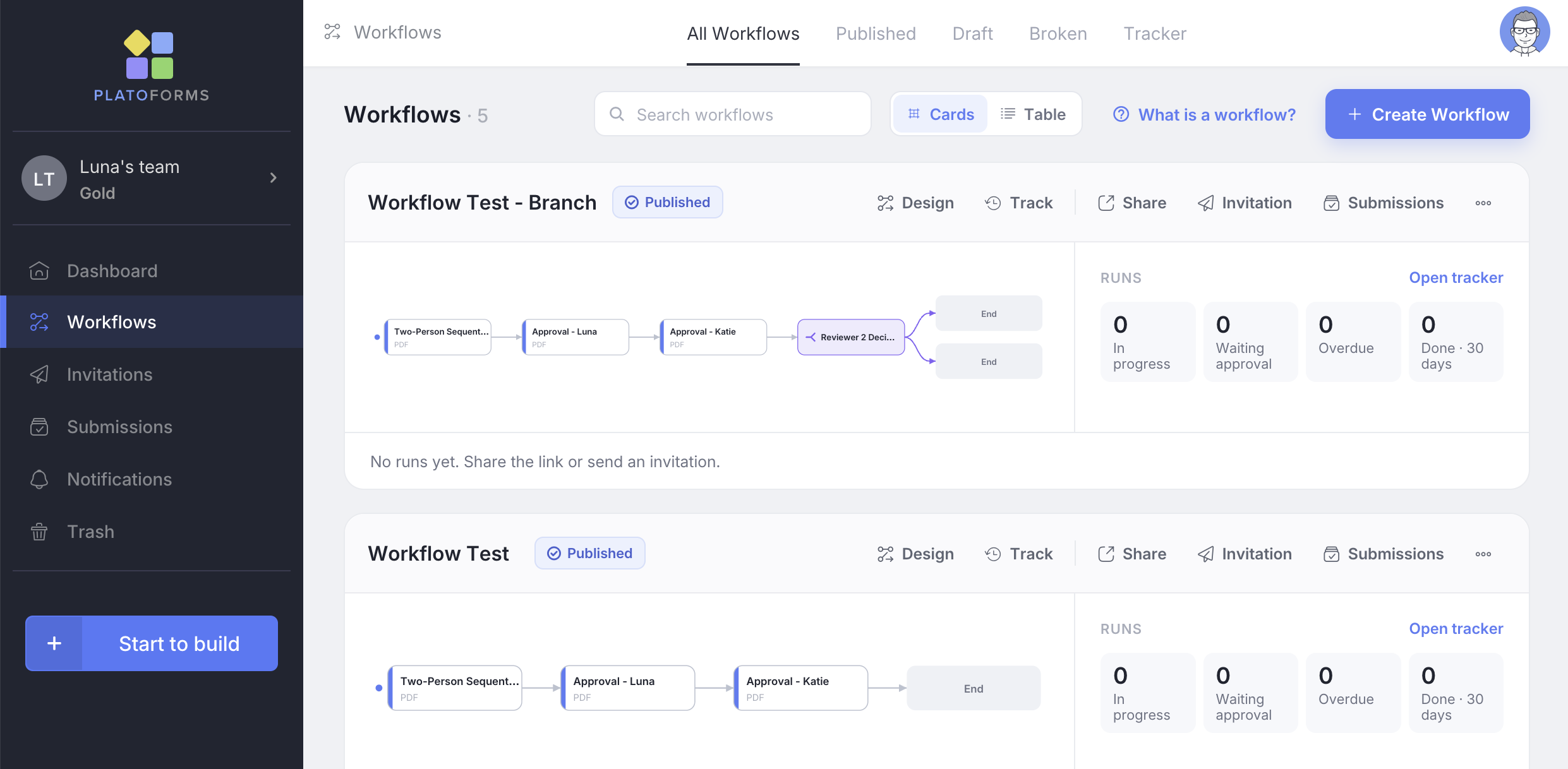
In the left navigation, click Workflows.
-
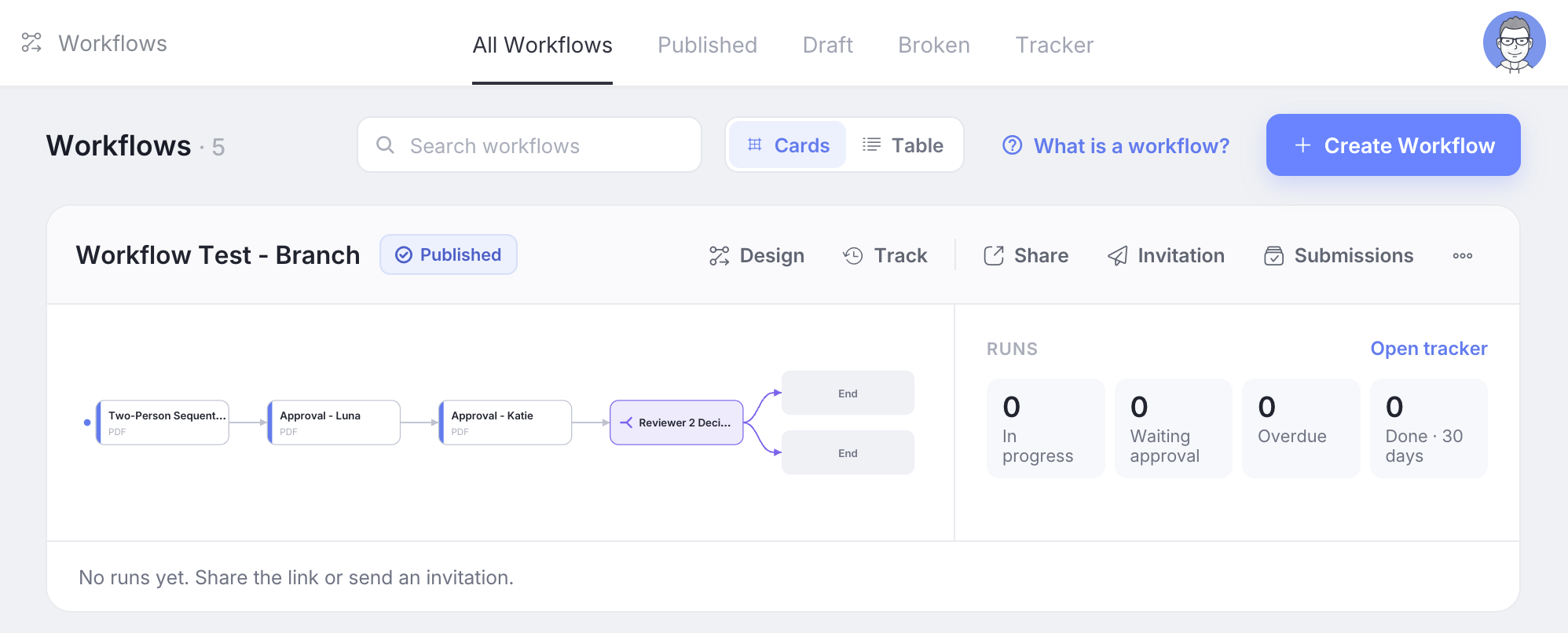
Click + Create Workflow.
The designer opens with an empty canvas and a default name; change the name at the top of the workflow panel on the right.
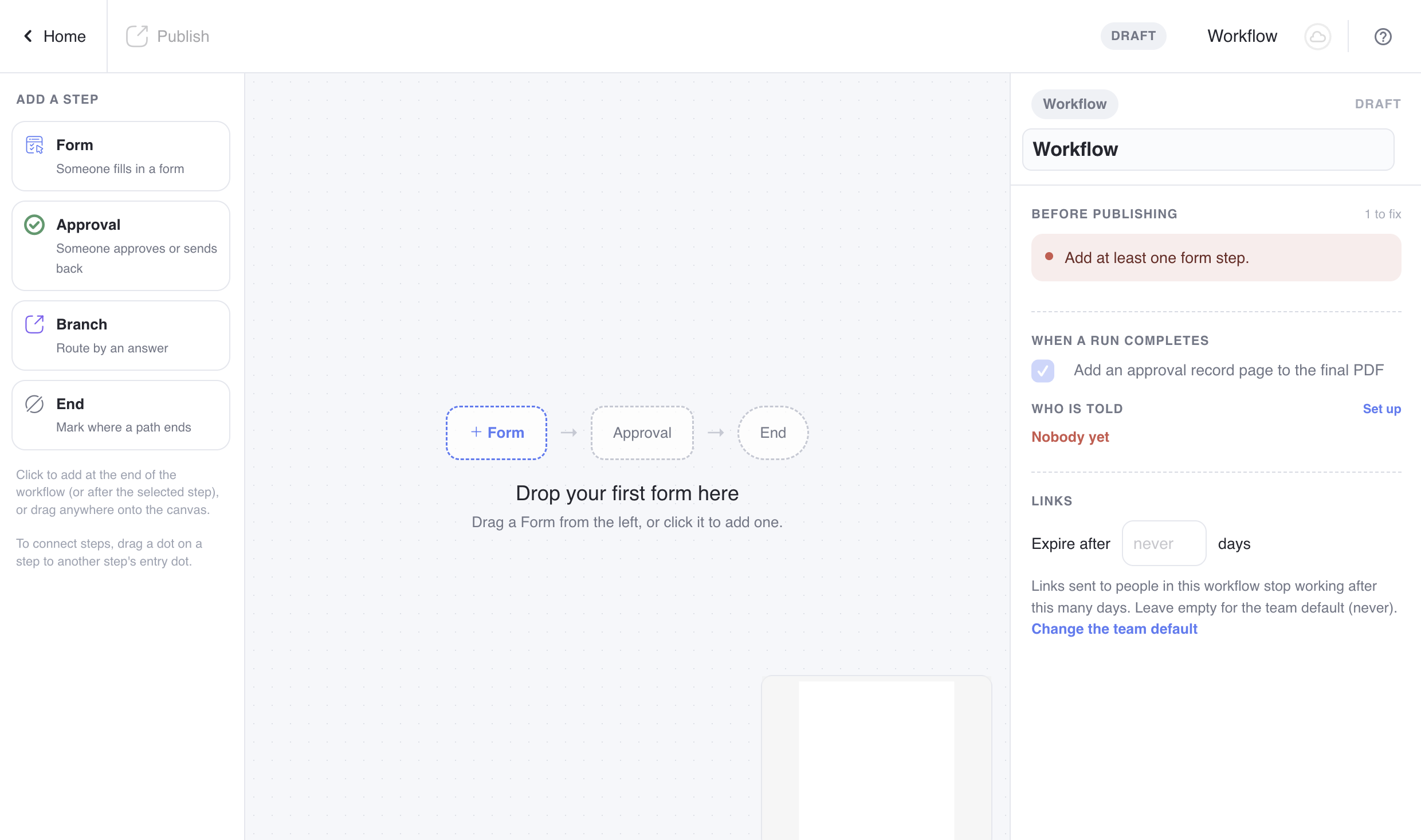
The workflow is saved as a Draft. Nothing can start a run until you publish it.
The designer
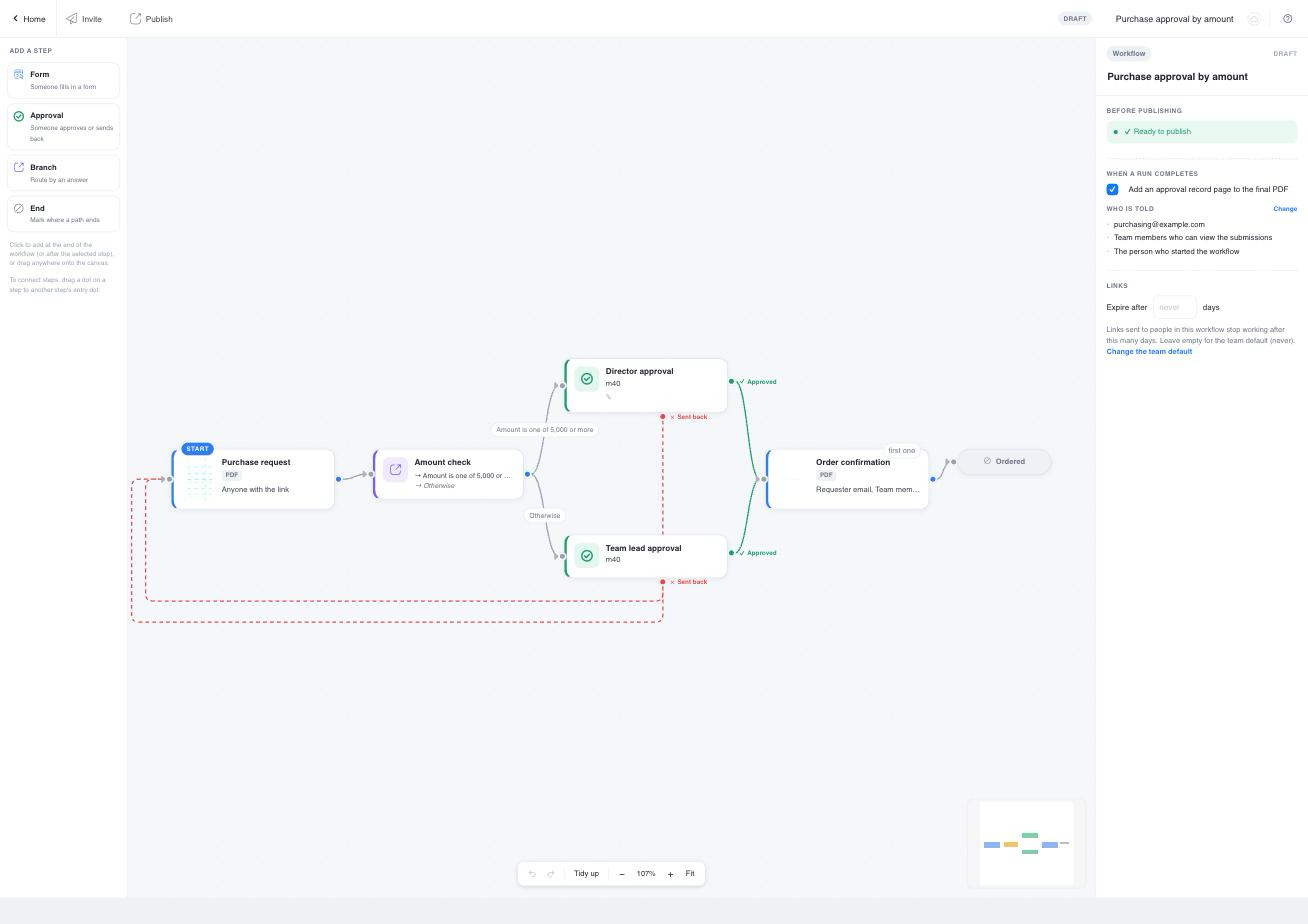
- Step palette (left): holds the four kinds of step. Click one to add it after the selected step, or drag it anywhere onto the canvas.
- Canvas (middle): once you’ve added steps, drag the background to move around the canvas, and scroll to zoom. The controls at the bottom let you undo and redo changes, click Tidy up to lay the steps out from left to right, zoom with − / + (the zoom level shows between them), and click Fit to see the whole workflow.
- Property panel (right): shows the settings of the step or connection you select. When nothing is selected, it shows the workflow’s own settings and its checklist.
- Top bar: Home on the left, then the actions for the workflow’s current status. A draft shows Publish, plus Invite once the start step has a form. A published workflow shows Invite, Share and Stop. The status and the workflow’s name are on the right.
Every change is saved as you make it. The icon next to the workflow’s name in the top bar shows whether your changes are saved. If the same workflow is open in another tab and changes are made there, the canvas reloads and lets you know.
The four kinds of step
| Step | What it does | Read more |
|---|---|---|
| Form | Someone fills in a form. The first form step is the Start, and each time someone submits it, a new run begins. | Form steps |
| Approval | Someone reviews what was submitted and clicks a decision button. It has two outgoing connections: Approved and Sent back. | Approvals |
| Branch | Sends the run down one or more paths, based on answers given earlier. Nobody needs to act on a branch. | Branches and parallel paths |
| End | Marks where a path ends. End steps are optional, because a path also ends at any step with nothing after it. If paths can end in different ways, name each End step, for example “Approved” and “Declined”, and the tracker shows which one each run reached. | Branches and parallel paths |
Add and connect steps
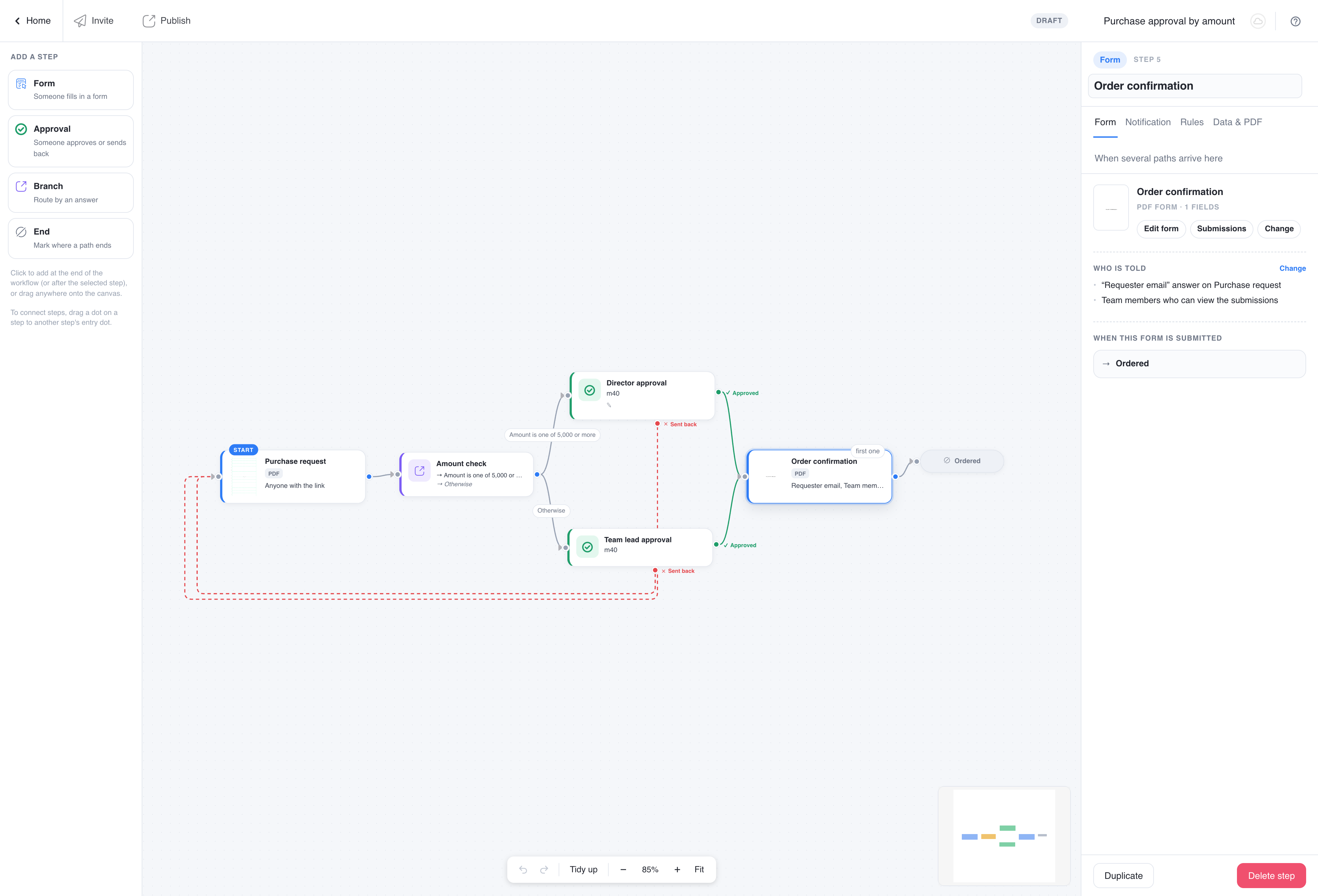
- Add a form step. Click Form in the palette, then pick the form in the panel on the right. The step then shows the form’s cover, name and type. You’ll find the field count in the panel. The first form you add becomes the start step, marked Start.
- Add what follows. With a step selected, click Form, Approval, Branch or End in the palette. The new step is placed after the selected one and connected to it.
- Connect steps by hand. Each step has an entry dot on its left. All steps except End also have one or more exit dots. Drag from an exit dot to another step’s entry dot. On an approval, the green Approved dot is on the right and the red Sent back dot is at the bottom. A branch has one dot per path.
- Run steps at the same time. Drag a second connection out of the same exit dot. Both steps start together when the step before them is done. See Parallel paths.
- Send work back. Drag from an approval’s Sent back dot to an earlier form step. That form is reopened for editing when the approver sends it back. The connection is drawn as a red dashed line under the steps.
The canvas refuses connections that make no sense and tells you why: a loop that is not a send-back, a second connection into an End step, a send-back pointing at a step that comes later.
To remove a step, select it and click Delete step at the bottom of the panel. If a Form or Branch step had a step before and after it, those two are connected to each other automatically, and the confirmation tells you so. Deleting an Approval does not reconnect anything, although the confirmation shows the same message: connect the steps around it yourself. To remove a connection, click it and choose Delete connection.
The property panel
Select a step to see its tabs. The tabs depend on the kind of step:
- Form step: Form, Notification, Rules and Data & PDF. The start step has no Notification or Rules tab, because nobody is emailed about it and it has no deadline: it is where runs begin. A step that several paths lead into gains a fifth tab, When several paths arrive here.
- Approval step: Approval, Notification, Decision emails and Rules. An approval that several paths lead into also gains When several paths arrive here.
- Branch step: Conditions.
- End step: a title.
- Connection: a label, and for a branch its rules.
Each step also has a Title. Give approvals distinct names, such as “Manager approval” and “Finance approval”: the names appear in emails, in the tracker and on the approval page.
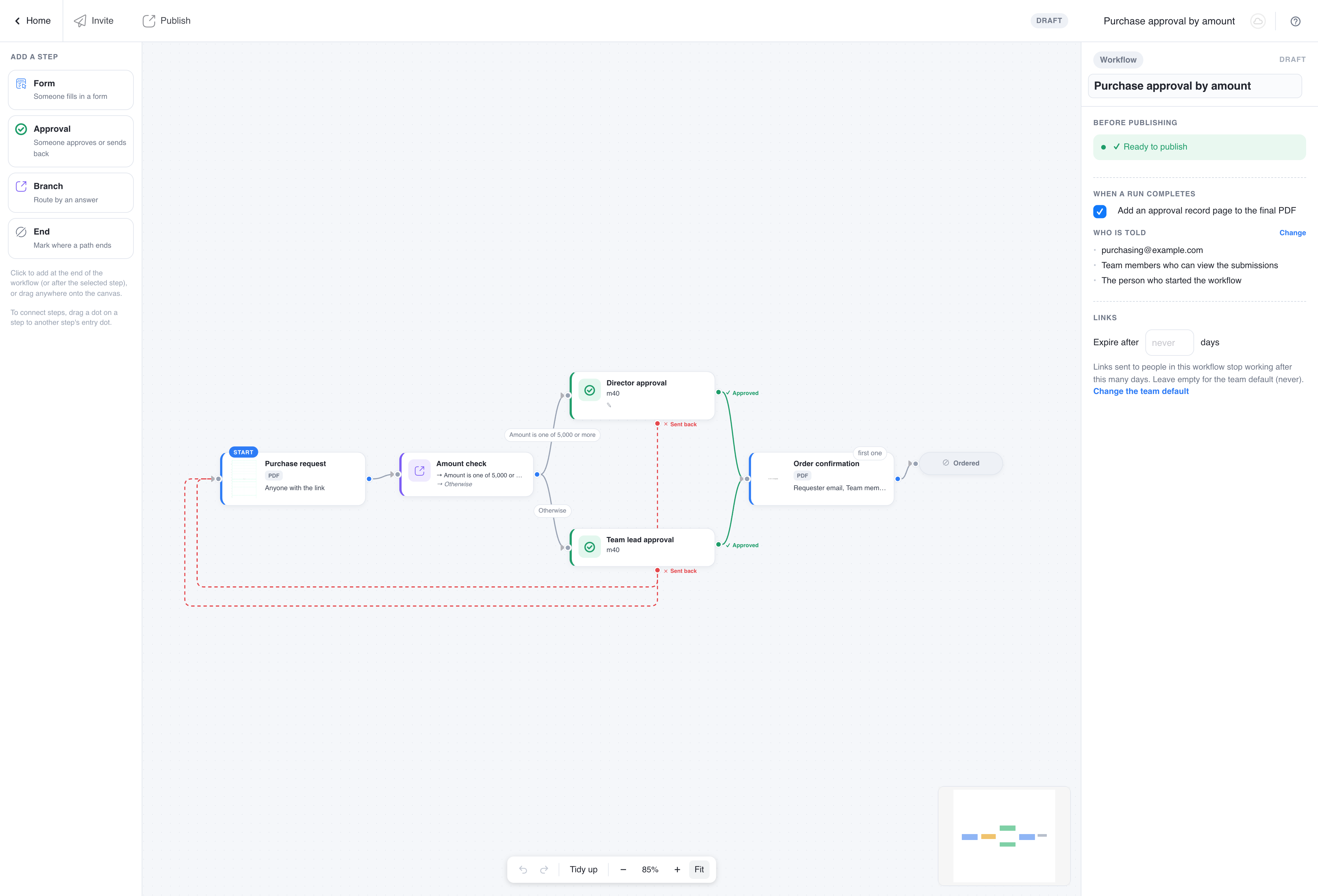
The workflow panel and the checklist
Click the canvas background to see the workflow panel. It holds:
- Before publishing: the checklist. Red items block publishing, for example a form step whose form is unpublished, an approval with no approver, a branch without an Otherwise path, or a step that nobody would be told about. Amber items are warnings you can publish with. Click an item to jump to the step it is about.
- When a run completes: whether to add an approval record page to the final PDF, and who is told when a run completes (the completion notification).
- Links: how long the links emailed to people stay valid. See Workflow links.
Publish
When the checklist has no red items, click Publish in the top bar. It does not need to read Ready to publish: you can publish with amber warnings. The workflow is now Published. Its shared link starts accepting submissions, you can send invitations, and its steps and settings become read-only.
To change a published workflow, click Stop, edit, then Publish again. While it is stopped no new run can start, but runs already in progress carry on. When you publish a changed workflow, runs in progress continue from their current step on the new design: removed, reordered or re-routed steps and changed step settings apply to them at once. Check the runs in progress in the tracker before you change a live workflow.
Workflow status
| Status | Meaning |
|---|---|
| Draft | Being edited. Nothing can start a run. |
| Published | Accepting submissions. Steps and settings are read-only until you click Stop. |
| Broken | One of the forms was archived, unpublished or deleted, so runs cannot continue. Publish the form again, or replace it on the step, and the workflow recovers by itself. |
Other actions on the Workflows page
Each workflow card offers Design, Track, Share, Invitation and Submissions, plus Rename, Clone and Delete. The table view of the Workflows page does not offer Invitation, Rename, Clone or Delete; switch to the card view for those. Cloning copies the canvas and every setting, which is the way to try a different version without touching the one that is live. Deleting a workflow does not delete its submissions.