










Place Master Form fields on PDFs with AI
On this page
A Master Form fills several PDFs from one online form. Each PDF you link to it needs the Master Form’s fields placed in the right spots. Instead of placing every field by hand with Add To PDF, you can let AI do it: it finds the fields on the PDF, works out which Master Form field belongs in each one, and places it there for you. You then check the result and handle anything it could not match.
This page shows how to use it on a PDF that has fillable fields, on a flat or scanned PDF, and what uses AI credits.
How it works
- PDFs with fillable fields: when you open a newly linked PDF, fields whose name matches a Master Form field are placed at once, free of charge. AI can then match the rest by meaning, for example “DOB” to “Date of Birth” or “Tel.” to “Phone Number”.
- Flat or scanned PDFs: AI first detects the fields on the pages, then matches them to your Master Form.
- Placed fields are highlighted so you can check them: green for a confident match, amber for one that deserves a second look.
- Fields AI could not match are drawn as dashed purple boxes. You link each one to a Master Form field, add it to the Master Form as a new field, or discard it.
AI never changes your existing Master Form questions and never moves a field you already placed. New questions are only added when you ask for it.
Before you begin
- Create the Master Form and add its questions. See Manage Master Form. An empty Master Form also works: see Start from the PDF.
- Matching by name is free. The AI steps use AI credits, and the buttons that use them say “uses AI credits”.
- You need permission to edit the Master Form.
Match a PDF that has fillable fields
-
On the Dashboard, open the Master Forms tab, point at your Master Form’s card and click Link PDFs, then Link New PDF, and upload the PDF.
-
The linked PDF opens in its editor. Fields whose name matched a Master Form field are already placed and highlighted green, and the AI bar at the top tells you how many matched, for example “6 of 14 fillable fields matched your master form.”
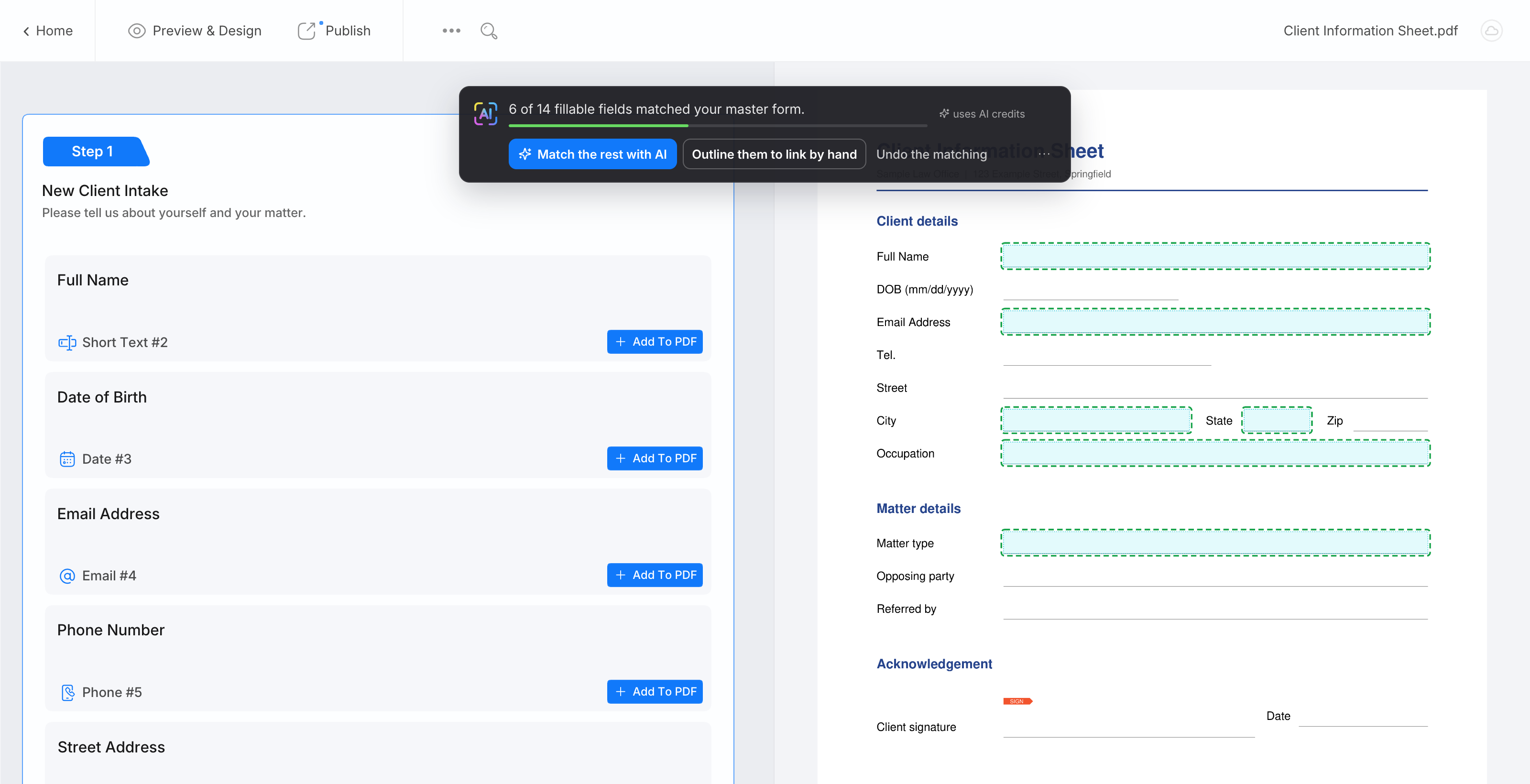
-
Click Match the rest with AI. After a moment the bar shows the result, for example “14 fields found, 6 placed and highlighted.”
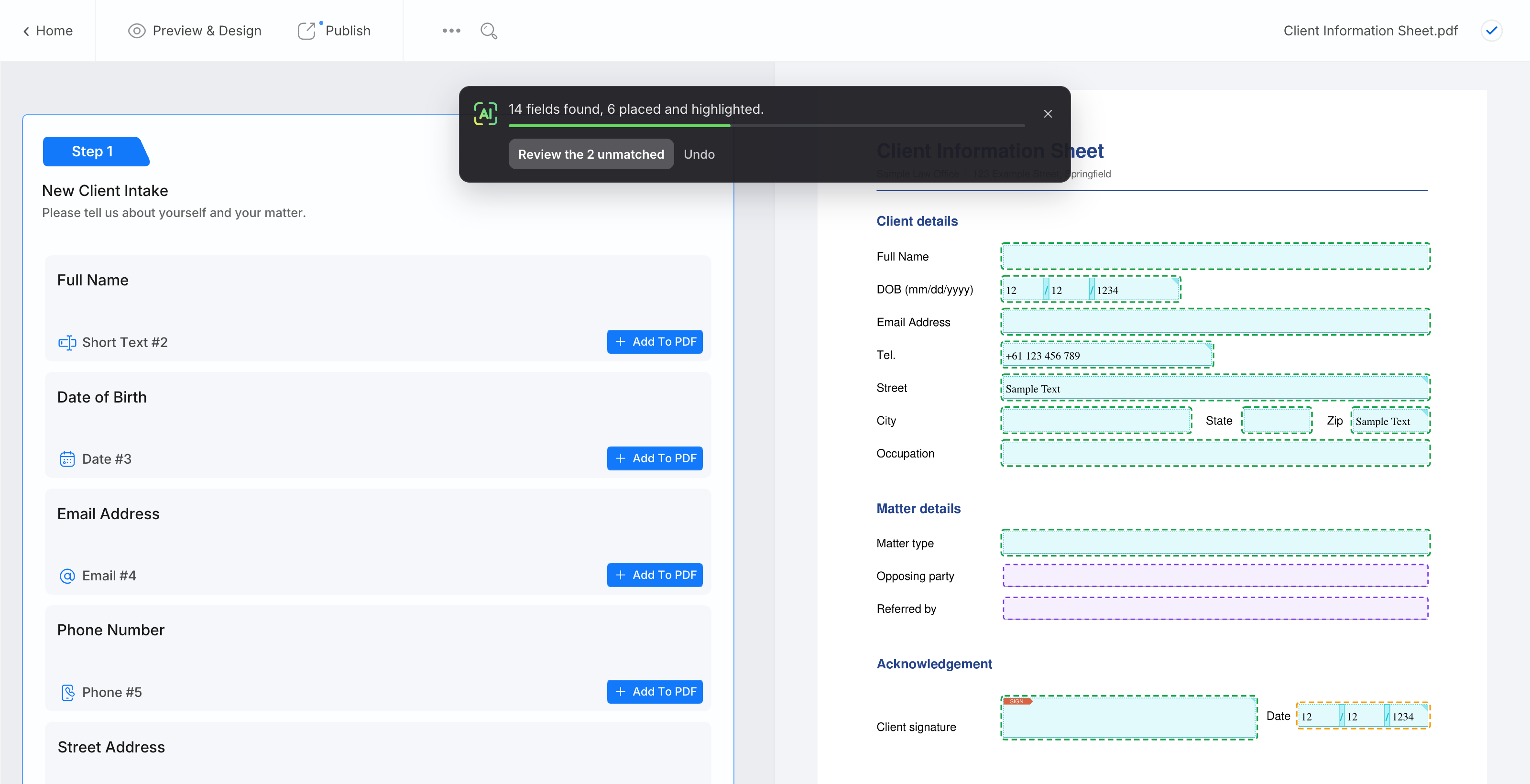
The bar’s other choices: Outline them to link by hand draws the unmatched fields as purple boxes without using AI, and Undo the matching removes the fields placed when the PDF opened.
-
Check every highlighted field: is it the right Master Form field, in the right spot? Start with the amber ones. Placed fields are normal fields: move, resize, restyle or delete them as usual.
-
Click Review the N unmatched to handle the purple boxes (see the next section).
-
Click More > Preview PDF to check the result, then click Publish.
Right after a run, Undo on the bar removes the fields that run placed and clears its purple boxes. Fields you linked by hand stay. Before a run on a PDF that already has fields, a copy of the earlier version is also kept in More > History (see Restore to a previous version).
Handle the fields AI could not match
Click a purple box (or Review on the bar) to open its panel. The panel’s title is the field name found on the PDF.
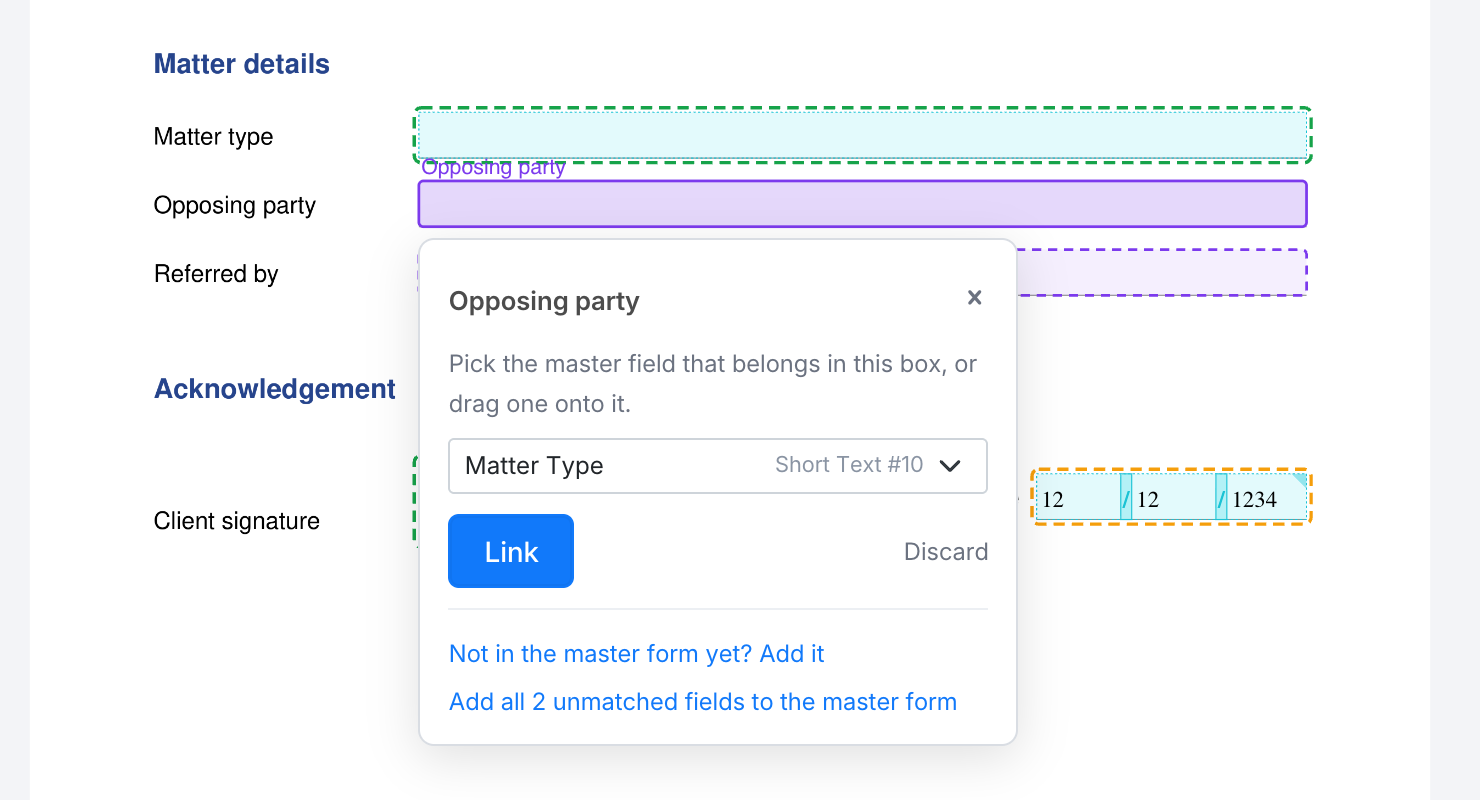
You have four choices:
-
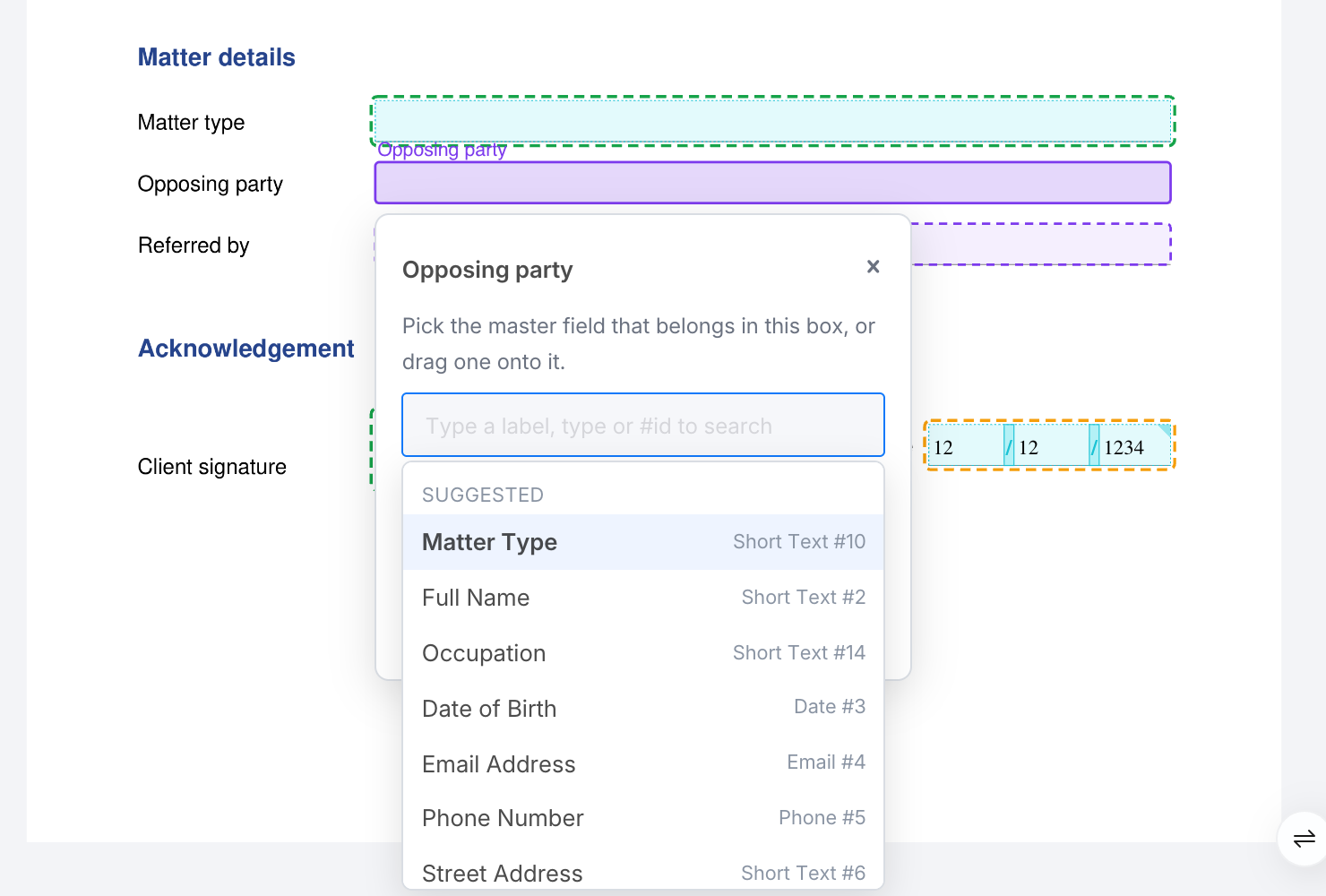
Link it to a Master Form field. The list shows the Master Form fields that fit the box. The ones AI thinks are likely come first under Suggested, and the first one is already selected. Type to search by name, type or number, pick the field, and click Link. You can also drag a field from the Master Form list on the left onto the box.
-
Discard it. Click Discard when the PDF field does not need an answer, for example an “Office use only” box. Nothing is placed.
-
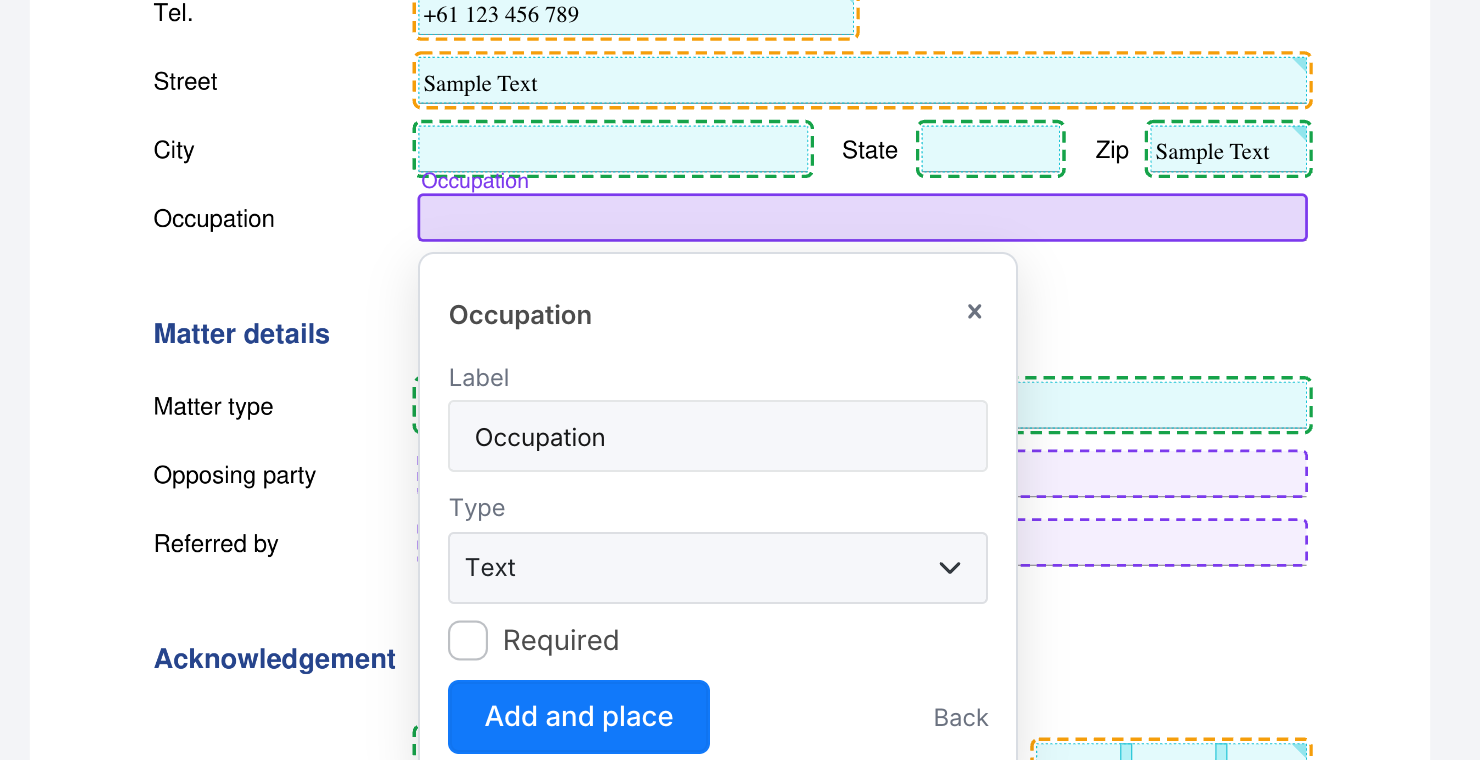
Add it to the Master Form. Click Not in the master form yet? Add it. A short form opens, filled in from the PDF: Label, Type (for text: Text, Number, Email, Phone, Date, Time or URL), the options for a choice or dropdown, and Required. Click Add and place.
-
Add all of them at once. When more than one box is left, click Add all N unmatched fields to the master form, then Add them.
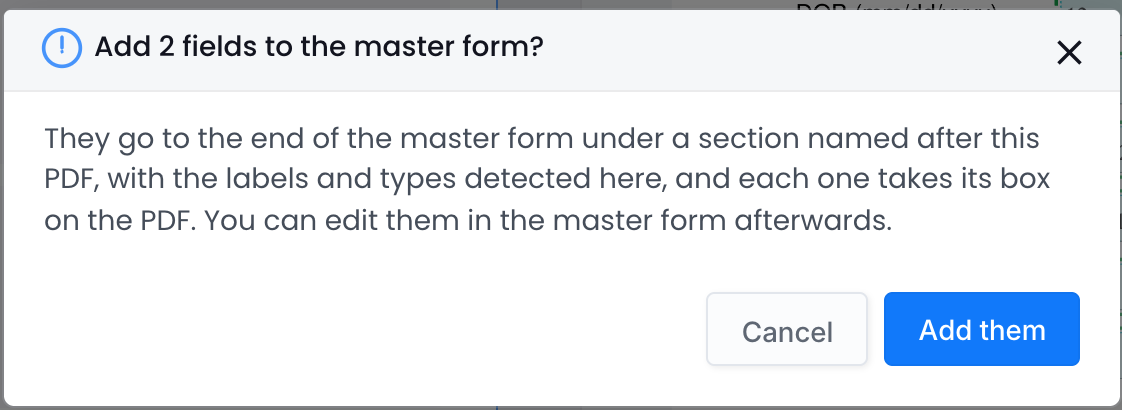
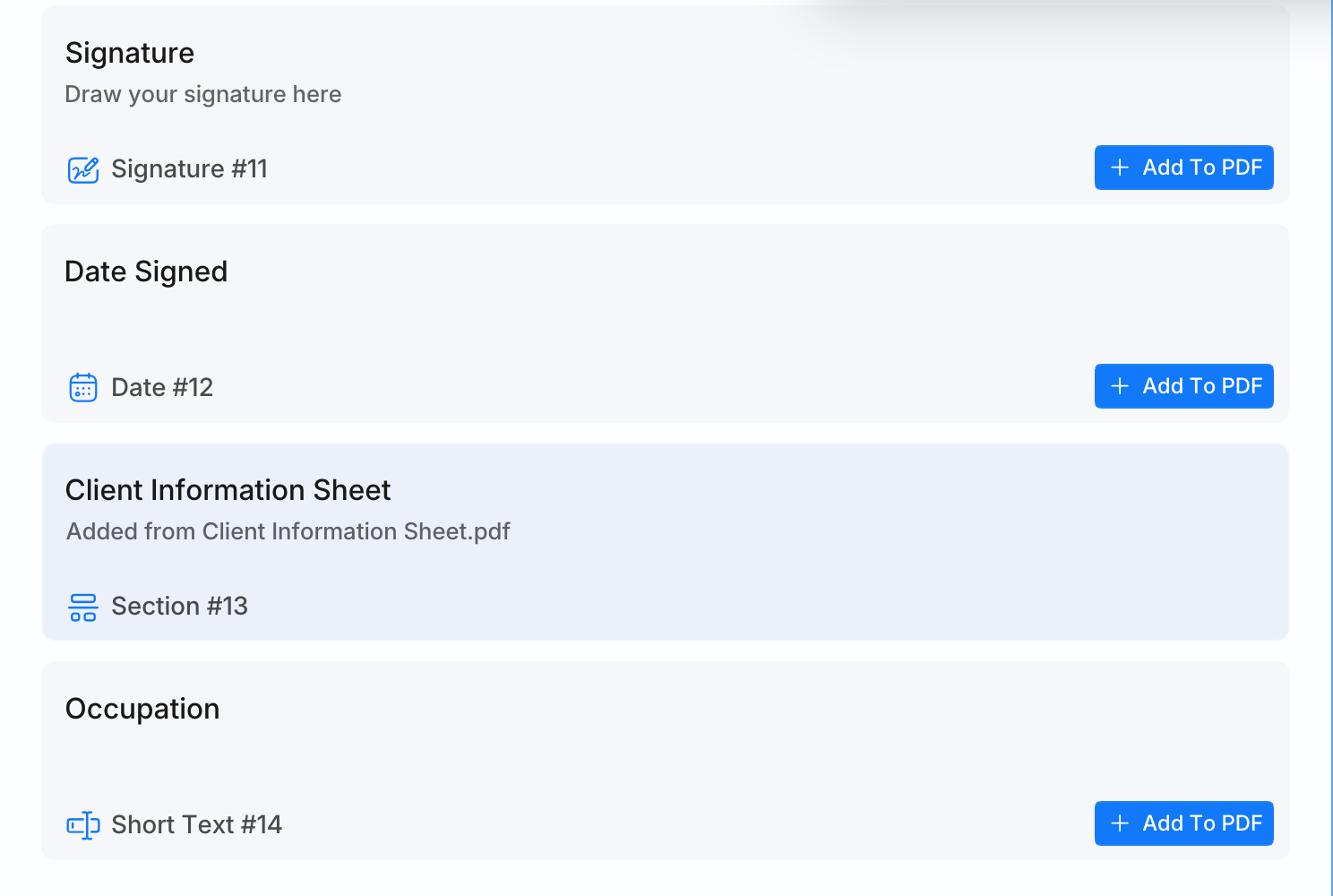
Fields you add go to the end of the Master Form, in a new section named after the PDF, with the help text “Added from” and the PDF’s name. The Master Form list on the left jumps to them so you can see them.
Fields added from a linked PDF only print on PDFs after you publish the Master Form again. Open the Master Form, adjust the new questions if needed (wording, required, help text, logic), and click Publish. Then publish the linked PDF.
The purple boxes are only a guide in the editor. They are never printed or published, and they stay until you link, add or discard them, for up to a day.
Match a flat or scanned PDF
When the PDF has no fillable fields, the bar says “No fillable fields in this PDF.”
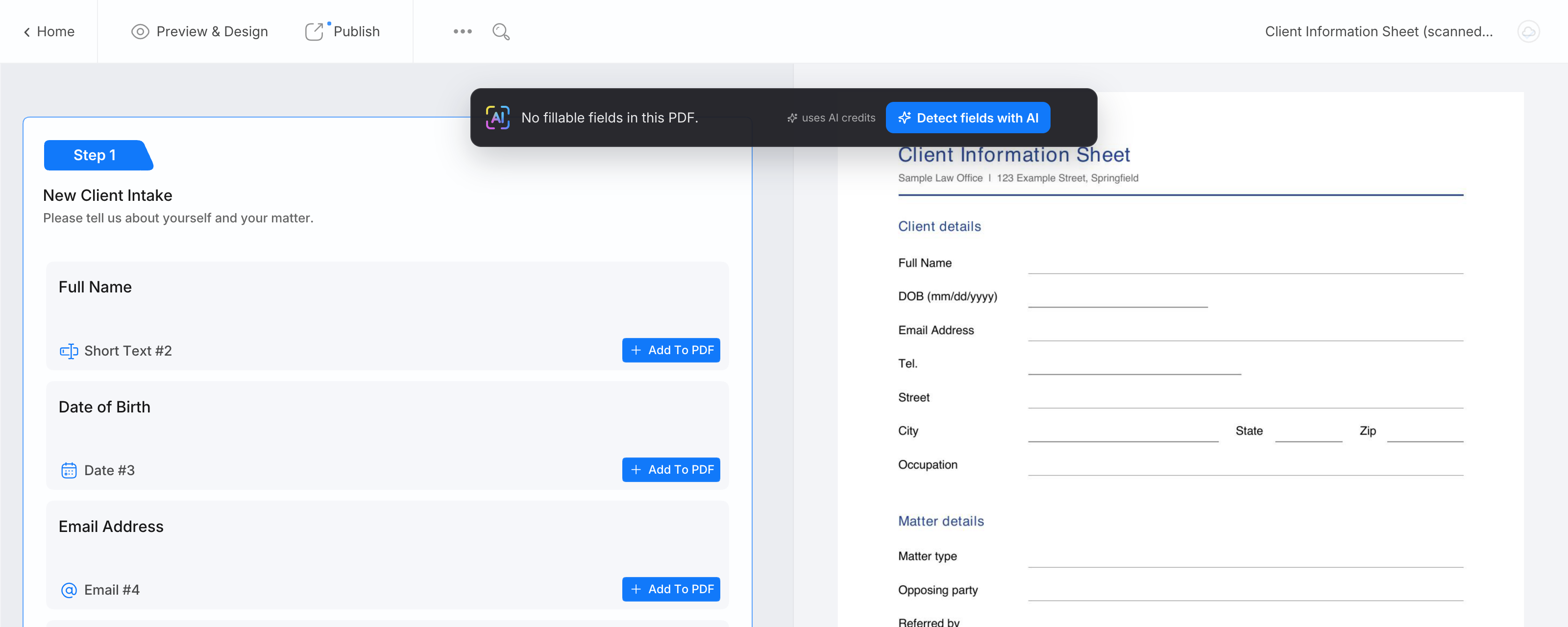
- Click Detect fields with AI and keep the editor open while it works. It reads the pages, finds the fields and then matches them to your Master Form.
- Review the highlighted fields and the purple boxes as described above.
- Publish the linked PDF.
Detection works the same way as in the PDF form builders, with the same page limit and the same AI credits per page. See Auto-detect PDF form fields with AI.
Run it again later
The AI bar opens by itself on a newly linked PDF and on a linked PDF that has no fields placed yet. To open it at any other time, click More > Detect fields with AI in the linked PDF’s editor.
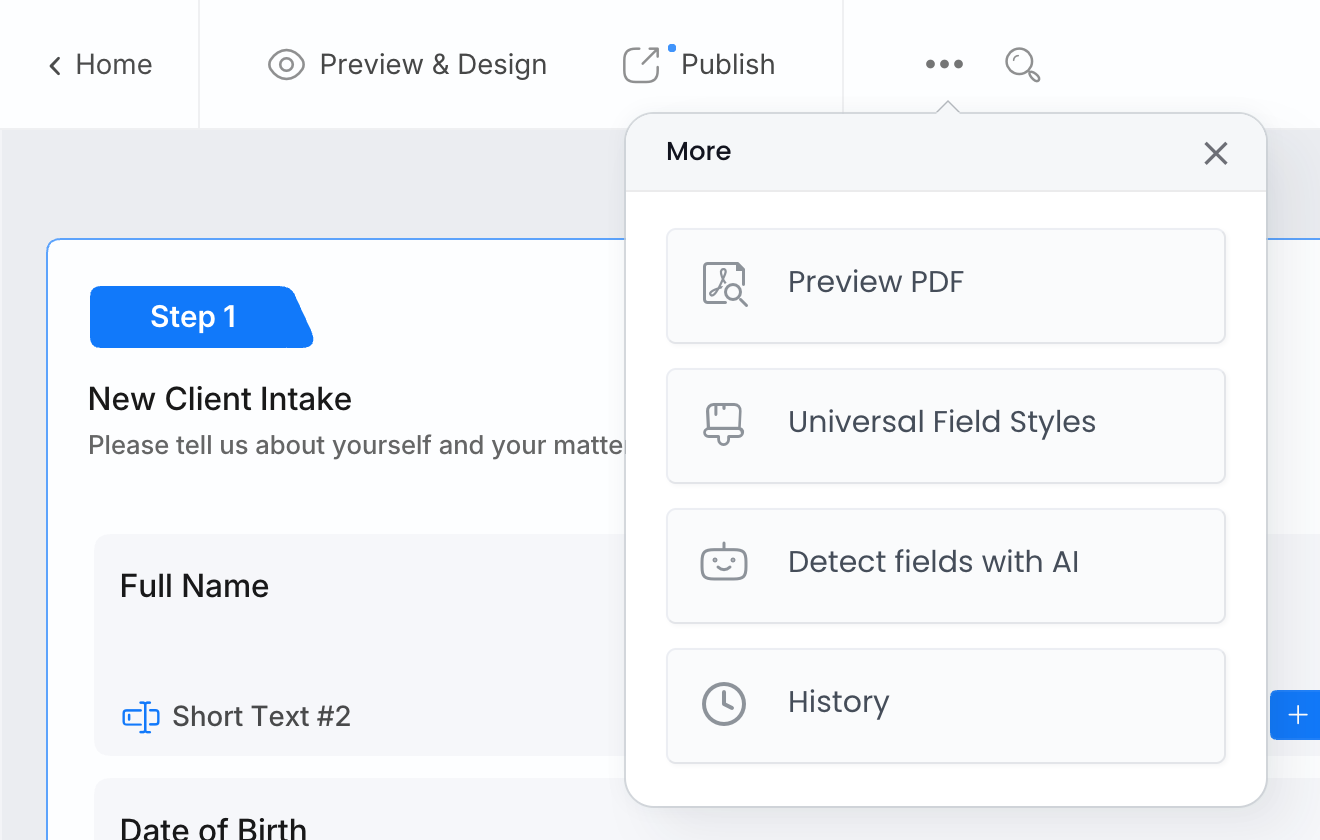
What the bar offers then depends on the PDF:
- Match again matches the fields found last time, without a new detection. Detect again runs a new detection.
- On a PDF with fillable fields that was never detected: Start Now! detects every field on the PDF and matches them, Match fillable fields only matches its fillable fields with AI without a detection.
- Otherwise: Start Now! detects and matches.
A new run only fills the gaps: a spot that already has a field is skipped, so nothing is placed twice.
Start from the PDF when the Master Form is empty
You can also build the Master Form’s questions from a PDF:
- Link the PDF to the Master Form and open it.
- On a PDF with fillable fields, click Outline them to link by hand (free). On a flat or scanned PDF, click Detect fields with AI; with no questions to match yet, the bar says the AI step failed and outlines every field, which is expected.
- Click any purple box, then Add all N unmatched fields to the master form.
- Open the Master Form, fix the questions (labels, types, required fields, order) and publish it. Then publish the linked PDF.
What uses AI credits
| Action | AI credits |
|---|---|
| Matching by name when the PDF opens, and as the first step of every run | Free |
| Outline them to link by hand | Free |
| Match the rest with AI, Match them with AI, Match again, Match fillable fields only | Yes, much less than a detection. Only the fields that did not match by name are sent to AI |
| Detect fields with AI, Start Now!, Detect with AI, Detect again | Yes, a detection per page as in Auto-detect PDF form fields with AI, plus the matching |
When your credits are used up, the bar says “You’ve reached your AI credit limit.” with Top up now. See AI credits.
Good to know
- AI matches Text Input fields (any type, including the lines of an Address), Choice, Dropdown and Signature. Place other fields, such as Photo, Table or Rating, by hand with Add To PDF.
- A Choice or Dropdown matched to a group of check boxes gets one box per option, each on its check box. On scanned PDFs, check the order of the options.
- A name or address that the PDF splits into several boxes (or combines into one) is not matched, so the answers do not end up in the wrong place. Link each box by hand or add the parts as separate questions.
- Linking a box by hand does not teach AI for the next PDF.
- Matching never publishes anything. Publish the linked PDF, and the Master Form if you added questions, when you are happy with the result.
Troubleshooting
- The AI bar is not there. It was closed, or the PDF already has fields. Click More > Detect fields with AI.
- A field with the same name was not placed when the PDF opened. The fields are of different kinds (for example a text box on the PDF and a choice in the Master Form), or the names differ in more than capital letters, spaces or punctuation. Use Match the rest with AI, or place the field by hand with Add To PDF.
- A field was placed on the wrong Master Form field. Delete it and drag the right Master Form field onto the spot, or click Undo on the bar right after the run.
- The green or amber highlight does not go away. It only shows in the editor and is never printed. Click Done or Close when the bar offers them; otherwise it goes by itself within a day.
- “The AI step failed, the rest are outlined for manual linking.” The fields that matched by name are placed. Link the purple boxes by hand, or run it again later from More > Detect fields with AI.
- A field added from a box prints nothing. Publish the Master Form, then the linked PDF.